Yet many users install applications without checking what those applications are allowed to access.
An app that needs a camera for video calls may reasonably require camera access. A simple utility that has no reason to use the camera should make you think twice.
Windows provides privacy controls that let you review and manage access to several types of personal information and hardware.
What Are Windows Privacy Settings?
Privacy settings control what Windows and installed applications can access on your computer.
Depending on your Windows version and configuration, permissions can cover features such as the camera, microphone, location, contacts, notifications and other forms of system access.
These settings are particularly useful when several people use the same laptop or when you install software from different sources.
Microsoft provides additional information about Windows privacy and permissions through Microsoft Support.
Camera Permissions
Video-calling applications commonly need access to the laptop camera.
Zoom, Microsoft Teams and other communication tools may request permission before using it.
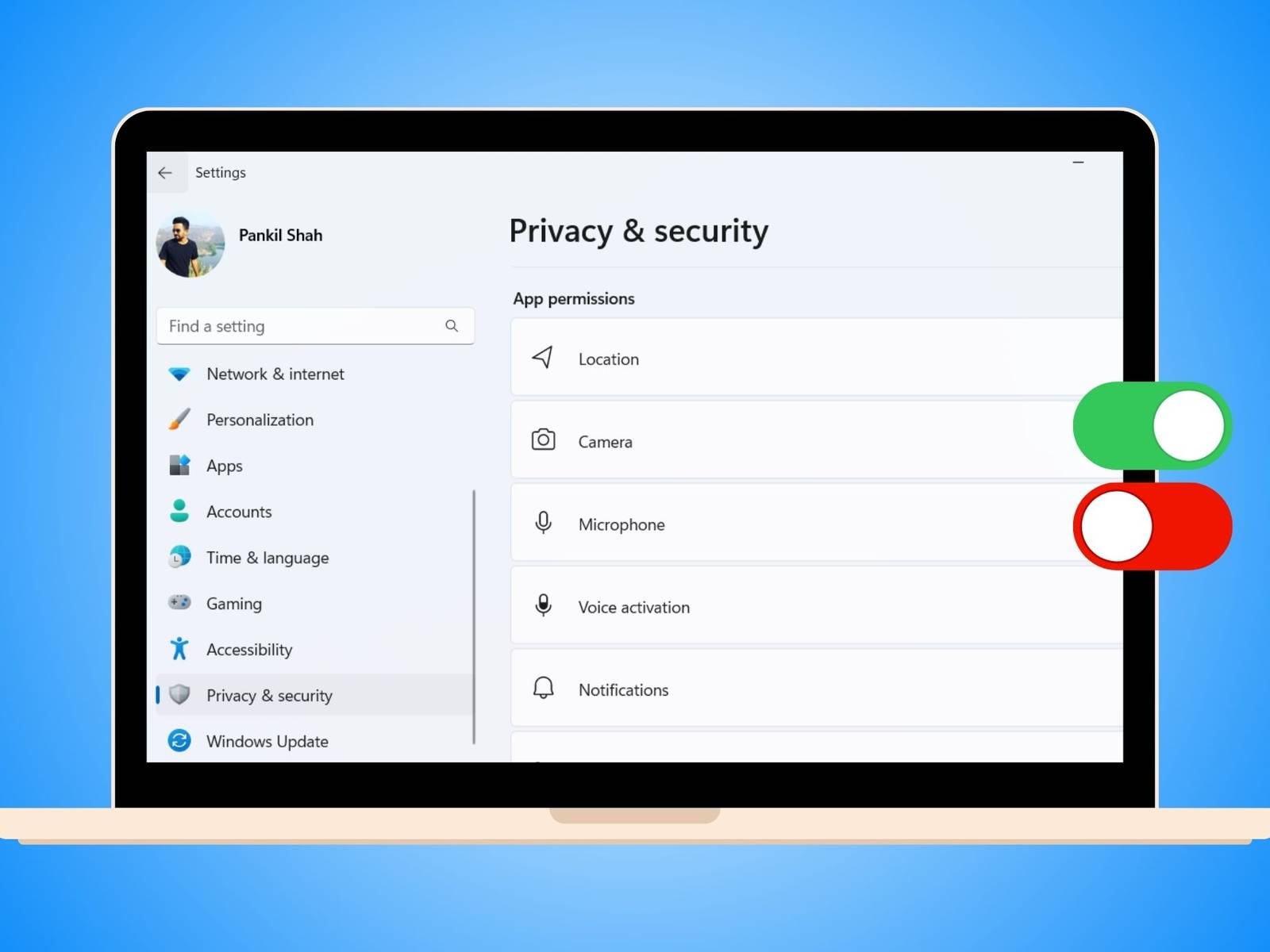
Windows allows you to control which applications can access the camera.
Open Settings → Privacy & security → Camera and review the available permissions.
If an application does not need video functionality, there may be little reason to allow it camera access.
Why You Should Check Camera Access
Camera permissions are easy to ignore because users often click “Allow” during software installation or the first launch.
Over time, several applications may accumulate permissions that are no longer necessary.
Reviewing them occasionally gives you a better idea of which programs can interact with the camera.
A physical webcam privacy shutter can provide another layer of protection on laptops that include one.
Microphone Permissions
Microphone access deserves the same attention as camera access.
Applications for meetings, recording, dictation and voice communication may need it.
Other programs may have no obvious reason to listen through the microphone.
Windows lets you review microphone access under its privacy settings and control which applications can use the device.
If your microphone suddenly stops working in an application, privacy permissions are also worth checking before assuming that the hardware is faulty.
Location Permissions
Some laptops can provide location information to Windows and applications.
Location access can be useful for maps, weather services and location-based features.
It may be unnecessary for applications that have no legitimate need to know where the computer is being used.
Review location permissions and decide which applications actually need this information.
Clipboard Access
The clipboard temporarily stores information that you copy and paste.
That might be ordinary text, an image, a web address or something much more sensitive such as a password or account number.
Modern operating systems have introduced additional controls and notifications around clipboard access because copied information can sometimes be sensitive.
Be careful when copying passwords or financial information, particularly when using unfamiliar applications.
Why Clipboard Privacy Matters
Imagine copying a password from a password manager and then opening an unrelated application.
If that application can access clipboard information, the copied data could potentially become visible to it depending on the operating system and permissions involved.
Using a reputable password manager and avoiding unnecessary clipboard exposure can reduce the risk.
App Permissions Matter More Than Most People Think
Installing software is effectively giving another program permission to operate on your computer within the limits imposed by Windows.
That does not mean every application is dangerous.
It does mean you should understand what you are installing and what access it requests.
Download applications from reputable sources and avoid suspicious installers that request permissions unrelated to their purpose.
Notifications and Privacy
Notifications can display information even when you are not actively using an application.
Messages, email previews and other alerts may appear on the lock screen.
That can become a privacy issue if you regularly use your laptop in an office, classroom or public environment.
Review notification settings and decide which applications should be allowed to display information when the computer is locked.
Account Privacy on a Shared Laptop
Sharing a laptop with family members or colleagues requires additional care.
Separate user accounts are preferable to allowing everyone to use one Windows account.
Individual accounts help keep documents, browser information and application settings separate.
Use strong passwords or another supported sign-in method for accounts containing private information.
Windows Hello and Privacy
Windows Hello can provide biometric or PIN-based sign-in options on compatible devices.
Depending on the hardware, that can include fingerprint recognition or facial recognition.
These features can make everyday sign-in more convenient while keeping the account protected behind a supported authentication method.
If you are buying a used laptop, test fingerprint readers and other biometric hardware rather than assuming they work simply because they are listed in the specifications.
Our laptop security features guide explains TPM, Secure Boot, Windows Hello and other security technologies in more detail.
Browser Permissions Are Also Important
Privacy does not stop at Windows settings.
Your web browser can also request access to the camera, microphone, location and notifications.
A website may ask for microphone access when you join an online meeting, for example.
Check browser permissions when a website requests access and remove permissions that are no longer needed.
Why Website Permissions Can Become a Problem
You may grant a website permission once and forget about it.
Months later, that permission may still exist in the browser.
Regularly reviewing site permissions is a simple way to reduce unnecessary access.
It is particularly useful if you regularly test websites, web applications and online services.
How to Review Privacy Settings on Windows
- Open Windows Settings.
- Go to Privacy & security.
- Review camera permissions.
- Review microphone permissions.
- Check location access.
- Review notifications and other available permissions.
- Remove access that is no longer necessary.
The exact options can vary depending on the Windows version and device configuration.
Privacy Settings vs Antivirus Software
Privacy controls and antivirus software solve different problems.
Antivirus and security software can help detect malicious software and suspicious activity.
Privacy settings let you control access granted to applications and system features.
Using one does not make the other unnecessary.
Privacy on a UK-Used Laptop
Used laptops require an additional privacy check because you do not know how the previous owner configured the machine.
A seller should normally provide a properly reset computer rather than handing over a machine that still contains another person’s Windows account or files.
Do not simply start using an unfamiliar Windows installation without checking the accounts and system state.
If you are buying a UK-used machine, our UK-used laptop inspection checklist covers other things to verify before payment.
Signs That You Should Investigate Further
- An unfamiliar application has camera access.
- An application requests microphone access without an obvious reason.
- Unknown programs appear after installing new software.
- The browser has many unfamiliar site permissions.
- Another person’s Windows account remains on a used laptop.
- Unexpected notifications appear from unfamiliar applications.
- Security software has been disabled without explanation.
None of these signs automatically proves that a computer has been compromised. They simply deserve investigation.
How to Improve Laptop Privacy
Install software carefully
Download applications from reputable sources and read permission requests before accepting them.
Review permissions regularly
Permissions that made sense six months ago may no longer be necessary.
Keep Windows updated
Security updates can address vulnerabilities affecting the operating system and its components.
Use separate accounts
Separate Windows accounts are preferable when multiple people use the same computer.
Protect the screen
Privacy is also about people physically viewing your information. Be careful when working with sensitive documents in public places.
Privacy Features Worth Checking When Buying a Laptop
| Feature | Why it matters | What to check |
|---|---|---|
| Webcam shutter | Provides physical camera coverage | Check that it opens and closes properly |
| Fingerprint reader | Convenient account authentication | Test the sensor |
| Windows Hello camera | Can support facial sign-in on compatible hardware | Confirm compatibility |
| Separate user accounts | Keeps users’ data more distinct | Configure accounts after purchase |
| Privacy controls | Manage app access to system features | Review Windows settings |
Privacy Does Not Mean Turning Everything Off
Disabling every permission is not always practical.
A video-conferencing application needs camera and microphone access if you want to make video calls.
A navigation application may need location access to provide location-based services.
The goal is not to block everything. Instead, give applications the access they actually need and avoid unnecessary permissions.
Final Buying Advice
Laptop privacy is not only about having antivirus software or a strong password.
Everyday privacy also depends on which applications can access your camera, microphone, location, clipboard and other information.
Windows provides useful controls for managing many of these permissions. Take a few minutes to review them after setting up a new laptop, particularly a used machine.
A good privacy habit is simple: install carefully, review permissions, keep the operating system updated and remove access that applications no longer need.
That small amount of maintenance can help keep your laptop and the information stored on it under your control.