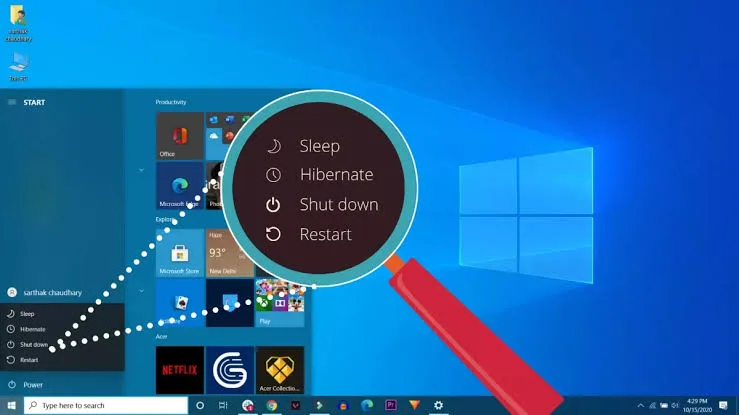
That convenience comes from Windows power states, but many users are not sure whether they should use Sleep, Hibernate, Shutdown or Restart.
These options are not interchangeable. Each one handles your open applications and system state differently.
Knowing when to use each option can make everyday laptop use easier and can also help when troubleshooting strange Windows problems.
What Happens When a Laptop Goes to Sleep?
Sleep puts the laptop into a low-power state while keeping your current session available for a quick return.
Open applications and documents remain available so you can normally continue working after waking the computer.
The laptop still uses some power during Sleep because the system needs to maintain the session.
That makes Sleep convenient when you are taking a short break or moving between locations.
When Should You Use Sleep?
Sleep is useful when you expect to return to the laptop relatively soon.
- Taking a short break
- Going to a meeting
- Moving from one room to another
- Stopping work for lunch
- Closing the laptop temporarily
You do not need to shut the machine down every time you step away for a few minutes.
What Is Hibernate?
Hibernate saves the current system state to storage and then powers the computer down much more completely than Sleep.
Because the session is stored on the drive, the laptop does not need to keep supplying power to RAM in the same way Sleep does.
When you resume from Hibernate, Windows can restore the previous session.
The process may take longer than waking from Sleep because the saved system state has to be restored.
Sleep vs Hibernate
| Feature | Sleep | Hibernate |
|---|---|---|
| Resume speed | Usually faster | Usually slower |
| Power consumption | Uses some power | Very low while hibernated |
| Session preserved | Yes | Yes |
| Useful for long periods away | Less suitable | More suitable |
Why Hibernate Can Be Useful on a Laptop
Imagine you finish work with several documents and applications open but do not want to leave the computer consuming battery overnight.
Hibernate can preserve the session while allowing the machine to use very little power while it is off.
This can be particularly useful when travelling or when you know the laptop will not be connected to a charger for several hours.
Users should still save important documents normally rather than treating Hibernate as a replacement for backups.
What Does Shutdown Do?
Shutdown closes the Windows session and turns the computer off.
It is the traditional option for ending a work session completely.
After a normal shutdown, Windows does not simply restore all the applications and windows you had open before.
Applications generally need to be opened again when you start working.
When Should You Shut Down a Laptop?
Shutdown makes sense when you will not use the laptop for an extended period.
- Leaving the laptop unused overnight
- Travelling for several days
- Storing the computer
- Preparing the laptop for servicing
- Ending a work session completely
It can also be useful when troubleshooting certain problems, although a Restart is often more appropriate for Windows-related issues.
Why Is Restart Different From Shutdown?
Restart closes the current Windows session and immediately starts Windows again.
That makes it especially useful after certain updates, driver changes and software installations.
Restarting can also clear temporary system states that survive a normal period of everyday use.
When Windows behaves strangely, a restart should often be one of the first simple troubleshooting steps.
Restart vs Shutdown
For everyday use, Shutdown and Restart may look almost identical because both end the current session.
Windows can use different startup behaviour depending on the configuration, though. Modern versions of Windows may use Fast Startup during a normal shutdown.
Restart is designed to perform a fuller restart of the Windows operating environment.
That is one reason technicians often ask users to restart the computer rather than simply shutting it down and switching it back on.
Why Does Restart Sometimes Fix a Problem?
Windows and applications create temporary system states while the computer is running.
A program may stop responding, a driver may behave unexpectedly or a service may fail to operate correctly.
Restarting closes the current Windows session and reloads system components.
It does not fix every problem, but it can eliminate temporary software states without requiring more complicated troubleshooting.
Does Closing the Laptop Always Put It to Sleep?
No.
Windows allows users to configure what happens when the laptop lid is closed.
Depending on the settings, closing the lid can put the computer to Sleep, Hibernate, shut it down or leave it running.
This setting matters when carrying a laptop in a bag because a machine that remains running can become hot and consume battery power.
Why You Should Be Careful With a Running Laptop in a Bag
A laptop inside a bag has very limited airflow.
If the computer remains active and generates heat, the restricted airflow can prevent it from cooling properly.
That is why it is worth confirming the lid-close behaviour before putting a laptop into a backpack or laptop bag.
Our guide on laptop airflow and overheating explains why ventilation matters in everyday use.
What Happens to Unsaved Work?
Sleep, Hibernate, Shutdown and Restart should not be treated as substitutes for saving your work.
Applications can behave differently when the system state changes, and unexpected power loss can still cause problems.
Save important documents before ending a session.
Cloud applications may save automatically, but automatic saving should not be your only protection for important files.
Does Sleep Drain Battery?
Yes, Sleep can still consume battery power.
The amount depends on the laptop and its configuration.
Some modern systems can enter deeper low-power states, while others may continue performing limited background activity.
If you leave the laptop unused for many hours, Hibernate or Shutdown can reduce unnecessary battery consumption.
Why Does My Laptop Lose Battery While Sleeping?
Battery loss during Sleep can have several causes.
- The laptop remains in a relatively active sleep state.
- Connected devices continue drawing power.
- Background activity occurs.
- The battery itself has degraded.
- Modern standby behaviour differs from traditional sleep.
If the battery drops dramatically while the laptop is supposedly sleeping, investigate the power settings and battery health instead of assuming that all Sleep modes behave identically.
For buyers considering used machines, our UK-used laptop inspection checklist includes other important checks before purchase.
Modern Standby vs Traditional Sleep
Some newer Windows laptops use Modern Standby rather than the traditional sleep behaviour found on older machines.
Modern Standby is designed to provide a connected low-power experience on supported hardware.
The exact behaviour can vary significantly between devices.
As a result, two laptops can both display a Sleep option while behaving differently when the lid is closed.
How to Check Your Laptop’s Sleep Options
Open Settings → System → Power & battery to review available power settings.
Additional options can also be found through Windows’ power management controls.
Available settings depend on the laptop hardware, Windows version and power configuration.
Which Option Should You Use?
| Situation | Useful option |
|---|---|
| Short break | Sleep |
| Lunch break | Sleep |
| Several hours away | Hibernate or Shutdown |
| Finished working for the day | Shutdown or Hibernate |
| Windows is behaving strangely | Restart |
| Installing certain updates | Restart when Windows requests it |
| Putting laptop into a bag | Hibernate or Shutdown |
| Storing laptop for an extended period | Shutdown |
Does Restarting Every Day Hurt a Laptop?
Normal restarting is not something you need to fear.
Modern laptops are designed to start and stop regularly.
You do not need to restart the machine constantly, but restarting when Windows requests it or when you encounter temporary software problems is perfectly normal.
Should You Shut Down Your Laptop Every Night?
There is no universal requirement to shut down a modern laptop every night.
If Sleep works correctly and the computer remains connected to power, leaving it in Sleep may be convenient.
Hibernate or Shutdown can make more sense if battery consumption during the night is a concern.
Your usage pattern matters more than following a rigid rule.
What About a Laptop That Freezes?
If Windows freezes, start with normal troubleshooting whenever possible.
Try waiting briefly, checking whether an application is responsible and using supported Windows recovery options.
Forced power-off should generally be a last resort because abruptly cutting power can result in lost work or other problems.
If freezing happens repeatedly, investigate the underlying cause rather than repeatedly forcing the laptop off.
Common Power-State Mistakes
Using Sleep for several days
Sleep is designed for low-power use, but it still consumes energy and is not the same as completely powering down the machine.
Putting a running laptop inside a bag
Restricted airflow can create unnecessary heat.
Restarting instead of saving work
A restart ends the current session. Save important documents first.
Assuming every laptop handles Sleep identically
Hardware and Windows configurations can produce different sleep behaviour.
Forcing shutdown whenever Windows becomes slow
A normal Restart is usually a better first troubleshooting step.
Final Advice
Sleep is mainly about convenience. Hibernate is useful when you want to preserve your session while using very little power. Shutdown ends the work session, while Restart reloads Windows and is particularly useful for troubleshooting and system changes.
None of these options is automatically the right choice for every situation.
Use Sleep when you are stepping away briefly. Consider Hibernate or Shutdown when the laptop will sit unused for a long time. Choose Restart when Windows needs a fresh session or starts behaving unusually.
Understanding these simple power options can save battery, prevent unnecessary heat and make everyday laptop use much less frustrating.