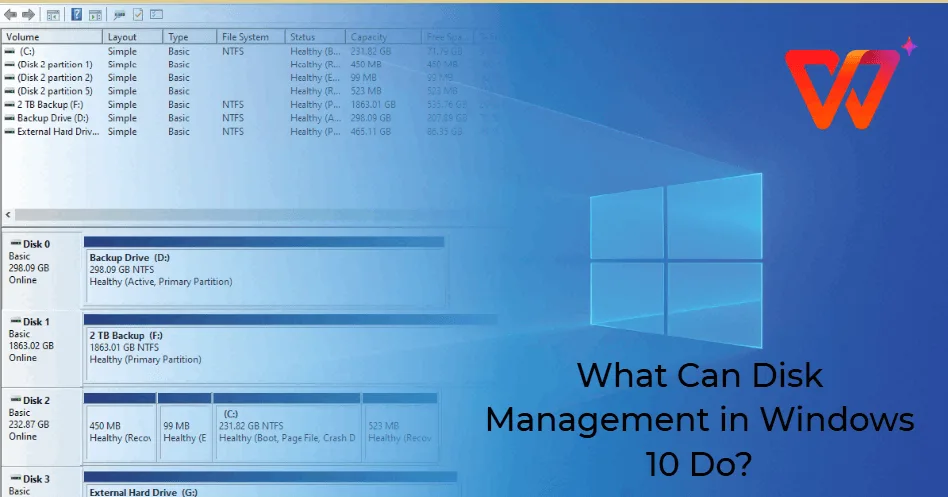
You connect a new SSD to your laptop, but it does not appear in File Explorer. Perhaps your computer shows a C: drive and a D: drive, and you are unsure whether they represent two physical drives. You might even see a message asking you to initialise a disk before Windows can use it.
These situations are common, and Windows includes a built-in utility that can help you investigate them. Disk Management lets you view storage devices, inspect partitions, assign drive letters, and perform certain storage operations.
However, some options can erase data or make a drive inaccessible if you use them incorrectly. This guide explains how Disk Management works, when to use it, and what to check before changing your laptop’s storage configuration.
What Is Windows Disk Management?
Disk Management is a Windows utility for viewing and managing storage disks and their volumes. It provides a graphical representation of how Windows recognises a drive and how its storage space has been allocated.
You can use it to investigate an external drive that is not appearing in File Explorer, check whether a volume has a drive letter, inspect unallocated space, and manage certain partitions.
Disk Management does not replace every storage repair tool. For example, it cannot fix a physically failing SSD, and changing a partition layout will not necessarily improve a laptop’s performance.
How to Open Disk Management
There are several ways to open the utility in Windows 10 and Windows 11.
- Press Windows + X on your keyboard.
- Select Disk Management from the menu if the option is available.
- Alternatively, press Windows + R.
- Type
diskmgmt.mscand press Enter. - Approve any permission prompt if Windows displays one.
Wait for the window to load. The upper section lists volumes and their details, while the lower section shows physical disks and the partitions associated with them.
Understanding Disks, Partitions and Volumes
Disk Management uses several terms that sound similar but describe different things.
| Term | Meaning | Example |
|---|---|---|
| Physical disk | The actual storage device recognised by Windows | An internal SSD or an external hard drive |
| Partition | A defined section of a disk’s storage space | A partition reserved for Windows or personal data |
| Volume | A storage area Windows can use and manage as a logical unit | A formatted NTFS volume used for documents |
| Drive letter | A letter Windows uses to identify an accessible volume | C: or D: |
| File system | The structure used to organise and access files | NTFS, exFAT or FAT32 |
A single physical SSD can contain several partitions and volumes. Therefore, seeing C: and D: does not automatically mean your laptop contains two separate physical drives.
Likewise, two partitions on the same SSD do not provide the same protection as keeping a backup on a separate device. If the physical drive fails, both partitions may become inaccessible.
What Do the Different Disk Statuses Mean?
When you inspect a disk, Windows may display status labels that indicate how its storage space is currently configured.
Healthy
A volume marked Healthy is recognised as being in a normal configuration from Windows’ perspective. This label does not guarantee that the physical drive is free from developing hardware faults.
Unallocated
Unallocated space is storage that is not currently assigned to a partition or volume. It may appear after you add a new disk or change an existing partition layout.
If the space belongs to a new, empty drive, you may be able to create a volume. However, if the disk previously contained files, do not create a new volume or format it until you understand why its previous partitions are missing.
Not Initialised
Windows may display this status when it cannot find a recognised partitioning structure on a disk. A new, empty drive may need initialisation before you create a volume.
On the other hand, a previously used drive can show this status because of partition-table damage, connection problems, or other issues. Initialising it without investigation may complicate recovery.
Offline
An offline disk is not currently available for normal use by Windows. The reason can depend on the disk configuration and system environment. Investigate the disk’s status and any relevant error messages before bringing it online.
Why a New SSD or External Drive May Not Appear in File Explorer
Suppose you purchase a new SSD enclosure or connect an external hard drive, but no new drive appears under This PC. The device may be connected but not yet configured for use.
Start with these checks:
- Confirm that the cable and USB port work properly.
- Try a different compatible cable or port if possible.
- Open Disk Management and check whether Windows recognises the disk.
- Look for a volume without a drive letter.
- Check whether the disk appears as unallocated or not initialised.
- Investigate any warning messages before making changes.
If the device does not appear in Disk Management at all, check the physical connection, enclosure compatibility, USB power requirements, and whether Windows recognises the device through its hardware-management tools.
For more guidance on identifying missing or malfunctioning devices, read our Windows Device Manager guide.
How to Assign a Drive Letter
A volume may exist without a drive letter, which can prevent it from appearing normally in File Explorer. If the volume contains an accessible file system and Windows permits the change, assigning a letter may solve the problem.
- Open Disk Management.
- Locate the relevant volume.
- Right-click the volume and select Change Drive Letter and Paths.
- Select Add if no letter is assigned, or Change if you need to replace an existing letter.
- Choose an available letter and confirm the operation.
Only assign a letter to the correct volume. Some system partitions are intentionally hidden, and you should not expose or modify them without a specific reason.
How to Create a New Volume from Unallocated Space
If you have confirmed that the unallocated space is genuinely unused and does not contain data you need to recover, you can create a volume from it.
- Open Disk Management.
- Locate the correct disk and its unallocated space.
- Right-click the unallocated area.
- Select New Simple Volume if the option is available.
- Follow the wizard to choose the volume size and drive letter.
- Select an appropriate file system and formatting options when prompted.
- Review your selections carefully before completing the operation.
For a typical Windows data drive, NTFS is a common choice. If you need to share a drive between Windows and other supported devices, exFAT may be more suitable, depending on compatibility requirements.
Creating and formatting a volume can affect existing data if you select the wrong area. Stop if you are unsure whether the space is safe to use.
What Does Formatting a Drive Do?
Formatting prepares a volume to store files using a selected file system. Depending on the operation, it creates or replaces file-system structures that Windows uses to organise data.
Formatting is useful when preparing a new storage device or repurposing an existing drive whose contents you no longer need. However, it is not a harmless troubleshooting step.
Before formatting a drive:
- Confirm that you selected the correct disk and volume.
- Copy any important files to a separate, verified location.
- Check whether the drive contains recovery files or system partitions.
- Confirm that the file system suits your intended use.
- Do not format a drive simply because Windows cannot read it.
If the drive contains important files and suddenly becomes unreadable, stop writing to it and investigate the cause first. Further changes can make data recovery more difficult.
Can You Extend or Shrink a Partition?
Disk Management includes options for shrinking or extending certain volumes. These tools can help you reorganise storage when your existing layout permits the changes.
Shrinking a Volume
Shrinking reduces a volume’s size to create unallocated space. Windows may limit how much you can shrink a volume because of files or file-system structures that cannot easily be moved.
If Windows offers less shrinkable space than expected, do not assume that the SSD is defective. The restriction may relate to the volume’s current contents or configuration.
Extending a Volume
Extending increases a volume’s size by using available unallocated space when the disk layout supports the operation. On a basic disk, the necessary space generally needs to be positioned immediately after the volume being extended on the same disk.
If the unallocated space is separated by another partition, the Extend Volume option may be unavailable. Disk Management cannot automatically rearrange every partition layout to make space contiguous.
Before shrinking, extending, or moving partitions, back up important data. Changing the layout of a system disk can introduce additional complications if the wrong partition is selected.
What Are EFI, Recovery and Other Hidden Partitions?
A Windows laptop may contain partitions that do not appear as ordinary drives in File Explorer. Some support the computer’s startup process, while others contain Windows recovery tools or other system-related data.
Common examples include:
- EFI System Partition: Contains files used by UEFI-based startup processes.
- Recovery partition: May contain Windows recovery components or tools.
- Microsoft Reserved partition: Used on certain GPT-partitioned disks.
- Windows partition: Commonly contains the operating system and installed applications.
These partitions can be important even when they have no drive letter. Deleting or formatting them without understanding their purpose may prevent Windows from starting or interfere with recovery features.
If you are not certain what a small partition does, leave it unchanged and seek reliable, model-appropriate guidance before making modifications.
GPT vs MBR: Which Partition Style Should You Use?
When initialising a disk, Windows may offer a choice between GUID Partition Table (GPT) and Master Boot Record (MBR). These are different partitioning schemes.
| Feature | GPT | MBR |
|---|---|---|
| Typical use | Modern Windows systems using UEFI | Older systems and compatibility scenarios |
| Partition capacity limits | Supports large disks beyond traditional MBR limits | Has a traditional addressable disk-size limit of about 2 TiB with standard sector sizes |
| Partition arrangement | Supports many partitions, subject to operating-system and implementation limits | Typically supports four primary partition entries, or an extended partition arrangement |
| Compatibility | Appropriate for most modern Windows system disks | May be needed for certain legacy systems or specific compatibility requirements |
For a new data drive used with a modern Windows laptop, GPT is generally a sensible choice. However, do not convert a disk containing important data simply to change its label. The appropriate method depends on the disk’s current layout, operating system, and intended use.
What to Do When Disk Management Shows Errors
Disk Management can show you how Windows sees a drive, but it cannot always determine why the problem occurred. If a volume suddenly becomes inaccessible, consider these steps before attempting a repair.
- Record the exact status and error message.
- Check the cable, USB port, or storage connection if the device is external.
- Restart Windows if doing so is safe and the drive is not showing signs of physical failure.
- Check whether the drive is recognised elsewhere, if you have a compatible device available.
- Look for additional hardware or system information in Windows diagnostic tools.
- Back up accessible files before attempting changes to the partition layout.
Do not repeatedly format, initialise, or repartition a disk that contains valuable files. If the drive clicks, disconnects repeatedly, reports serious errors, or becomes unusually slow, stop unnecessary testing and consider professional data-recovery advice.
For general file protection, see our guide to Windows Backup and System Restore. Keeping a verified backup is much safer than relying on a partition-management tool to recover missing data.
Does Partitioning Make a Laptop Faster?
Creating additional partitions does not automatically improve laptop speed. Partitioning mainly changes how storage space is organised and presented to Windows.
For example, separating Windows and personal files into different partitions may suit a particular organisational preference. Nevertheless, those partitions can still share the same physical SSD, controller, and underlying hardware.
If your laptop is slow, investigate the actual cause rather than creating new partitions in the hope of improving performance. Running out of memory, excessive background applications, software issues, overheating, and storage faults can all affect the user experience.
Before considering an upgrade, read our explanation of laptop SSD types to understand the differences between common storage technologies.
Final Thoughts
Windows Disk Management is useful for inspecting drives, understanding partitions, assigning drive letters, and preparing genuinely unused storage space. Its most important limitation is that the wrong operation can affect files or prevent a system from starting correctly.
Before making changes, identify the correct physical disk, read its status carefully, and back up important files. If a previously used drive suddenly appears unallocated or uninitialised, investigate before attempting to make it usable again.
If you are shopping for a laptop for school, office work, or technical projects, consider storage capacity, upgradeability, and the condition of the installed drive alongside the other specifications. PSERO LAPTOP can help you compare suitable options for your needs and budget.