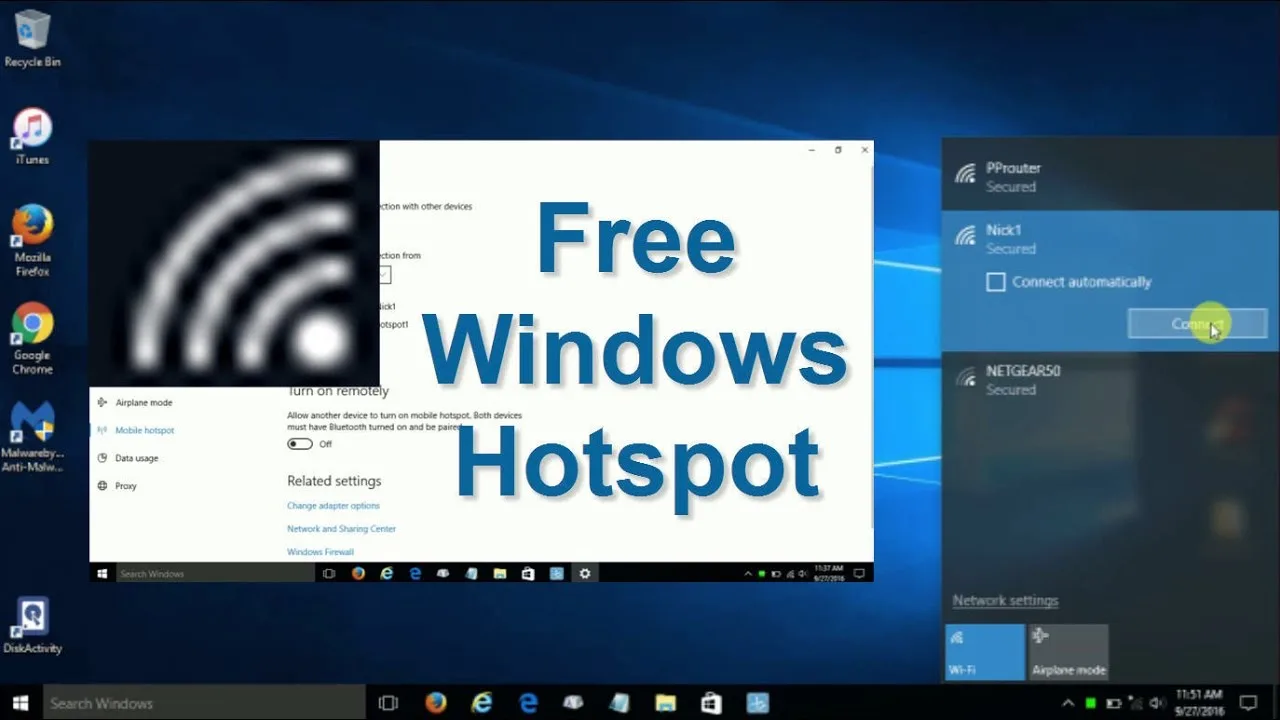
Your phone needs an internet connection, but your laptop is already connected to a network. Perhaps you are working from a café, attending an online class, or trying to connect another device while travelling. Instead of setting up a separate wireless router, you may be able to share your laptop’s connection directly.
Windows includes a feature called Mobile Hotspot that allows a compatible laptop to share its internet connection with other devices. It can be useful for students, remote workers, freelancers, and business owners who need to connect several devices without carrying additional networking equipment.
This guide explains how to configure Mobile Hotspot, which connections you can share, how to troubleshoot common problems, and how to avoid unnecessary data consumption.

What Is Windows Mobile Hotspot?
Mobile Hotspot allows your Windows laptop to share an available internet connection with other devices over Wi-Fi. Depending on your laptop’s hardware, drivers, and Windows configuration, you may also have other sharing options.
For example, your laptop could receive internet through Ethernet and share it with a phone over Wi-Fi. Some compatible laptops can also share a Wi-Fi connection with other wireless devices.
The laptop acts as a connection-sharing point. However, the feature does not create an internet connection from nothing. Your laptop must already have working internet access through a supported source.
What You Need Before Setting Up a Hotspot
Before enabling the feature, check the following requirements:
- A Windows laptop with Mobile Hotspot available.
- A working internet connection, such as Wi-Fi or Ethernet.
- A compatible wireless adapter and appropriate drivers if sharing over Wi-Fi.
- At least one phone, tablet, or computer that can connect to the hotspot.
- A suitable data plan if the original connection has usage limits.
If you are using mobile broadband through a USB modem or another connection method, the available sharing options may depend on the modem software and Windows configuration.
How to Turn On Mobile Hotspot in Windows 11
Windows 11 provides Mobile Hotspot through the Settings application. The exact labels may differ slightly depending on your Windows version.
- Open the Start menu and select Settings.
- Select Network & internet.
- Choose Mobile hotspot.
- Find the option for sharing your internet connection from.
- Select the connection you want to share.
- Choose Wi-Fi as the sharing method if it is available.
- Open the properties or Edit option to review the network name and password.
- Save your settings and switch Mobile hotspot on.
Once the hotspot is active, use the other device’s Wi-Fi menu to find the network name, select it, and enter the password.
If Mobile Hotspot is missing or unavailable, update your understanding of the problem before installing random networking utilities. The feature may be affected by the Windows edition, wireless adapter, driver, or system configuration.
How to Set Up a Mobile Hotspot in Windows 10
Windows 10 also includes Mobile Hotspot on supported systems. The menu may look different from the Windows 11 interface, but the main process is similar.
- Open Settings.
- Select Network & Internet.
- Choose Mobile hotspot from the left-hand menu.
- Select the internet connection to share.
- Open Edit to review the hotspot network name and password.
- Save the settings and enable the hotspot.
Keep in mind that Windows 10 reached the end of standard support on October 14, 2025. If your laptop still runs Windows 10, consider the security implications and available support options. Microsoft explains the situation in its official Windows support resources.
How to Connect Your Phone to the Laptop Hotspot
After enabling Mobile Hotspot, connecting your phone is similar to joining an ordinary Wi-Fi network.
- Open Settings on your phone.
- Choose Wi-Fi or the wireless network menu.
- Find the network name displayed in your laptop’s hotspot settings.
- Tap the network.
- Enter the hotspot password.
- Wait for the phone to connect, then test a website or application.
If the phone connects but cannot load websites, the issue may be with the laptop’s original internet connection rather than the Wi-Fi link between the two devices.
Can You Share Wi-Fi Through Wi-Fi?
In many cases, yes. Supported Windows laptops can share an existing Wi-Fi connection through Mobile Hotspot. However, the exact behaviour depends on the wireless adapter, its driver, and the system configuration.
Some adapters handle connection sharing more reliably than others. If the option is unavailable or fails repeatedly, check for compatible driver updates from Windows Update or the laptop manufacturer’s official support website.
Do not assume that every laptop supports every hotspot configuration simply because it has Wi-Fi. The ability to connect to a wireless network and the ability to share that connection are related but different capabilities.
How to Change Your Hotspot Name and Password
Windows allows you to customise the hotspot’s network name and password through its Mobile Hotspot settings.
- Open Settings and navigate to Network & internet.
- Select Mobile hotspot.
- Open the Edit option or hotspot properties.
- Enter a recognisable network name.
- Set a strong password that other people cannot easily guess.
- Save the changes.
Avoid passwords based on your phone number, date of birth, or a simple sequence of numbers. Anyone who obtains the password may be able to use your shared connection while the hotspot remains accessible.
Only share the password with people you trust, and switch the hotspot off when you no longer need it.
Why Your Laptop Hotspot May Not Work
Mobile Hotspot can fail for several reasons. The following checks help you narrow down the issue without immediately resetting your network settings.
1. The Mobile Hotspot Switch Will Not Turn On
Check whether your laptop’s Wi-Fi adapter is enabled and whether Windows recognises it correctly. Restarting the computer may help after a temporary network issue.
If the wireless adapter is missing or showing an error, inspect Device Manager and check the driver’s status. Our guide to laptop drivers and safe updates explains how to approach driver problems.
2. Your Phone Cannot Find the Hotspot
Confirm that Mobile Hotspot is switched on and that the sharing method is set to Wi-Fi. Move the phone closer to the laptop and refresh the available networks list.
If the hotspot remains invisible, check whether the wireless adapter and driver support the selected configuration. Changing the available band or compatibility option, if Windows provides one, may also help.
3. Your Phone Connects but Has No Internet
First, check whether the laptop itself can open websites. If the laptop has lost internet access, sharing its connection will not restore it.
If the laptop works normally, switch Mobile Hotspot off and back on, then reconnect the phone. You can also disconnect and reconnect the laptop’s original network connection.
For more advanced problems, use the checks described in our laptop network troubleshooting guide.
4. The Hotspot Keeps Disconnecting
Intermittent disconnections may result from power-management settings, wireless interference, driver issues, or an unstable source connection.
Test the hotspot with the laptop connected to power and positioned close to the receiving device. If the problem disappears, investigate power management or signal conditions before making broader changes to Windows.
Does Using a Laptop Hotspot Consume More Data?
Sharing an internet connection can increase data consumption because more than one device may now use the same connection. The laptop’s original data allowance does not automatically increase when you enable Mobile Hotspot.
For example, your phone might download application updates, synchronise photographs, stream videos, or back up files while connected to the laptop’s hotspot. These activities can use substantial data without requiring much attention from you.
To control usage, consider the following steps:
- Set the receiving device’s connection as metered where supported.
- Pause large downloads and operating-system updates when they are not urgent.
- Disable automatic cloud uploads on devices with limited data allowances.
- Monitor your usage through Windows or your internet provider’s account tools.
- Disconnect devices that no longer need access.
On Windows, you can review supported data-usage information under Settings and Network & internet. The available details depend on your Windows version and connection type.
Is a Laptop Hotspot Secure?
A properly configured hotspot is more secure than leaving an openly accessible wireless network available to nearby devices. Nevertheless, connection sharing introduces additional access points that you should manage carefully.
- Use a strong, unique hotspot password.
- Avoid sharing your password publicly.
- Turn off the hotspot when you finish using it.
- Keep Windows and your wireless drivers updated.
- Do not assume that a hotspot makes an untrusted public internet connection safe.
- Use HTTPS websites and trusted applications when accessing sensitive accounts.
For further guidance on keeping your computer protected, review CISA’s cybersecurity guidance. Remember that a hotspot only shares connectivity; it does not automatically protect every device connected to it from online threats.
Will Using Mobile Hotspot Drain Your Laptop Battery?
Wireless networking consumes power, and sharing a connection can add to that workload. The impact varies with the laptop’s hardware, the number of connected devices, the amount of traffic, and the original connection type.
If you plan to share internet for an extended period, connect your laptop to a suitable charger when practical. Avoid covering the ventilation openings, especially when the laptop is already warm or running demanding applications.
For guidance on managing power use, see our laptop performance modes guide.
When Should You Use a Dedicated Mobile Router Instead?
Windows Mobile Hotspot is convenient for occasional sharing, but a dedicated mobile router may be more appropriate if several people need a connection throughout the day.
A separate router can be useful when you need a device dedicated to networking, want to keep your laptop free for work, or regularly connect multiple phones and computers. However, it requires compatible hardware, a suitable data plan, and its own power supply or battery.
For occasional use, the laptop’s built-in feature may be enough. For frequent travel or a small team that relies on continuous connectivity, compare the total cost and practical limitations of both approaches.
Final Thoughts
Windows Mobile Hotspot is a useful feature when you need to share an existing internet connection with another device. With the right hardware and configuration, it can help you connect a phone, tablet, or second laptop without purchasing a separate router.
Start by confirming that your laptop has working internet access, enable Mobile Hotspot in Settings, and protect the network with a strong password. If something goes wrong, investigate the adapter, connection source, and driver before attempting complicated network repairs.
If you need a laptop for remote work, online classes, or business, consider wireless compatibility alongside performance, storage, and battery requirements. PSERO LAPTOP can help you explore suitable laptop options for your needs and budget.