Imagine working on a laptop with your browser, WhatsApp, Word, Excel, email and several research tabs open at the same time. After a while, finding the window you actually need becomes almost as difficult as doing the work itself.
Windows Virtual Desktops offer a simple way to organize that mess. Instead of putting every application on one desktop, you can create separate workspaces and move between them.

What Is a Virtual Desktop?
A virtual desktop is an additional Windows workspace that lets you organize open applications separately from your main desktop.
Your laptop does not need a second physical monitor. Windows creates another workspace within the same screen, allowing you to separate different activities.
For instance, one desktop could contain your work applications while another holds personal browsing and entertainment.
How to Create a Virtual Desktop
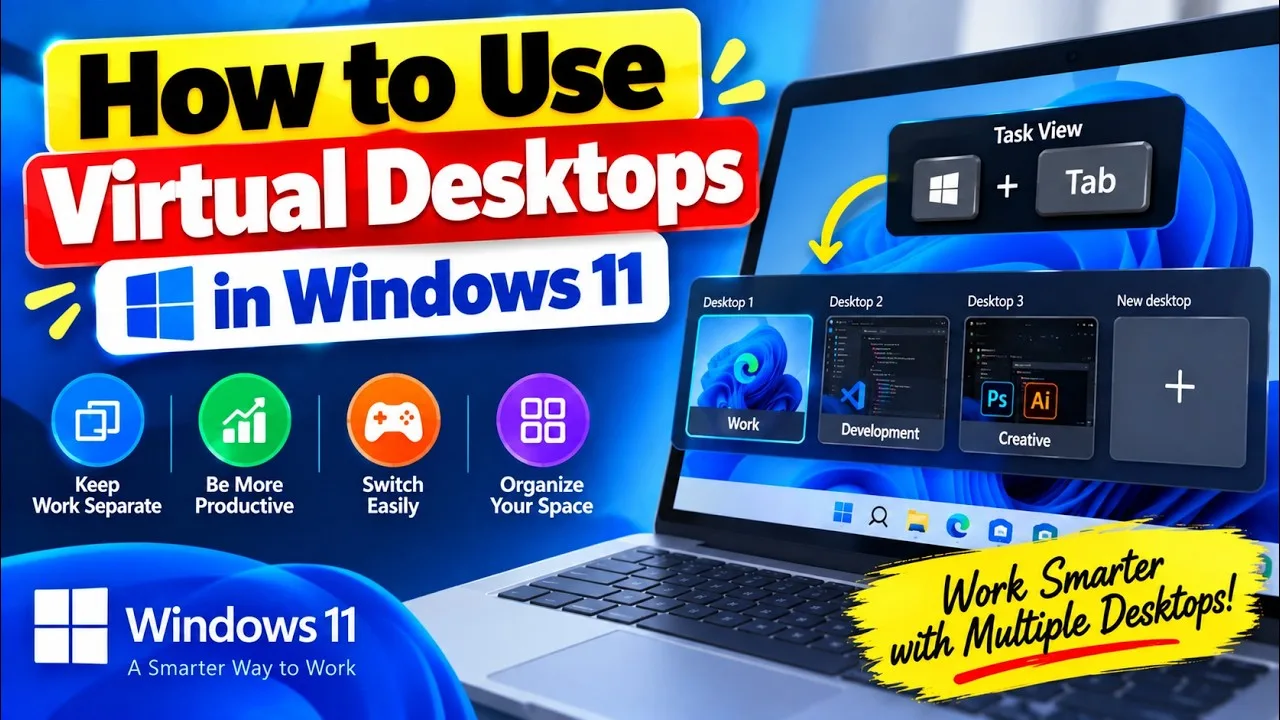
The quickest method uses the Windows + Tab keyboard shortcut.
Windows will open Task View, where you can see your current desktop and any open windows. Select New desktop to create another workspace.
You can then switch between the desktops from Task View.
Another useful shortcut is Windows + Ctrl + D, which creates a new virtual desktop immediately.
How to Switch Between Virtual Desktops
You do not have to open Task View every time you want to change workspaces.
Use:
- Windows + Ctrl + Right Arrow — move to the desktop on the right.
- Windows + Ctrl + Left Arrow — move to the desktop on the left.
- Windows + Tab — open Task View and choose a desktop.
These shortcuts become particularly useful when you regularly move between different types of work.
Why Virtual Desktops Can Make a Laptop Easier to Use
Virtual desktops do not magically increase your laptop’s processing power. Their main benefit comes from organization.
A freelancer could keep a browser, design software and project documents on one desktop. A second workspace might contain email, WhatsApp and communication tools.
A student could separate research from an assignment. Someone working remotely could keep work applications away from personal browsing.
| Desktop | Possible use |
|---|---|
| Desktop 1 | Work applications |
| Desktop 2 | Research and browser tabs |
| Desktop 3 | Email and communication |
| Desktop 4 | Personal activities |
Do Virtual Desktops Improve Laptop Performance?
No. A virtual desktop mainly changes how Windows organizes your applications.
The programs running across your desktops still consume system resources. If you have a browser with dozens of tabs, a video editor and several other heavy applications open, your laptop still needs enough RAM and processing power to handle them.
Creating five virtual desktops will not turn an 8GB laptop into a 16GB laptop.
If your computer becomes slow during multitasking, check actual resource usage instead of assuming the number of desktops is the problem. Our guide to using Windows Task Manager to identify laptop problems can help you find the real bottleneck.
How to Move an Application to Another Desktop
Open Windows + Tab to display your virtual desktops and open windows.
Find the application you want to move. You can drag its window to another desktop in Task View.
This gives you more control over how each workspace is organized.
Can the Same Application Appear on Multiple Desktops?
Windows can provide options for showing certain windows across multiple desktops.
This can be useful when you want access to the same application while working in different environments.
Use the option carefully, though. Showing too many windows everywhere can defeat the purpose of separating your workspaces.
Virtual Desktops vs Multiple Monitors
These two features solve different problems.
| Feature | Virtual desktop | Second monitor |
|---|---|---|
| Requires another screen | No | Yes |
| Shows workspaces separately | Yes | Not necessarily |
| Useful for organization | Excellent | Excellent |
| Lets you see two applications simultaneously | Limited to the current desktop | Yes |
| Extra hardware required | No | Usually yes |
If your work requires you to compare two documents side by side, a second monitor can be more useful. If the main problem is clutter, virtual desktops may solve it without any extra hardware.
Can You Use Virtual Desktops on an Older Laptop?
Virtual desktops are a software feature, so you do not need a high-end laptop simply to create them.
A reasonably maintained Windows laptop can handle several desktops. The actual workload matters more than the number of desktops you create.
Someone running Word, a few browser tabs and email may be perfectly comfortable on a modest business laptop. Heavy applications such as video editing, large design projects and virtual machines require considerably more resources.
If you are shopping for a UK-used laptop, our UK-used laptop buying checklist covers the physical and technical checks you should perform before paying.
Virtual Desktops for Freelancers
Freelancers often jump between clients, websites, communication platforms and project files.
Creating one desktop per major project can reduce the amount of window switching required during the day.
For example, Desktop 1 could contain Client A’s browser tabs and project files. Desktop 2 could hold Client B’s work, while Desktop 3 remains dedicated to administration and email.
This approach can also reduce accidental mix-ups when several clients have similar documents or browser sessions.
Virtual Desktops for Students
Students can use the same idea to separate research, coursework and personal activities.
Keep research tabs and reference documents on one desktop. Move the actual assignment to another. A third workspace can handle communication or other unrelated activities.
That arrangement can make a small laptop screen feel more manageable without requiring an external monitor.
Our laptop guide for students who want to work and study also covers the hardware considerations that matter when one laptop needs to handle multiple responsibilities.
Virtual Desktops on a Laptop With One Screen
This is where the feature becomes especially useful.
A laptop with a 13-inch or 14-inch display may feel cramped when several windows compete for space. Virtual desktops let you organize those windows without physically adding another screen.
You still see one desktop at a time, but switching between workspaces can be much faster than constantly minimizing and maximizing applications.
Common Mistakes to Avoid
Creating Too Many Desktops
Ten desktops might sound organized, but finding the right one can become another problem.
Start with two or three meaningful workspaces and add more only when you actually need them.
Leaving Heavy Applications Running Everywhere
Moving a program to another desktop does not stop it from running.
A video editor, browser, virtual machine or other demanding application will continue using system resources even when you switch to another workspace.
Using Virtual Desktops as a Performance Fix
Virtual desktops organize windows. They do not repair a slow laptop.
If Windows struggles with basic tasks, investigate storage, memory, background applications, drivers or other underlying problems.
Useful Virtual Desktop Shortcuts
| Shortcut | Action |
|---|---|
| Windows + Tab | Open Task View |
| Windows + Ctrl + D | Create a new virtual desktop |
| Windows + Ctrl + Left Arrow | Move to the previous desktop |
| Windows + Ctrl + Right Arrow | Move to the next desktop |
| Windows + Ctrl + F4 | Close the current virtual desktop |
Is a Virtual Desktop Worth Using?
If your laptop screen constantly feels crowded, give virtual desktops a try before buying another monitor or changing your computer.
The feature works particularly well for people who regularly switch between different categories of work. It can also make a small laptop display feel less chaotic.
Keep in mind that organization has limits. A virtual desktop cannot compensate for insufficient RAM, a slow storage drive or an overloaded Windows installation.
Final Advice
Windows Virtual Desktops are a simple productivity feature that many laptop owners never use. They do not add physical hardware or increase your laptop’s specifications, but they can make a busy workspace much easier to manage.
Try separating work, research and personal activities into different desktops. Learn the keyboard shortcuts and keep the number of workspaces reasonable.
For anyone using a laptop for business, freelancing, studying or remote work, better organization can make the same hardware feel considerably easier to work with. Before spending money on an upgrade, sometimes the first improvement is simply learning how to use the laptop you already own.