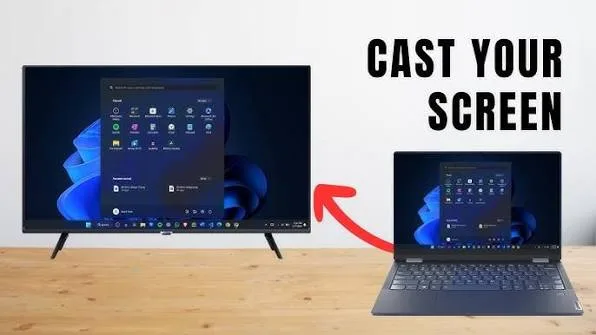
Connecting your laptop to a Smart TV allows you to enjoy a larger screen for work, entertainment, online classes, gaming, presentations, and video calls. Whether you’re watching movies with your family, presenting business proposal, or teaching students, displaying your laptop screen on a TV can make the experience much better.
Fortunately, most modern laptops and Smart TVs support either an HDMI connection or wireless screen mirroring. This guide explains both methods and shows you how to solve common connection problems.
Why Connect Your Laptop to a Smart TV?
Using a larger display offers several advantages. You can comfortably watch high-definition videos, share presentations with clients, conduct training sessions, or enjoy multiplayer games on a bigger screen.
For example, if you create presentations for work, our guide on using your laptop for professional PowerPoint presentations explains how to create slides that look impressive when displayed on larger screens.

Method 1: Connect Using an HDMI Cable
An HDMI cable provides the easiest and most reliable way to connect your laptop to a Smart TV. It carries both video and audio through a single cable, making setup simple.
What You’ll Need
- A laptop with an HDMI port or compatible adapter.
- A Smart TV with an HDMI input.
- An HDMI cable.
Steps to Connect
- Turn off your TV or leave it on the home screen.
- Connect one end of the HDMI cable to your laptop.
- Connect the other end to an available HDMI port on your TV.
- Select the correct HDMI input using your TV remote.
- Your laptop should detect the TV automatically.
If your display does not appear immediately, press Windows + P and choose Duplicate, Extend, or Second screen only.
Method 2: Connect Wirelessly
Many Smart TVs support wireless screen mirroring through technologies such as Miracast or Chromecast. This eliminates the need for cables, provided both devices are connected to the same Wi-Fi network.
To check whether your Windows laptop supports wireless projection, refer to the official Microsoft Windows Support documentation.
Basic Steps
- Connect both devices to the same Wi-Fi network.
- Enable screen mirroring on your Smart TV.
- Press Windows + K on your laptop.
- Select your TV from the available devices.
- Approve the connection on your TV if prompted.
Using Google Chromecast
If your TV supports Google Chromecast or has Chromecast built in, you can cast supported apps and browser tabs directly from your laptop.
Google provides setup instructions through the official Chromecast Help Center.
Common Connection Problems
Sometimes your laptop may fail to detect your television. Fortunately, most issues are easy to fix.
- Check that the HDMI cable is securely connected.
- Select the correct HDMI input on the TV.
- Restart both devices.
- Update your graphics drivers.
- Ensure both devices are on the same Wi-Fi network for wireless connections.
- Try another HDMI cable if necessary.
Improve Video Playback Performance
If videos appear to lag while connected to your TV, your laptop may be running too many applications simultaneously. Closing unnecessary programs can improve performance.
Our guide on how to make an old laptop run faster explains additional ways to improve overall speed and responsiveness.
If you’re still using a traditional hard drive, upgrading to SSD storage can also make a significant difference. Learn more in our article on why SSD laptops outperform HDD models.
Protect Your Media Files
Many users connect their laptops to TVs to display family photos, presentations, or important business videos. To avoid losing these files, create regular backups.
Our tutorial on automatically backing up your laptop files explains how to protect your documents and media using free cloud storage solutions.
Best Uses for a Laptop Connected to a Smart TV
- Watching movies and TV shows.
- Business presentations.
- Online classes and training.
- Family photo slideshows.
- YouTube videos.
- Video conferencing.
- Gaming.
Final Thoughts
Connecting your laptop to a Smart TV is easier than many people think. Whether you use an HDMI cable for maximum stability or a wireless connection for greater convenience, both methods can help you enjoy a larger display for work and entertainment.
By following the steps in this guide and keeping your laptop updated, you’ll be able to enjoy smoother presentations, better video playback, and a more comfortable viewing experience throughout 2026 and beyond.