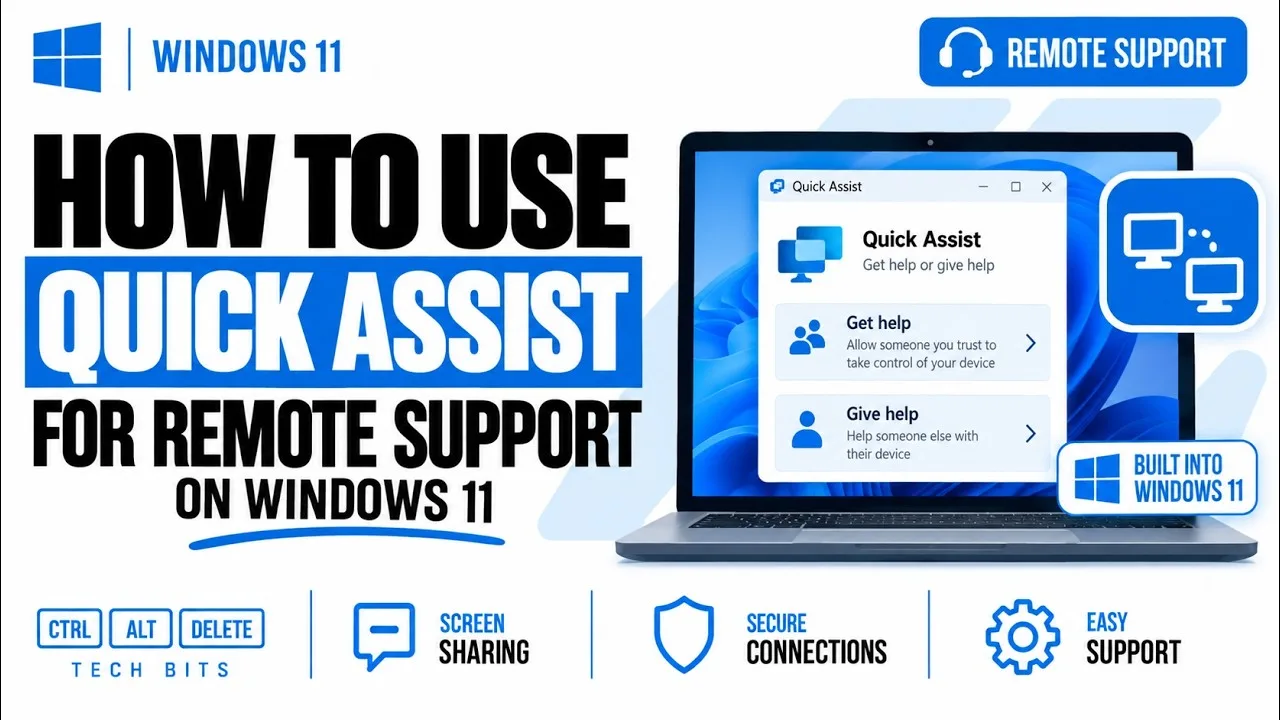
Imagine you are working on an assignment, preparing a business document or setting up software on your laptop when something goes wrong. A friend or technician offers to help, but they cannot visit you in person. Windows Quick Assist can make remote troubleshooting easier by allowing another person to view your screen or, with your permission, control your computer.
However, remote access also creates security risks. Giving the wrong person access to your laptop could expose private documents, saved passwords and financial information. Before using this feature, it is important to understand how it works, when it is useful and how to stay in control.

What Is Windows Quick Assist?
Windows Quick Assist is a Microsoft tool that allows one person to provide remote assistance to another Windows user over an internet connection. The helper can view the recipient’s screen and may request permission to control the computer.
For example, a student in Lagos could receive help with a Windows setting from a lecturer, while a small business owner could ask a trusted technician to investigate a software problem without travelling to a repair shop.
Quick Assist is different from simply sharing a screenshot. It can support live troubleshooting, allowing the helper to see what happens as you navigate Windows.
What Can You Do With Quick Assist?
- Fix simple Windows problems: A trusted helper can guide you through settings and troubleshooting steps.
- Understand unfamiliar settings: Someone can show you where to find an option instead of describing every click over the phone.
- Resolve basic software issues: A technician may help investigate application errors or incorrect configurations.
- Learn computer skills: Beginners can observe how an experienced user performs a task.
- Reduce unnecessary travel: Remote guidance can help with problems that do not require physical inspection or replacement parts.
Quick Assist cannot repair a broken screen, replace a damaged charging port or resolve every hardware fault. If your laptop has physical damage, overheating or a persistent power problem, a hands-on inspection may still be necessary. Our guide to checking a laptop before buying a UK-used model also explains why physical condition matters when evaluating a computer.
How to Open Windows Quick Assist
On a supported Windows computer, follow these steps to find the application:
- Open the Windows Start menu.
- Type Quick Assist into the search box.
- Select the Quick Assist application from the results.
- If Windows asks you to install or update the application through Microsoft Store, follow the official instructions.
- Make sure your internet connection is working before beginning the session.
You can also consult Microsoft Support for current Windows help and application guidance. The exact screens may differ depending on your Windows version and the installed Quick Assist version.
How to Receive Help From Someone You Trust
If you need assistance, the person helping you will generally generate a security code through Quick Assist and share it with you. You enter that code in your own Quick Assist window and follow the prompts to establish the session.
Depending on the session options, you may be able to allow screen viewing or approve a request for remote control. Read each permission prompt before accepting it. Screen viewing and full control are not the same thing.
Only accept a session that you requested from someone whose identity you have independently confirmed. A caller who unexpectedly claims that your computer has a virus is not automatically trustworthy simply because they know how to use remote-support software.
How to Help Another Windows User
If you are the person providing assistance, open Quick Assist and choose the option to help another person. Sign in if prompted, generate the assistance code and share it privately with the person who needs help.
Once the recipient enters the code, wait for them to approve the session and any requested control permissions. Explain what you intend to do before changing settings, installing software or accessing sensitive areas of the computer.
Professional support should be transparent. If a task requires administrator permission, explain why it is necessary and let the computer owner make the decision.
Security Rules to Follow Before Allowing Remote Access
1. Never share a code with an unexpected caller
Remote-support codes are intended to establish a particular assistance session. Do not give one to a stranger who contacts you through an unsolicited call, email, social media message or pop-up warning.
2. Close private documents
Before starting, close personal emails, banking pages, confidential business files and other material the helper does not need to see. Remember that screen sharing may reveal notifications and other visible information.
3. Watch what the helper does
Stay in front of your laptop throughout the session. Do not treat remote assistance as permission for someone else to do anything they want. If the helper opens an unrelated file, requests unnecessary access or behaves suspiciously, end the session.
4. Do not reveal passwords or verification codes
A legitimate technician should not need you to disclose your banking PIN, email password or one-time authentication code. Enter credentials yourself only when you understand why they are required and can verify that the relevant sign-in page is genuine.
5. End the session when the task is complete
Use Quick Assist’s controls to stop sharing or end the session. Check any settings that were changed and confirm that unfamiliar software was not installed. If you suspect a scam, disconnect from the session and review your accounts and device security.
For additional guidance, read the Cybersecurity and Infrastructure Security Agency’s security advice, which covers practical steps for protecting accounts and devices.
Quick Assist vs a Laptop Repair Shop
| Situation | Remote assistance | Physical repair |
|---|---|---|
| Windows setting is incorrect | Often suitable | Usually unnecessary |
| An application needs basic troubleshooting | May be suitable | Sometimes necessary |
| The laptop screen is cracked | Cannot repair the damage | Required |
| The charging port is loose or damaged | Cannot repair the hardware | Required |
| The laptop will not power on | May be impractical | Often needed |
| A suspicious person requests remote access | Do not proceed | Contact a trusted support provider independently |
If your computer is slow rather than physically damaged, remote guidance may help you investigate startup applications, memory usage and other software-related causes. Our guide to using Windows Task Manager to diagnose laptop problems explains some of the checks a helper may recommend.
What If Quick Assist Does Not Work?
When Quick Assist fails to open or connect, start with simple checks rather than downloading an unknown remote-access application.
- Confirm that both computers have working internet connections.
- Close and reopen Quick Assist.
- Check whether the application needs an update from Microsoft Store.
- Restart Windows if the application appears stuck.
- Check whether a work or school administrator restricts remote assistance.
- Consult official Microsoft guidance if the problem continues.
Do not disable your firewall or antivirus permanently just to make a remote session work. If security software blocks an unexpected connection, investigate the warning instead of automatically bypassing it.
Who Should Use Windows Quick Assist?
Quick Assist can be useful for students, remote workers, freelancers, teachers and small business owners who occasionally need help with Windows. It is especially practical when the problem involves software settings or an application that can be investigated through the screen.
People handling confidential customer records, business accounts or sensitive personal information should apply stricter access controls. In those situations, choose a verified support provider and limit the session to the work that needs to be done.
Final Verdict
Windows Quick Assist can save time and make computer support more convenient, but the person receiving help must remain in control. Use it for appropriate software problems, confirm the helper’s identity, review every permission request and end the session when the work is finished.
If the issue involves damaged hardware or a laptop that cannot start, remote access may not be enough. Choose a suitable repair service instead, and when buying a replacement computer, compare the laptop’s condition, specifications and intended workload before making a decision.
At PSERO LAPTOP, the goal is to help Nigerian laptop users make informed decisions about choosing, using and maintaining their computers. A little caution with remote access can protect your files while still allowing you to benefit from expert assistance.