Dust, fingerprints, food crumbs, and everyday dirt can make your laptop look untidy and even affect its performance over time. In Nigeria, where dust is common during the dry season, regular cleaning helps keep your laptop looking new while reducing the chances of overheating and keyboard problems.
The good news is that you don’t need expensive cleaning equipment. With the right materials and proper techniques, you can safely clean your laptop at home without damaging its screen or internal components.
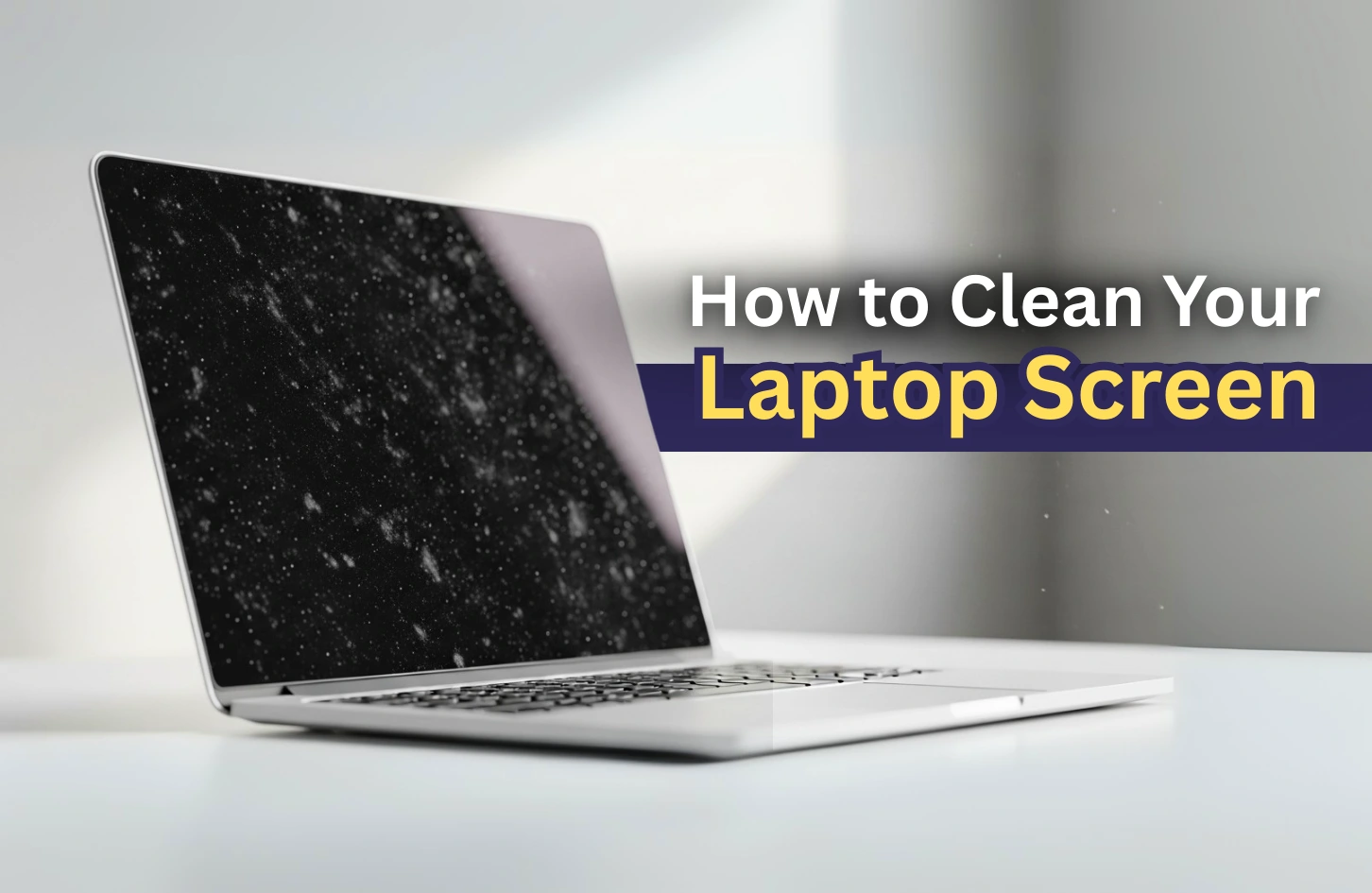
Why You Should Clean Your Laptop Regularly
A clean laptop isn’t just about appearance. Dust can block cooling vents, causing your laptop to run hotter than normal. Dirt trapped under the keyboard may affect typing, while fingerprints on the screen reduce visibility.
If your laptop has also been running hotter than usual, you may find our guide on how to fix laptop overheating without spending money helpful alongside regular cleaning.
Items You’ll Need
Before you begin, gather the following items:
- Microfiber cloth.
- Compressed air (optional).
- Soft brush.
- 70% isopropyl alcohol.
- Cotton swabs.
- Clean, dry cloth.
Avoid using tissue paper, rough fabrics, or harsh household cleaning chemicals, as they can scratch the screen or damage the laptop’s protective coating.
Step 1: Turn Off Your Laptop
Always shut down your laptop completely before cleaning it. If possible, disconnect the charger and remove any connected accessories such as USB drives, external keyboards, or a mouse.
Cleaning a powered-on laptop increases the risk of accidental damage and makes fingerprints harder to see on the screen.
Step 2: Clean the Screen Carefully
Use a clean microfiber cloth to gently wipe the display in circular motions. If stubborn marks remain, lightly dampen the cloth with a small amount of 70% isopropyl alcohol or a screen-safe cleaning solution.
Never spray liquid directly onto the screen. Instead, apply it to the cloth first before wiping.
For manufacturer recommendations, refer to the official Microsoft Windows Support or your laptop manufacturer’s cleaning instructions.
Step 3: Clean the Keyboard
Turn the laptop upside down slightly and gently shake it to remove loose debris. Use compressed air or a soft brush to remove dust between the keys.
Wipe the keyboard gently with a slightly damp microfiber cloth. For tight spaces, use cotton swabs with a small amount of isopropyl alcohol.
If your keyboard has started missing keystrokes or behaving unexpectedly, our guide on fixing common laptop keyboard problems may help you diagnose the issue.
Step 4: Clean the Touchpad and Exterior
The touchpad and palm rest collect oils from your hands over time. Wipe these areas gently using a microfiber cloth dampened with a small amount of isopropyl alcohol.
Also clean the laptop lid and sides to remove fingerprints and dust buildup.
Step 5: Remove Dust From Air Vents
Laptop cooling vents collect dust over time, especially in dusty environments. Use compressed air to blow dust away from the vents without inserting objects inside the laptop.
Blocked vents contribute to overheating. If your laptop frequently becomes hot during use, you should also read our article on improving laptop performance, as excessive background processes can increase heat generation.
Cleaning Mistakes to Avoid
- Spraying liquid directly onto the screen.
- Using bleach or household detergents.
- Cleaning while the laptop is powered on.
- Using excessive force on the display.
- Allowing liquid to enter USB ports or ventilation openings.
- Using rough cloths that may scratch the screen.
Protect Your Laptop After Cleaning
Keeping your laptop clean is only part of proper maintenance. Protect your important files by creating regular backups and using strong passwords.
Our guide on automatically backing up laptop files explains how to secure your documents using cloud storage and external drives.
If you also store confidential business information on your laptop, our tutorial on password-protecting files and folders will help you improve your data security.
How Often Should You Clean Your Laptop?
For most users, cleaning the screen and keyboard every two to four weeks is sufficient. However, if you work in dusty environments, travel frequently, or eat near your laptop, you may need to clean it more often.
Regular maintenance not only keeps your laptop looking good but can also extend its lifespan.
Final Thoughts
Cleaning your laptop properly doesn’t require expensive tools or professional expertise. By using a microfiber cloth, gentle cleaning solutions, and safe techniques, you can remove dust, fingerprints, and dirt without damaging your device.
Combined with regular software updates, proper ventilation, and routine backups, a clean laptop will continue to perform reliably for years to come.