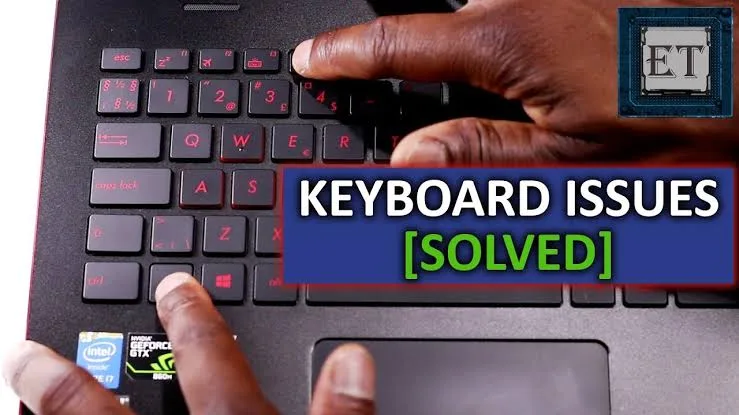
The keyboard is one of the most frequently used parts of a laptop. Whether you are writing assignments, preparing business documents, coding, chatting with customers or working remotely, a single faulty key can become frustrating very quickly.
However, keyboard problems are not always obvious when you inspect a laptop for only a few minutes. Some keys may work intermittently, while others may require unusually hard pressure before registering.
Therefore, anyone buying a new, fairly used or UK used laptop should test the keyboard before paying for the machine.
Why Should You Test a Laptop Keyboard Before Buying?
A laptop may look clean on the outside while having hidden keyboard problems. Previous users may also have spilled liquid on the keyboard or heavily worn particular keys.
Testing the keyboard can help you discover:
- Keys that do not work
- Keys that work intermittently
- Keys that require excessive pressure
- Stuck keys
- Repeated characters
- Missing or damaged keycaps
- Unusual keyboard layouts
Consequently, a few minutes of testing can prevent you from buying a laptop that requires an expensive repair.
Start With a Physical Inspection
Before opening any software, look carefully at the keyboard.
Check whether the keycaps are present, properly positioned and reasonably clean. Look for cracks, unusual discolouration, loose keys or signs that liquid may have entered the keyboard.
Also compare the keyboard with the manufacturer’s images or specifications if you are buying a particular model.
Test Every Key
The most reliable basic test is to press every key individually.
Do not test only the letters you commonly use. Check the entire keyboard, including the number row, function keys, arrow keys, Enter, Shift, Ctrl, Alt, Backspace, Spacebar and other special keys.
A key that looks normal may still fail electronically.
Test the Letter Keys
Open a blank document or text editor and type the alphabet repeatedly.
Watch the screen carefully to confirm that every character appears when you press its corresponding key.
If one letter does not appear, test it several times. This helps distinguish a temporary typing mistake from a genuine keyboard problem.
Test the Number Keys
Test the number row from 0 to 9. If the laptop has a dedicated numeric keypad, test those keys as well.
This is particularly important for accountants, students, business owners and professionals who regularly enter figures.
Test the Spacebar
The Spacebar is one of the most heavily used keys on a laptop, so it deserves special attention.
Press it repeatedly from the left, centre and right areas. A damaged Spacebar may work in one area but fail or feel abnormal in another.
Test Shift, Ctrl and Alt
Modifier keys are important because many Windows shortcuts depend on them.
Test both Shift keys if the laptop has two. Then check Ctrl and Alt on both sides where applicable.
Try simple shortcuts such as:
- Ctrl + C
- Ctrl + V
- Ctrl + A
- Ctrl + Z
- Shift + a letter
If the shortcuts behave unexpectedly, investigate the relevant keys further.
Test the Function Keys
The F1 through F12 keys can perform different functions depending on the laptop.
Some models require the Fn key to access their secondary functions. Therefore, test both the function keys and important Fn combinations where applicable.
Test the Arrow Keys
Open a document and use the arrow keys to move the cursor.
Test Up, Down, Left and Right individually. If the laptop has Home, End, Page Up or Page Down keys, test those as well.
How to Detect a Stuck Key
A stuck key may repeatedly produce the same character without you pressing it again.
Open a text editor and type normally. Watch for unexpected repeated letters or numbers.
Also listen carefully. A key that remains physically depressed or feels different from the surrounding keys may need attention.
What Does a Double-Typing Key Mean?
If you press a key once but the same character appears twice, the keyboard may have a faulty switch or another hardware problem.
Test the key repeatedly to confirm the behaviour.
For example, if pressing the letter “A” once consistently produces “aa”, that is a strong reason to investigate the keyboard before buying the laptop.
Check the Keyboard Backlight
If the laptop model is advertised as having a backlit keyboard, test the lighting before purchase.
Use the appropriate keyboard shortcut to increase or decrease the backlight and confirm that the keys illuminate correctly.
Remember that not every configuration of a laptop model includes a backlit keyboard.
Test the Touchpad Too
Although the touchpad is not technically part of the keyboard, it is worth testing during the same inspection.
Move the pointer around the screen, click different areas and test supported gestures such as scrolling.
A faulty touchpad can be just as inconvenient as a faulty keyboard.
How to Test a Laptop Keyboard Without Internet
You do not need an internet connection to perform a basic keyboard test.
Open a text editor such as Notepad and type different characters. Test the special keys and shortcuts directly in Windows.
This is particularly useful when inspecting a laptop in a shop or at a location where internet access is unavailable.
Should You Use an Online Keyboard Tester?
An online keyboard tester can provide a convenient visual way to confirm which keys are registering. Nevertheless, you should not depend entirely on an online tool.
Always perform physical checks as well because a key can register electronically while still feeling damaged, loose or unusually difficult to press.
Keyboard Problems on UK Used Laptops
Keyboard inspection is particularly important when buying a UK used laptop.
The keyboard layout may also differ from the layout you are accustomed to using. Check the symbols, Enter key, Shift key and other important areas before purchasing.
Do not assume that every laptop sold as UK used will have exactly the keyboard layout you expect.
What If Only One Key Is Faulty?
One faulty key does not automatically mean the entire laptop is unusable. However, you should understand the cost and difficulty of repairing the problem before deciding to buy.
Depending on the laptop design, replacing an individual keycap may be different from replacing the entire keyboard assembly.
Therefore, negotiate the price only after understanding the actual condition of the machine.
What If Several Keys Do Not Work?
Multiple dead keys deserve more attention.
A group of non-working keys could indicate keyboard damage, liquid exposure, a connector problem or another hardware fault.
In that situation, it is better to have the laptop properly inspected before making a purchase.
Signs of Previous Liquid Damage
Be especially careful if you notice sticky keys, unusual discolouration, corrosion, inconsistent key responses or multiple nearby keys behaving strangely.
Liquid damage can extend beyond the keyboard and affect internal components.
Consequently, a laptop with suspected liquid damage should receive a more thorough inspection.
How Much Does a Laptop Keyboard Repair Cost in Nigeria?
The cost varies considerably depending on the laptop model, keyboard design, availability of replacement parts and technician charges.
Rather than relying on one fixed price, identify the exact laptop model and obtain a current quotation for the required repair.
For expensive machines, an original or high-quality compatible keyboard may cost more than a generic replacement.
Should You Reject a Laptop Because of a Faulty Keyboard?
Not necessarily. The decision depends on the severity of the problem, the price of the laptop and the cost of replacement.
However, if you are looking for a laptop that is ready to use immediately, choosing one with a fully functional keyboard is usually the safer option.
Quick Laptop Keyboard Checklist
- Test every letter
- Test every number
- Test the Spacebar
- Test Enter and Backspace
- Test both Shift keys
- Test Ctrl and Alt
- Test the arrow keys
- Test function keys
- Test the touchpad
- Check for loose keycaps
- Check for sticky keys
- Look for signs of liquid damage
- Check the keyboard layout
- Test the backlight if advertised
Related PSERO Guides
- How to Test a Used Laptop Before Buying
- How to Check All the Ports on a Used Laptop
- How to Clean Your Laptop Safely
- How to Replace a Laptop Battery
- How to Troubleshoot a Laptop That Will Not Turn On
Shop Laptops at PSERO
Useful Official Resources
For model-specific keyboard information and support documentation, check the official resources provided by HP, Dell and Lenovo.
Final Verdict
A laptop keyboard should never be treated as a minor detail when buying a computer. You may use it hundreds or thousands of times every day, so even a small fault can become a major inconvenience.
Take a few minutes to test every key, inspect the physical condition and try common keyboard shortcuts. Most importantly, test the keyboard before paying for a UK used laptop or any other second-hand machine.