
When buying a laptop, most people immediately look at the processor, RAM and storage.
But there is another part of the specification that can make a huge difference to your everyday experience: the ports.
You may buy a laptop with an excellent processor and plenty of RAM, only to discover that it does not have the ports you need for your monitor, mouse, external drive, projector, Ethernet connection or memory card.
Modern laptops are also becoming thinner, and manufacturers are increasingly removing traditional ports in favour of USB-C.
That makes it more important than ever to understand exactly what each laptop port does before spending your money.
In this guide, we will explain the most common laptop ports, what they are used for, what their limitations are and which ones are worth having in 2026.
Why Do Laptop Ports Matter?
Ports determine what you can physically connect to your laptop.
Depending on the laptop, you may use ports to connect:
- USB flash drives
- External hard drives
- External SSDs
- Phones
- Printers
- Monitors
- Projectors
- Televisions
- Ethernet cables
- Headphones
- Microphones
- SD cards
- Docking stations
- Game controllers
- Webcams
A laptop with fewer ports is not necessarily bad, but you need to know whether the available connections match your needs.
What Is USB?
USB stands for Universal Serial Bus.
USB is one of the most common connectivity standards used by computers.
It allows laptops to communicate with and provide power to many external devices.
USB can be used for:
- Data transfer
- Charging devices
- Connecting accessories
- Connecting external storage
- Connecting displays on supported implementations
- Connecting docking stations
However, not every USB port provides the same capabilities.
What Is USB-A?
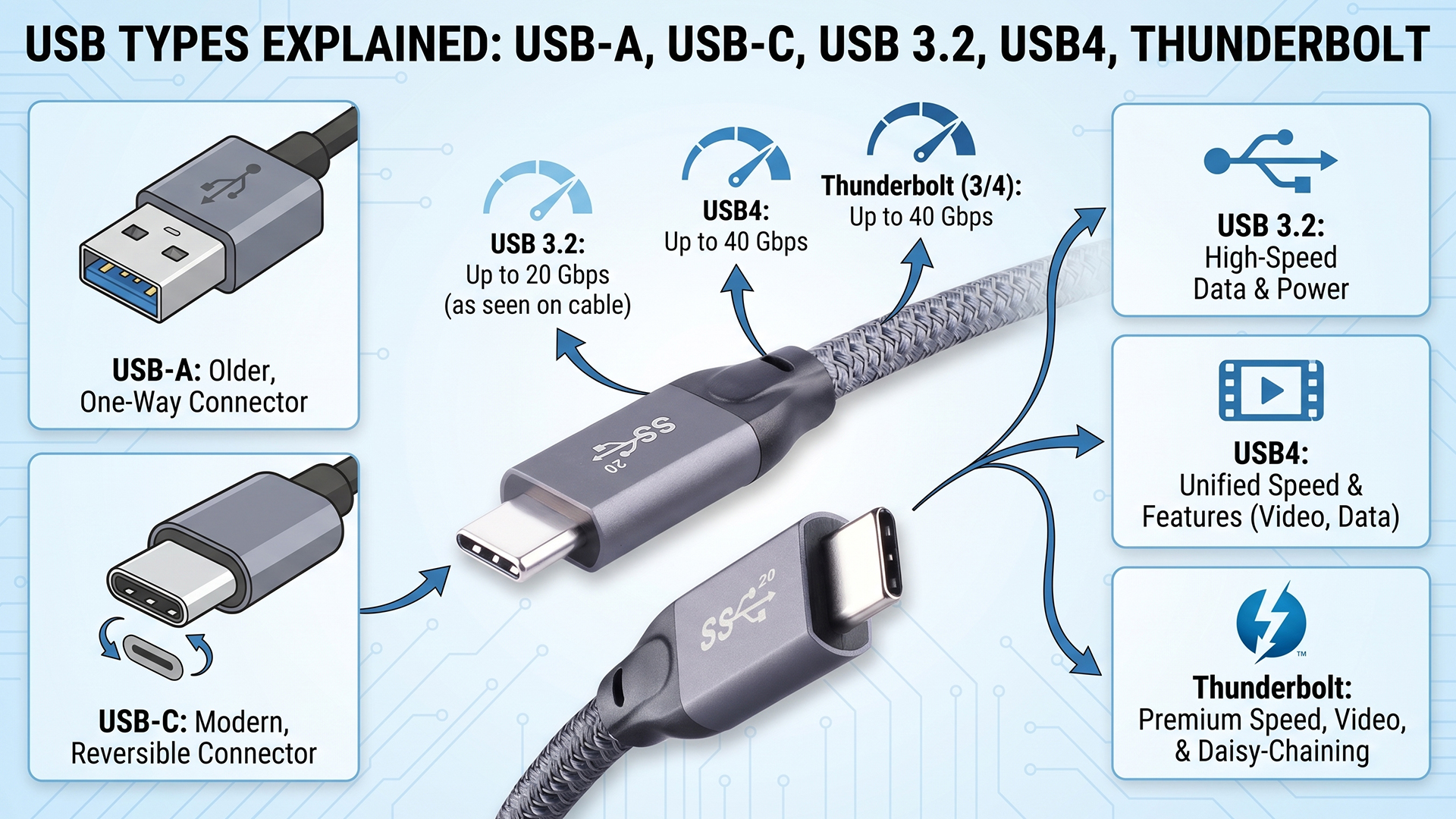
USB-A is the familiar rectangular USB connector that has been used on computers for many years.
You will find it on many laptops for connecting traditional USB accessories.
Common USB-A devices include:
- Mouse
- Keyboard
- USB flash drive
- Printer
- External hard drive
- Game controller
- USB Wi-Fi adapter
USB-A remains useful because millions of existing accessories still use this connector.
Is USB-A Outdated?
Not necessarily.
USB-C is becoming increasingly common, but USB-A remains extremely practical.
If you frequently connect ordinary flash drives, mice, keyboards and other accessories, having at least one USB-A port can save you from carrying an adapter.
This is especially useful on laptops used in schools, offices and businesses where older USB accessories are still common.
What Is USB-C?
USB-C is a smaller, reversible physical connector.
Unlike the older USB-A connector, you can insert a USB-C plug in either orientation.
USB-C is increasingly common on modern laptops, smartphones, tablets and accessories.
However, there is an important point that many buyers miss:
USB-C describes the connector shape, not necessarily the exact capabilities of the port.
Are All USB-C Ports the Same?
No.
This is one of the most important things to understand about modern laptops.
Two USB-C ports can look identical while supporting completely different features.
Depending on the implementation, a USB-C port may support:
- Basic USB data transfer
- High-speed USB data transfer
- USB Power Delivery
- Display output
- Thunderbolt
- USB4
Therefore, never assume that every USB-C port can charge the laptop or connect to a monitor.
Can USB-C Charge a Laptop?
Yes, but only when the laptop and charger support the necessary USB Power Delivery capabilities.
Many modern laptops support USB-C charging.
Some laptops still use proprietary charging connectors, particularly performance-oriented models that require higher power.
Before buying a USB-C laptop, check whether USB-C supports charging if that feature matters to you.
What Is USB Power Delivery?
USB Power Delivery, commonly called USB PD, is a power-delivery standard that allows compatible USB-C devices and chargers to negotiate appropriate power levels.
It is widely used for charging modern electronics.
A laptop that supports USB-C Power Delivery can potentially be charged using a compatible USB-C charger.
However, the charger must provide sufficient power for the laptop.
Can Any USB-C Charger Charge Any Laptop?
No.
A USB-C charger may physically fit into the port while still being unsuitable for a particular laptop.
You should check:
- Whether the laptop supports USB-C charging
- Required charging power
- USB Power Delivery support
- Charger compatibility
A small phone charger may not provide enough power for a high-performance laptop.
What Is Thunderbolt?
Thunderbolt is a high-speed connectivity technology developed through collaboration involving Intel and Apple.
Modern Thunderbolt implementations use the USB-C connector.
Thunderbolt can support high-speed data transfer, displays and other advanced connectivity depending on the version and device.
Intel provides detailed information about Thunderbolt technology on its official Thunderbolt technology page.
Is Thunderbolt the Same as USB-C?
No.
USB-C describes the physical connector.
Thunderbolt describes a connectivity technology that can use that connector.
This distinction is extremely important.
You can have a USB-C port that does not support Thunderbolt.
How Can You Tell If a USB-C Port Supports Thunderbolt?
Look for the Thunderbolt symbol near the port or check the manufacturer’s specifications.
On many laptops, a lightning-bolt symbol is used to identify Thunderbolt-capable ports.
However, checking the official specifications is the safest approach because symbols and implementations can vary.
What Is USB4?
USB4 is a newer USB technology designed to provide high-speed connectivity and support multiple types of data and display traffic over USB-C.
USB4 capabilities can vary between devices, so the presence of a USB-C connector alone still does not tell you everything.
When comparing laptops, check the specific USB version and supported transfer speeds.
What Is HDMI?
HDMI stands for High-Definition Multimedia Interface.
It is commonly used to send digital video and audio from a laptop to an external display.
HDMI can connect a laptop to:
- Television
- Monitor
- Projector
- AV receiver
HDMI is particularly useful in offices, schools and conference rooms where projectors and televisions are common.
Does HDMI Carry Sound?
Yes.
HDMI can carry both digital video and audio.
This means you can often connect a laptop to a television using one HDMI cable and send both the picture and sound.
Are All HDMI Ports the Same?
No.
Different HDMI versions and implementations support different capabilities.
These can include differences in:
- Maximum resolution
- Refresh rate
- HDR support
- Bandwidth
- Gaming features
Therefore, simply seeing “HDMI” in a laptop specification is not enough if you have a specific external-display requirement.
What Is Mini HDMI?
Mini HDMI is a smaller HDMI connector used on certain devices.
It is less common on laptops than standard HDMI.
Do not confuse Mini HDMI with Micro HDMI; they are different connector sizes.
What Is DisplayPort?
DisplayPort is a digital display interface commonly used to connect computers to monitors and other displays.
It can support high-resolution and high-refresh-rate displays depending on the version and implementation.
DisplayPort is particularly common on desktop computers and professional displays, while laptops often provide display output through USB-C or HDMI.
What Is Mini DisplayPort?
Mini DisplayPort is a smaller version of the DisplayPort connector.
It was used on various laptops and computers, although USB-C-based display connectivity has become increasingly common on modern systems.
Can USB-C Replace HDMI?
In some laptops, yes.
A USB-C port supporting DisplayPort Alt Mode or another compatible display technology can connect to an external monitor.
However, this does not mean every USB-C port can replace HDMI.
You need to verify that the particular USB-C port supports display output.
What Is Ethernet?
Ethernet is a wired networking technology.
A laptop with an Ethernet port can connect directly to a router, switch or other compatible network equipment using an Ethernet cable.
The common laptop Ethernet connector is known as RJ45.
Why Is an Ethernet Port Useful on a Laptop?
Wi-Fi is convenient, but wired Ethernet can provide several advantages.
- Stable network connection
- Low latency
- Consistent performance
- Useful for large downloads
- Useful for network troubleshooting
- Useful in offices
Ethernet can also be valuable when Wi-Fi is unreliable.
Why Are Ethernet Ports Disappearing From Thin Laptops?
Traditional Ethernet connectors are relatively large.
As laptop manufacturers make computers thinner, fitting a full-size RJ45 port becomes more difficult.
Many thin laptops therefore omit Ethernet and rely on Wi-Fi or USB-C Ethernet adapters.
Can You Add Ethernet to a Laptop Without an Ethernet Port?
Yes.
You can use a compatible USB-to-Ethernet adapter or docking station.
This can be a practical solution if your laptop has USB-A or USB-C but no built-in Ethernet connector.
What Is an SD Card Slot?
An SD card slot allows you to read and write data using SD memory cards.
SD cards are commonly used in:
- Cameras
- Drones
- Video equipment
- Audio equipment
- Some gaming devices
An SD card slot can be particularly valuable to photographers and videographers who regularly transfer files from cameras to laptops.
What Is a MicroSD Card Slot?
MicroSD cards are smaller memory cards commonly used in smartphones, cameras and other compact devices.
Some laptops include a MicroSD slot instead of a full-size SD slot.
If you work with cameras that use full-size SD cards, check the actual slot before buying.
Is an SD Card Slot Important for Students?
Not necessarily.
Students who mainly use cloud storage, USB drives and online services may rarely need an SD card slot.
However, it can still be useful for transferring photos, videos and other files.
Is an SD Card Slot Important for Photographers?
Yes.
For photographers, having a built-in SD card reader can save time and eliminate the need to carry an external reader.
Professional users should also pay attention to the speed supported by the card reader because not all laptop card readers perform equally.
What Is a Headphone Jack?
The traditional 3.5mm audio jack is used for connecting headphones, earphones and some microphones.
Many laptops still include a combined headphone/microphone jack.
This remains convenient because it allows you to use ordinary wired headphones without an adapter.
Are Laptop Headphone Jacks Still Important?
Yes, especially for users who prefer wired headphones.
Wired audio can be useful for gaming, video editing, online meetings and situations where Bluetooth latency or battery life is a concern.
What Is a Kensington Lock Slot?
A Kensington-style security slot allows a compatible physical security cable to be attached to the laptop.
It is primarily useful in offices, schools, libraries and public environments where laptops may be left in shared spaces.
Not every modern laptop includes one, particularly very thin models.
What Is a SIM Card Slot in a Laptop?
Some laptops support cellular connectivity through built-in mobile broadband hardware.
Depending on the model, this may involve a physical SIM card or an eSIM.
With compatible hardware and service, the laptop can connect to a cellular network without relying entirely on Wi-Fi.
Do All Laptops Have SIM Support?
No.
Cellular connectivity is more common on certain business and premium laptops than on basic consumer models.
If mobile internet is important to you, confirm that the exact laptop model includes cellular hardware.
What Is a Docking Port?
Some laptops include dedicated docking connectors, although USB-C and Thunderbolt have increasingly taken over many docking functions.
A docking station can allow a laptop to connect to multiple devices through one connection.
For example, a dock might provide:
- External monitor outputs
- USB ports
- Ethernet
- Audio
- Power delivery
- Memory card readers
What Is a Laptop Docking Station?
A docking station is an accessory that expands the connectivity of a laptop.
It is especially useful for people who use the same laptop both at home and in the office.
Instead of connecting five or six cables individually, you can connect many peripherals to the dock and then connect the laptop using one cable.
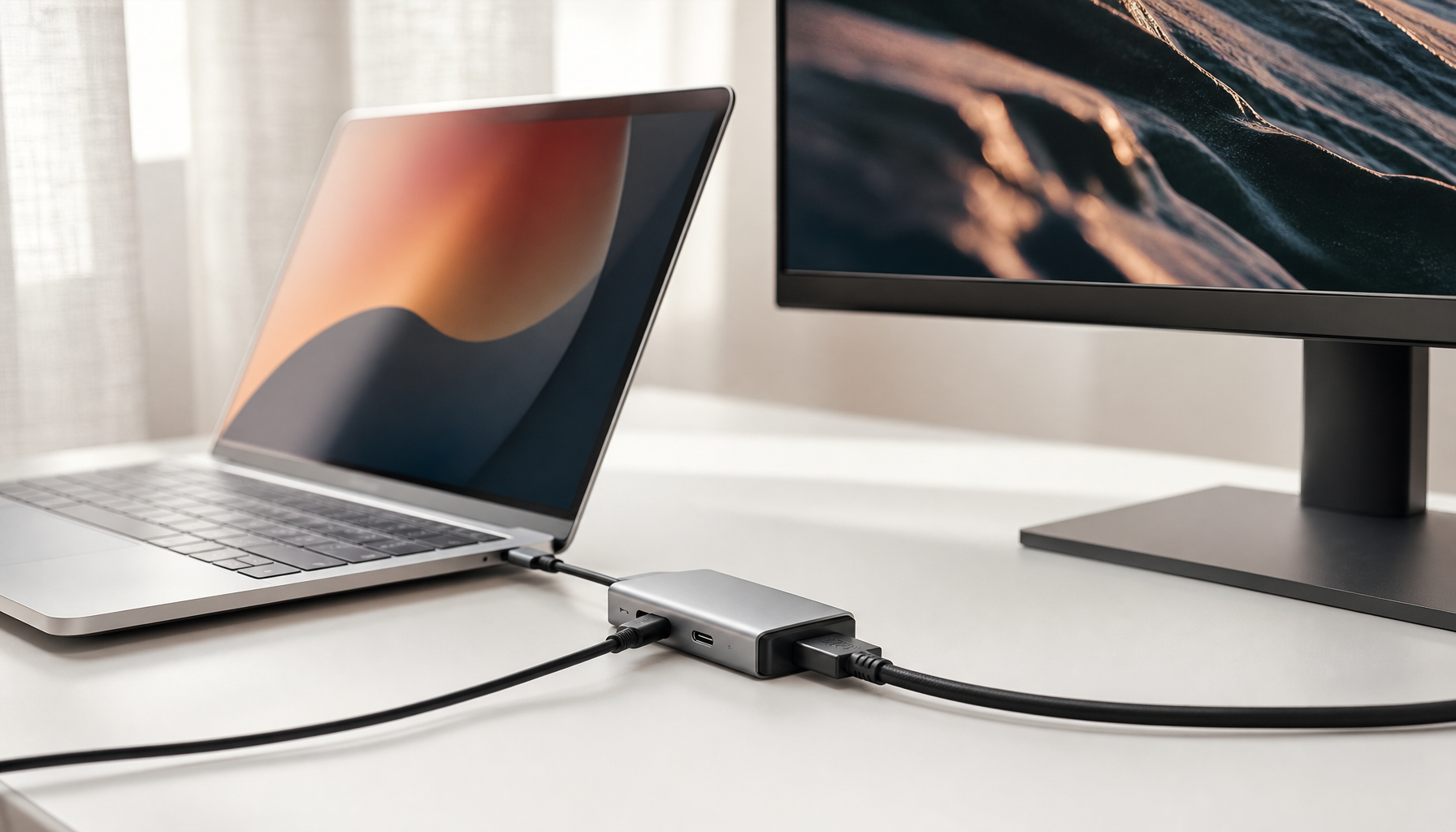
Can One USB-C Cable Connect a Laptop to a Monitor?
Yes, if the laptop’s USB-C port supports display output and the monitor supports the appropriate connection and power/data features.
Some USB-C monitors can also provide power to the laptop through the same cable.
This can create a very clean desk setup.
Can USB-C Connect Two Monitors?
Sometimes.
The answer depends on the laptop’s graphics capabilities, USB-C implementation, Thunderbolt or USB4 support, monitor configuration and docking technology.
Do not assume that having two USB-C ports automatically means you can run two external monitors.
Can HDMI and USB-C Be Used at the Same Time?
On some laptops, yes.
A laptop may be able to drive its built-in display while also powering one or more external displays through HDMI, USB-C or another output.
The exact number and combination of supported displays depends on the laptop’s graphics hardware and port implementation.
Why Do Some Laptops Have Two USB-C Ports?
Multiple USB-C ports provide flexibility.
For example, one port may be used for charging while another connects to a monitor or external drive.
Some laptops also place USB-C ports on different sides to make cable management easier.
Does the Side of the USB-C Port Matter?
It can.
Some laptops have USB-C ports with different capabilities.
One may support charging, display output and high-speed data while another may support only certain functions.
Always check the laptop’s technical specifications.
What Is a USB Port With a Battery Symbol?
Some laptops mark a USB port with a battery or charging symbol to indicate that it can provide power to external devices even when the laptop is asleep or powered off, depending on the manufacturer’s implementation.
This feature can be useful for charging a phone or other USB device.
What Does a Lightning Symbol Beside USB-C Mean?
A lightning symbol commonly indicates Thunderbolt support.
However, because implementations and markings can vary, checking the manufacturer’s documentation is still recommended.
What Does a Display Symbol Beside USB-C Mean?
A display symbol can indicate that the USB-C port supports video output.
This can allow the port to connect to an external monitor using a compatible cable or adapter.
Why Should You Check Laptop Ports Before Buying?
Because replacing a missing port with an adapter is not always convenient.
For example, imagine buying an ultra-thin laptop and later discovering that you need:
- Ethernet
- HDMI
- USB-A
- SD card reader
You may end up carrying a multi-port adapter everywhere.
That may be perfectly acceptable for some people, but others would rather have the ports built into the laptop.
How Many USB Ports Should a Laptop Have?
There is no universal number.
For basic users, two or three USB ports may be enough.
People who connect multiple accessories may prefer more.
Before buying, list the devices you normally connect and make sure the laptop can accommodate them.
Should a Laptop Have USB-A in 2026?
For many buyers, having at least one USB-A port remains convenient.
You can always use a USB-C adapter, but a built-in USB-A port means one less accessory to carry.
Should a Laptop Have HDMI in 2026?
If you frequently connect to televisions, projectors or monitors, built-in HDMI can be extremely convenient.
Business users, teachers, students and presenters may particularly appreciate it.
Should a Laptop Have Ethernet in 2026?
It depends on your usage.
If you regularly use wired internet, Ethernet is valuable.
If you use Wi-Fi almost exclusively, you may not miss it.
However, people who work with networking equipment or troubleshoot internet connections may find a built-in Ethernet port particularly useful.
Should a Laptop Have an SD Card Reader?
If you are a photographer, videographer or content creator who regularly uses SD cards, definitely consider it.
For ordinary office and school users, it is more of a convenience than a necessity.
Are Adapters Bad for Laptops?
No.
Adapters are a normal solution for modern laptops.
The problem is inconvenience, not necessarily damage.
A high-quality adapter can allow a thin laptop with only USB-C ports to connect to many traditional accessories.
What Is a USB Hub?
A USB hub expands one USB connection into multiple ports.
For example, a USB-C hub might provide:
- USB-A
- USB-C
- HDMI
- SD card reader
- Ethernet
However, all connected devices share the available bandwidth and power capabilities of the connection.
What Is the Difference Between a USB Hub and a Docking Station?
A basic hub is generally designed to add a few extra ports.
A docking station usually provides a broader collection of connectivity features and is often designed for a more permanent desk setup.
The exact distinction varies between manufacturers.
Can a Cheap USB Hub Slow Down My Devices?
It can, depending on the hub’s specifications and how many devices are connected.
If several high-bandwidth devices share the same connection, the available bandwidth can become a limiting factor.
Cheap or poorly designed accessories may also have reliability problems.
What Laptop Ports Are Best for Students?
A practical student laptop should ideally have a useful combination of:
- USB-A
- USB-C
- HDMI or capable USB-C display output
- 3.5mm audio
Ethernet and an SD card reader are useful extras depending on the student’s course and requirements.
What Laptop Ports Are Best for Business Users?
Business users may benefit from:
- USB-A
- USB-C
- HDMI
- Ethernet
- Audio
- Docking support
These ports make it easier to connect projectors, office networks, monitors and accessories.
What Laptop Ports Are Best for Gamers?
Gamers should consider:
- USB-A for peripherals
- USB-C for modern accessories
- HDMI for external displays
- Ethernet for wired networking
- 3.5mm audio for headsets
The number of ports can matter because gaming laptops may have several peripherals connected simultaneously.
What Laptop Ports Are Best for Content Creators?
Content creators should pay particular attention to:
- High-speed USB-C
- Thunderbolt or USB4 where appropriate
- SD card reader
- HDMI or DisplayPort-capable connectivity
- High-speed external storage support
- Audio connectivity
For creators, fast file transfer can make a major difference when moving large video files.
Why Are Laptop Ports Important When Buying a Used Laptop?
Used laptops require additional inspection because ports may have experienced years of physical use.
A USB port can become loose or damaged.
An HDMI connector can also become unreliable after repeated use.
When buying a used laptop, physically test every important port instead of assuming that all of them work.
This is one of the reasons PSERO’s UK-used laptop buying checklist is useful: checking a used machine should involve more than looking at the processor and RAM.
How Do You Test Laptop USB Ports?
Connect a known-working USB device such as a flash drive or mouse.
Check whether the laptop detects the device properly.
If possible, test every USB port individually.
Do not simply test one USB port and assume the others are fine.
How Do You Test an HDMI Port?
Connect the laptop to a known-working television or monitor using a suitable HDMI cable.
Confirm that the laptop detects the external display and produces a stable image.
If the port works intermittently, the connector or laptop hardware may require attention.
How Do You Test an Ethernet Port?
Connect the laptop to a working router or network switch using an Ethernet cable.
Check whether the computer establishes a network connection.
If the laptop has link/activity lights around the port, these may also provide useful information.
How Do You Test an SD Card Reader?
Insert a known-working SD card containing files.
Confirm that the laptop detects the card and that you can read files from it.
If possible, test writing a file to the card as well.
What Ports Should You Look for in a Laptop in 2026?
For most buyers, a balanced laptop should ideally provide a combination of modern and traditional connectivity.
A useful setup might include:
- At least one USB-C port
- At least one USB-A port
- HDMI where practical
- 3.5mm audio
- Ethernet if required
- SD card reader if required
More important than the number of ports is knowing exactly what each port supports.
Don’t Confuse Port Shape With Port Capability
This is the biggest lesson to remember.
A USB-C port may look modern, but its capabilities can vary.
A USB-C port might support charging and basic data but not external displays.
Another USB-C port may support high-speed data, charging, multiple displays and Thunderbolt.
The connector shape alone does not tell you everything.
What Should You Ask a Laptop Seller About Ports?
Instead of asking only, “Does this laptop have USB-C?” ask:
- How many USB ports does it have?
- Which USB ports support high-speed data?
- Does USB-C support charging?
- Does USB-C support external displays?
- Does it have Thunderbolt or USB4?
- Does it have HDMI?
- Does it have Ethernet?
- Does it have an SD card reader?
- Does the headphone jack work?
These questions can prevent unpleasant surprises after purchase.
Final Verdict
Laptop ports may not look as exciting as a new processor or a large SSD, but they can have a huge impact on how convenient a laptop is to use.
USB-A remains useful for traditional accessories.
USB-C provides a modern, reversible connector capable of supporting different functions depending on the implementation.
Thunderbolt and USB4 can provide advanced high-speed connectivity on compatible laptops.
HDMI remains extremely useful for connecting televisions, monitors and projectors.
Ethernet is valuable when you need a reliable wired network connection.
SD card readers are particularly useful for photographers and content creators.
And the most important rule is this:
Never assume that two ports with the same shape have the same capabilities.
Before buying a laptop, look beyond the number of ports. Find out what each one actually supports and compare those capabilities with the devices you use every day.
If you are buying a used laptop, test the physical ports before handing over your money. A laptop can have an impressive specification on paper while having a damaged USB, HDMI or charging port in real life.
The right laptop is not simply the one with the fastest processor. It is the one that gives you the performance, screen, storage, connectivity and features you actually need.