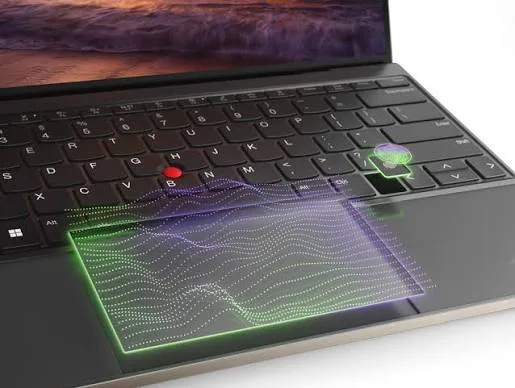
The trackpad is one of the most frequently used parts of a laptop, yet many buyers barely test it before purchasing.
That is surprising because you may use the trackpad hundreds of times every day.
You use it to move the pointer, click buttons, scroll through websites, switch between applications, zoom into images and perform many other tasks.
A poor trackpad can make an otherwise good laptop frustrating to use, while a responsive and accurate one can make the computer feel much more premium.
In this guide, we explain the different types of laptop trackpads, how Precision Touchpads work, what haptic trackpads are, how gestures work and how to properly test a trackpad when buying a used laptop.
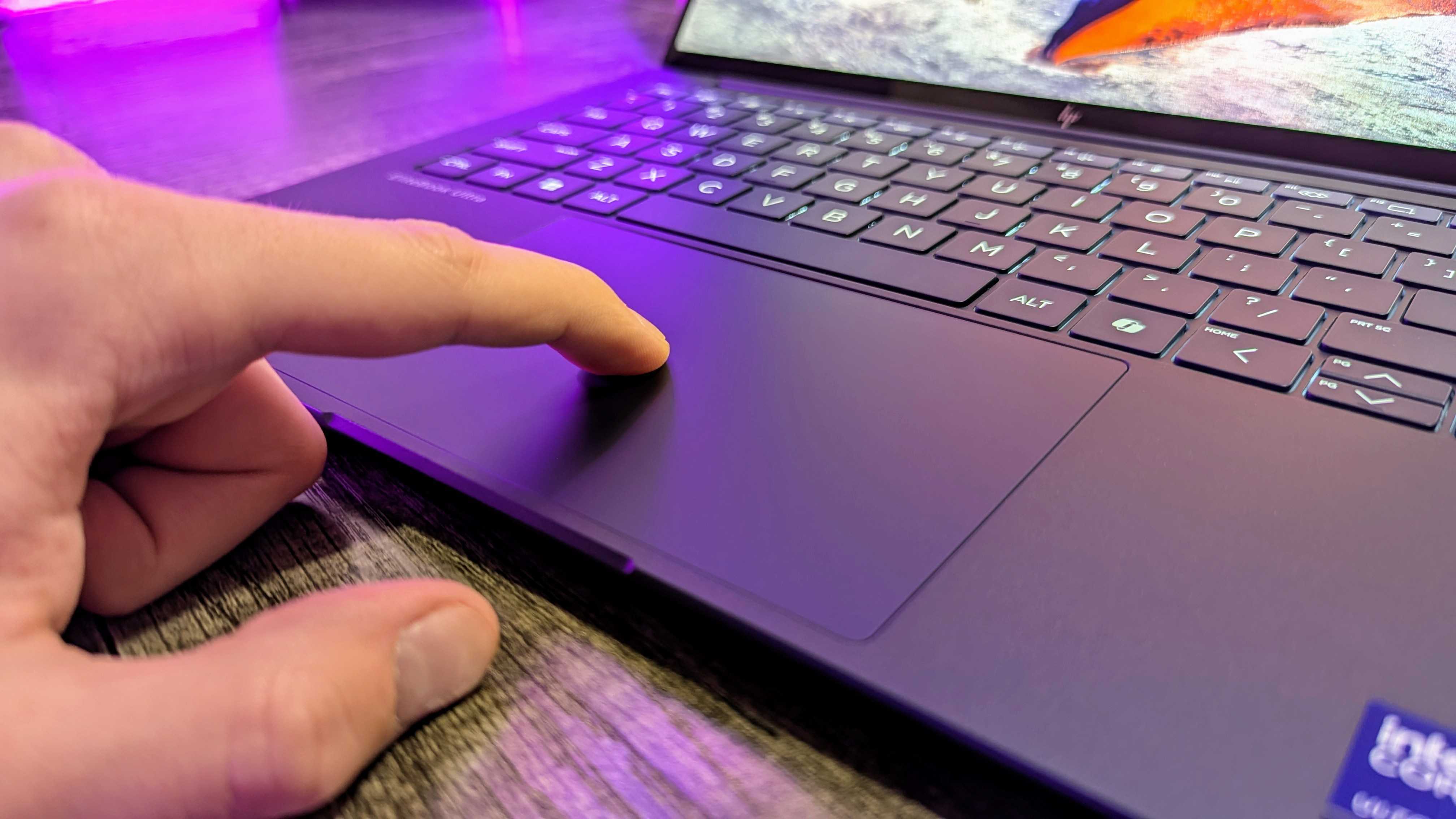
What Is a Laptop Trackpad?
A laptop trackpad, also called a touchpad, is a pointing device built into the palm-rest area of a laptop.
It allows you to control the mouse pointer without connecting an external mouse.
Most modern trackpads support gestures in addition to basic pointer movement and clicking.
How Does a Laptop Trackpad Work?
The trackpad detects the movement of your finger across its surface and converts that movement into instructions for the operating system.
Depending on the hardware, it can also detect multiple fingers touching the surface at the same time.
This allows the laptop to recognise gestures such as two-finger scrolling and pinch-to-zoom.
What Is a Clickpad?
A clickpad is a trackpad where the entire or large portion of the surface can be physically pressed to register a click.
Instead of having two obvious physical buttons underneath the trackpad, the surface itself performs the clicking function.
This design has become extremely common on modern laptops.
What Is a Traditional Touchpad With Separate Buttons?
Older laptops and some business machines use a touchpad with dedicated left and right buttons.
This design can be useful because the physical buttons provide clear tactile feedback.
Some users also find dedicated buttons more comfortable when performing repeated clicks.
What Is a Precision Touchpad?
A Windows Precision Touchpad is a touchpad designed to work closely with Windows through Microsoft’s Precision Touchpad system.
Precision Touchpads generally provide consistent gesture support and settings directly within Windows.
This can make the trackpad experience more predictable across compatible laptops.
Microsoft provides additional information about touchpad settings and gestures through its official Windows touchpad support resources.
Why Is a Precision Touchpad Important?
A good Precision Touchpad can make pointer movement feel smooth and accurate.
It can also provide reliable support for Windows gestures.
For someone who does not regularly use an external mouse, this can make a significant difference to everyday laptop use.
What Is a Haptic Trackpad?
A haptic trackpad does not necessarily rely on a traditional mechanical clicking mechanism.
Instead, it can use sensors and haptic feedback to simulate the feeling of pressing a physical button.
This allows the trackpad to provide a click sensation while the surface itself may not physically move in the same way as a conventional clickpad.
Why Do Some Premium Laptops Use Haptic Trackpads?
Haptic technology can provide a very consistent clicking experience across the trackpad surface.
It can also allow manufacturers to create large trackpads without needing a conventional mechanical button arrangement.
Some premium laptops use sophisticated haptic systems because the technology can provide precise feedback and additional functionality.
Are Haptic Trackpads Better?
For many users, yes.
But preference matters.
Some people prefer the familiar physical movement of a traditional clickpad, while others prefer the consistent feedback of a haptic system.
The best way to decide is to actually use the trackpad.
What Is Two-Finger Scrolling?
Two-finger scrolling allows you to move through a webpage or document by placing two fingers on the trackpad and moving them up or down.
It is one of the most useful laptop gestures.
Once you become accustomed to it, you may rarely need a scrollbar.
What Is Pinch-to-Zoom?
Pinch-to-zoom allows you to zoom in or out using two fingers.
Moving your fingers apart generally zooms in, while bringing them together generally zooms out in applications that support the gesture.
It can be useful when viewing photographs, maps, documents and webpages.
What Is Three-Finger Swiping?
Modern Windows touchpads can support three-finger gestures for actions such as switching between applications or showing the desktop.
These gestures can make multitasking faster once you learn them.
What Is Four-Finger Touchpad Gesture Support?
Some compatible touchpads support four-finger gestures.
Depending on your Windows settings, these can be assigned to actions such as switching desktops or displaying specific views.
The available gestures can vary depending on the touchpad hardware and Windows configuration.
Why Is Trackpad Size Important?
A larger trackpad gives your finger more room to move the pointer without repeatedly lifting and repositioning your finger.
This can be particularly useful when working with large documents, spreadsheets or creative applications.
However, a larger trackpad is not automatically better if its surface is inaccurate or uncomfortable.
Does the Trackpad Surface Matter?
Yes.
The material and finish affect how easily your finger moves across the surface.
A smooth surface can make pointer control feel effortless, while a rough or damaged surface can become uncomfortable during long periods of use.
Why Is My Laptop Trackpad Not Smooth?
Possible causes include:
- A dirty trackpad surface
- Damaged surface coating
- Driver problems
- Hardware faults
- Incorrect sensitivity settings
- Moisture or liquid contamination
Before assuming that the trackpad is faulty, clean the surface gently and check the Windows touchpad settings.
Why Does My Trackpad Sometimes Stop Working?
A disabled touchpad can sometimes be caused by an accidental keyboard shortcut.
Some laptops have a function key that enables or disables the trackpad.
Driver problems, Windows settings and hardware faults can also cause the issue.
If a used laptop has a non-working trackpad, test an external mouse to determine whether the wider Windows pointer system is working correctly.
How to Test a Laptop Trackpad Before Buying
A proper trackpad test should take more than a few seconds.
Move your finger slowly around the entire surface.
Check whether the pointer moves smoothly and accurately.
Then test:
- Left click
- Right click
- Two-finger scrolling
- Pinch-to-zoom
- Three-finger gestures where available
- Clicking near the edges
Try dragging an icon or selecting text as well.
These simple tests can reveal problems that are not obvious when you only move the pointer around.
Why Should You Test the Edges of the Trackpad?
A damaged or poorly functioning trackpad may respond normally in the centre but behave differently near the edges.
Move your finger across every part of the surface to make sure tracking remains consistent.
What Does a Loose Trackpad Mean?
A trackpad should generally feel solid when you use it.
If it moves excessively, makes unusual noises or feels physically loose, the laptop may have suffered damage or the mounting system may have a problem.
On some laptops, physical changes around the trackpad can also be a warning sign of an internal hardware problem.
If you notice unusual swelling or deformation anywhere around a laptop, stop using the machine and have it inspected rather than pressing or opening it yourself.
Can a Trackpad Be Replaced?
On many laptops, yes.
However, replacement difficulty varies considerably between models.
Some trackpads are simple replaceable modules, while others are closely integrated with the palm rest or require significant disassembly.
The cost and availability of replacement parts should therefore be considered before repairing an older laptop.
Can You Upgrade a Laptop Trackpad?
Sometimes, but compatibility can be complicated.
A replacement trackpad may require a different cable, mounting arrangement, firmware support or driver configuration.
Do not assume that a trackpad from another laptop model will work simply because it has the same physical size.
Why Is the Trackpad Important for Students?
Students often carry laptops between classrooms, homes and libraries.
That makes using an external mouse inconvenient in many situations.
A responsive built-in trackpad can therefore be particularly valuable.
If you are comparing affordable machines for school, our guide to UK-used laptops for students in Lagos can help you compare the complete laptop rather than focusing on only one specification.
Why Is the Trackpad Important for Freelancers?
Freelancers may spend long hours moving between browser tabs, documents, design applications and communication platforms.
A poor trackpad can make this repetitive work unnecessarily frustrating.
If you regularly work from different locations, a good built-in trackpad can also reduce the need to carry additional accessories.
Should You Still Buy a Laptop With a Small Trackpad?
You can, especially if you normally use an external mouse.
A small trackpad is not automatically a reason to reject a laptop.
However, if you frequently use the laptop without a mouse, a larger and more accurate trackpad may improve your experience considerably.
Trackpad vs External Mouse
Neither is universally better.
A mouse can provide more precise control for certain tasks and can be particularly useful for gaming, graphic design and detailed editing.
The trackpad is more convenient when portability matters.
Many laptop users therefore use both depending on the task.
Can a Trackpad Be Used for Gaming?
Yes, but a traditional mouse is usually more suitable for serious gaming.
A mouse generally provides better precision and easier control for many games.
The trackpad remains useful for casual games and ordinary computer navigation.
Why Does My Trackpad Feel Different When the Charger Is Connected?
Some users notice changes in touchpad behaviour or sensation when a laptop is connected to a power source.
This can sometimes be related to grounding, charger quality or electrical interference.
If the trackpad becomes unusually tingly, erratic or difficult to control when charging, do not simply ignore it.
Test the laptop with a known-good compatible charger and have the machine inspected if the problem continues.
What Makes a Good Laptop Trackpad?
A good trackpad should offer:
- Accurate pointer movement
- Smooth finger tracking
- Reliable clicking
- Good gesture support
- A comfortable surface
- Consistent response across the surface
- Minimal unwanted cursor movement
For Windows laptops, Precision Touchpad support is also a useful feature to look for.
Should Trackpad Quality Affect Your Laptop Buying Decision?
Yes, particularly if you rarely use an external mouse.
However, it should be considered alongside the display, keyboard, build quality, storage, memory, connectivity and overall condition of the machine.
If you are buying a used laptop, our UK-used laptop inspection checklist is useful because it encourages you to examine the complete computer before making payment.
Final Verdict
The laptop trackpad is a small component that has a major effect on everyday usability.
Modern Precision Touchpads can provide accurate pointer control and useful gestures, while haptic trackpads can offer a more advanced and consistent clicking experience.
However, you should not judge a laptop’s trackpad simply by its size or marketing description.
When buying a used laptop, physically test the entire surface, both click areas, scrolling, gestures and pointer accuracy.
A laptop can have an excellent processor and plenty of storage, but if the trackpad constantly frustrates you, the computer will not feel good to use.
Choose the machine as a complete package, and make sure the trackpad works properly before you pay.