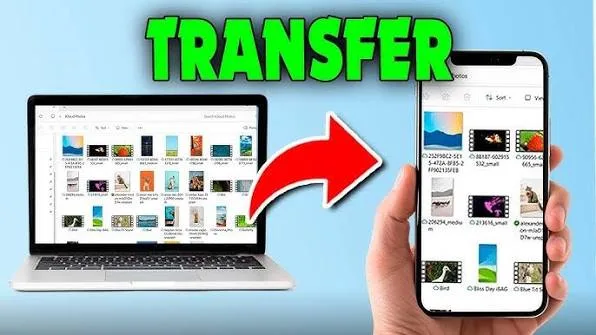
Moving files between a laptop and a smartphone is something many people do every day. You may need to transfer pictures from your phone to your laptop, move documents for work, copy videos for editing or back up important files before changing phones.
Fortunately, you have several options. Depending on your devices and what you are trying to transfer, you can use a USB cable, Bluetooth, Wi-Fi, cloud storage or other wireless methods.

Why Connect Your Phone to Your Laptop?
A laptop usually provides more storage and a larger workspace than a smartphone. Connecting the two devices makes it easier to manage large numbers of files.
For example, you can transfer:
- Photos
- Videos
- Music
- PDF documents
- Word documents
- School assignments
- Business files
- Contacts and other supported data
Method 1: Use a USB Cable
A USB cable is often the simplest option when transferring files between an Android phone and a Windows laptop.
- Connect the phone to the laptop with a compatible USB cable.
- Unlock the phone.
- Look for the USB connection notification.
- Select the option for File Transfer or a similarly named mode.
- Open File Explorer on Windows.
- Select your phone from the available devices.
- Open the relevant storage folder.
- Copy the files you need.
If your phone only charges after connecting the cable, check the USB notification and change the connection mode from charging to file transfer.
Why Is My Phone Only Charging?
This is one of the most common problems when connecting a smartphone to a laptop.
The cable may support charging but not data transfer. Some inexpensive cables are designed primarily for charging.
Therefore, try another known-good data cable if the phone does not appear in Windows File Explorer.
Can You Transfer Large Videos With USB?
Yes. USB can be a convenient option for transferring large files because you do not need to upload them to the internet first.
This can be particularly useful when moving large videos from a phone to a laptop for editing.
Method 2: Transfer Files Wirelessly
Wireless file transfer can be more convenient when you do not have a suitable cable.
Depending on the devices involved, you can use Wi-Fi-based file-sharing features or compatible applications to move files between your phone and laptop.
Wireless transfer can also be useful when the phone’s charging port is damaged but its wireless connectivity still works.
Method 3: Use Bluetooth
Bluetooth can transfer certain files between compatible devices without requiring an internet connection.
However, Bluetooth is generally slower than a good USB connection for large files. It is therefore more suitable for smaller documents, pictures and similar transfers.
If you frequently use Bluetooth accessories, learning how Bluetooth works on a laptop can also help you troubleshoot connection problems.
Method 4: Use Cloud Storage
Cloud storage provides another way to move files between your phone and laptop.
You can upload a document or photo from the phone and then access the same account from the laptop.
Popular cloud-storage services include Google Drive, Microsoft OneDrive and Dropbox. Each service has its own storage limits, applications and pricing.
For official information about OneDrive and Microsoft’s cloud services, you can check Microsoft’s OneDrive page.
Does Cloud Transfer Require Internet?
Yes, normally. Your phone needs an internet connection to upload the file, and the laptop needs access to the internet to download or access it.
This means cloud storage may be less convenient for very large files when mobile data is expensive or the connection is slow.
How to Transfer Photos From Android to a Laptop
Connect the Android phone using a suitable data cable and select the file-transfer option. Then open the phone’s storage in Windows File Explorer.
Depending on the phone, photographs may be stored inside a DCIM or Pictures folder. The exact folder structure can vary between Android devices.
How to Transfer Videos From Your Phone
Videos can consume considerably more storage than ordinary photographs, so USB is often convenient for large transfers.
Copy the videos to a folder on the laptop and verify that they open correctly before deleting the originals from the phone.
Keeping the original files until the transfer has been confirmed can help prevent accidental data loss.
How to Transfer Documents From a Phone to a Laptop
Documents can be transferred using USB, Bluetooth, cloud storage or compatible wireless file-sharing tools.
For work and school documents, organising them into clearly named folders on the laptop can make them easier to find later.
Can an iPhone Connect to a Windows Laptop?
Yes. An iPhone can connect to a Windows laptop, although the available transfer methods and workflow differ from Android.
You can use compatible Apple and Microsoft services, USB connections and cloud-based methods depending on the type of file you need to transfer.
For Apple’s official guidance on moving information and connecting devices, check Apple Support.
Why Is the File Transfer So Slow?
Transfer speed depends on the connection method, cable, USB standard, storage devices and size of the files.
A large collection of small files can also take longer than expected because the system has to process many individual files.
If a wireless transfer is unusually slow, moving closer to the wireless router or using a direct USB connection may help.
What If Windows Does Not Recognise Your Phone?
Start with the basic checks.
- Unlock the phone.
- Try another USB port.
- Try another data cable.
- Check the phone’s USB connection mode.
- Restart the phone.
- Restart the laptop.
- Install appropriate device or driver updates if required.
If the phone works with another computer but not yours, the problem may be related to the laptop rather than the phone.
Can a UK Used Laptop Transfer Files From a Phone?
Yes. A UK used laptop can transfer files from a compatible smartphone just like another Windows laptop, provided its USB ports, wireless hardware and operating system are functioning correctly.
If you are buying a used machine, test the USB ports before completing the purchase. A complete laptop port inspection can reveal faulty USB connections that could make everyday file transfers difficult.
How to Protect Your Files During Transfer
Do not immediately delete important files from your phone after copying them.
Instead, open several transferred files on the laptop and confirm that they work correctly. For particularly important documents and photographs, consider keeping another backup.
Which Transfer Method Is Best?
| Method | Best For |
|---|---|
| USB Cable | Large files and fast direct transfers |
| Bluetooth | Small files without internet |
| Wi-Fi Transfer | Wireless transfers between compatible devices |
| Cloud Storage | Accessing files from multiple devices |
Final Tips for Nigerian Laptop Users
If you regularly transfer large videos, photographs or work documents, keep a reliable USB data cable with your laptop. This can be especially useful when mobile data is expensive or the internet connection is unreliable.
Also, avoid storing your only copy of important documents on your phone. Your laptop, external storage or a trusted cloud service can provide an additional backup location.
Related PSERO Guides
If you are setting up a laptop for regular file management, you may also want to learn how to back up your laptop files automatically. In addition, understanding Bluetooth connectivity can be useful when transferring smaller files wirelessly.
If you are buying a used laptop specifically for work, school or content creation, it is also worth checking the complete used-laptop inspection checklist before making your decision.
Shop Laptops at PSERO
When you are ready to replace an old computer, you can browse laptops available from PSERO and compare models based on your storage, performance and connectivity requirements.
Final Verdict
Connecting a laptop to a smartphone gives you a simple way to move photographs, videos, documents and other files between devices. For large transfers, a reliable USB data cable is often the most straightforward option, while Bluetooth, Wi-Fi and cloud storage provide useful alternatives.
Whatever method you choose, always confirm that important files have transferred successfully before deleting the originals. A few extra minutes of checking can prevent the loss of valuable photographs, schoolwork and business documents.