There is a particular laptop problem that can make you nervous the moment you see it: the screen starts flickering.
Sometimes the cause is nothing more than a Windows setting or graphics driver. Other times, it can point to a damaged display cable, failing screen or a more serious hardware problem.
The difficult part is knowing the difference.
This matters even more when buying a used laptop. A seller may tell you that a flickering screen is “just a small software issue”, but you should never assume that without testing the machine properly.
Here is how to identify the cause, test the laptop and decide whether the problem is worth dealing with.
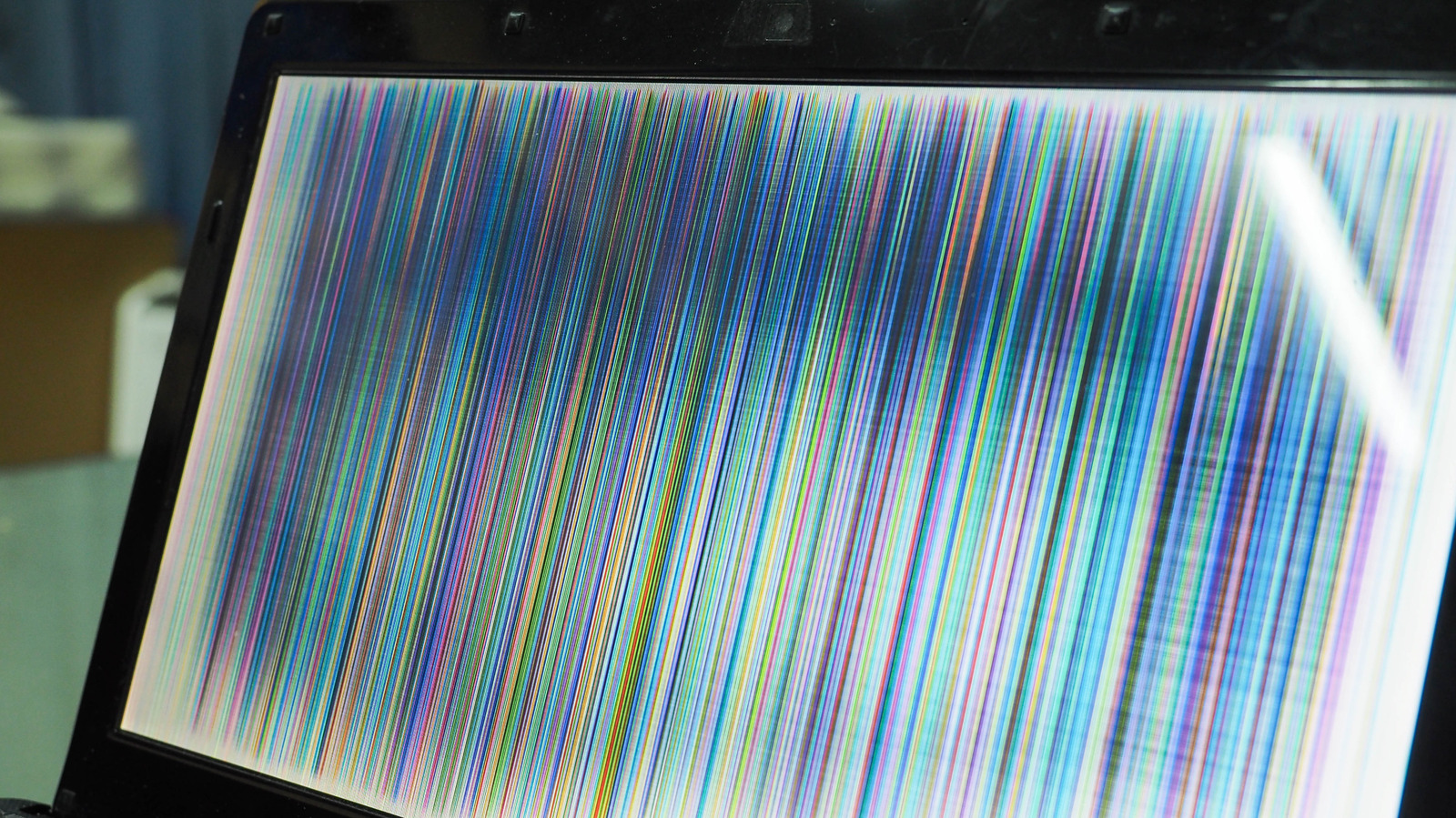
First: What Does Screen Flickering Actually Look Like?
Screen flickering can appear in several different ways.
- The entire screen flashes on and off.
- The brightness repeatedly changes.
- Horizontal or vertical lines appear temporarily.
- The display becomes distorted when you move the lid.
- The screen flashes when opening or closing the laptop.
- Only certain applications cause the problem.
- The screen goes black for a second and comes back.
- The display flickers continuously after Windows starts.
These symptoms can have completely different causes.
The First Test: Does It Flicker Before Windows Loads?
This is one of the most useful tests you can perform.
Restart the laptop and watch the screen while the manufacturer’s logo or BIOS screen appears.
If the flickering is already happening before Windows loads, a hardware problem becomes more likely.
If the display is perfectly stable during startup but begins flickering only after Windows loads, software, drivers or display settings become stronger possibilities.
It is not an absolute rule, but it is a useful first clue.
Try Moving the Laptop Lid Slowly
Now comes another important test, particularly when inspecting a used laptop.
With the laptop running, slowly move the display through different viewing angles.
If the screen flickers, goes black or develops lines at particular angles, pay close attention to the hinge and display-cable area.
The cable connecting the display to the motherboard passes through the hinge area on many laptop designs. Repeated movement, physical damage or previous repairs can eventually cause connection problems.
This is also why the physical condition of the hinges matters when buying a used machine. Our UK-used laptop inspection checklist can help you examine the machine beyond its advertised specifications.
What If the Screen Flickers Only When You Move the Lid?
That is a warning sign.
A display that changes when the lid is moved should not simply be dismissed as normal behaviour.
The problem could involve the display cable, connector, screen assembly or another component around the hinge area.
Before buying such a laptop, get the problem properly diagnosed and consider the potential repair cost.
Could It Just Be the Graphics Driver?
Yes.
Graphics drivers control how Windows communicates with the laptop’s display hardware. A driver problem can sometimes produce flickering or other display abnormalities.
This is why you should not immediately conclude that a flickering screen needs replacement.
Updating, reinstalling or troubleshooting the graphics driver may resolve certain software-related display problems.
Microsoft provides Windows guidance for troubleshooting screen flickering, which is useful when investigating a machine that flickers after Windows starts.
Check the Refresh Rate
Your laptop display operates at a particular refresh rate, such as 60Hz or a higher rate on some newer displays.
An incorrect or problematic display configuration can sometimes contribute to visual problems.
In Windows, you can check available refresh-rate settings under Settings > System > Display > Advanced display.
However, do not change settings randomly when diagnosing a used laptop. Record what the system originally uses so you can return to the previous configuration if necessary.
What About Brightness Flickering?
Brightness changes are not always the same as a defective screen.
Some laptops use automatic brightness or power-management features that adjust display brightness depending on conditions.
Some display technologies can also behave differently at lower brightness levels.
If the screen appears to pulse or flicker mainly at certain brightness settings, test it at several brightness levels before deciding that the panel is defective.
Connect an External Monitor
This is one of the best diagnostic tests available.
Connect the laptop to an external monitor or television using a compatible video connection.
Then compare the two displays.
If the laptop’s internal screen flickers while the external display remains stable, the problem may be located in the laptop’s internal display assembly, cable or panel.
If both displays show the same problem, the graphics system, driver or another part of the laptop may deserve closer investigation.
Why This Test Is So Useful When Buying Used
It helps you separate a display problem from a broader graphics problem without immediately opening the laptop.
A seller may describe a flickering internal screen as a minor issue, but if an external monitor also shows serious graphical corruption, you may be dealing with something much more significant.
Could the Screen Itself Be Faulty?
Yes.
LCD and OLED panels can develop faults.
A damaged panel may show:
- Persistent lines
- Dark areas
- Bright spots
- Dead pixels
- Uneven brightness
- Colour distortion
- Intermittent image loss
If the problem remains after software troubleshooting and does not depend on lid movement, the panel itself becomes one possible suspect.
What About a Damaged Display Cable?
The display cable is another possible cause.
Because the cable has to accommodate the repeated opening and closing of the laptop, it operates in an area that experiences constant movement.
A damaged or poorly connected cable can produce intermittent display problems.
This is particularly worth checking if the screen changes when you move the lid.
Can a Loose Connector Cause Flickering?
Yes.
An internal display connector that is not seated correctly can potentially cause intermittent display problems.
However, opening a laptop should be done carefully. Some modern machines are difficult to disassemble, and careless handling can create additional damage.
If you are not experienced with laptop repair, professional diagnosis is usually the better option.
Could Overheating Cause Screen Problems?
In some circumstances, excessive heat can contribute to system instability, including graphics-related problems.
But do not automatically blame every flickering display on overheating.
Test the laptop systematically instead of guessing.
A Simple Five-Minute Test for a Used Laptop
If you are inspecting a laptop before buying it, perform these checks:
- Restart the laptop and watch the manufacturer’s startup screen.
- Check whether the display flickers inside Windows.
- Move the lid slowly through several viewing angles.
- Change the brightness and observe the screen.
- Connect an external monitor if one is available.
These simple checks can reveal problems that may not be obvious from a quick inspection.
Don’t Let a Beautiful Screen Fool You
A laptop can look excellent in photographs while having a display problem that only appears after several minutes of use.
This is why buyers should test the actual machine instead of relying entirely on photographs or a specification sheet.
If you are looking for a reliable laptop seller in Lagos, it is also worth knowing how to identify sellers and deals that deserve closer inspection. Our guide on where to buy genuine laptops in Lagos covers additional buying precautions.
Should You Buy a Laptop With Minor Flickering?
It depends on the cause and the price.
If the problem is confirmed to be a simple software configuration issue and the machine is otherwise good, it may not be a serious concern.
But if the screen flickers when the lid moves, has persistent lines or repeatedly loses its image, treat it as a hardware warning.
Do not calculate the purchase price without considering the possible repair cost.
What If the Seller Says “It Only Needs a Driver Update”?
Ask them to demonstrate it.
Do not pay based on an explanation of what might fix the problem.
If updating the driver is supposed to solve the issue, the sensible approach is to have the laptop tested properly before the purchase is completed.
Does Screen Flickering Mean the Laptop Is Finished?
No.
Many causes of screen flickering are repairable.
The important question is not simply whether the laptop flickers. The important question is why it flickers.
A software problem, loose connector, display cable problem and failed panel are very different situations with different repair implications.
How to Reduce the Risk of Display Damage
Once you have a good laptop, proper handling can help protect the display.
- Open the lid gently.
- Avoid carrying the laptop by its screen.
- Do not press heavily against the display.
- Keep objects such as pens and USB drives away from the keyboard before closing the lid.
- Use a protective bag when transporting the laptop.
- Have loose hinges inspected before they cause further damage.
If you are comparing different types of used and refurbished machines, our guide to refurbished vs UK-used laptops is also useful when evaluating overall condition and value.
The Bottom Line
A flickering laptop screen is not something you should automatically panic about—but it is also not something you should ignore.
Start with the simple questions: Does it flicker before Windows loads? Does moving the lid change the problem? Does an external monitor work normally?
Those tests can provide valuable clues about whether you are looking at software, the display cable, the screen panel or a wider graphics problem.
For anyone buying a used laptop in Nigeria, the lesson is simple: test the actual machine before you pay.
A laptop with slightly older specifications can still be an excellent purchase if it is physically sound and works properly. A laptop with impressive specifications is not necessarily a good deal if the display is already showing signs of failure.