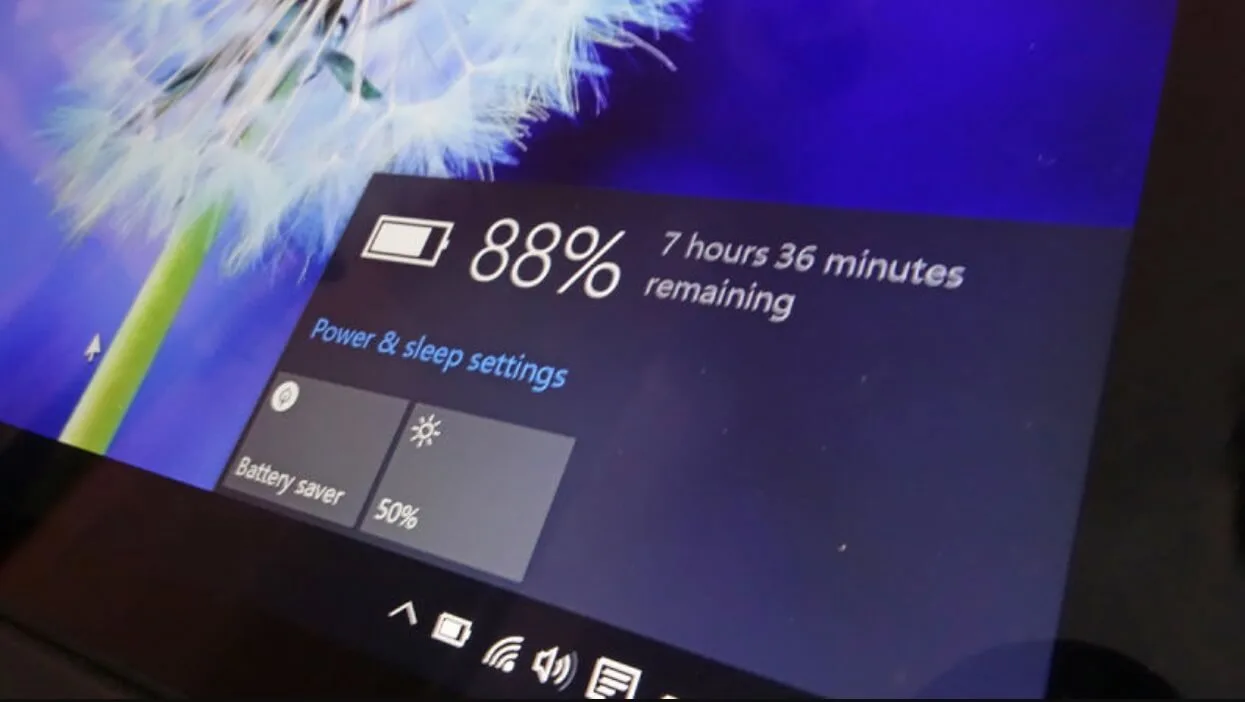
Sometimes the hardware is not the problem. Windows and the laptop manufacturer’s software can change how aggressively the computer uses its available resources.
Performance modes are designed for exactly this situation. They allow the laptop to adjust how it behaves depending on whether you want responsiveness, quieter operation or lower power consumption.
Understanding these settings is useful when troubleshooting a slow laptop, preparing a machine for demanding work or checking a used laptop before buying it.

What Is a Laptop Performance Mode?
A performance mode is a group of settings that influences how a laptop manages its hardware.
Depending on the manufacturer and Windows version, you may see options such as Best power efficiency, Balanced and Best performance.
Laptop manufacturers may add their own profiles as well. Lenovo, Dell, HP, ASUS and other brands can use different names and interfaces.
These modes can influence processor behavior, cooling, fan activity and other system settings.
What Is Balanced Mode?
Balanced mode is designed to provide a compromise between responsiveness and power efficiency.
For normal browsing, Microsoft Office, school work, programming and general everyday use, a balanced profile is often sufficient.
The laptop can increase performance when demand rises and reduce resource use when the workload becomes lighter.
That makes Balanced a useful default for people who do not want to constantly adjust settings.
What Is Best Performance Mode?
Best Performance prioritises responsiveness over efficiency.
When enabled, the laptop may be more willing to maintain higher performance levels during demanding workloads.
That can be useful when compiling software, rendering video, processing large files or performing other intensive tasks.
There is a trade-off, though. More aggressive performance can result in increased fan noise, higher temperatures and greater power consumption.
What Is Best Power Efficiency?
Best Power Efficiency takes the opposite approach.
The system prioritises reducing energy consumption where possible. That can be useful during light workloads or when you want the computer to operate more quietly.
For simple activities such as reading documents, browsing websites or writing emails, maximum performance usually provides little practical benefit.
Using an efficiency-focused setting can therefore make sense when the workload is light.
Windows Power Modes at a Glance
| Mode | Main priority | Suitable for |
|---|---|---|
| Best Power Efficiency | Lower energy use | Reading, browsing and light tasks |
| Balanced | Compromise between efficiency and performance | General everyday use |
| Best Performance | Higher responsiveness | Demanding workloads |
The exact behavior can vary depending on the laptop, processor, cooling system and manufacturer software.
Where Do You Change Power Mode in Windows?
On supported versions of Windows 11, power mode can be found through the system’s power settings.
Open Settings, go to System, then select Power & battery.
The available power mode options depend on the particular Windows installation and device.
Microsoft provides current Windows support documentation if you need to verify the settings on your machine:
Why Does My Laptop Become Faster When Plugged In?
This can be completely normal.
Many laptops change their power behavior when connected to AC power. The system may have more freedom to use higher performance settings because conserving energy is less important.
Some manufacturer utilities also automatically change the performance profile when the charger is connected.
Consequently, a laptop that feels noticeably faster while plugged in is not necessarily defective.
Why Does a Laptop Slow Down When It Gets Hot?
Temperature can affect performance.
Modern processors are designed to manage their operating conditions. When temperatures become too high, the system can reduce performance to control heat.
This behavior is commonly called thermal throttling.
As a result, a laptop may feel fast when you first start a demanding task but become slower after several minutes of sustained work.
Cooling problems can make the effect more noticeable. Our guide to proper laptop ventilation and surface placement explains why airflow should not be blocked.
Performance Mode Does Not Create Extra Hardware
Changing a power profile does not turn a basic laptop into a workstation.
A performance setting can change how the existing hardware behaves, but it cannot add RAM, increase storage capacity or transform an entry-level processor into a high-end one.
Think of performance mode as changing the priorities of the machine rather than upgrading the machine itself.
Can Best Performance Make a Laptop Faster?
It can improve responsiveness in situations where the default settings are limiting performance.
However, the difference depends heavily on the workload and laptop.
Opening a simple document may show almost no noticeable difference. A sustained compilation, rendering task or other processor-heavy workload may reveal a larger change.
For that reason, performance modes should be tested with the workload you actually care about.
Why Does the Fan Get Louder in Performance Mode?
More aggressive performance can generate more heat.
The cooling system responds by increasing airflow, which can raise fan noise.
A louder fan is therefore not automatically a sign of a failing laptop. What matters is whether temperatures and performance remain within normal operating behavior for that particular machine.
Constantly loud fans during simple tasks, however, deserve investigation.
Should You Always Use Best Performance?
No.
There is little reason to run the most aggressive profile when you are simply reading emails or watching a video.
During demanding work, the setting can be useful. For lighter activities, Balanced or an efficiency-focused mode may provide a quieter and more economical experience.
Using the right profile for the workload is more sensible than treating one mode as universally correct.
Performance Modes on Dell, HP and Lenovo Laptops
Windows power modes are only part of the picture.
Many manufacturers provide additional utilities that can change thermal and performance behavior.
A Dell laptop may have manufacturer-specific thermal settings. Lenovo and HP systems can also provide their own performance controls.
The names differ, so do not assume that “Performance” means exactly the same thing across every brand.
How to Test Performance Modes on a Used Laptop
If you are inspecting a used laptop, performance behavior can reveal useful information about its condition.
Start with a normal workload. Open several applications and observe how the computer responds.
Next, connect the charger and check whether the performance profile changes. Run a sustained workload and watch for unusual slowdowns, excessive heat or abnormal fan behavior.
Useful checks include:
- Test the laptop on battery power.
- Test it while connected to the charger.
- Check available power modes.
- Run a sustained workload.
- Listen for unusual fan behavior.
- Watch for major performance drops.
- Check whether the laptop becomes excessively hot.
Combine these observations with the broader checks in our UK-used laptop buying checklist before making a purchase.
Why Performance Mode Matters for Developers
Developers can encounter workloads that remain active for several minutes or longer.
Compiling projects, running development servers, using containers and working with virtual machines can place sustained demands on the system.
A performance-focused profile may therefore be useful during heavy development tasks.
For someone learning programming on a budget, the laptop’s overall configuration still matters more than the performance-mode setting. Our guide to laptops for learning tech skills in Nigeria covers the hardware side of that decision.
Performance Modes for Students
Students usually switch between very different workloads.
Writing notes and browsing the web require relatively little performance. Video editing, programming, data analysis or other demanding assignments can require considerably more.
A flexible power profile lets the same laptop adapt to those situations.
There is no need to leave the system in maximum-performance mode while performing simple school work.
What If the Laptop Is Slow in Every Mode?
Changing the power mode may not solve the underlying problem.
Check for unnecessary startup programs, background applications, insufficient RAM, storage issues or software problems.
Malware can also affect system performance, although not every slow laptop has a security problem.
Our guide on why laptops become slow over time covers several common causes that should be investigated.
Common Mistakes With Laptop Performance Settings
Leaving maximum performance enabled all the time
Maximum performance is not necessary for every workload. It can also produce more heat and fan noise.
Assuming a slow laptop only needs a performance setting
Performance modes cannot fix failing hardware, insufficient memory or a damaged operating system.
Ignoring temperatures
If performance drops during sustained work, heat may be part of the explanation.
Testing only while plugged in
A laptop can behave differently on battery power. Both conditions are worth checking when buying used.
What Mode Should You Use?
Use Balanced for normal daily computing, school work and office tasks.
Use Best Performance when you are performing demanding work and need maximum responsiveness from the available hardware.
Use Best Power Efficiency when your workload is light and reducing energy use or fan activity is more important.
There is no need to treat the setting as permanent. Windows allows you to adjust the system according to what you are doing.
Bottom Line
Laptop performance is influenced by more than processor specifications.
Windows power modes and manufacturer performance profiles can change how the machine balances responsiveness, heat, fan activity and efficiency.
For everyday work, Balanced is often enough. Demanding workloads may benefit from a performance-focused setting, while light tasks can use a more efficient profile.
When buying a used laptop, test how it behaves under different conditions instead of judging its speed from a few seconds of browsing.
A properly configured laptop should respond appropriately to the workload. If changing performance modes makes little difference and the machine remains unusually slow, investigate the underlying software, cooling or hardware instead.