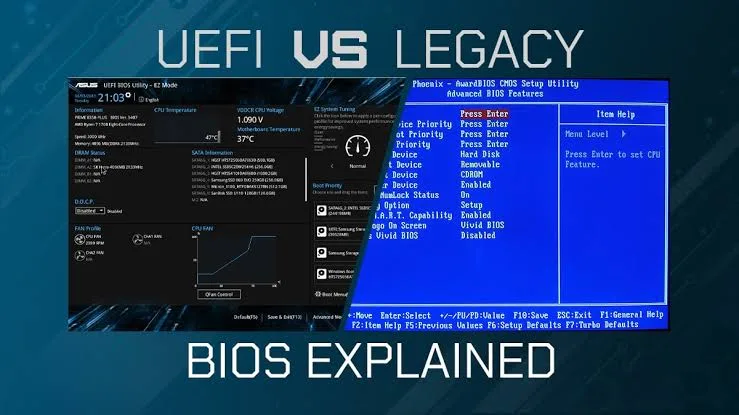
When a laptop starts, Windows is not the first thing that runs. Before the operating system loads, another piece of software checks the hardware, prepares the machine and decides how the computer should start.
That software is commonly known as BIOS or UEFI. You may never need to open its settings during normal use, but understanding it can help when buying a used laptop, troubleshooting startup problems or checking whether important hardware is recognised correctly.
What Is BIOS?
BIOS stands for Basic Input/Output System. It is firmware stored on the laptop’s motherboard that starts the computer before the operating system loads.
Traditional BIOS firmware has been used for decades. Modern laptops, however, generally use UEFI instead. People still commonly call the firmware screen “BIOS,” even when the laptop actually uses UEFI.
What Is UEFI?
UEFI stands for Unified Extensible Firmware Interface. It performs the same basic startup role as BIOS but provides a more modern firmware environment.
UEFI can support features such as Secure Boot, modern partition layouts and larger storage devices. Its interface may also look more advanced than the simple text-based menus found on older BIOS systems.
For most laptop buyers, the important point is simple: BIOS and UEFI are responsible for preparing the computer before Windows or another operating system starts.
What Happens When You Press the Power Button?
Several things happen before you see the Windows desktop.
- The laptop receives power and activates its firmware.
- The firmware checks important hardware components.
- The system identifies available boot devices.
- UEFI loads the appropriate bootloader.
- The operating system begins loading.
That is why a laptop can sometimes have a problem before Windows even appears. If the firmware cannot properly initialise important hardware, changing Windows settings may not solve the problem.
Why BIOS and UEFI Matter When Buying a Used Laptop
A used laptop can look excellent externally while having firmware-related problems underneath. Checking the firmware is therefore another useful part of a proper inspection.
Before buying, enter the BIOS or UEFI setup and look for the basic system information.
- Processor model
- Installed memory
- Storage drive
- System model
- Serial number where available
- Boot configuration
- BIOS or UEFI version
These details can help you compare what the seller advertised with what the machine actually contains. For a more complete inspection, use the PSERO UK-used laptop buying checklist alongside your physical testing.
How Do You Enter BIOS or UEFI?
The key depends on the manufacturer and model. Common keys include F2, F10, F12, Delete and Esc.
Usually, you press the appropriate key repeatedly immediately after turning on the laptop. Some newer Windows systems also provide an option to restart directly into UEFI firmware settings.
If you are inspecting a laptop in a shop, ask the seller to allow you to enter the firmware screen before completing the purchase.
What Is the Boot Order?
The boot order tells the computer which device it should try first when starting.
A typical system may have the internal SSD as the primary boot device. USB storage, network boot and other options can also appear depending on the laptop.
Incorrect boot settings can sometimes produce messages such as “No boot device found.” However, that message can also indicate a failing or missing storage drive, so the boot order should not automatically be blamed.
What Is Secure Boot?
Secure Boot is a UEFI security feature designed to prevent unauthorised boot software from loading during startup.
It works by checking whether boot components are trusted before allowing the system to continue. Windows 11 commonly uses modern security features such as UEFI and Secure Boot as part of its supported configuration.
For a broader explanation of laptop security features, see the PSERO guide to TPM, Secure Boot, Windows Hello and other laptop security features.
Should You Change BIOS Settings?
Some firmware settings are useful, but changing random options is not recommended.
Boot order, virtualisation support, Secure Boot and certain hardware settings can affect how the laptop operates. A wrong change can cause startup problems or prevent an operating system from booting correctly.
If you are not sure what an option does, leave it unchanged. Take a photo of the original setting before making any adjustment that you understand and actually need.
BIOS Passwords Can Matter on Used Laptops
One important check for a second-hand laptop is whether the firmware is protected by an unknown administrator password.
A BIOS or UEFI password can restrict access to firmware settings. On some business-class machines, additional firmware security features can make unauthorised changes difficult to reverse.
If a used laptop asks for a password that the seller cannot provide, treat that as an important issue rather than assuming Windows can simply fix it.
Can BIOS or UEFI Detect Your SSD?
Yes. The firmware normally provides information about available storage devices.
If Windows reports that an SSD exists but the firmware cannot detect it, further investigation is necessary. Likewise, if the advertised SSD is missing from the firmware information, do not ignore the discrepancy.
Storage problems can become expensive if discovered after purchase, especially when buying older machines. You can also learn more about storage hardware in the PSERO SSD technology guide.
What Does a BIOS Update Do?
A BIOS or UEFI update can improve compatibility, fix firmware bugs, address security issues or add support for certain hardware configurations.
However, firmware updates should be handled carefully. Interrupting the process or installing the wrong firmware can cause serious problems.
Always use firmware intended for the exact laptop model and follow the manufacturer’s instructions. Official manufacturer support pages are the safest place to obtain firmware updates.
For manufacturer documentation, you can check Microsoft Support for Windows-related firmware guidance and your laptop manufacturer’s official support website for model-specific BIOS or UEFI updates.
BIOS vs UEFI: What Is the Difference?
| Feature | Traditional BIOS | UEFI |
|---|---|---|
| Technology | Older firmware standard | Modern firmware standard |
| Boot environment | Legacy | Modern |
| Secure Boot | Generally unavailable | Supported |
| Modern storage support | More limited | Better suited to modern systems |
| User interface | Often basic | Can provide graphical menus |
BIOS Checks Worth Doing Before Buying
You do not need to become a firmware expert to perform useful checks. A few minutes can reveal important information.
- Enter the BIOS or UEFI setup.
- Confirm the laptop model.
- Check the processor information.
- Confirm the installed RAM where shown.
- Check whether the advertised SSD or HDD is detected.
- Look for unexpected firmware passwords.
- Check the boot configuration.
- Look for obvious firmware warnings.
After leaving the firmware screen, continue with Windows testing, hardware checks and battery inspection. BIOS verification should complement—not replace—a full laptop inspection.
Common BIOS and UEFI Mistakes Buyers Make
- Ignoring an unknown BIOS password.
- Assuming a missing drive is only a Windows problem.
- Changing settings without recording the original configuration.
- Installing firmware meant for another model.
- Assuming every firmware option should be enabled.
- Buying based only on the Windows specifications screen.
These mistakes are particularly relevant when buying older business laptops because firmware security and management features can remain active even after the previous owner has stopped using the machine.
When Should You Worry?
A firmware screen by itself is not a reason to reject a laptop. The important thing is whether it reveals a problem that affects ownership or normal operation.
Unknown firmware passwords, missing storage devices, incorrect hardware information and unexplained startup errors deserve further investigation.
For buyers in Nigeria, checking these details before payment is much easier than trying to resolve a serious hardware or firmware problem after taking the laptop home.
Final Thoughts
BIOS and UEFI work behind the scenes, but they play a major role in how a laptop starts and communicates with its hardware.
For everyday users, there is usually no reason to change firmware settings. For buyers, technicians and anyone troubleshooting startup problems, however, the firmware screen can provide valuable information.
When purchasing a UK-used laptop, spend a few minutes checking BIOS or UEFI alongside the keyboard, screen, storage, ports and operating system. A laptop that passes these checks gives you much more information than one judged only by its appearance and Windows specifications.
PSERO LAPTOP provides affordable laptops in Nigeria, including UK-used and brand-new options. Visit PSERO LAPTOP to explore available laptops and compare models before buying.