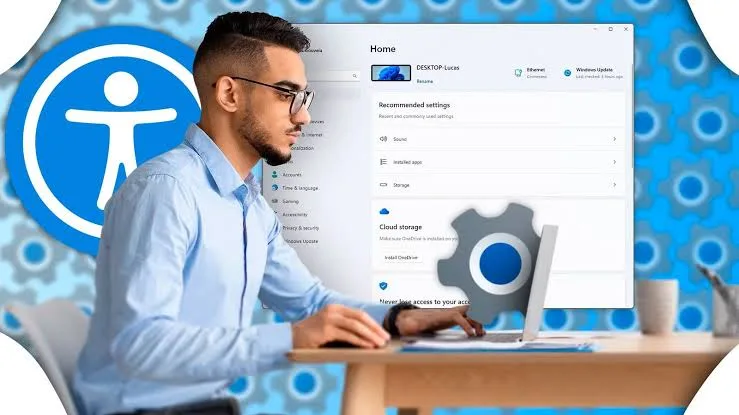
Windows includes a large collection of accessibility tools that can make everyday computing easier. Some help people with vision difficulties, while others assist users who have trouble typing, hearing audio or controlling a computer with a traditional mouse and keyboard.
Many of these features are already built into Windows, so you may not need to buy expensive specialist software.
Even if you do not currently need accessibility tools, understanding them can help when buying a laptop for a student, parent, colleague or family member.

What Are Laptop Accessibility Features?
Accessibility features are settings and tools designed to make computers easier to use for people with different physical, visual, hearing or cognitive needs.
Windows groups many of these options under Settings → Accessibility.
The available tools include screen magnification, text size controls, screen narration, captions, voice control, keyboard assistance and visual adjustments.
Microsoft maintains its accessibility documentation through Microsoft Accessibility.
Windows Magnifier
Magnifier enlarges content displayed on the screen.
It can be useful when text, icons or interface elements are too small to read comfortably.
Users can change the magnification level and adjust how the enlarged view appears.
That can be particularly useful on compact laptops with high-resolution displays.
Does a Bigger Screen Always Solve Visibility Problems?
Not necessarily.
A larger screen can provide more physical space, but Windows scaling and text size can also have a major effect on readability.
A 14-inch laptop with suitable scaling may be easier to use than a larger machine with tiny interface elements.
Screen brightness, viewing angles and display quality matter as well.
Our guide to testing laptop screens for problems covers other display issues worth checking before buying a used machine.
Windows Narrator
Narrator is Microsoft’s built-in screen reader.
It reads information displayed on the screen and provides spoken feedback about windows, controls, text and other interface elements.
This can help users who have difficulty seeing the screen.
Screen readers are also useful when navigating websites and applications without relying entirely on visual information.
Voice Access
Voice Access allows users to control supported Windows functions using spoken commands.
Depending on the setup, voice commands can be used to open applications, navigate the interface, enter text and perform other tasks.
This can reduce the amount of physical interaction required from a user.
Voice control is also useful when your hands are occupied or when extended keyboard use is uncomfortable.
Speech Recognition and Dictation
Dictation allows spoken words to be converted into text.
For someone who writes long messages, documents or notes, speaking can sometimes be faster than typing.
Accuracy depends on the microphone, background noise, language settings and speech-recognition technology.
That is one reason microphone quality deserves attention when buying a laptop for communication-heavy work. Our laptop microphone guide explains what to test.
Live Captions
Live captions convert supported spoken audio into text displayed on the screen.
They can help users who have difficulty hearing speech clearly.
Captions can also be useful in noisy environments where listening to a video or meeting is difficult.
Accuracy can vary depending on the speaker, audio quality, language and background noise.
High Contrast and Colour Settings
Some users find standard colour combinations difficult to read.
Windows provides settings that can change colours, contrast and visual presentation.
These options can make text and interface elements easier to distinguish.
Colour adjustments can also help people who experience certain forms of colour-vision difficulty.
Text Size
Windows allows users to increase text size without necessarily changing every aspect of the display.
This can be useful for people who find small text uncomfortable to read.
Increasing text size may affect how much information fits on the screen, so users can adjust it until they find a comfortable balance.
Sticky Keys
Sticky Keys can make keyboard shortcuts easier to use.
Normally, a shortcut may require pressing several keys at the same time. Sticky Keys allows modifier keys such as Shift, Ctrl or Alt to be pressed separately.
This can be useful for people who have difficulty holding several keys down simultaneously.
Filter Keys
Filter Keys can help reduce problems caused by accidental repeated keystrokes.
For someone with limited control over finger movement, a quick repeated press may otherwise produce unwanted characters.
The feature can change how Windows responds to brief or repeated keyboard presses.
Mouse and Pointer Accessibility
Windows also provides options for changing pointer size and appearance.
A larger pointer can make the cursor easier to locate on a busy screen.
Users can also adjust mouse settings to make pointer movement more comfortable.
For someone who struggles with a traditional mouse, a touchscreen or alternative input device may provide another way to interact with the computer.
Touchscreen Accessibility
Touchscreens can provide an alternative to using a mouse.
For some users, tapping directly on a large button is easier than positioning a small pointer over it.
Touch input is not automatically better for everyone, though. Screen size, touch accuracy and the user’s physical abilities all influence the experience.
If you are considering a touchscreen machine, our laptop display guide explains other factors to examine.
Keyboard Shortcuts Can Improve Accessibility
Keyboard shortcuts can reduce the amount of mouse movement required during everyday work.
Users can often open menus, switch between applications and navigate documents without constantly reaching for the touchpad.
That can make repetitive tasks faster and reduce unnecessary physical movement.
A comfortable keyboard is therefore worth considering when buying a laptop for someone who relies heavily on keyboard input.
What Makes a Laptop Easier to Use?
| Feature | Who may benefit | What to check |
|---|---|---|
| Magnifier | Users with limited vision | Display quality and scaling |
| Narrator | Users who rely on screen reading | Windows accessibility support |
| Voice Access | Users who prefer voice control | Microphone quality |
| Live Captions | Users who benefit from text-based audio | Audio and language support |
| Sticky Keys | Users with keyboard control difficulties | Keyboard layout and comfort |
| Touch input | Users who prefer direct interaction | Touchscreen responsiveness |
Accessibility Features for Students
Students can benefit from accessibility tools even when they do not have a diagnosed disability.
Text enlargement can make long reading sessions easier. Dictation can help with taking notes, while captions can make recorded lectures easier to follow.
Keyboard shortcuts may also reduce repetitive movements during long study sessions.
For students choosing a used laptop, our guide to UK-used laptops for students in Lagos covers other practical buying considerations.
Accessibility for Older Laptop Users
Older users may benefit from larger text, stronger contrast, easier pointer tracking and voice features.
A laptop does not necessarily need specialist hardware to provide these options.
In many cases, the accessibility settings already included in Windows can make a standard computer considerably easier to operate.
Can Accessibility Affect Laptop Performance?
Most basic accessibility settings have little effect on normal laptop performance.
Some features may use additional system resources, particularly when real-time processing is involved.
On a modern laptop, this is usually not a major concern for ordinary accessibility functions.
Older or low-powered machines may respond differently, especially when several demanding applications are running at the same time.
Accessibility Features to Check Before Buying a Used Laptop
If the laptop is being purchased specifically for accessibility needs, test the features before paying.
- Check the display at the required brightness.
- Test text scaling and screen magnification.
- Check the keyboard for damaged or stiff keys.
- Test the touchpad.
- Test the touchscreen if the machine has one.
- Check the microphone for voice features.
- Test the speakers and headphone output.
- Confirm that Windows accessibility settings are functioning.
A complete physical inspection is still necessary. Our guide to buying genuine laptops in Lagos covers additional precautions for avoiding poor-quality machines and dishonest sellers.
Do Accessibility Features Replace Specialist Equipment?
Not always.
Built-in accessibility tools can solve many everyday problems, but some users require specialist keyboards, switches, displays, pointing devices or other assistive technology.
The right solution depends on the individual’s needs.
A laptop should therefore be selected around the person using it rather than simply around its specifications.
Common Accessibility Mistakes
Ignoring the built-in Windows tools
Many useful features are already available without installing additional software.
Buying only based on screen size
Scaling, brightness, contrast and resolution can matter just as much.
Forgetting the microphone
Voice control and dictation depend heavily on reliable audio input.
Ignoring keyboard comfort
A technically functional keyboard may still be uncomfortable for extended use.
Assuming one solution works for everyone
Accessibility requirements differ from person to person, so testing the actual workflow is essential.
Final Buying Advice
A good laptop is not simply one with a powerful processor and plenty of RAM.
Ease of use can make an equally significant difference, particularly when the computer will be used for many hours every day.
Windows includes a broad range of accessibility tools covering vision, hearing, speech, keyboard input and pointer control. Learning how these features work can help you get more from a laptop you already own and make smarter choices when buying another one.
Before purchasing, identify the user’s actual needs first. Then test the display, keyboard, touchpad, microphone and operating-system features that support those needs.
The best machine is the one that allows the person using it to work, study and communicate comfortably.