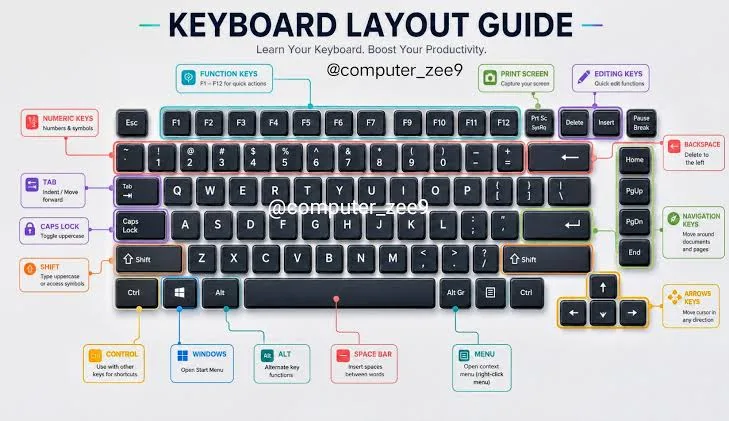
You press the key marked @ on your laptop, but Windows produces a quotation mark instead. Perhaps the slash key is in the wrong place, your keyboard suddenly starts typing in another language, or you cannot find the symbol you need for an email address or password.
These problems do not always mean your keyboard is damaged. Windows may be using a different keyboard layout from the one printed on your keys. A layout determines how Windows interprets the physical keys you press, including letters, punctuation, and special characters.
This guide explains how keyboard layouts work, how to switch between them, how to add another typing language, and how to troubleshoot common problems on Windows laptops.

What Is a Keyboard Layout?
A keyboard layout determines which characters Windows produces when you press particular keys. Two keyboards can have similar physical designs but different arrangements for punctuation and symbols.
For example, a US keyboard layout and a UK keyboard layout place some symbols differently. If your laptop was originally sold in the United Kingdom but Windows is configured for a US layout, certain punctuation marks may appear in unexpected places.
The physical keyboard and the selected software layout are separate things. Changing the Windows layout can correct many character-mapping problems without replacing any hardware.
US vs UK Keyboard Layouts
US and UK layouts are common on laptops sold internationally, including UK-used business laptops in Nigeria. Their differences can be confusing if you are accustomed to one arrangement and begin using another.
| Feature | US layout | UK layout |
|---|---|---|
| Common layout name | US | United Kingdom |
| Number-row symbols | Uses the US arrangement for symbols such as @ and # | Uses a different arrangement for several symbols |
| Quotation and punctuation keys | Some punctuation keys occupy different positions from the UK layout | Some punctuation keys occupy different positions from the US layout |
| Physical key markings | Often printed for the US arrangement | Often printed for the UK arrangement |
The precise differences depend on the keyboard type and selected layout. If your laptop’s printed keys do not match the characters appearing on screen, checking the active layout should be one of your first steps.
How to Check Your Current Keyboard Layout
Windows usually displays the active keyboard language or layout through an input indicator on the taskbar, although the exact appearance varies by configuration.
- Look at the right side of the taskbar near the clock and system icons.
- Find the language indicator, which may display a short label such as ENG US or ENG UK.
- Select the indicator to view the available keyboard layouts.
- Check which layout is currently selected.
If the language indicator is not visible, open Settings and look under Time & language and Typing or Language & region. The available menu labels may differ slightly across Windows versions.
How to Switch Keyboard Layouts Quickly
Windows provides keyboard shortcuts for switching between installed input layouts.
- Windows + Space: Opens the input switcher so you can select an available keyboard layout.
- Alt + Shift: May switch input languages on systems where that shortcut is enabled.
Windows + Space is a useful first option because it shows the available layouts before you select one. If you accidentally switch layouts, use the same shortcut to return to the correct arrangement.
Remember that these shortcuts switch between layouts already installed on your computer. They do not automatically install a missing language or keyboard configuration.
How to Change Your Keyboard Layout in Windows 11
If your keyboard consistently produces the wrong punctuation marks, follow these steps to check or change the layout.
- Open Settings from the Start menu.
- Select Time & language.
- Choose Language & region.
- Find your preferred language in the language list.
- Open its language options using the menu beside it.
- Look under Keyboards for the installed layouts.
- Add the appropriate layout if it is missing.
- Remove an unwanted layout only after confirming that you no longer need it.
For example, if your physical keyboard uses the UK arrangement, installing and selecting the UK keyboard layout may resolve punctuation mismatches.
After changing the layout, open Notepad or another simple text editor and test the keys that previously caused problems. This is safer than testing unfamiliar characters directly in a password field.
How to Change Your Keyboard Layout in Windows 10
Windows 10 provides similar controls, although the interface differs from Windows 11.
- Open Settings.
- Select Time & Language.
- Choose Language.
- Select your preferred language from the available list.
- Open Options.
- Find the Keyboards section.
- Add the layout you need or remove one that you no longer use.
If you cannot find the relevant option, use the Settings search box to search for language or keyboard settings.
Microsoft provides additional instructions through its official Windows support website.
How to Add Another Typing Language
You may need more than one keyboard layout if you regularly type in different languages. Windows allows supported languages and input methods to be added through its language settings.
- Open Settings.
- Navigate to Time & language.
- Open Language & region or Language, depending on your Windows version.
- Select the option to add a language.
- Search for the language you want.
- Review the available language features before installing it.
- After installation, check the available keyboard layouts.
Adding a language does not necessarily change the physical keys on your laptop. It changes the available input options and may add language components depending on your selection.
If you only need a different keyboard arrangement, adding an additional layout to an existing language may be sufficient.
How to Type Special Symbols Without Changing Your Layout
Sometimes, you need one character that is not easy to locate on your keyboard. Windows offers several ways to enter symbols without permanently changing your layout.
Use the Character Map
Character Map lets you browse and copy characters available in supported fonts.
- Open the Start menu.
- Search for Character Map.
- Open the application.
- Choose a font and locate the character you need.
- Select the character and copy it.
- Paste it into your document or application.
This approach is useful for occasional symbols, accented letters, and other characters that are difficult to enter using your normal keyboard.
Use the On-Screen Keyboard
The On-Screen Keyboard displays a virtual keyboard that you can operate with your mouse or touchscreen where supported.
Search for On-Screen Keyboard in the Start menu to open it. The displayed keys can help you understand the active layout and locate symbols that are difficult to find on the physical keyboard.
Use the Symbols Panel
On supported Windows versions, Windows + . opens the emoji and symbols panel. Depending on the application and available options, you can use it to insert selected symbols and special characters.
This method is convenient when writing documents or messages, but the available characters vary. For frequent specialist typing, a suitable keyboard layout or input method may be more practical.
Why Does Your Keyboard Type Numbers Instead of Letters?
Some laptops include an embedded numeric keypad that shares keys with letters. When Num Lock is enabled, those keys may produce numbers instead of the expected letters.
This behaviour can occur on compact laptops that do not have a separate full-size number pad.
Try these checks:
- Look for a Num Lock key or a key marked with a similar abbreviation.
- Check whether Num Lock is enabled.
- Toggle it using the appropriate key combination for your laptop.
- Test the affected keys in a text editor.
Some laptop models require the Fn key to operate the embedded numeric keypad or change its state. The exact shortcut depends on the manufacturer and model, so check the laptop’s documentation if the key is not obvious.
Why Do Some Keys Stop Working After a Layout Change?
A layout change can make a key appear to stop working when it actually produces a different character. However, if the same physical key fails to respond across different layouts and applications, the problem may involve the keyboard itself or its driver.
To narrow down the cause:
- Test the key in Notepad or another basic text editor.
- Switch to another installed keyboard layout and test again.
- Try the On-Screen Keyboard to see whether Windows can enter the character virtually.
- Connect an external keyboard if one is available.
- Inspect Device Manager if several keys or keyboard functions behave incorrectly.
If an external keyboard works correctly while the laptop’s built-in keyboard continues to fail, the built-in keyboard or its connection may require inspection. A single test does not prove the exact fault, but it can help narrow the possibilities.
For further troubleshooting, read our Windows Device Manager guide.
Can a Keyboard Layout Affect Passwords?
Yes. If your password contains punctuation or special characters, entering it under a different layout may produce characters you did not intend.
This is particularly important when signing in after changing keyboard settings or using a laptop configured for another region.
If your password fails unexpectedly, first check the active input layout. Where the sign-in screen offers an On-Screen Keyboard, you may also use it to inspect the available keys. Avoid repeatedly entering sensitive credentials into unfamiliar websites or applications while troubleshooting.
Never share your password with a technician or support agent. If you suspect that your account credentials have been exposed, follow the account provider’s official recovery and security procedures.
Should You Change the Windows Display Language Too?
Not necessarily. The display language determines the language Windows uses for menus and interface elements, while the keyboard layout controls how physical key presses produce characters.
You can use an English Windows interface with a UK keyboard layout, for example. You do not need to change every language setting just because your keyboard produces unexpected symbols.
Make the smallest relevant change first. If punctuation is the only problem, correcting the keyboard layout is usually a more targeted approach than changing the entire Windows display language.
Choosing a Laptop with the Right Keyboard
Keyboard layout is worth checking when buying a laptop, especially if you are considering a UK-used or imported business model. A computer may be in excellent condition but have a physical keyboard arrangement that differs from what you are used to.
Before buying, inspect the following:
- The physical layout printed on the keys.
- The condition of commonly used keys, including Space, Enter, Shift, and Backspace.
- Whether every key responds consistently.
- Whether the keyboard has a separate numeric keypad or an embedded one.
- Whether the layout suits your daily typing needs.
If the keyboard arrangement differs from your preference, Windows may allow you to use another software layout. However, the printed key labels will remain unchanged, so consider whether that arrangement will be comfortable for you.
Our UK-used laptop buying checklist explains other practical checks to perform before paying for a laptop.
Final Thoughts
When a laptop starts producing unexpected characters, do not immediately assume that its keyboard is faulty. Check the active Windows keyboard layout, test the affected keys in a text editor, and confirm whether Num Lock or another keyboard function is responsible.
Windows lets you install multiple layouts and switch between them as needed. It also provides tools such as Character Map and the On-Screen Keyboard for entering or locating characters that are difficult to type.
For buyers choosing a laptop for school, office work, programming, or business, keyboard layout and physical condition are practical considerations alongside processor, memory, and storage. PSERO LAPTOP can help you explore laptop options suited to your work and budget.