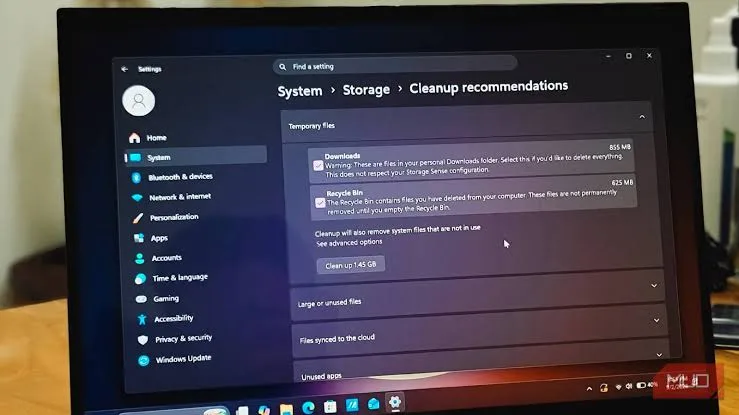
Your laptop may still have plenty of processing power, yet Windows keeps warning that the drive is almost full. Downloads accumulate, temporary files take up space, and old applications remain installed long after you stop using them. Eventually, you may struggle to install updates, save documents or download essential software.
Windows includes tools that can help you manage storage without immediately buying a larger SSD. One of the most useful is Storage Sense, which can automatically remove certain unnecessary files. However, choosing the wrong cleanup options can affect files you intended to keep, so it pays to understand the settings before switching them on.
What Is Windows Storage Sense?
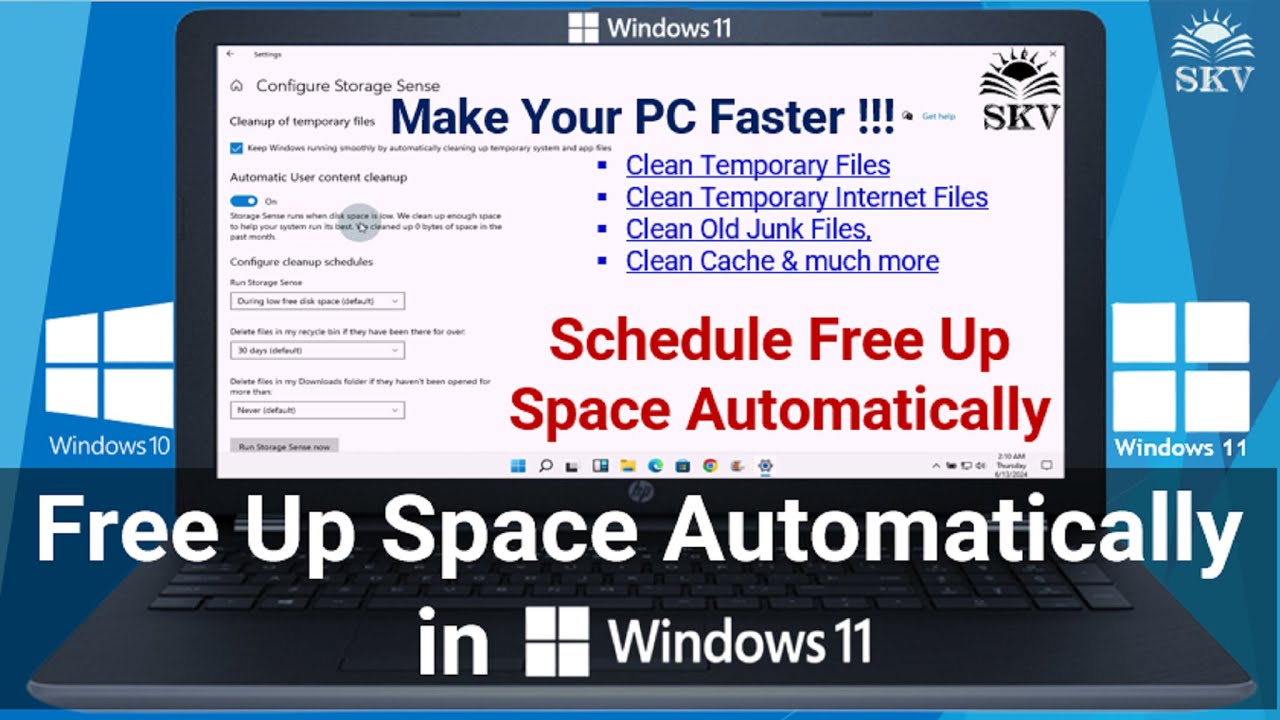
Storage Sense is a Windows feature that helps free up disk space by automatically removing selected temporary files and managing certain items in the Recycle Bin. Depending on your configuration, it can also manage locally available cloud files.
Instead of waiting until your laptop runs out of space, you can configure Storage Sense to perform routine maintenance. This is particularly useful for students, freelancers and business owners who regularly download documents, install applications and work with large files.
Storage Sense does not replace a backup. It is a cleanup tool, and you should understand which locations it manages before relying on it to maintain your storage.
How to Find Storage Sense in Windows
- Open the Windows Start menu and select Settings.
- Choose System.
- Select Storage.
- Find Storage Sense and open its settings.
- Review the available options before enabling automatic cleanup.
The layout may vary slightly between Windows versions. If you cannot find the feature, consult Microsoft’s official Windows support resources for instructions relevant to your installation.
Understand What Is Taking Up Space First
Before deleting anything, inspect the storage categories shown under Settings and System Storage. Windows may display categories such as installed applications, temporary files, documents, pictures and other files.
This overview helps you identify the actual problem. For example, a laptop with 15GB of temporary files needs a different cleanup strategy from one filled with video projects or downloaded installers.
Pay particular attention to these common storage users:
- Downloads: Documents, installers, videos and archives you have saved from the internet.
- Temporary files: Files created by Windows and applications during normal operation.
- Installed applications: Programs and games that may occupy substantial space.
- Videos and large media files: Content that can quickly consume available storage.
- Recycle Bin: Deleted files that may still occupy disk space until permanently removed.
For a broader explanation of storage hardware and file locations, read our guide to laptop file storage, SSDs, external drives and cloud backups.
How to Configure Storage Sense Safely
1. Choose when cleanup runs
Storage Sense can offer options for running automatically, such as when available disk space becomes low or on a schedule. Choose a setting that suits how you use your laptop. If you regularly download files for work, a more cautious schedule gives you time to review what you have saved.
2. Review temporary-file cleanup
Temporary files are often safe to remove, but do not assume that every item listed under a cleanup screen is disposable. Read the descriptions carefully and leave any category unchecked if you do not understand its purpose.
3. Check the Recycle Bin setting
Windows may allow Storage Sense to remove files from the Recycle Bin after a selected period. If you sometimes recover deleted documents, choose a suitable retention period or leave automatic deletion disabled.
Remember that permanently removing an item from the Recycle Bin can make ordinary recovery more difficult. Confirm that you no longer need the files before allowing cleanup to remove them.
4. Treat the Downloads folder carefully
Do not enable a Downloads cleanup option without understanding exactly what it will remove and when. This folder often contains important documents, receipts, application installers and files that have not been moved elsewhere.
If your version of Windows offers a Downloads-related Storage Sense setting, review it closely before enabling it. Keep important files in organised folders and maintain a separate backup.
5. Understand cloud-file settings
Some Windows configurations can manage locally available cloud content. Depending on the service and settings, a file may remain available online while its local copy is removed to free space. Confirm that the file has synced successfully and that you understand how to access it again before changing these options.
How to Free Up Space Manually
Automatic cleanup is useful, but a quick manual review can produce better results when your laptop is nearly full.
- Open Settings and navigate to System, then Storage.
- Review the categories to identify where most space is being used.
- Open Temporary files and carefully inspect the listed items.
- Select only the categories you understand and are comfortable removing.
- Review your Downloads folder separately and move important files before deleting anything.
- Uninstall applications you no longer need through Windows Settings.
- Restart the laptop if Windows requests it to complete cleanup.
For files you want to keep but rarely use, consider moving them to a suitable external drive or verified cloud-storage service. Keep another copy of irreplaceable documents wherever practical.
What You Should Never Delete Just to Gain Space
Randomly deleting system folders is not a safe storage-management strategy. Windows and installed applications rely on specific files and directories to function correctly.
- Do not manually delete Windows system folders. Removing essential files can damage the operating system.
- Do not delete unfamiliar program folders. Uninstall applications through Windows Settings instead.
- Do not format a drive to solve a routine storage warning. Formatting can erase the data stored on it.
- Do not assume synced files are backed up. Verify the sync status and understand the service’s deletion behaviour.
- Do not remove files you have not identified. Search for their purpose before deciding whether they are safe to delete.
If Windows reports access errors while you are organising files, our guide to Windows file permissions and access-denied messages explains why some folders require special permissions.
Storage Sense vs Disk Cleanup
| Feature | Storage Sense | Disk Cleanup |
|---|---|---|
| Main purpose | Automates selected storage cleanup tasks | Provides a manual way to remove selected unnecessary files |
| Automatic operation | Yes, when configured | Primarily a manual tool |
| User control | Uses configured cleanup rules | Lets you review available categories during cleanup |
| Best use | Routine storage maintenance | Targeted cleanup when you need to review options |
Available options depend on the Windows version and system configuration. You do not need to run every cleanup utility repeatedly. Start with Windows’ built-in storage overview, then choose the method that best addresses the problem.
What If Your Laptop Still Has Almost No Free Space?
If cleanup barely changes the available space, the main problem may be your files or drive capacity rather than temporary data.
Try these checks:
- Sort large files by size and review which ones you can archive or remove.
- Uninstall unused games, editing tools and other large applications.
- Move old videos and completed projects to a suitable external drive after backing them up.
- Check whether cloud files have downloaded locally when you intended to keep them online.
- Investigate whether Windows updates or application caches are consuming unusual amounts of space.
- Consider a larger SSD if your regular workload consistently exceeds the drive’s capacity.
Before upgrading storage, confirm that the laptop supports the replacement drive and that your important files are backed up. Our guide to SATA SSDs, NVMe drives and M.2 storage explains the differences you should understand before choosing an upgrade.
Who Benefits Most From Storage Sense?
Storage Sense is especially useful for people who use smaller-capacity laptops, frequently download files or install many applications. Students can use it to manage coursework and software, while freelancers can reduce clutter from temporary downloads and completed projects.
However, users who work with large videos, design files, virtual machines or extensive offline archives may need a broader storage plan. Automatic cleanup cannot replace adequate drive capacity or a reliable backup routine.
Final Verdict
Windows Storage Sense is a convenient way to keep unnecessary files from accumulating, but the safest approach is to understand your storage usage before enabling automatic deletion. Review temporary files, pay close attention to the Recycle Bin and Downloads settings, and back up important data before making significant changes.
If your drive remains full after sensible cleanup, investigate large files and applications before considering a hardware upgrade. A well-managed laptop is easier to maintain, but protecting your documents should always come before freeing a few extra gigabytes.
At PSERO LAPTOP, we help Nigerian users understand their computers and make informed choices about laptop maintenance, storage upgrades and buying decisions.