You open a website on your laptop, but the page refuses to load correctly. Perhaps a login keeps failing, an online store displays an old price, or a website continues showing an error even after you refresh it. In other cases, your browser may remember your account, preferences, and recently visited websites long after you finish using them.
Browser cache and cookies influence how websites load and remember information. Although both support everyday browsing, they serve different purposes. Understanding these differences helps you troubleshoot website problems, manage privacy, and avoid deleting useful information unnecessarily.
What Is Browser Cache?
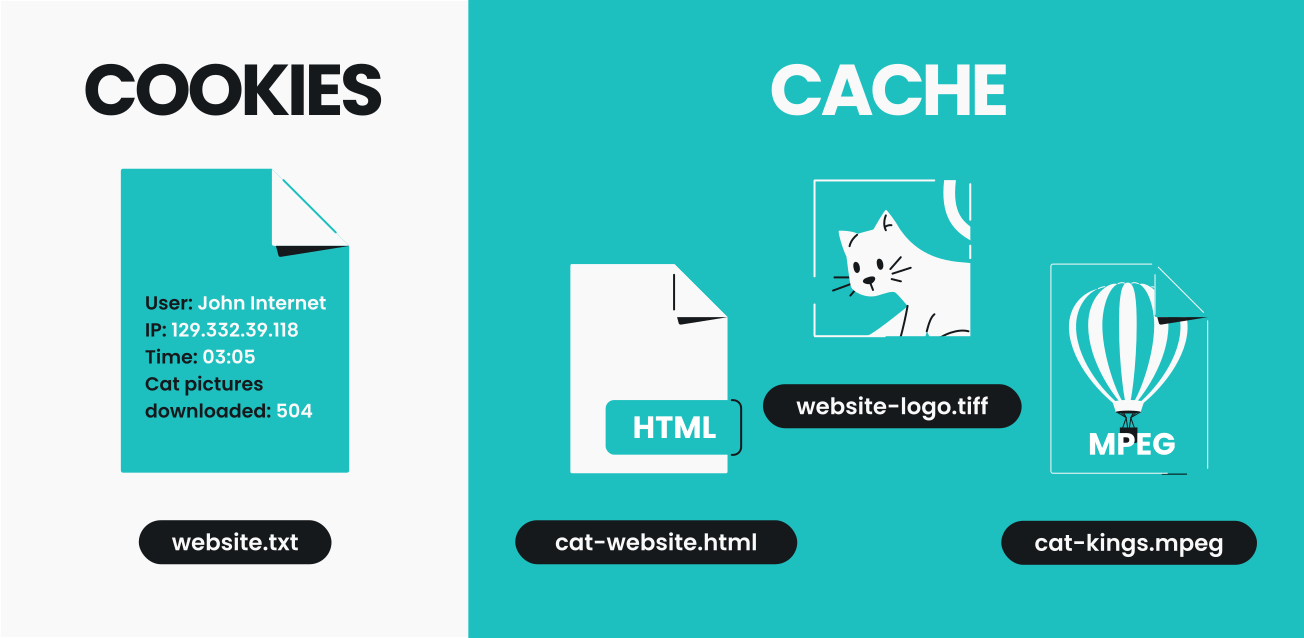
A browser cache stores copies of certain website resources on your laptop. These resources can include images, stylesheets, scripts, and other files that help a page display correctly.
When you revisit a website, your browser may reuse cached resources instead of downloading everything again. This can make repeat visits faster and reduce data usage, which is useful when browsing on a limited mobile data plan in Nigeria.
However, cached files can occasionally become outdated or conflict with changes made to a website. When that happens, a page may display incorrectly, show old content, or fail to load some elements.
Clearing the cache forces the browser to retrieve fresh copies of resources when needed. It does not normally delete your saved documents, photographs, or other personal files stored outside the browser.
What Are Browser Cookies?
Cookies are small pieces of information that websites store through your browser. Websites use them for purposes such as maintaining login sessions, remembering preferences, managing shopping baskets, and supporting certain analytics or advertising functions.
For example, a shopping website may use a cookie to remember the items in your basket while you browse different product pages. A news website may remember your selected display preferences, while an online service may use cookies to keep your session active.
Some cookies are necessary for website functions, while others support analytics, advertising, or cross-site tracking. Their purpose depends on how the website implements them.
Deleting cookies can sign you out of websites, reset preferences, or empty shopping baskets. Therefore, you should understand what you are clearing before selecting every available browser-data option.
Browser Cache vs Cookies: What Is the Difference?
| Feature | Browser Cache | Cookies |
|---|---|---|
| Main purpose | Stores copies of website resources | Stores information websites use to remember sessions and preferences |
| Typical benefit | Can make repeat visits faster | Can keep you signed in and preserve website settings |
| When problems occur | Pages may show outdated or broken content | Logins, preferences, or shopping sessions may behave unexpectedly |
| Effect of deletion | Websites may need to download resources again | You may need to sign in again or reset preferences |
Cache and cookies are not the same thing, even though browsers often place them under one menu. Clearing one does not necessarily require clearing the other.
How to Clear Cache and Cookies in Google Chrome
Google Chrome lets you remove cached images, files, cookies, and other browsing data through its settings.
- Open Chrome on your laptop.
- Click the three-dot menu in the top-right corner.
- Select Settings.
- Open Privacy and security.
- Select Delete browsing data.
- Choose the time range you want to clear.
- Select Cached images and files if you only want to refresh stored website resources.
- Select Cookies and other site data if you also want to remove stored cookie information.
- Review your selections and confirm the deletion.
Chrome’s menus may change slightly between versions. You can also consult the official Google Chrome Help centre for current instructions.
If you are troubleshooting one website, avoid clearing all browser data immediately. Start with the cache or the specific site’s stored data, then test the website again.
How to Clear Cache and Cookies in Microsoft Edge
Microsoft Edge offers similar controls for managing browsing information.
- Open Microsoft Edge.
- Click the three-dot menu in the top-right corner.
- Select Settings.
- Open Privacy, search, and services.
- Find the option for clearing browsing data.
- Select Choose what to clear.
- Choose the time range.
- Select Cached images and files, Cookies and other site data, or both.
- Review your selections and confirm.
Microsoft provides additional instructions through its official Microsoft Edge support page. Check the available options carefully because removing cookies can affect your signed-in sessions.
How to Fix One Website Without Clearing Everything
Suppose your bank’s website, an online store, or your WordPress dashboard refuses to load properly, while other websites work normally. Clearing data for every website may be unnecessary.
Instead, try these steps in order:
- Refresh the affected page.
- Open the website in a private or Incognito window.
- If it works there, investigate the normal browser session, extensions, cookies, or cached files.
- Clear the cache and test the website again.
- If the problem continues, remove the affected site’s stored cookies and data.
- Close and reopen the browser, then sign in again if required.
Private browsing provides a useful comparison because it generally starts with a separate browsing session and does not reuse the same ordinary session cookies. However, its exact behaviour depends on browser settings and extensions allowed in private mode.
If the website still fails in a private window and another browser, the cause may lie with the website, your internet connection, DNS settings, or a wider service outage rather than your cache.
Our guide to diagnosing laptop network problems, including DNS and IP issues can help when the problem affects more than one website.
Should You Clear Browser Cache Regularly?
You do not need to clear your browser cache every day. The browser manages cached resources automatically, and keeping them can improve performance when you revisit websites.
Clear the cache when you encounter persistent display problems, when a website’s developer asks you to refresh stored resources, or when you need to troubleshoot a specific page. Routine deletion offers little benefit if everything already works correctly.
Cookies deserve similar care. Removing all cookies frequently can make browsing less convenient because websites may forget your preferences and require repeated sign-ins.
For everyday laptop maintenance, focus on a specific problem instead of treating cache deletion as a universal performance fix. If your laptop remains slow, investigate other causes using our guide to why laptops become slow over time.
Does Clearing Cache Make Your Laptop Faster?
Clearing the browser cache can free some disk space, particularly when the browser has stored many resources. However, it does not automatically make Windows or every application faster.
After clearing the cache, websites may initially load more slowly because the browser must download resources again. Repeat visits may become faster as the cache fills again.
If your drive is almost full, review Windows storage settings and remove unnecessary files safely. Our guide to using Windows Storage Sense explains a more systematic approach to freeing up space.
Browser Privacy: What Cookies Can and Cannot Do
Cookies can help websites recognise a browser session, but they do not automatically give a website unrestricted access to every file on your laptop. Browsers apply security boundaries that limit what websites can access.
Nevertheless, cookies and related tracking technologies can contribute to collecting information about browsing activity. The amount and type of information depend on the website, the cookies it uses, and the privacy controls available in your browser.
To improve privacy, review cookie permissions, block unwanted third-party cookies where appropriate, and check the privacy settings offered by your browser. Be aware that stronger restrictions may prevent some websites from working as intended.
When using a shared laptop, sign out of sensitive accounts and avoid saving passwords in a browser profile that other people can access. For additional guidance, see our article on laptop privacy settings and application permissions.
Can You Delete Cookies Without Losing Saved Passwords?
Usually, yes, provided you select the correct options. Saved passwords and cookies are separate categories of browser data in modern browsers. However, the precise menu options and their effects can vary.
Before clearing browsing data, review the available checkboxes and avoid selecting password or autofill-data options unless you intend to remove those items. If you rely on a password manager, confirm that important credentials remain available before changing browser settings.
Also distinguish between deleting cookies and clearing all browsing data. The latter may remove additional information such as history, cached resources, download records, or saved form information, depending on your selections.
What Laptop Users Should Know About Browser Extensions
Sometimes a website behaves incorrectly because a browser extension blocks scripts, modifies page content, or interferes with sign-in. Ad blockers, privacy tools, shopping extensions, and other add-ons can affect website behaviour.
If a page works in a private window but fails in your normal browser, check whether extensions are enabled in that window. Temporarily disable a relevant extension in your normal session and test again. Re-enable extensions you need after identifying the cause.
Install extensions only from trusted sources and review the permissions they request. An extension that asks to read or change data on every website may have broad access to your browsing activity.
Final Thoughts
Browser cache and cookies serve different purposes. Cache helps websites reuse stored resources, while cookies can maintain sessions and remember preferences. Understanding that distinction allows you to troubleshoot loading problems without unnecessarily deleting useful browser information.
When one website misbehaves, start with a refresh, a private-window test, or a targeted cache clear. Remove cookies only when necessary, and remember that doing so may sign you out. If problems affect multiple websites or browsers, investigate the internet connection and wider system instead.
At P-Sero Laptop, we help Nigerian laptop users understand everyday computer problems and maintain devices for school, business, and remote work. Learning a few browser maintenance skills can make your online activities more reliable and secure.