Have you ever opened your laptop and noticed that the text looks too small to read comfortably, even though the screen resolution is correct? Perhaps the opposite happens: icons look enormous, application windows occupy too much space, or text appears blurry after connecting an external monitor.
These problems often involve Windows display scaling rather than a faulty screen. Scaling controls the size of text, icons, menus, and other interface elements. When you choose the right settings, you can make your laptop more comfortable to use without sacrificing unnecessary screen clarity.
This guide explains how display scaling works, how to fix common problems in Windows 11, and what to check when an application remains blurry after you change the settings.
What Is Display Scaling in Windows?
Display scaling changes the apparent size of interface elements on your screen. Windows can enlarge text, buttons, menus, and icons while retaining the display’s underlying resolution.
For example, a laptop with a high-resolution screen may display very small text at 100% scaling. Increasing scaling to 125% or 150% makes interface elements easier to read while allowing Windows to render the desktop at its selected resolution.
However, scaling does not increase the physical resolution of your screen. It changes how Windows sizes and presents interface elements. This distinction matters when troubleshooting blurry text or trying to fit more content on a display.
How to Change Display Scaling in Windows 11
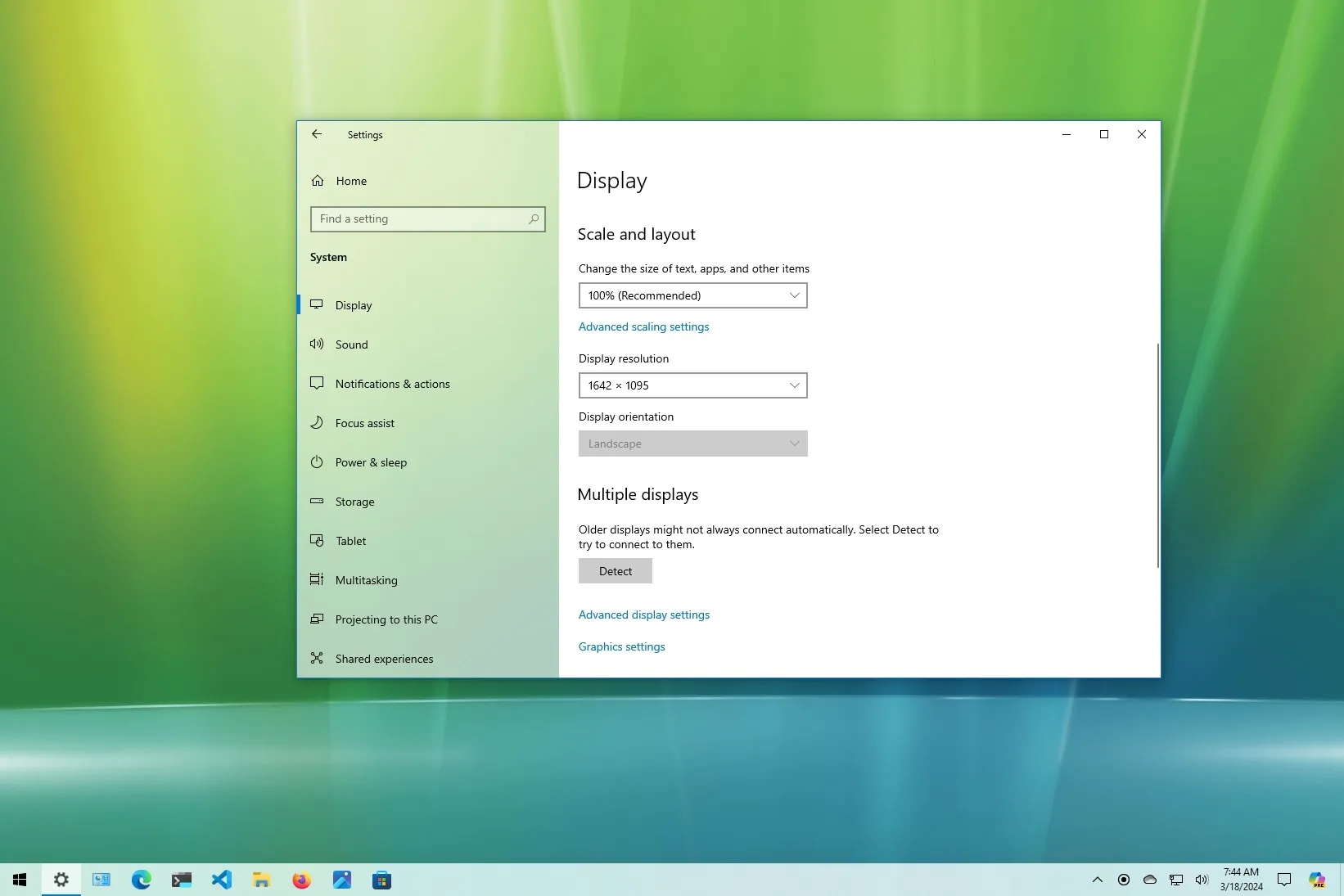
Windows 11 makes the main scaling controls available through Settings. Follow these steps to adjust the size of interface elements.
- Right-click an empty area of your desktop.
- Select Display settings.
- Find the Scale option under Scale and layout.
- Choose a recommended or suitable scaling percentage, such as 100%, 125%, or 150%, depending on the options available.
- Check the desktop, menus, and applications to see whether the new size feels comfortable.
Some displays offer different scaling recommendations depending on their resolution and physical size. A small, high-resolution laptop screen may benefit from a higher percentage than a larger external monitor.
Start with the recommended setting, then adjust it gradually. You do not need to change several display options simultaneously to find a comfortable result.
Should You Use 100%, 125%, or 150% Scaling?
The best setting depends on screen size, resolution, viewing distance, eyesight, and personal preference. There is no single percentage that suits every laptop.
| Scaling | What to Expect | May Suit |
|---|---|---|
| 100% | Smaller interface elements and more visible workspace | Users who prefer compact text and need more screen space |
| 125% | Moderately larger text, menus, and icons | Many laptop users seeking a balance between readability and workspace |
| 150% | Larger interface elements and less visible content at once | Small, high-resolution screens or users who need larger text |
These examples are general guidance, not strict rules. A 14-inch Full HD laptop may feel comfortable at a different setting from a 13-inch display with a higher resolution.
If your laptop already has a clear display, avoid lowering its resolution just to make text larger. Scaling is usually the better starting point because it adjusts interface size while preserving the selected resolution.
How to Fix Blurry Text After Changing Scaling
Text may look blurry when an application does not handle scaling correctly. Older desktop programs can sometimes appear less sharp when Windows enlarges their interface, especially if the program was designed for an older display environment.
Try these steps before making advanced changes.
1. Use the Recommended Display Resolution
Open Settings, select System, then Display. Find Display resolution and choose the option marked Recommended, if available.
A non-native resolution can make text and icons appear softer because the display must scale the image to fit its physical pixel grid. Returning to the recommended resolution often improves sharpness.
2. Sign Out and Sign Back In
Some applications do not immediately adjust after you change scaling. Close your applications and sign out of Windows, then sign back in. A restart can also help if the interface still looks incorrect.
Check the affected application again before making further changes.
3. Use Windows’ High DPI Compatibility Options
If one older desktop application remains blurry, Windows may offer a compatibility setting that changes how it handles high-DPI displays.
- Close the affected application.
- Right-click its shortcut or executable file.
- Select Properties.
- Open the Compatibility tab, if available.
- Select Change high DPI settings.
- Review the available scaling override options.
- Apply a change only if you understand its effect, then reopen the application to test it.
The exact options depend on the application and Windows version. An override that improves one program may make another application look worse, so test the result and reverse the change if necessary.
Why Do Some Applications Look Different From Others?
Windows applications do not all handle high-resolution displays in the same way. Modern programs generally support display scaling more effectively, while older applications may rely on rendering methods that do not adapt well to different display settings.
Consequently, a browser may look sharp while an older accounting program appears fuzzy on the same screen. That difference does not automatically mean your laptop’s display is damaged.
Check whether the developer offers an updated version of the application. If the program is no longer maintained, compatibility settings may help, although they cannot guarantee a perfect result.
Our guide to laptop software compatibility, processor architectures, and Windows applications explains why some programs behave differently across systems.
How to Make Text Larger Without Enlarging Everything
You may want larger writing while keeping icons and application windows close to their current size. In that case, try the text-size control rather than changing the overall scaling percentage.
- Open Settings.
- Select Accessibility.
- Choose Text size.
- Adjust the slider to a comfortable size.
- Select Apply and check the result.
This option can improve readability without changing every interface element to the same degree as display scaling. However, individual applications may handle text-size changes differently.
If you need more substantial assistance reading the screen, Windows also includes accessibility tools. Our guide to Magnifier, Narrator, and other Windows accessibility features explains additional options.
How to Adjust Scaling on an External Monitor
Connecting a laptop to an external monitor can create a new display problem. Text may look comfortable on the laptop screen but too large or too small on the monitor.
Windows lets you configure many display settings separately for each connected screen.
- Connect the external monitor and wait for Windows to detect it.
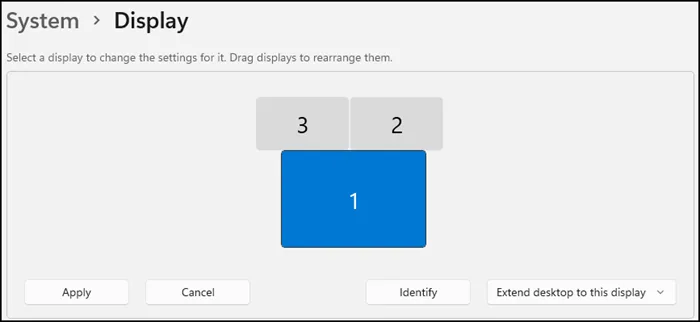
- Open Settings and select System, then Display.
- Select the display you want to configure.
- Check its recommended resolution.
- Adjust the scaling percentage for that display.
- Repeat the process for the laptop screen if necessary.
A high-resolution monitor often needs a different scaling percentage from a laptop’s built-in screen. Also, check the monitor’s own menu for image-sharpness or aspect-ratio settings if text still appears unusual.
For more detailed guidance, see our article on external monitor setup, resolution, refresh rate, and scaling.
Does Display Scaling Affect Gaming and Video Quality?
Display scaling primarily changes the size of Windows interface elements. It does not automatically improve the quality of a video or increase the graphics performance of a game.
Games often provide their own resolution and interface-size settings. If a game looks blurry, check its selected resolution, rendering scale, and graphics options separately. Some games also behave differently in fullscreen, borderless, and windowed modes.
For ordinary video playback, the source video’s resolution and the display’s capabilities have a greater influence on image detail than the Windows scaling percentage alone.
When Blurry Text May Indicate Another Problem
If text remains blurry across the entire desktop, investigate the resolution and display settings first. However, persistent visual problems may have another cause.
- Incorrect resolution: Windows may be using a resolution that does not match the display’s recommended setting.
- Outdated graphics drivers: Display software problems can affect resolution choices and visual behaviour.
- Damaged display hardware: Lines, flickering, unusual colour patches, or physical damage may indicate a hardware issue.
- External monitor settings: The monitor’s own configuration or cable connection may affect the image.
- Application-specific problems: If only one program looks blurry, investigate its updates and compatibility settings first.
When you suspect a graphics driver issue, avoid downloading random driver packages from unfamiliar websites. Use Windows Update or the laptop manufacturer’s official support page. Our guide to updating laptop drivers safely explains the process.
If the screen also flickers or displays persistent visual artefacts, read our guide to laptop screen flickering and its possible causes.
What Should You Check Before Buying a Laptop?
Display quality affects reading, research, design, spreadsheets, and long working sessions. Before buying a laptop, examine more than the screen’s advertised resolution.
- Check the physical screen size and resolution.
- Open documents and websites to test text sharpness.
- Adjust scaling and confirm that menus remain comfortable to use.
- Inspect the screen for dead pixels, flickering, pressure marks, and uneven brightness.
- Test the display at its recommended resolution.
- If you use an external monitor, check the available display outputs and compatibility.
These checks matter when buying a UK-used laptop in Nigeria because a model may have excellent specifications but still be uncomfortable for your particular needs. Use our UK-used laptop buying checklist to evaluate the device before paying.
Final Thoughts
Windows display scaling helps you balance text readability with available screen space. Start with the recommended resolution and scaling percentage, then make small adjustments until the desktop feels comfortable.
If only one application looks blurry, investigate its high-DPI compatibility settings or check for an update. When every application appears unclear, review the display resolution, graphics drivers, and monitor settings before assuming the screen needs replacement.
At P-Sero Laptop, we help Nigerian laptop users understand computer settings, compare hardware, and choose devices that suit their education, work, and business needs. A few careful display adjustments can make everyday laptop use significantly more comfortable.