Two laptops can look almost identical but perform very differently. One might have 8GB of RAM and a fast SSD, while another has 4GB of RAM and an older hard drive. If you are buying a UK-used laptop in Lagos, checking the specifications can help you avoid paying for features the machine does not have.
Fortunately, you do not need to install special software to inspect many of your laptop’s specifications. Windows 11 includes several built-in tools that reveal the processor, installed memory, Windows edition, storage details, graphics information, and other useful hardware data.
This guide explains how to check those details, understand what they mean, and spot information that deserves further investigation. You can also use these methods before upgrading your laptop or deciding whether it can run a particular application.
1. Check Basic Laptop Specifications in Windows Settings
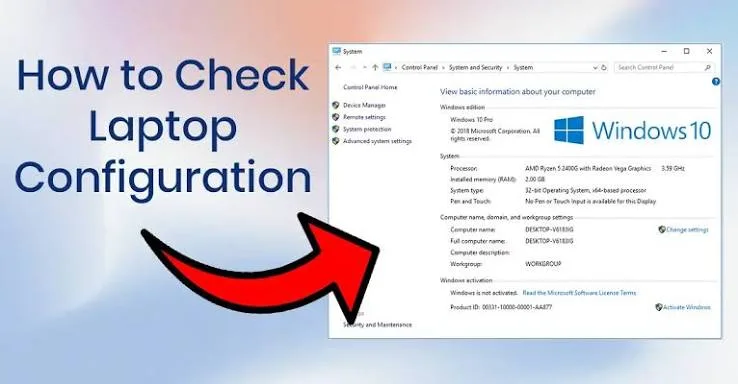
The Settings app is the easiest place to begin. It displays the processor model, installed RAM, device type, and Windows version without requiring technical commands.
- Press Windows + I to open Settings.
- Select System.
- Scroll down and select About.
- Look under Device specifications and Windows specifications.

Under Device specifications, you should find details such as the processor, installed RAM, system type, and device name. Windows specifications show information including the Windows edition, version, installation date, and operating system build.
For example, a laptop might show an Intel Core i5 processor, 8GB of installed RAM, and a 64-bit operating system. These details give you a useful starting point, but they do not reveal everything about the laptop.
2. Find Your Laptop’s Processor Model
The processor, also called the CPU, handles instructions and calculations. Its model helps you understand the laptop’s general performance level and compatibility with demanding applications.
Open Settings > System > About and look for the Processor field. Record the complete model name rather than relying only on labels such as Core i5, Core i7, or Ryzen 5.
For instance, two Core i5 processors can belong to different generations and offer different performance levels. The full model number makes it easier to compare them accurately.
You can also visit Intel’s official processor information page or AMD’s processor product pages to investigate supported features and product specifications.
When choosing a laptop for work, online classes, programming, or video editing, consider the processor alongside the RAM, storage, graphics hardware, and cooling system. One specification alone cannot tell you how well the entire laptop will perform.
3. Check Installed RAM and Memory Usage
Installed RAM affects how many applications your laptop can handle comfortably at the same time. If you regularly open a browser, office documents, video calls, and several other programs together, insufficient memory can make multitasking frustrating.
To check your installed RAM:
- Open Settings.
- Select System, then About.
- Find Installed RAM under Device specifications.
For a live view of memory usage, press Ctrl + Shift + Esc to open Task Manager. Select Performance and then Memory.
This screen shows the total memory, how much is currently in use, available memory, and other technical details. Depending on the laptop, it may also show the memory speed and the number of slots used.
Keep in mind that the amount of RAM currently installed is not necessarily the maximum amount your laptop supports. Some models allow upgrades, while others use soldered memory. Read our guide to laptop RAM types and upgrade options before buying additional memory.
4. Find Storage Capacity and Check Whether You Have an SSD
Storage holds your Windows installation, applications, documents, downloads, photos, and other files. A laptop with a fast SSD will generally start Windows and load applications more quickly than a comparable laptop with a traditional hard drive.
To check the space available on your laptop:
- Open Settings.
- Select System, then Storage.
- Review the total capacity and how Windows categorises your used space.
You can also open File Explorer, select This PC, and inspect the available space on your drives. Remember that the capacity displayed in Windows may be lower than the storage capacity advertised on the product label because of differences in how manufacturers and Windows calculate capacity, as well as space used by system files and recovery partitions.
To investigate the installed drive, open Task Manager using Ctrl + Shift + Esc, select Performance, and choose each listed disk. Windows may show the disk model and identify whether it is an SSD or HDD.
For a more detailed explanation of drive types, read our guide to SATA SSDs, NVMe drives, M.2, and PCIe storage.
Important: Do not assume that every laptop with a large storage capacity has an SSD. Check the actual drive type before making a purchase decision.
5. Use System Information for More Detailed Hardware Data
Windows includes a tool called System Information that gathers extensive details about your laptop. It can help when you need more than the basic information shown in Settings.
- Press Windows + R.
- Type msinfo32.
- Press Enter.
- Wait for the System Information window to open.
The System Summary section includes information about the system manufacturer, system model, processor, installed physical memory, BIOS version, and other hardware and software details.
Expand the Components section to explore areas such as Display, Storage, and Network. The exact information available depends on your hardware and Windows configuration.
This tool is especially useful when a repair technician asks for your laptop model or when you need to identify the hardware before downloading a driver. If you discover a missing or malfunctioning device, our Windows Device Manager guide explains how to investigate hardware problems.
6. Check Graphics and Display Information
Graphics hardware affects gaming, video editing, 3D applications, and some professional workloads. Your laptop may use integrated graphics built into the processor, a dedicated graphics processor, or a combination of both.
To inspect graphics information, use one of these methods:
- Task Manager: Open Performance and select GPU if Windows lists one.
- DirectX Diagnostic Tool: Press Windows + R, type dxdiag, and press Enter. Open the Display or Render tabs when available.
- Device Manager: Expand Display adapters to see the graphics devices Windows recognises.
The DirectX Diagnostic Tool can also display information about your display adapter, driver, and supported graphics features. The available fields vary by system.
Do not judge graphics performance from the amount of graphics memory alone. Integrated graphics may use shared system memory, and dedicated graphics performance depends on the specific GPU and its power and cooling limits.
7. Find Your Windows Edition, Version, and System Type
Windows 11 Home and Windows 11 Pro share many everyday features, but they differ in certain business and security capabilities. Checking your edition helps you understand which features are available on your laptop.
Open Settings > System > About and find Windows specifications. Check the edition, version, and OS build.
Under Device specifications, look for System type. A 64-bit operating system is standard on most modern Windows laptops, while the processor architecture can affect which applications and drivers you can install.
Before installing specialist software, compare your laptop’s specifications with the application’s official requirements. Our guide to virtualisation, Hyper-V, virtual machines, and WSL explains why processor capabilities, memory, and Windows features matter for technical workloads.
For Windows version details, consult Microsoft Support for official Windows guidance and troubleshooting instructions.
8. Check the Laptop Model and Manufacturer
Knowing the exact laptop model helps you find the correct drivers, manuals, compatible chargers, replacement batteries, and upgrade options.
Start with Settings > System > About or open System Information by running msinfo32. Look for System Manufacturer and System Model.
You can then visit the manufacturer’s official support website and search for the model. Depending on the brand, the support page may provide original specifications, service manuals, driver downloads, and warranty information.
If you are checking a used laptop, compare the model shown in Windows with the label on the device and the seller’s description. A mismatch does not automatically prove fraud, but it deserves an explanation before you pay.
Never publish your laptop’s serial number or service tag unnecessarily. Share it only through an appropriate, trusted support channel when required.
9. Use Command Prompt to View System Details
If you prefer commands, Windows can display additional system information through Command Prompt.
- Open the Start menu.
- Search for Command Prompt.
- Open it and type systeminfo.
- Press Enter and review the results.
The output includes details such as the operating system, system manufacturer, system model, processor information, memory, and Windows installation details. Some fields may be abbreviated or presented differently depending on the system.
You do not need administrator access for every basic information command, but certain system-management tasks require elevated permissions. For checking specifications, avoid running unfamiliar commands copied from untrusted websites.
10. Verify Specifications Before Buying a UK-Used Laptop
Checking specifications is particularly important when shopping for a used laptop. A seller may advertise a machine with a particular processor, memory capacity, or SSD, but you should confirm the details on the actual device whenever possible.
- Check the complete processor model rather than the Core i5 or Core i7 label alone.
- Confirm the installed RAM and ask whether the memory is upgradeable.
- Check the storage capacity and whether the drive is an SSD or HDD.
- Inspect the display, keyboard, ports, webcam, Wi-Fi, speakers, and charging behaviour.
- Check battery condition and look for signs of physical damage.
- Confirm that Windows is activated and that the laptop can receive supported updates.
- Compare the model and specifications with the seller’s listing.
Specifications cannot reveal every hidden problem. A laptop may have the right processor and memory but still suffer from a weak battery, damaged hinges, overheating, or a faulty screen.
Use our UK-used laptop buying checklist for Nigeria to assess the machine more thoroughly before making payment. If you need a computer for school, compare the hardware with the requirements of your courses and applications rather than buying based on appearance alone.
Common Mistakes When Checking Laptop Specifications
Confusing installed RAM with available RAM
Windows may report slightly less usable memory than the amount installed because hardware and system processes reserve some memory. Check the full memory information before assuming that a component is missing.
Assuming free storage is the same as total storage
The free-space figure tells you how much room remains, not the drive’s full capacity. Open Storage or This PC to review the drive’s capacity and usage.
Comparing processors by brand label alone
A Core i7 is not automatically faster than every Core i5. Compare the complete model, generation, power class, and real-world performance.
Assuming every component can be upgraded
Some laptops have soldered RAM or storage components that are difficult or impossible to replace. Check the manufacturer’s documentation for the exact model before buying upgrade parts.
Installing unnecessary specification tools
Windows already provides Settings, Task Manager, System Information, and DirectX Diagnostic Tool. Start with these trusted utilities before downloading third-party diagnostic software.
Frequently Asked Questions
How do I check my laptop specifications quickly?
Press Windows + I, open System, and select About. You can check the processor, installed RAM, Windows edition, and system type from this page.
How can I check whether my laptop has an SSD?
Open Task Manager, select Performance, and choose the listed disk. Windows may identify it as an SSD or HDD. You can also check the exact drive model and consult the manufacturer’s specifications.
Can I check laptop specifications without an internet connection?
Yes. Settings, Task Manager, System Information, Device Manager, and the DirectX Diagnostic Tool work locally. An internet connection is helpful when you want to verify specifications on the manufacturer’s website.
Does Windows show the laptop’s maximum supported RAM?
Windows can show the currently installed memory and some memory details, but it may not reliably show the laptop’s maximum supported RAM. Check the manufacturer’s documentation for your exact model.
Why do my laptop specifications look different from the seller’s description?
The seller may have listed an incorrect configuration, or the laptop may have been upgraded or repaired. Confirm the model, inspect the hardware, and ask for clarification before buying. Do not rely on a product description alone.
Final Thoughts
Checking laptop specifications in Windows 11 is straightforward once you know where to look. Settings gives you the basics, Task Manager shows memory and performance details, and System Information provides a deeper hardware overview.
These checks can help you troubleshoot problems, plan upgrades, confirm software compatibility, and make a more informed laptop purchase. For buyers in Lagos and across Nigeria, verify the actual machine before paying and assess its physical condition alongside its specifications.
If you are shopping for a laptop, explore the available options at PSERO LAPTOP. Compare the specifications with your needs, ask questions about the exact configuration, and choose a machine that suits your budget and intended use.