Transferring files from an Android phone to a laptop is a common task for students, business owners, office workers, freelancers, and anyone who uses both devices every day. You may need to copy photographs, move videos, transfer documents, back up WhatsApp media, or send work files from your phone to your computer.
Although the process is often straightforward, not every transfer method works equally well for every situation. A USB cable can be fast and reliable, Bluetooth is convenient for small files, wireless sharing can help when a cable is unavailable, and cloud storage makes files accessible across multiple devices.
For laptop users in Nigeria, the best method may also depend on available internet data, the quality of the USB cable, phone storage, and whether the transfer involves a few documents or several gigabytes of videos. Choosing the right method can save time and reduce unnecessary data consumption.
This guide explains how to transfer files between an Android phone and a Windows laptop using USB, Bluetooth, wireless sharing, cloud storage, and other practical options. It also covers common connection problems, file organisation, privacy precautions, and ways to avoid losing important files during a transfer.
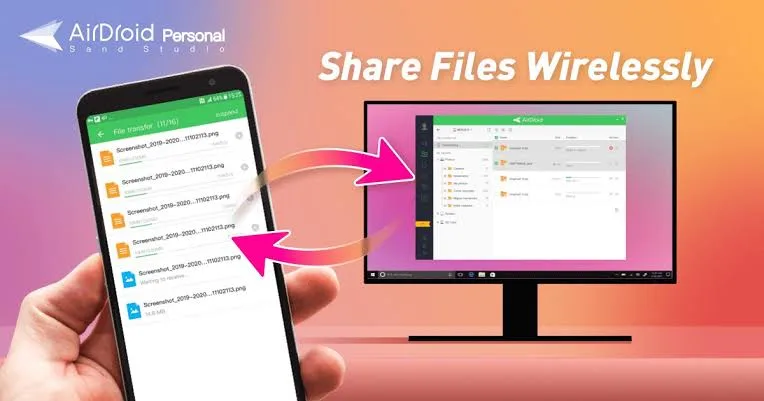
Why Transfer Files From Your Phone to Your Laptop?
Phones are convenient for taking photographs, recording videos, receiving documents, and communicating with customers. However, a laptop often provides more space and a more comfortable environment for organising, editing, and managing those files.
Transferring files allows you to combine the convenience of a phone with the productivity of a computer.
Back up photographs and videos
Photographs and videos can consume a large amount of phone storage. Copying important files to a laptop can free space on the phone while preserving another copy of the files.
However, copying files to a laptop is not a complete backup strategy if those files exist only on one computer afterward. A separate external drive or trusted cloud backup provides additional protection if the laptop fails or is lost.
Work with documents on a larger screen
You may receive a PDF, Word document, spreadsheet, or presentation through a messaging application. Transferring the file to your laptop can make it easier to review, edit, print, or include in a larger project.
This is useful for students preparing assignments, business owners creating invoices, and professionals working with several documents at once.
Manage business files
Small businesses often receive customer photographs, product images, receipts, delivery documents, and other information through mobile phones. Moving these files to a laptop can help organise records and prepare them for accounting, marketing, or customer service.
Keep customer information in appropriate folders and protect confidential files from unauthorised access.
Free up phone storage
If your phone is running out of storage, transferring large videos and photographs can help. Before deleting anything from the phone, open the copied files on the laptop and confirm that they transferred correctly.
Do not delete the original files until you are confident that the copies are complete and accessible.
Method 1: Transfer Files Using a USB Cable
A USB cable is often the best choice when you need to transfer many files or large videos without using mobile data. It creates a direct connection between your Android phone and laptop.
Transfer speed depends on the phone, cable, laptop port, storage devices, and file sizes. A cable that supports charging only may not support data transfer, so use a suitable data cable.
Step 1: Connect your Android phone to the laptop
Unlock your Android phone and connect it to the laptop using a compatible USB cable.
Use a cable that supports data transfer. If the phone only charges and Windows does not detect it, try another cable that you know supports file transfers.
If your phone has a USB-C port, make sure the cable and laptop connection are compatible. Older phones may use a different connector.
Step 2: Unlock the phone
Keep the phone unlocked while establishing the connection. Some Android devices limit file access when the screen is locked.
Look for a notification indicating that the phone is charging through USB or that USB preferences are available.
Step 3: Select File Transfer mode
On many Android phones, the default USB mode is charging only. Tap the USB notification or open the USB preferences and select an option such as File Transfer or Transferring files.
The wording varies by manufacturer and Android version. Some devices display a menu with options for charging, file transfer, photo transfer, or other USB functions.
If you want to copy ordinary files and folders, choose the file-transfer option rather than charging only.
Step 4: Open File Explorer on Windows
On your laptop, open File Explorer. You can use the taskbar icon or press Windows + E.
Look under This PC or the device list for your phone. Its displayed name depends on the manufacturer and the name assigned to the device.
If the phone appears, open it to view the accessible internal storage. Some phones may also show an SD card if one is installed and available for file access.
Step 5: Locate the files you want to transfer
Common Android storage folders include:
- DCIM: Often contains photographs and videos captured by the phone’s camera.
- Pictures: May contain screenshots, edited images, and pictures saved by applications.
- Download: Often contains files downloaded through a browser or other applications.
- Documents: May contain PDFs, office documents, and other files saved by applications.
- Movies: May contain video files saved by applications.
- Music: May contain audio files stored in accessible folders.
Folder names and contents vary by device and application. Some apps store files in protected locations that ordinary File Explorer access cannot browse.
Step 6: Copy the files to your laptop
Select the files or folders you want to transfer. Right-click and choose Copy, or use Ctrl + C. Navigate to the destination folder on your laptop and press Ctrl + V.
For example, you could create a folder named Phone Backup inside Pictures or Documents and copy the selected files there.
Copying is generally safer than moving when you are transferring important information for the first time. It leaves the original files on the phone until you confirm that the laptop has received them successfully.
Step 7: Verify the copied files
Open several transferred photographs, documents, and videos to confirm that they work. For a large transfer, check the destination folder and confirm that the expected files are present.
Only delete originals from your phone after verifying the copies and considering whether you need an additional backup.
Method 2: Transfer Files From a Laptop to an Android Phone
The same USB connection can also transfer files from a Windows laptop to an Android phone. This is useful when you want to copy music, documents, videos, photographs, or other supported files to the phone.
Step 1: Connect and unlock the phone
Connect the phone using a suitable USB data cable, unlock it, and select File Transfer mode from the USB notification if necessary.
Step 2: Open the phone’s storage
Open File Explorer and select the phone under This PC. Browse to the folder where you want to store the files.
For example, use an appropriate Documents, Download, Music, or Movies folder, depending on the file type and how you intend to access it.
Step 3: Copy the files
On the laptop, locate the files you want to send. Copy them and paste them into the appropriate folder on the phone.
Alternatively, you may be able to drag and drop files between File Explorer windows. Keep the connection stable until the transfer completes.
Step 4: Confirm the files are available
Disconnect the phone safely when the transfer has finished, then use its file manager to locate the copied items. Some media applications may need to refresh before new files appear in their libraries.
Remember that the phone must have sufficient free storage. A file transfer may fail if the destination is full or the file type is not supported by the intended application.
Method 3: Transfer Files Using Bluetooth
Bluetooth can transfer files without a USB cable or internet connection. It is useful for small documents, a few photographs, or other modest transfers when both devices support the necessary Bluetooth file-transfer features.
However, Bluetooth is generally slower than a suitable USB connection or many local Wi-Fi transfer methods. It is not usually the best option for moving large video collections.
Step 1: Enable Bluetooth on both devices
On your Android phone, open Settings and enable Bluetooth. On Windows, open Settings, go to Bluetooth & devices, and switch Bluetooth on if it is available.
If your laptop does not have Bluetooth hardware or the adapter is disabled, you may need a compatible Bluetooth adapter or another transfer method.
Step 2: Pair the phone and laptop
Open the Bluetooth device list on Windows and choose the option to add a device. Select Bluetooth and look for your phone in the available devices.
Select the phone and confirm the pairing request. Depending on the devices, you may need to compare a code or approve the connection on both screens.
Pairing establishes a relationship between the devices, but it does not guarantee that every file-transfer function will be available.
Step 3: Prepare Windows to receive a file
On Windows, search for Bluetooth file transfer or the Bluetooth file-receiving option. If available, select the option to receive a file before sending it from the phone.
The exact interface may vary by Windows version and Bluetooth software. Some newer configurations do not provide the same file-transfer workflow as older versions.
Step 4: Send the file from Android
Open the file on your phone or select it through the file manager. Use the Share option and choose Bluetooth if the feature is available.
Select your paired laptop from the list and approve any prompts. Keep both devices nearby until the transfer finishes.
Step 5: Save the received file
Windows may ask where you want to save the file. Choose a suitable folder and confirm the transfer has completed.
If Bluetooth file transfer is unavailable on your phone or laptop, use USB, a supported wireless-sharing feature, or cloud storage instead.
Method 4: Transfer Files Using Quick Share
Quick Share is a wireless sharing option available on supported Android devices and compatible Windows setups. It can make sending photographs, videos, and documents between nearby devices more convenient than connecting a cable.
Availability and setup requirements can change depending on the device, operating system, region, and application version. Check the official Quick Share documentation for the current requirements.
Step 1: Check compatibility
Confirm that your Android phone supports Quick Share and that your laptop can use the supported Windows application or built-in sharing option.
Download software only from the official source, such as Google’s Quick Share information page, rather than from an unfamiliar third-party download website.
Step 2: Enable the required wireless features
Follow the instructions for your devices. Depending on the setup, Bluetooth and Wi-Fi may both be needed to discover nearby devices and transfer data.
Keep the devices within the supported range and ensure that your laptop is discoverable to the intended sender when necessary.
Step 3: Select the files to share
On your Android phone, select the photographs, videos, or documents you want to send. Tap Share and choose Quick Share if it appears as an available option.
Choose your laptop from the list of nearby devices and approve the transfer on the receiving device when prompted.
Step 4: Accept and verify the transfer
Accept the incoming file request if required. Wait for the transfer to complete, then open the received file from the destination shown by the application.
If the laptop does not appear, check device visibility, wireless connectivity, application compatibility, and any permission prompts. Restarting the sharing application may help when discovery temporarily fails.
When Quick Share is useful
Quick Share is convenient when you regularly exchange files between supported nearby devices and want to avoid connecting a cable. It is also useful for transferring selected photographs or documents without uploading them to cloud storage first.
For very large transfers, compare the actual speed and reliability with a USB connection. The fastest method depends on the hardware and conditions at the time.
Method 5: Transfer Files Using Cloud Storage
Cloud storage lets you upload files from one device and download or access them on another. This can be useful when the phone and laptop are in different locations or when you want to keep a copy of important documents online.
Common options include Google Drive, Microsoft OneDrive, and Dropbox. Available storage, file-size limits, pricing, and features vary by service and account.
Step 1: Upload files from your phone
Open your preferred cloud-storage application on Android. Sign in to your account and select the files you want to upload.
Choose an appropriate folder so you can find the files easily later. If you are uploading a large video collection, check your available data allowance and cloud storage capacity first.
Step 2: Wait for the upload to complete
Keep the application running as needed and confirm that the upload has completed. An item may appear in the cloud application before the full upload finishes, particularly when the connection is unstable.
For important files, check the upload status rather than assuming that selecting the files is enough.
Step 3: Open the cloud service on your laptop
On the laptop, open the official website or installed application for the same cloud service. Sign in to the correct account and locate the uploaded files.
Download the files if you need offline copies, or work with them directly when the application supports it.
Step 4: Organise your cloud folders
Use clear folder names for documents, photographs, work projects, and other categories. Avoid keeping sensitive customer information in folders shared publicly or with people who do not need access.
Check the sharing permissions before sending a cloud link to another person. A link may allow viewing, downloading, or editing depending on the settings.
Advantages and disadvantages of cloud transfers
Cloud storage is convenient for remote access, sharing, and keeping files available across devices. It can also provide another copy of important information.
However, uploading and downloading consume internet data. The process may be slow on an unstable connection, and free accounts may have limited storage. Cloud storage should also be configured carefully to protect private information.
Method 6: Use a USB-C Flash Drive or External Storage Device
Some Android phones support USB OTG or other compatible external-storage connections. With a suitable USB-C flash drive or adapter, you may be able to copy files from your phone to the storage device and then connect it to your laptop.
This method can be helpful when you want to move large files without relying on internet data or maintaining a direct phone-to-laptop connection.
Step 1: Confirm phone compatibility
Check whether your Android phone supports the required external-storage connection. The connector alone does not guarantee that every phone supports every USB device.
Choose a compatible flash drive or adapter. If the drive requires more power than the phone can provide, it may not work reliably.
Step 2: Connect the storage device
Connect the flash drive or external storage device to your phone. Open the phone’s file manager and check whether the storage device appears.
If it does not appear, confirm compatibility, the connection, and the storage format. Do not format the drive until you have backed up any files already stored on it.
Step 3: Copy the files to the external drive
Select the files you want to transfer and copy them to a suitable folder on the external drive. Wait until the copy operation has completed before disconnecting it.
Step 4: Connect the drive to the laptop
Remove the drive safely where the phone provides that option, then connect it to the laptop. Open File Explorer, locate the drive, and copy the files to the desired destination.
Verify the files before deleting any originals from the phone or external drive.
Method 7: Transfer Files Using a Messaging Application
Messaging applications can be useful for sending a small number of documents or photographs between your own devices. The process depends on the application, account setup, file limits, and whether the service compresses images or videos.
This method is generally less suitable for large backups or confidential files because it may involve cloud storage, account access, file-size restrictions, and changes to media quality.
Send a document to your own account
If your messaging application supports access from a laptop, send the document to a private conversation or a supported saved-message feature. Open the application on the laptop and download the file.
Make sure you are using the correct account and that the conversation is not shared with an unintended recipient.
Check image and video quality
Some messaging applications compress media when you send it as an ordinary photograph or video. If you need the original quality, use the application’s document or original-file option where supported.
Always check the application’s current limits and behaviour. A file that appears on the laptop may not be identical to the original if the service converted or compressed it.
Protect private information
Avoid using public groups or conversations with other people to transfer sensitive files. Do not upload identity documents, financial records, passwords, or private customer data to a conversation that is not secure and appropriately controlled.
How to Transfer WhatsApp Photos and Documents to a Laptop
WhatsApp can contain important photographs, videos, receipts, business documents, and other media. The best way to transfer these files depends on whether you want selected items or a larger collection.
Option 1: Save selected files to your phone’s storage
Open the relevant WhatsApp conversation and locate the photograph, video, or document. Save or download the item to the phone if it is not already stored locally.
Then connect the phone to the laptop using USB and look in the appropriate accessible folder. Depending on the Android version and WhatsApp configuration, media may be stored in a WhatsApp-related folder under internal storage or another accessible location.
Folder structures can vary, so use the phone’s file manager to locate the specific file rather than assuming every device uses the same path.
Option 2: Use WhatsApp on your laptop
WhatsApp provides supported ways to access conversations from a computer. Depending on the feature and file type, you may be able to download individual media items directly to your laptop.
Use the official WhatsApp desktop application or website, and only link your own account or an account you are authorised to access.
Option 3: Transfer documents directly
For PDFs and other business documents, you may be able to download the file from the conversation to the laptop. Save it to a clearly named folder and confirm that the file opens correctly.
If the document is important, keep a separate backup rather than relying solely on the messaging conversation.
How to Fix Common Phone-to-Laptop Transfer Problems
If a transfer does not work, check the connection and settings systematically. The problem may be a cable, permission, driver, storage limit, or application issue rather than a defective phone or laptop.
Problem 1: The phone charges but does not appear in File Explorer
Try the following steps:
- Unlock the Android phone.
- Reconnect the USB cable securely.
- Open the USB notification on the phone.
- Select File Transfer or the equivalent option.
- Try another cable that supports data transfer.
- Try another USB port on the laptop.
- Restart both devices if the connection still fails.
If the phone remains undetected, check whether Windows recognises other USB devices and whether the phone appears in Device Manager. A driver or hardware issue may require further diagnosis.
Problem 2: The phone appears, but the folders are empty
Make sure the phone is unlocked and the correct USB mode is selected. Some devices restrict storage access until you approve a prompt on the phone.
Also check whether the files are stored in a protected application location rather than a normal shared folder. Android does not allow ordinary file browsing to access every application’s private data.
Problem 3: File transfer is very slow
Large videos, thousands of small files, an older USB connection, or a poor cable can slow down transfers.
Try copying a smaller batch first. If you are transferring many photographs, grouping them into manageable batches may make it easier to identify errors.
For large transfers, a reliable data cable is often preferable to Bluetooth or uploading and downloading the files through a cloud service.
Problem 4: The transfer stops before finishing
Check the phone’s battery level, laptop power, USB connection, available destination storage, and whether either device enters a power-saving state that interrupts the connection.
Try transferring a smaller selection to determine whether one particular file is causing the problem. If a specific file cannot be copied, check whether it is available, corrupted, or restricted by the application storing it.
Problem 5: The laptop cannot open the transferred file
The file may require a compatible application, may be incomplete, or may use a format Windows does not recognise by default.
Check the file extension and confirm that the transfer completed. Obtain a suitable application from a trusted source if necessary, and avoid changing a file’s extension simply to make it appear compatible.
Problem 6: Windows does not recognise the USB cable or adapter
Try a known-good cable and inspect the connectors for damage. Avoid forcing a cable into a port or continuing to use a connector that becomes unusually hot or loose.
If multiple compatible cables fail, check the laptop’s USB ports and the phone’s connector. Hardware damage may require professional attention.
How to Organise Transferred Files on Your Laptop
Transferring files is only the first step. If you save everything to one folder, it can become difficult to find a photograph, document, or video later.
Create a clear folder structure
You could create a main folder named Android Phone Transfers, then organise it into subfolders such as Photos, Videos, Documents, Work, and School.
If you transfer files regularly, consider adding dates or project names to the folder structure. For example, a folder named Customer Orders – October 2026 is easier to understand than a folder named New Folder (4).
Use meaningful filenames
Where appropriate, rename files with descriptive names. A document named Invoice-2026-10-28.pdf is easier to identify than a generic file named document123.pdf.
Be careful not to change a file’s extension accidentally. A PDF should retain its .pdf extension, and a photograph should retain its appropriate image extension.
Avoid unnecessary duplicates
Repeatedly transferring the same files can create multiple copies and waste storage. Check the destination before starting another large transfer.
When cleaning up duplicate files, verify that the copies are truly identical before deleting anything. Two photographs with similar names may contain different edits or resolutions.
Keep business and personal files separate
If you use one phone for both personal and business purposes, consider separating those files into clearly named folders. This helps reduce the chance of sending personal material to a customer or sharing confidential business information accidentally.
Security and Privacy Tips for File Transfers
Files can contain sensitive information even when they appear ordinary. Photographs may include location details, and documents may contain financial records, customer information, or personal identifiers.
Use trusted devices and connections
Prefer your own laptop or a computer you trust. If you must use a shared computer, avoid saving private files to public folders and sign out of accounts after use.
Review sharing permissions
When using cloud storage or wireless-sharing tools, check who can see your device or access your files. Turn off unnecessary discoverability after the transfer is complete.
Scan suspicious files appropriately
If you receive an unexpected file from an unknown source, do not open it simply because it arrived on your phone. Use appropriate security tools and verify the sender when necessary.
Transferring a file does not prove that the file is safe. Be cautious with executable files, unexpected archives, and documents that request unusual permissions.
Keep a backup of important files
If a file matters, keep more than one copy when practical. A laptop can fail, a phone can be lost, and an external drive can become damaged.
For important work, maintain a sensible backup routine and periodically confirm that your backups can be opened.
Which File Transfer Method Should You Choose?
The most suitable method depends on file size, available equipment, internet access, and how frequently you transfer files.
| Method | Best use | Internet required? | Main consideration |
|---|---|---|---|
| USB cable | Large files and regular transfers | No | Requires a suitable data cable |
| Bluetooth | Small files | No | Usually slower for large transfers |
| Quick Share | Wireless transfers between supported nearby devices | Not necessarily | Compatibility and discovery settings matter |
| Cloud storage | Remote access and cross-device availability | Usually yes | Uses data and available cloud storage |
| USB flash drive or external storage | Large offline transfers | No | Requires compatible storage and connections |
| Messaging application | Selected documents or photographs | Usually yes | File limits, privacy, and media compression |
For a large collection of videos, start with a reliable USB data cable or compatible external storage. For a few documents, Bluetooth or a supported wireless-sharing feature may be more convenient. For files that you need to access from different locations, cloud storage may be a better fit.
Frequently Asked Questions
Can I transfer files from Android to Windows without internet?
Yes. A USB cable, Bluetooth, supported local wireless-sharing features, and compatible external storage can transfer files without an internet connection. Cloud storage and most messaging-based transfers generally require internet access.
Why does my phone only charge when connected to my laptop?
The phone may be set to charging-only mode, or the cable may not support data transfer. Unlock the phone, select File Transfer in the USB settings, and try a known-good data cable if necessary.
What is the fastest way to transfer large videos?
A reliable USB connection is often a good choice for large files, although the actual speed depends on the phone, cable, laptop port, and storage performance. Compatible external storage may also be convenient for large offline transfers.
Can I transfer files without installing an application?
Yes. USB file transfer through File Explorer usually does not require a separate transfer application when the phone and Windows support the connection. Bluetooth may also work with built-in features. Wireless-sharing options and cloud services may require their own applications or accounts.
Can I transfer files from my phone to a laptop with a broken screen?
Possibly, but it depends on whether the phone is powered on, unlocked, and able to approve the connection. If the screen prevents you from granting access, a technician may need to help. Avoid repeatedly entering passwords blindly or using untrusted tools that promise to bypass phone security.
Will transferring photographs reduce their quality?
A direct file copy generally preserves the original file. Some messaging applications or sharing services may compress photographs or videos, depending on the method you choose. Use a suitable original-file option when available and verify the transferred file if quality matters.
Can I transfer WhatsApp chats using a USB cable?
Copying accessible WhatsApp media files is different from transferring a complete chat history. Chat migration and backup procedures depend on WhatsApp’s supported features and your devices. Follow the official WhatsApp instructions for chat transfer or backup rather than assuming that copying a folder will restore everything.
Is Bluetooth better than USB?
Not generally for large transfers. Bluetooth is convenient for small files and cable-free sharing, while USB is often faster and more suitable for large collections. The best choice depends on the devices and the file size.
Can I transfer files from an Android phone to a Mac using the same method?
The general idea is similar, but the available tools and file-access process differ between macOS and Windows. Use a method supported by your phone and Mac, such as compatible file-transfer software, cloud storage, or external storage.
Should I delete files from my phone after transferring them?
Only after confirming that the files were copied successfully and that you have a suitable backup. Open important files on the laptop before removing the originals from your phone.
Conclusion
Transferring files between an Android phone and a laptop is much easier when you choose the right method for the task. USB is often the most practical option for large transfers, Bluetooth can handle small files, Quick Share provides wireless convenience on supported devices, and cloud storage helps keep files accessible across locations.
Before transferring important information, make sure your phone is unlocked, the connection is compatible, and the destination has enough storage. Verify the copied files before deleting the originals, and organise your folders so that documents, photographs, and videos remain easy to find.
For Nigerian students, professionals, freelancers, and business owners, these techniques can make everyday work more efficient while helping reduce unnecessary mobile data usage. A reliable laptop can serve as a practical workspace for organising files, preparing documents, managing business records, and backing up important information from your phone.
PSERO LAPTOP helps customers find laptops suitable for education, business, remote work, and everyday computing. When choosing a laptop, consider storage capacity, USB connectivity, wireless support, memory, and overall performance so that it can handle the tasks you rely on every day.