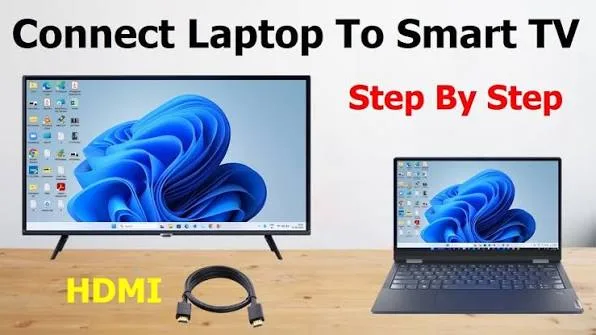
Connecting a laptop to a television can make everyday computer tasks more convenient. You can display a presentation on a larger screen, watch downloaded videos, attend online meetings, show photographs to family members, or enjoy a more comfortable viewing experience without crowding around a small laptop display.
Fortunately, you do not need an expensive television or a complicated home entertainment system to connect your laptop to a TV. Many modern televisions support HDMI connections, while some also offer wireless screen mirroring. Windows laptops provide several built-in display options that make the process relatively straightforward.
However, the best connection method depends on your laptop, television, available ports, and what you want to accomplish. A wired HDMI connection is usually dependable, while wireless display technology offers convenience when both devices support it.
This guide explains how to connect a Windows laptop to a smart TV in Nigeria. It covers HDMI cables, USB-C adapters, wireless display, Miracast, screen duplication, extended displays, sound settings, common connection problems, and practical ways to get the best results.
1. Why Connect Your Laptop to a Smart TV?
A laptop is portable and convenient, but its screen may feel restrictive when several people need to view the same content. A television provides a larger display that can make certain activities easier.
Watching films and videos
You can display videos stored on your laptop or stream content from supported websites and applications. This is useful when you want to watch a film with family members or enjoy online content on a larger screen.
Making presentations
Students, teachers, business owners, and professionals can connect their laptops to televisions during presentations. Instead of asking everyone to gather around a computer, you can display slides, documents, spreadsheets, and other materials on the television.
Online learning
A larger display can make online lessons, tutorials, and demonstrations easier to follow. Students can connect their laptops to a television when studying subjects that involve diagrams, videos, demonstrations, or detailed instructions.
Video meetings
You can display a video meeting on a larger television, although the laptop may still be needed for its camera and microphone. This arrangement can be useful during group discussions and remote meetings.
Viewing photographs and documents
Connecting a laptop to a television also makes it easier to share photographs, business documents, designs, and other files with people in the same room.
2. Check Your Laptop and Television Before Connecting Them
Before purchasing a cable or changing any Windows settings, inspect both devices. This helps you avoid buying an incompatible adapter or spending time troubleshooting a connection that the hardware does not support.
Check the television’s available ports
Look at the sides, back, or underside of your television. Most modern smart TVs have at least one HDMI port. Some televisions have multiple HDMI ports, allowing you to connect several devices.
Common labels include:
- HDMI 1: An HDMI input that accepts a compatible video and audio signal.
- HDMI 2: Another HDMI input for an additional device.
- HDMI ARC: An HDMI connection that supports Audio Return Channel functionality with compatible equipment.
- HDMI eARC: An enhanced version of ARC supported by compatible televisions and audio equipment.
- USB: Usually used for supported storage devices and accessories. A standard USB port does not automatically accept laptop video.
For a basic laptop-to-TV connection, an ordinary HDMI input is normally sufficient. You do not need an HDMI ARC port simply to display your laptop screen.
Check your laptop’s ports
Different laptops have different connection options. Some have a full-size HDMI port, while thinner models may rely on USB-C or another compatible video output.
Common laptop connections include:
- HDMI: A direct connection for compatible external displays.
- USB-C: Can carry video when the specific laptop port supports DisplayPort Alt Mode, Thunderbolt, or another compatible display technology.
- Mini DisplayPort: Available on some older laptops and business computers.
- DisplayPort: A digital display connection found on some laptops and docking equipment.
Do not assume that every USB-C port supports video output. Some USB-C ports support only data transfer and charging. Check your laptop’s specifications or manufacturer’s documentation before purchasing a USB-C-to-HDMI adapter.
Identify your Windows version
Most modern Windows laptops use Windows 10 or Windows 11. Both operating systems support external displays through HDMI and compatible wireless display technologies.
To check your Windows version:
- Press Windows + I to open Settings.
- Select System.
- Scroll down and select About.
- Check the Windows specifications section.
Knowing your Windows version can help when following connection instructions because some menu names and settings may differ slightly.
3. Method One: Connect Your Laptop to a TV Using an HDMI Cable
HDMI is usually the easiest and most reliable way to connect a laptop to a television. It carries digital video and audio through one cable, reducing the need for separate connections.
If your laptop and television both have standard HDMI ports, you can connect them directly without buying an additional adapter.
What you need
- A laptop with an HDMI output.
- A television with an available HDMI input.
- A compatible HDMI cable.
You do not necessarily need an expensive HDMI cable for ordinary laptop use. A properly made cable that supports the resolution and refresh rate you need is usually sufficient.
Step-by-step HDMI connection
- Turn on your television.
- Connect one end of the HDMI cable to your laptop’s HDMI port.
- Connect the other end to an available HDMI port on the television.
- Use the television remote to open the Input or Source menu.
- Select the HDMI input where you connected the laptop.
- Wait for Windows to detect the television.
- If necessary, press Windows + P on your keyboard and choose a display mode.
Your laptop screen should now appear on the television.
Choose the correct HDMI input
One common mistake is connecting the HDMI cable correctly but selecting the wrong source on the television.
For example, if the cable is connected to HDMI 2 but the television is displaying HDMI 1, the TV may show a message such as No Signal.
Use the remote control to select the exact HDMI input being used. If the television has several ports, check the small labels printed beside them.
What if the laptop does not have an HDMI port?
Some thin laptops do not include a full-size HDMI connection. This does not automatically mean they cannot connect to a television.
You may be able to use a compatible adapter based on the ports available on your laptop.
- USB-C to HDMI adapter.
- Mini DisplayPort to HDMI adapter.
- DisplayPort to HDMI adapter.
Before buying an adapter, confirm that the laptop’s output supports video. A USB-C charging or data port without display functionality will not produce a video signal simply because you connect an HDMI adapter.
4. Method Two: Connect a USB-C Laptop to a Television
Many modern laptops use USB-C for charging, data transfer, and display connections. Some models can send video directly through USB-C, making it possible to connect them to a television with a USB-C-to-HDMI adapter or cable.
This option is particularly useful for laptops with limited physical ports.
How to connect using USB-C to HDMI
- Confirm that your laptop’s USB-C port supports video output.
- Purchase a compatible USB-C-to-HDMI adapter or cable.
- Connect the USB-C end to the laptop.
- Connect the HDMI end to the television.
- Select the matching HDMI source on the TV.
- Press Windows + P and select your preferred display mode.
If the television does not detect the laptop, check whether the USB-C port supports DisplayPort Alt Mode or another compatible video standard. Also inspect the adapter for damage and confirm that it supports your intended display resolution.
Can every USB-C laptop connect to a television?
No. USB-C describes the physical connector, not every function that the port can perform.
Two laptops may have identical-looking USB-C ports, but one may support video output while the other supports only charging and data transfer.
Check the laptop’s official specifications before buying an adapter. Look for terms such as DisplayPort over USB-C, DisplayPort Alt Mode, Thunderbolt, or USB4 display support.
5. Method Three: Connect a Laptop to a Smart TV Wirelessly
Wireless screen mirroring allows you to display your laptop screen on a compatible television without running an HDMI cable across the room.
This can make your setup look cleaner and give you more flexibility when positioning your laptop. However, wireless connections depend on device compatibility and network conditions.
Windows includes a wireless display feature that can connect to compatible televisions and wireless display receivers.
What you need
- A Windows laptop that supports the required wireless display technology.
- A smart TV that supports Miracast or another compatible wireless display method.
- Wireless connectivity enabled on the devices where required.
Some televisions support Miracast directly. Others use a manufacturer’s own screen-mirroring system. A smart TV having Wi-Fi does not automatically mean it supports Windows wireless display.
How to connect using Windows wireless display
- Turn on your smart TV.
- Open the television’s screen-mirroring, wireless display, or Miracast feature.
- On your laptop, press Windows + K.
- Wait for Windows to display available wireless devices.
- Select your television from the list.
- Follow any pairing instructions displayed on either device.
- Wait for the connection to complete.
Once connected, Windows should display your laptop screen on the television. You can change the display arrangement by pressing Windows + P.
What if Windows cannot find the television?
There are several possible explanations:
- The television does not support Miracast.
- The television’s wireless display feature is disabled.
- The laptop does not support the required wireless display technology.
- The laptop’s wireless drivers are outdated or malfunctioning.
- The television is not currently in pairing mode.
- A network or device compatibility issue is preventing discovery.
Restart both devices, check the TV’s connection instructions, and confirm wireless display compatibility before trying again.
6. Method Four: Use a Wireless Display Adapter
If your television does not support wireless screen mirroring, a compatible wireless display adapter may provide another option.
These devices connect to the television through HDMI and provide wireless display functionality. Depending on the product, they may support Miracast, Google Cast, or another casting method.
It is important to understand that these technologies are not interchangeable. A device designed for Google Cast may not appear in Windows’ Miracast device list. Always confirm that the adapter supports the connection method you intend to use.
How a wireless display adapter works
- Connect the adapter to an available HDMI port on the television.
- Provide power if the adapter requires a separate USB power connection.
- Select the HDMI input associated with the adapter.
- Follow the adapter manufacturer’s setup instructions.
- Connect your laptop using the supported wireless display method.
Some adapters require an application, while others work through built-in Windows features or a casting function in a browser.
What to consider before buying one
- Confirm compatibility with Windows.
- Check whether the device supports your desired resolution.
- Read the manufacturer’s instructions carefully.
- Check whether it requires a Wi-Fi network or can create its own wireless connection.
- Consider latency if you intend to use it for gaming or interactive work.
- Buy from a seller who can provide a genuine product and clear warranty information.
Wireless display adapters can be convenient, but a direct HDMI cable is often a better choice when reliability and low delay matter most.
7. Understand Windows Display Modes
Connecting a laptop to a television is only part of the process. You must also choose how Windows should use the two screens.
Windows provides four main display modes through the Windows + P shortcut.
PC screen only
This option displays content on the laptop screen and turns off the external display output. It is useful when you want to disconnect the television without physically removing the cable immediately.
Duplicate
Duplicate displays the same content on the laptop and television.
This is often the best choice when watching videos, showing photographs, or presenting slides to a group. Whatever appears on the laptop is also displayed on the television.
Extend
Extend treats the television as an additional display rather than showing an identical copy of the laptop screen.
You can keep a document open on the laptop while displaying a presentation or video on the television. This is useful for productivity and presentations.
Second screen only
This option sends the display to the television while turning off the laptop’s built-in screen.
It can be useful when watching films or using the television as your primary display. However, make sure you know how to switch back to the laptop screen if the television loses its signal.
How to change display modes
- Connect your laptop to the television.
- Press Windows + P.
- Select Duplicate, Extend, PC screen only, or Second screen only.
- Wait for Windows to apply the change.
You can also open Settings, select System, and choose Display to access more detailed display controls.
8. How to Make the Television Your Main Display
When using the television for presentations or entertainment, you may want Windows to treat it as the main display.
To change this setting:
- Connect the laptop to the television.
- Press Windows + I.
- Select System.
- Choose Display.
- Select the television in the display arrangement.
- Expand the Multiple displays section if necessary.
- Enable the option to make the selected display your main display, where available.
The exact options depend on the Windows version and display configuration. If you use Duplicate mode, some independent display arrangement settings may not be available.
9. How to Adjust the Screen Resolution
Sometimes the laptop connects successfully, but the picture looks stretched, blurry, too large, or smaller than expected.
This may happen when Windows selects a resolution that does not match the television’s native display resolution.
Change the resolution in Windows
- Open Settings.
- Select System.
- Choose Display.
- Select the television if more than one display is connected.
- Find Display resolution.
- Choose a resolution recommended by Windows.
Many modern televisions use 1920 × 1080 pixels, commonly called Full HD. Some newer models support 3840 × 2160 pixels, commonly called 4K UHD.
Your laptop, graphics hardware, cable, adapter, and television must all support the selected resolution and refresh rate. A 4K television alone does not guarantee that every connected laptop can output 4K.
Why does the picture look blurry?
A blurry picture may result from an incorrect resolution, poor-quality adapter, unsuitable cable, scaling settings, or a wireless connection with insufficient bandwidth.
Start by selecting the television’s recommended resolution. If you are using a wireless connection, compare the picture quality with a direct HDMI connection.
10. How to Get Sound Through the Television
One common problem occurs when the laptop displays correctly on the television but the sound continues playing through the laptop speakers.
HDMI normally carries audio and video together, but Windows may continue using the laptop’s internal speakers as the default audio output.
Change the audio output device
- Connect the laptop to the television.
- Right-click the speaker icon on the Windows taskbar.
- Open Sound settings.
- Find the Output section.
- Select the television or HDMI audio device if it appears.
- Play a video or audio file to test the sound.
The displayed device name depends on the television and graphics hardware. It may show the television’s model name, an HDMI audio label, or another device description.
What if the television does not appear as an audio device?
Check that the HDMI cable is connected properly and that the television is selected as the active display. Restarting the laptop and television may also help.
If the problem continues, check Windows audio settings and update the relevant graphics or audio drivers using the laptop manufacturer’s official support resources.
11. How to Connect a Laptop to a TV for Online Meetings
A television can provide a larger display during online meetings, but you should understand how the laptop’s camera, microphone, and speakers work together.
When you connect through HDMI, the television normally receives the laptop’s display and audio output. The laptop’s built-in webcam and microphone remain available unless you select different devices in your meeting application.
Recommended setup
- Connect the laptop to the television.
- Select Duplicate or Extend, depending on your preference.
- Open your meeting application.
- Check the selected camera and microphone.
- Choose the television as the speaker output if you want sound from the TV.
- Test the meeting audio before participants join.
Be careful with microphone feedback. If the television speakers are loud and the laptop microphone is close to them, other participants may hear an echo. Use a headset or suitable external microphone when necessary.
12. How to Connect a Laptop to a TV for Gaming
You can use a television as a larger display for compatible laptop games. However, gaming introduces additional considerations beyond ordinary video playback.
Check the television’s refresh rate
A television’s refresh rate determines how frequently it can update the displayed image. Common refresh rates include 60Hz, 120Hz, and higher values on selected models.
Your laptop’s graphics hardware, output port, cable, and television must all support the refresh rate you want to use.
Enable Game Mode where available
Many televisions include a Game Mode designed to reduce image-processing delays. This can make controls feel more responsive during gaming.
Open the television’s picture or gaming settings and check whether Game Mode is available.
Use HDMI when possible
A wired HDMI connection is generally preferable for gaming because it avoids some of the delay and instability associated with wireless display connections.
However, actual gaming performance also depends on the laptop’s processor, graphics hardware, cooling system, and the game itself.
13. Common Problems When Connecting a Laptop to a TV
Even when both devices support the required connection, problems can occur. The following checks can help you identify the cause.
Problem 1: The television says No Signal
This usually means the television is not receiving a usable signal from the selected input.
Try these steps:
- Confirm that the HDMI cable is firmly connected at both ends.
- Select the correct HDMI input on the television.
- Press Windows + P and select Duplicate or Extend.
- Try another HDMI port on the television.
- Test with another compatible HDMI cable.
- Restart both devices.
If you are using USB-C, confirm that the laptop port supports video output and that the adapter is compatible.
Problem 2: The laptop detects the TV but nothing appears
Windows may detect an external display without successfully displaying the expected image.
Open Settings, select System, and then Display. Check whether Windows recognises the television. Try changing the display mode and selecting a supported resolution.
If the problem continues, disconnect and reconnect the cable. You can also restart the graphics driver by pressing Windows + Ctrl + Shift + B. The screen may briefly flicker or produce a beep while Windows resets the graphics subsystem.
Problem 3: The television displays the picture but has no sound
Open Windows Sound settings and select the television as the output device. Also check the television’s volume level and mute setting.
If the television still produces no sound, test another HDMI cable or check the graphics and audio drivers.
Problem 4: The laptop screen is visible, but the picture is cropped
This can happen when the television’s picture-size setting does not match the incoming signal.
Look for settings such as Screen Fit, Just Scan, Original, or 1:1 Pixel Mapping. The names differ between television manufacturers.
You can also check the Windows resolution and scaling settings.
Problem 5: The wireless connection keeps disconnecting
Wireless display performance can be affected by distance, interference, device compatibility, and network conditions.
Move the laptop closer to the television, restart both devices, and temporarily disconnect other devices that may be causing wireless interference.
If you need a stable connection for a presentation or meeting, use HDMI instead.
Problem 6: The television is not listed after pressing Windows + K
Windows + K searches for compatible wireless display devices. If the television does not appear, it may not support the required wireless technology.
Check the television’s manual and wireless display settings. You should also confirm that the laptop supports Miracast or the relevant technology.
Problem 7: The television displays an unsupported resolution message
The laptop may be sending a resolution or refresh rate that the television cannot accept.
Connect another display if necessary, return to Windows Display settings, and choose a resolution and refresh rate supported by both devices.
14. How to Improve the Picture Quality
A television may display your laptop screen differently from its built-in applications. A few adjustments can improve the experience.
Use the recommended resolution
Always start with the resolution recommended by Windows for the television. Avoid selecting a higher resolution that the laptop or connection cannot properly support.
Adjust scaling
If text and icons appear too small or too large, open Windows Display settings and adjust the Scale option.
Scaling changes the size of text, applications, and other interface elements without necessarily changing the display resolution.
Check the television’s picture mode
Some televisions automatically apply picture processing that may not be ideal for computer use.
Look for a PC, Standard, or Game picture mode. The most suitable option depends on the television and your intended activity.
Use a suitable cable
A damaged or unsuitable cable can cause flickering, intermittent signal loss, or limitations in supported resolution and refresh rate.
Choose a cable that supports the capabilities of both devices. For 4K output, pay particular attention to the cable’s supported bandwidth and the HDMI specifications required by your equipment.
15. Is HDMI Better Than Wireless Screen Mirroring?
Both methods have advantages. The best choice depends on your environment and intended use.
| Feature | HDMI connection | Wireless display |
|---|---|---|
| Physical cable | Required | Not normally required |
| Setup | Usually straightforward | Depends on compatibility |
| Connection stability | Generally reliable | Can vary with wireless conditions |
| Input delay | Usually lower | Can be higher |
| Portability around the room | Limited by cable length | More flexible |
| Gaming suitability | Usually preferable | Less suitable for responsive gaming |
| Compatibility | Depends on available ports and standards | Depends on supported wireless technology |
For everyday presentations, video playback, and gaming, HDMI is a dependable starting point. Wireless display is useful when you want to avoid cables and both devices support the same technology.
16. Can You Connect an Older Laptop to a Modern Smart TV?
Yes, in many cases. An older laptop may still connect to a modern television if it has a compatible video output.
Some older laptops use VGA, DVI, or Mini DisplayPort rather than HDMI. You may need an appropriate adapter or converter.
Older VGA laptops
VGA carries analogue video and does not normally carry audio. Connecting a VGA laptop to an HDMI television requires an active VGA-to-HDMI converter, not simply a passive cable in most situations.
You may also need a separate audio connection if you want sound through the television.
Older DVI laptops
Some DVI connections can be adapted to HDMI for video. Audio support depends on the specific DVI implementation and hardware, so you may need a separate audio connection.
Check before purchasing an adapter
Do not buy an adapter based only on the shape of its connectors. Check the direction of signal conversion, supported resolution, audio requirements, and compatibility with your laptop.
For example, a product designed to convert HDMI output to VGA input may not work in the opposite direction.
17. How to Protect Your Laptop and Television During Connection
Connecting a laptop to a television is generally safe when you use compatible equipment. However, proper handling helps prevent damage to cables and ports.
- Do not force an HDMI or USB-C connector into a port.
- Avoid pulling the cable by its wire when disconnecting it.
- Keep cables away from areas where people can trip over them.
- Use compatible adapters from reputable manufacturers.
- Avoid using visibly damaged cables.
- Do not place heavy objects on connected cables.
- Disconnect accessories carefully when moving the laptop.
In Nigeria, power interruptions and unstable electricity can also affect electronic equipment. Use suitable surge protection and follow the manufacturers’ power recommendations. Do not assume that an ordinary extension socket provides adequate surge protection.
If you use a television and laptop during frequent power interruptions, consider the power requirements of both devices before selecting a backup power solution.
18. Choosing a Laptop That Connects Easily to External Displays
If you frequently give presentations, teach online, watch videos, or connect your computer to external screens, display connectivity should be part of your laptop buying decision.
When comparing laptops, check the following features.
HDMI availability
A full-size HDMI port can make connecting to televisions, projectors, and monitors easier. You will not need to carry a separate adapter every time you need an external display.
USB-C video support
If a laptop uses USB-C for external displays, confirm the exact display capabilities of that port. Look for DisplayPort Alt Mode, Thunderbolt, or compatible USB4 functionality.
Graphics capability
The laptop’s graphics hardware determines which display resolutions, refresh rates, and external display configurations it can support.
For ordinary office work, online learning, and presentations, integrated graphics may be sufficient. More demanding creative applications and gaming may require stronger graphics hardware.
Memory and processor performance
External display output does not automatically require a powerful processor, but the laptop should still have enough memory and processing capacity for the applications you intend to use.
For everyday multitasking, 8GB of RAM may handle basic workloads, while 16GB can provide more room for demanding applications and multiple open programs.
Consider your actual needs
A laptop used mainly for documents and presentations may not need the same specifications as a computer used for video editing, 3D design, or gaming.
For more guidance, read our ultimate checklist for buying a UK-used laptop in Nigeria.
You can also explore our guide to laptop display panels, including IPS, OLED, TN, and other screen technologies.
19. Buying an HDMI Cable or Adapter in Nigeria
HDMI cables and USB-C adapters are available from computer accessory retailers in Lagos and other parts of Nigeria. However, choosing the right product matters more than buying the cheapest item available.
Check the cable length
Measure the distance between your laptop and television before buying an HDMI cable. A cable that is too short may make your setup uncomfortable, while an unnecessarily long cable can create clutter.
Check the supported resolution
If your television supports 4K and you want to use that resolution, choose a cable that supports the required HDMI bandwidth. Do not rely on vague product descriptions that promise high performance without providing specifications.
Check the adapter type
If your laptop has USB-C but your television uses HDMI, buy a USB-C-to-HDMI adapter that supports your laptop’s video output standard.
For older VGA laptops, look for the correct active converter and confirm whether separate audio is required.
Buy from a dependable seller
Very cheap adapters may not perform as advertised. Check product specifications, seller reputation, return conditions, and warranty information where available.
At P-Sero, customers can explore laptop options and computer accessories for everyday work, learning, and business use. Visit P-Sero Laptop to see available products.
20. Frequently Asked Questions
Can I connect my laptop to a smart TV without HDMI?
Yes. You may be able to use compatible USB-C, Mini DisplayPort, DisplayPort, VGA, or wireless display technology. The correct method depends on the ports and features supported by both devices.
Can I connect my laptop to a TV using a USB cable?
A standard USB-A cable does not normally send a laptop’s screen directly to a television. USB-C can carry video when the laptop supports the required display technology. A USB storage connection is different from a video connection.
Do both devices need to be connected to the same Wi-Fi network?
It depends on the wireless technology. Some screen-mirroring methods use Wi-Fi Direct rather than requiring both devices to connect to the same home network. Other casting systems may require a shared network. Follow the instructions for the specific television or adapter.
Can I use my laptop while it is connected to the television?
Yes. You can use Duplicate mode to show the same content on both screens or Extend mode to use the television as an additional workspace.
Why does my television show my laptop screen but not play sound?
Windows may still be using the laptop’s speakers. Open Sound settings and select the television or HDMI audio device as the output.
Can I connect an HP laptop to a Samsung smart TV?
Yes, provided the laptop and television have compatible connection options. HDMI is usually the simplest method. Wireless connection depends on the wireless display features supported by the specific models.
Can I connect a Dell Latitude laptop to a smart TV?
Many Dell Latitude models support external displays through HDMI, USB-C, DisplayPort, or compatible docking equipment. The exact options depend on the model and its specifications.
Does connecting a laptop to a TV damage the laptop?
No, a normal compatible connection should not damage the laptop. Use suitable cables and adapters, avoid forcing connectors, and follow the manufacturers’ instructions.
Can I connect my laptop to a TV for Netflix and YouTube?
Yes. You can use HDMI or a compatible wireless casting method to display supported streaming services on your television. Availability and playback quality may depend on the service, browser, device compatibility, and internet connection.
Can I connect two laptops to one television?
You can connect multiple laptops to a television that has several HDMI inputs, but normally only one input is displayed at a time. Use the television’s Source or Input menu to switch between connected devices.
Why does my laptop disconnect when I close the lid?
Windows may be configured to sleep when the laptop lid closes. You can review the lid and power-button behaviour in Windows Power Options. Be careful about heat management if you intend to operate the laptop with its lid closed.
Is wireless screen mirroring good for gaming?
It can work for casual use, but wireless display may introduce noticeable delay. A wired HDMI connection is usually better for games that require responsive controls.
Conclusion
Connecting a laptop to a smart television can make presentations, online learning, entertainment, meetings, and everyday computer tasks more convenient. The simplest method is usually HDMI, especially when both devices have compatible ports.
If your laptop does not have HDMI, a suitable USB-C or DisplayPort adapter may provide another wired option. Wireless display is also useful when your laptop and television support the same technology.
Before purchasing cables or adapters, check the specifications of both devices. After connecting them, select the correct television input, choose your preferred Windows display mode, and adjust the resolution and audio output if necessary.
If you are planning to buy a laptop for work, education, or business, consider its external display connections alongside its processor, memory, storage, and overall condition. P-Sero Laptop provides laptop options for Nigerian customers looking for computers for different budgets and everyday needs.
Visit www.psero.com to explore available laptops and accessories. P-Sero is based in Ikeja, Lagos, and offers nationwide delivery.