A Home Theater PC (HTPC) allows you to enjoy movies, TV shows, music, and streaming content on a larger screen while utilizing the power of your laptop. Instead of investing in a separate media player, you can optimize your existing device to handle high-quality video playback, surround sound, and smart home integrations.
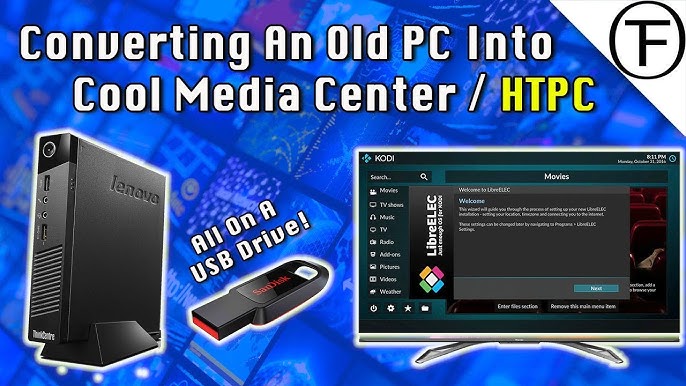
This guide outlines the step-by-step process of setting up your laptop as an HTPC for a seamless home entertainment experience.
What is an HTPC?
A Home Theater PC (HTPC) is a computer optimized for media consumption. Unlike streaming boxes or Blu-ray players, an HTPC offers greater flexibility, including:
- Playing 4K Ultra HD videos
- Streaming from Netflix, YouTube, and other platforms
- Accessing local media libraries
- Connecting to surround sound systems
- Running gaming emulators and Kodi setups
By configuring your laptop correctly, you can transform it into a fully functional media center that integrates smoothly with your TV or projector.
Choosing the Right Laptop for an HTPC
Not all laptops are ideal for an HTPC setup. Consider these key specifications:
Processor & RAM
A dual-core or quad-core processor (Intel i5/i7 or AMD Ryzen) with at least 8GB RAM ensures smooth video playback and multitasking.
Storage
A Solid-State Drive (SSD) improves performance. For large media libraries, an external 1TB HDD is recommended.
Graphics Card
For 4K playback, a laptop with an integrated or dedicated GPU (Intel UHD, AMD Radeon, or NVIDIA GeForce) is ideal.
Ports & Connectivity
Ensure your laptop has:
- HDMI or DisplayPort for TV or projector connection
- USB ports for external storage and accessories
- Wi-Fi & Bluetooth for streaming and wireless peripherals
If your laptop lacks an HDMI port, use a USB-C to HDMI adapter to enable video output.
Setting Up Your Laptop as an HTPC
Follow these steps to configure your laptop for a home theater experience:
1. Connect Your Laptop to a TV or Projector
- Use an HDMI cable to link your laptop to a TV or projector
- If using Bluetooth speakers or a soundbar, ensure your laptop supports Bluetooth 5.0 for low-latency audio
2. Install Media Center Software
To stream and manage content, install one of the following media center applications:
- Kodi – An advanced media player for streaming, local files, and add-ons
- Plex – A powerful tool for organizing and streaming personal media collections
- VLC Media Player – Supports nearly all video file formats
3. Enhance Audio with Surround Sound
- If using external speakers or a home theater system, configure Dolby Atmos or DTS surround sound in Windows settings
- For wireless audio, connect to Bluetooth soundbars or Wi-Fi speakers such as Sonos and Bose
4. Optimize Video Quality
- Adjust the TV’s resolution to match your laptop’s display settings (1080p or 4K)
- Enable motion smoothing and HDR settings for an immersive experience
- Activate hardware acceleration in VLC or Kodi to improve video performance
5. Install Streaming Apps
To access your favorite content, install applications such as:
- Netflix, Hulu, Disney+ for streaming services
- YouTube, Twitch for online content
- Spotify, Apple Music for high-quality audio
If you need access to region-restricted content, consider using a VPN service.
Adding Wireless Controls for Convenience
To enhance usability, integrate wireless controls into your setup:
Wireless Keyboard & Mouse
A mini wireless keyboard or a Bluetooth mouse enables easy navigation.
Smartphone as a Remote Control
Applications such as Kore (for Kodi) or the Plex app allow you to control playback directly from your phone.
Voice Control
Using Google Assistant, Alexa, or Siri, you can enable hands-free media control.
Upgrading Your HTPC Experience
For a premium home theater setup, consider these enhancements:
- External Hard Drive (HDD/SSD) – Expands storage for movies and games
- USB Hub & Docking Station – Connects multiple accessories
- Backlit Wireless Keyboard – Improves navigation in dim lighting
- Smart Lighting (Philips Hue, Govee) – Synchronizes lights with your movies
Conclusion
Converting your laptop into an HTPC is an affordable and versatile way to create a home theater system. With the right combination of hardware, media software, and accessories, you can enjoy high-quality streaming, immersive surround sound, and a seamless cinematic experience from the comfort of your home.
For more in-depth tech guides and tutorials, visit Psero.com.