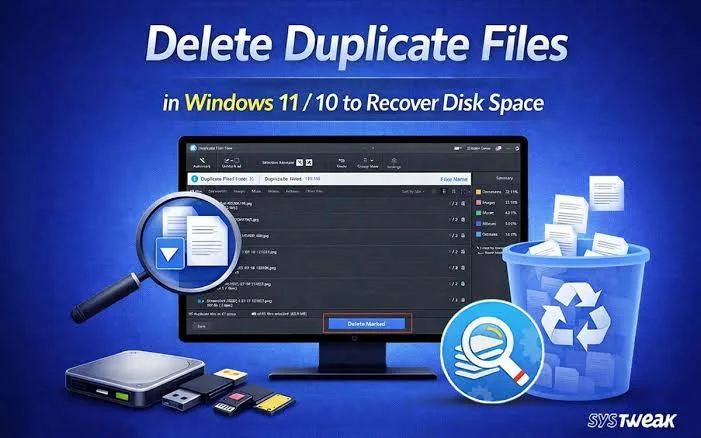
Have you ever downloaded the same document twice, copied a folder to two different locations or saved several versions of the same photograph? Over time, these small habits can clutter your laptop and make it harder to find the files you actually need.
Duplicate files can consume valuable storage space, particularly when they include videos, software installers, photographs or large project folders. However, deleting files simply because they have similar names can cause problems. Two documents may look alike while containing different information.
This guide explains how to identify duplicate files on Windows, compare them safely and reclaim storage without losing important data.
What Are Duplicate Files?
Duplicate files are separate copies of the same content stored in different locations or under different names. For example, you might have a copy of an invoice in Downloads and another copy on your Desktop.
Not every similar-looking file is a true duplicate. A document named Project-Final.docx may contain different information from Project-Final-Updated.docx. Likewise, two photographs taken at different times may look almost identical but contain different details.
Before removing anything, distinguish between identical copies, similar files and different versions of the same document.
Why Duplicate Files Accumulate
- Repeated downloads: Downloading the same attachment more than once can create additional copies.
- File transfers: Copying files between USB drives, external storage and laptop folders can leave duplicates behind.
- Cloud synchronisation: Certain sync conflicts or manual downloads can create additional versions.
- Backup habits: Keeping several manually created copies may cause unnecessary duplication.
- Editing projects: Saving multiple drafts is useful, but old versions can accumulate after a project ends.
- Messaging applications: Repeatedly saving images and documents from chats can create multiple copies.
These situations are common for students, freelancers, office workers and business owners who regularly handle documents. A little organisation can prevent unnecessary clutter from building up.
Start With Windows File Explorer
You do not need a special application to investigate every duplicate. Windows File Explorer can help you find repeated downloads and organise files by name, type, size and date.
- Open File Explorer by pressing Windows + E.
- Navigate to a folder where duplicates are likely to exist, such as Downloads, Documents or Pictures.
- Change the folder view if necessary to make file details easier to compare.
- Sort the files by name, size or date modified.
- Compare files with similar names and check their locations, sizes and contents.
- Open the files when necessary to confirm that they contain the same information.
For example, Windows may save repeated downloads as invoice.pdf and invoice (1).pdf. Those names suggest duplication, but you should still compare the documents before removing either copy.
File Explorer works well for small collections. However, manually checking thousands of files can become time-consuming, especially when identical content appears under different names.
Use Search to Locate Repeated Files
Windows Search can help you locate files by their names or extensions. If you know that you downloaded a particular document several times, search for its name and inspect the results.
You can also search for common file types. For example, searching for PDF documents within a relevant folder can help you review invoices, receipts and reports together.
Our guide to Windows Search and indexing explains how to locate files more efficiently and troubleshoot search problems.
Remember that search results depend on the locations and file types Windows indexes or can access. A search that returns only one result does not prove that another copy does not exist elsewhere on the laptop.
How to Identify Exact Duplicates More Reliably
When two files have different names, comparing their names alone will not establish whether they contain identical data. A more reliable method is to compare their file contents using a cryptographic hash.
A hash is a value calculated from a file’s contents. If two files produce the same SHA-256 hash, that provides strong evidence that their contents are identical. Although a matching hash is highly reliable for ordinary duplicate detection, you should still confirm that both files are genuinely disposable before deleting one.
Windows PowerShell includes a command that can calculate a file’s SHA-256 hash. For example:
Get-FileHash "C:\Users\YourName\Downloads\invoice.pdf" -Algorithm SHA256Replace the example path with the actual location of your file. If you calculate the hash for another suspected copy, compare the two hash values. Matching values indicate identical file contents with extremely high confidence.
This command only calculates a hash; it does not delete or modify the file. If you are unfamiliar with command-line tools, you can use File Explorer to compare smaller collections instead.
Should You Install a Duplicate-File Finder?
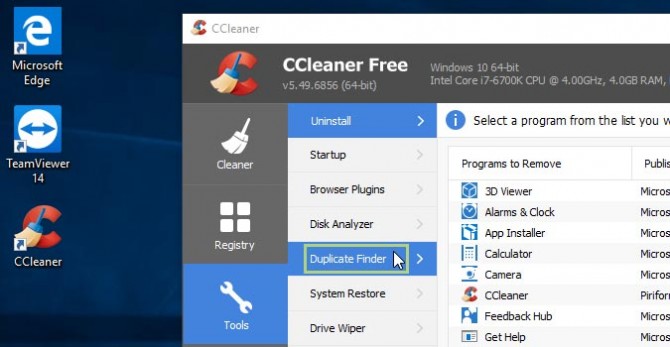
Dedicated duplicate-file tools can compare large collections more efficiently than manual inspection. Some scan selected folders, identify matching content and group possible duplicates for review.
Before installing one, check its reputation, privacy policy, supported Windows version and source. Avoid unfamiliar downloads that bundle unrelated software or demand unnecessary permissions.
Choose a tool that allows you to review its findings before deletion. Automatic removal without a clear review process can create unnecessary risk, especially when scanning system folders or application directories.
Our guide to installing laptop software safely explains how to evaluate installation sources and avoid suspicious applications.
Which Duplicate Files Should You Remove?
The safest candidates are files you have positively identified as unnecessary copies. Even then, keep the copy stored in the location where you normally access it.
| File category | Recommended approach |
|---|---|
| Repeated downloaded installers | Keep a needed copy and remove confirmed redundant downloads. |
| Duplicate photographs | Compare the images and retain the best-quality or original copy. |
| Invoices and receipts | Confirm that the documents are identical and retain an organised record. |
| Work documents with different versions | Compare their contents and preserve useful revision history. |
| Windows system files | Do not remove files merely because they appear duplicated. |
| Application folders | Avoid manual deletion; use the application’s supported management or uninstall process. |
Delete Duplicate Files Without Taking Unnecessary Risks
Once you have confirmed that a file is unnecessary, use a careful process rather than deleting an entire group at once.
- Back up important documents before a large cleanup.
- Keep the copy stored in the folder where you expect to find it.
- Move a suspected duplicate to the Recycle Bin instead of permanently deleting it immediately.
- Open the retained file and confirm that it works correctly.
- Check that any application or workflow depending on the file still works.
- Empty the Recycle Bin only after you are confident that you no longer need the deleted copy.
Be especially careful with files used by professional applications, development projects and cloud-synchronised folders. Removing a file from a synchronised location may also affect other connected devices, depending on the service and its settings.
If you need a broader approach to protecting your documents, read our guide to Windows Backup and System Restore. These tools serve different purposes, and neither makes careless deletion a good idea.
Can Duplicate Files Make Your Laptop Faster?
Removing duplicates can free up storage space, but it will not necessarily make your laptop noticeably faster. The result depends on how much space the duplicates occupy and whether your drive was running low on available capacity.
If your laptop remains slow after cleanup, investigate other possible causes, such as applications consuming excessive memory, unnecessary startup programs or limited storage capacity.
Our guide to why laptops become slow over time explains additional checks you can perform before spending money on repairs or upgrades.
How to Prevent Duplicate Files in the Future
Preventing unnecessary duplication is easier than repeatedly cleaning up a cluttered laptop. A few simple habits can make file management much more manageable.
- Create clearly named folders for work, school, personal documents and downloads.
- Check the Downloads folder before downloading a file again.
- Use consistent file names and dates when saving different document versions.
- Choose one primary location for each active project.
- Review old downloads periodically and remove files you no longer need.
- Keep backups separate from your working files so you do not accidentally delete every copy.
For instance, a student could organise coursework by academic session and subject, while a freelancer could create separate folders for each client. Clear organisation reduces the temptation to save multiple copies simply because the original file is difficult to locate.
Final Verdict
Duplicate files can waste valuable laptop storage, but deleting files based only on similar names is risky. Start with File Explorer, compare suspected copies carefully and use a trusted duplicate-file tool only when a larger collection justifies it.
For important documents, verify the contents, keep a backup and remove unnecessary copies gradually. If storage remains limited after a sensible cleanup, review large files and consider whether your laptop needs more capacity.
PSERO LAPTOP helps Nigerian laptop users understand storage management, Windows troubleshooting and practical computer maintenance. Good file organisation protects your information while making everyday work easier.