You connect your laptop to a phone hotspot, open a few websites, and suddenly receive a message that most of your data bundle has disappeared. Perhaps Windows downloads updates in the background, a cloud-storage app synchronises large files, or several browser tabs consume more data than expected.
These situations can become expensive for Nigerian laptop users who rely on mobile data for online classes, remote work, business operations, and everyday browsing. Fortunately, Windows provides tools for monitoring network usage and limiting certain background activities.
This guide explains how to check data consumption in Windows 11, identify applications that use large amounts of internet data, configure a metered connection, and reduce unnecessary downloads without disrupting essential services.

Why Does a Laptop Use Data When You Are Not Browsing?
Your browser is only one source of internet activity. Windows and installed applications can communicate with online services even when you are not actively using them.
- Windows Update: Windows may download operating-system updates and supporting components.
- Cloud synchronisation: Services such as OneDrive may upload or download documents and photographs.
- Application updates: Installed software can retrieve updates automatically.
- Streaming services: Video and music playback can consume substantial data, especially at higher quality settings.
- Browser activity: Open tabs may load advertisements, refresh content, or play media in the background.
- File transfers: Email attachments, online backups, and downloads can use more data than expected.
- Other connected devices: A laptop may download content shared by other devices or applications on the network.
Not every background connection is wasteful. Some services support security, synchronisation, and normal application operation. The goal is to identify avoidable consumption rather than disable everything that uses the internet.
How to Check Data Usage in Windows 11
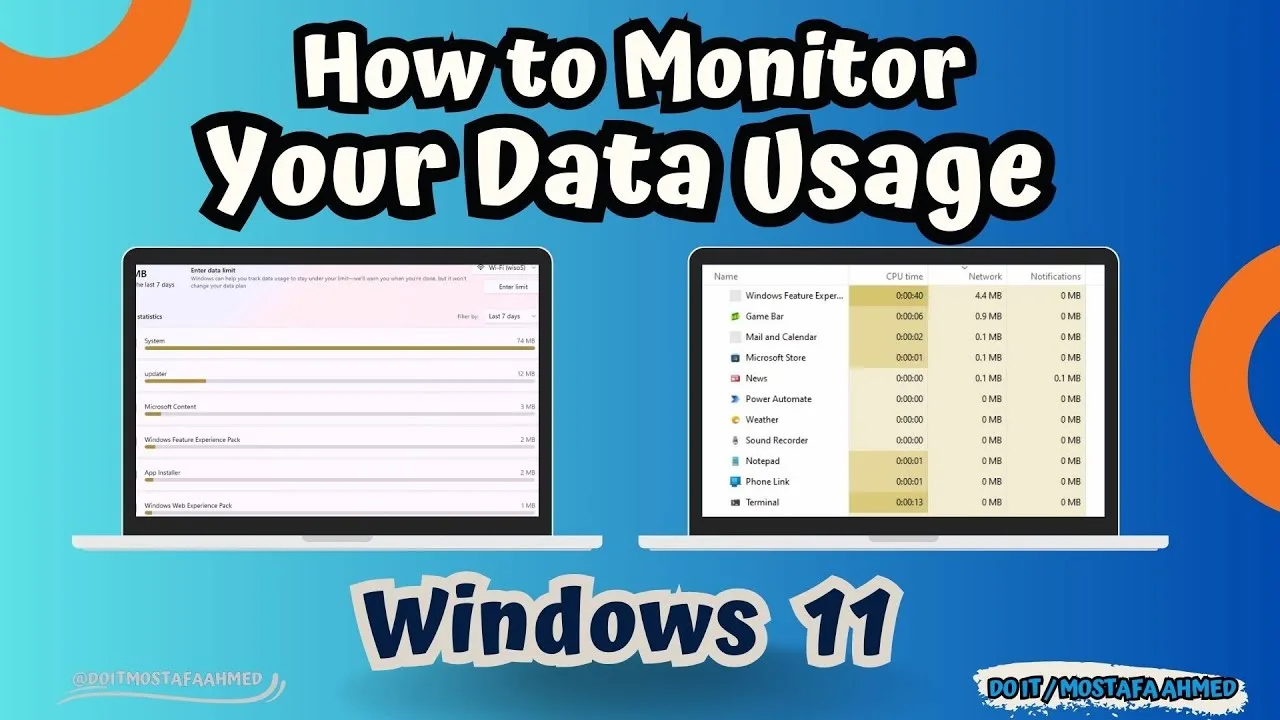
Windows includes a data-usage screen that can help you identify which applications have used the most network data during the displayed reporting period.
- Open Settings from the Start menu.
- Select Network & internet.
- Choose Advanced network settings if necessary.
- Open Data usage. Depending on your Windows version, the option may appear directly under Network & internet.
- Review the total data usage for the selected period and network connection.
- Inspect the application list to identify programs with high recorded usage.
The figures can help you spot unexpected activity, but they are not always a complete record of your mobile operator’s billing. Windows and your network provider may measure usage differently, and the displayed reporting period may not match your data bundle’s renewal date.
For an accurate picture of your remaining bundle, also check your mobile network provider’s official app or account portal.
How to Set a Data Limit
Some Windows 11 versions provide a data-limit option on the Data usage screen. If it is available for your connection, you can use it to monitor consumption against a specified allowance.
- Open Settings and select Network & internet.
- Open Data usage.
- Select the relevant Wi-Fi or Ethernet connection if Windows presents a choice.
- Choose Enter limit or the equivalent data-limit option, if available.
- Set the limit type, amount, and reset period according to the available controls.
- Save the settings and monitor the reported usage.
A Windows data limit is a monitoring aid, not a guaranteed billing cap. It may not disconnect your laptop or prevent every application from using more data. Check your network provider’s own controls if you need to avoid exceeding a paid allowance.
What Is a Metered Connection?
A metered connection tells Windows that a network has a limited or cost-sensitive data allowance. Windows may reduce certain automatic downloads and background activities when you enable this setting.
This option can be particularly useful when connecting to a mobile hotspot or using a limited-data Wi-Fi plan. However, it does not block every internet request, and individual applications may continue using data according to their own settings.
How to Mark Wi-Fi as a Metered Connection
If your laptop connects to a phone hotspot over Wi-Fi, you can often mark that network as metered.
- Connect your laptop to the relevant Wi-Fi network.
- Open Settings.
- Select Network & internet, then Wi-Fi.
- Open the properties of the connected network.
- Find Metered connection and switch it on.
Menu names can vary slightly between Windows versions. After enabling the setting, review Windows Update and other applications because metered-connection behaviour depends on the service and its configuration.
How to Set Ethernet as a Metered Connection
Windows can also provide metered-connection controls for supported Ethernet connections. This may help when your laptop connects to a router or modem with a limited data allowance.
- Connect your laptop to the Ethernet network.
- Open Settings and select Network & internet.
- Choose Ethernet.
- Open the connected network’s properties.
- Enable Metered connection if the option is available.
If you use an unlimited connection, you may not need this setting. Choose it according to your actual data plan rather than assuming every wired connection requires a limit.
Reduce Windows Update Data Consumption
Windows updates help protect your laptop and maintain compatibility, but downloads can consume a noticeable amount of data. A large update may be inconvenient when your hotspot has a small allowance.
First, mark a limited connection as metered. Then open Settings, select Windows Update, and review the available update controls. Depending on your Windows edition and version, you may be able to pause updates temporarily or schedule a restart.
Use pauses only when necessary, and resume updates when you have access to a suitable connection. Avoid permanently disabling security updates simply to save data.
When updates repeatedly download or fail, consult our guide to fixing Windows Update problems, stuck downloads, and restart errors.
Control Cloud Storage Synchronisation
Cloud-storage services can use data when they upload new files, download changes, or synchronise shared folders. Large videos, design projects, and collections of photographs can generate substantial transfers.
If you use OneDrive or another cloud-storage application, open its settings and review the synchronisation options. You may be able to pause synchronisation temporarily, choose which folders to sync, or limit activity while working on a mobile hotspot.
Remember to resume synchronisation when appropriate. Pausing it for too long may leave files out of date across your devices.
Before changing cloud settings, make sure you understand which files exist locally and which depend on online access. Our guide to laptop storage, cloud services, and backups explains the main differences.
Save Data While Browsing the Web
Web browsing can consume a surprising amount of data, especially when pages contain videos, advertisements, large images, and automatically refreshed content.
Use these practical habits to reduce unnecessary usage:
- Close tabs that you no longer need.
- Pause video playback when you are not watching.
- Select a lower video quality when high resolution is unnecessary.
- Disable automatic video playback where the website or browser supports it.
- Download large files only when you need them.
- Use trusted offline features when you know you will work without internet access.
Be cautious with browser extensions that promise to reduce data usage. Install extensions only from trusted sources, and check their permissions before granting access to your browsing activity.
Check Whether an Application Is Using Too Much Data
If Windows Data usage identifies an application with unexpectedly high consumption, investigate the program before removing it.
- Confirm that the application’s recorded usage is unusually high for your normal activities.
- Open the application and review its update, synchronisation, streaming, or download settings.
- Check whether it is performing a task you started earlier.
- Pause unnecessary transfers where the application provides a safe option.
- Update or uninstall software you no longer need, using its normal removal process.
Task Manager can help you inspect running applications and resource use, although its network information is not a direct replacement for a mobile operator’s data counter. Read our guide to using Windows Task Manager to investigate laptop activity.
Do not terminate unfamiliar Windows processes simply because they appear in a list. Identify the application and understand its purpose before changing anything.
Why Does My Hotspot Use More Data Than Expected?
A phone hotspot gives your laptop access to the internet through your mobile connection. Once connected, the laptop may behave as though it is using an ordinary Wi-Fi network unless you adjust the relevant settings.
Windows may check for updates, cloud applications may synchronise files, and browser tabs may load content automatically. These activities can consume data even if you only intended to check email or complete a short task.
To reduce surprises, enable the metered-connection setting for the hotspot, check your usage periodically, and postpone large downloads until you have access to a more suitable connection.
If your laptop connects to the hotspot but cannot access websites, investigate the connection itself rather than changing data limits repeatedly. Our guide to diagnosing DNS, DHCP, IP, and internet connection problems can help.
Should You Disable Background Apps to Save Data?
Some applications provide background-activity controls, but not every Windows program uses the same permission system. Depending on the app, you may find these options in Windows Settings or within the application’s own settings.
Disable unnecessary background activity when the application supports it and you understand the consequences. For example, pausing automatic photo uploads may save data, but you could miss a synchronisation you expected to happen immediately.
Avoid using aggressive system-cleaning tools that promise to stop every background process. They can interfere with updates, security features, and normal application behaviour without guaranteeing meaningful savings.
Final Thoughts
Windows data-usage controls help you understand where your laptop’s internet allowance goes. Start by checking the Data usage screen, marking limited networks as metered, and reviewing applications that perform automatic downloads or synchronisation.
For Nigerian users who rely on mobile hotspots, these small changes can help make data last longer. However, keep essential security updates enabled, verify usage through your network provider, and avoid disabling services you do not understand.
At P-Sero Laptop, we help Nigerian laptop users manage everyday computer tasks, troubleshoot Windows problems, and choose devices that suit school, business, and remote work. Better data management can make a laptop more practical when every megabyte counts.