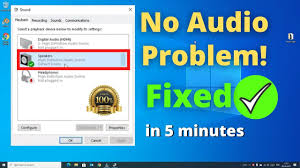
How to Fix Laptop Sound Issues: Step-by-Step Troubleshooting Guide (2025)
Meta Description:
Experiencing no sound, low volume, or distorted audio on your laptop? This 2025 guide covers easy steps to fix common laptop sound problems on Windows and macOS.
🎧 Laptop Sound Problems? Here’s How to Fix Them
Sound issues on a laptop can be incredibly frustrating—especially when you’re trying to watch a video, join a Zoom call, or listen to music. Whether you’re facing no sound, low volume, or distorted audio, this guide walks you through the most effective solutions.
🔍 Common Causes of Laptop Sound Not Working
Before we dive into troubleshooting, here are the most common reasons why laptop audio might not work:
- 🔇 Volume is muted or set too low
- 🎧 Incorrect audio output device selected
- 🧩 Outdated or corrupted audio drivers
- ⚙️ Disabled or malfunctioning audio services
- 🛠️ Hardware issues with internal speakers or headphones
✅ Step-by-Step Guide to Fix Laptop Sound Issues
🔹 Step 1: Check Volume and Output Settings
1. Make Sure Volume Isn’t Muted
- On Windows:
Click the speaker icon in the taskbar and increase the volume. - On macOS:
Click the volume icon in the menu bar and adjust the slider.
Also, check external speaker/headphone volume controls if connected.
2. Select the Correct Audio Output Device
- Windows:
- Right-click the speaker icon → Select Sound Settings
- Under Output, choose the right playback device
- macOS:
- Go to System Settings > Sound
- Under Output, select the desired audio device
🔹 Step 2: Restart Audio Services
On Windows:
- Press Win + R, type
services.msc, and press Enter - Find Windows Audio → Right-click → Click Restart
- Do the same for Windows Audio Endpoint Builder
On macOS:
- Restart your Mac
- Or open Terminal and run this command to reset Core Audio:
sudo killall coreaudiod
Enter your admin password and press Enter.
🔹 Step 3: Update or Reinstall Audio Drivers
On Windows:
- Press Win + X → Choose Device Manager
- Expand Sound, video, and game controllers
- Right-click your audio device → Click Update Driver
- Select Search automatically for drivers
If that doesn’t work:
- Uninstall the driver
- Restart your laptop
- Windows will reinstall it automatically
On macOS:
- Go to System Settings > Software Update
- Install any available updates (includes driver fixes)
🔹 Step 4: Run the Windows Troubleshooter
Windows offers a built-in troubleshooter for sound issues:
- Go to Settings > System > Sound
- Scroll to Output and click Troubleshoot
- Follow the on-screen instructions
🔹 Step 5: Check External Devices
- If using Bluetooth headphones, ensure they are connected and selected as the output device
- Test with a different set of headphones or speakers
- Make sure all cables and ports are secure
🔹 Step 6: Reset Sound Settings
On Windows:
- Go to Settings > System > Sound
- Click Advanced sound options > Reset
On macOS:
Reset NVRAM (Non-Volatile Random-Access Memory):
- Shut down your Mac
- Power it on and immediately press and hold:
Option + Command + P + R - Hold for 20 seconds, then release
🧰 Still Not Working? Try This:
If none of the above steps work, try:
- Running a full system update
- Booting into Safe Mode to rule out third-party interference
- Visiting a technician to check for hardware damage
📝 Conclusion
Most laptop sound issues can be resolved by checking basic settings, updating drivers, or restarting audio services. Whether you’re using Windows or macOS, these steps should help restore your sound quickly.
📚 Need More Tech Help?
For more tech tips and troubleshooting guides, visit 👉 Psero.com