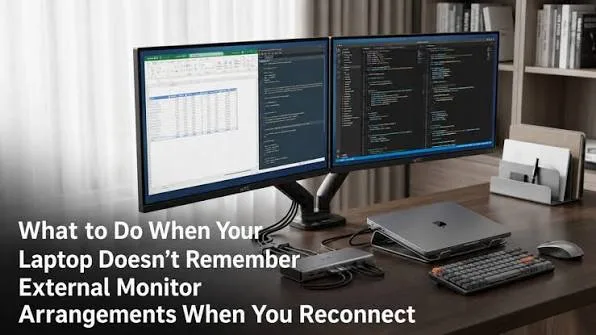
Adding an external monitor can transform the setup. You can keep your main document on one screen, research on another and move between applications without constantly switching windows.
Getting the setup right, however, involves more than plugging a monitor into an HDMI port.
Resolution, refresh rate, connection type, scaling, graphics capability and the monitor itself can all affect the experience.
What Is an External Monitor?
An external monitor is a separate display connected to your laptop.
Windows can use the laptop screen and external display together or allow the external monitor to become the primary display.
You can also close the laptop lid and use only the external monitor when the laptop and power settings support that arrangement.
This can turn a portable laptop into a more comfortable desktop-style workstation.
Why Use a Second Screen?

The biggest advantage is additional workspace.
A web developer can keep code on one display and a browser preview on the other. An SEO professional might keep analytics or search results open beside a content editor.
Students can read a research document on one screen while writing notes on another.
Even ordinary office work can become easier when email, spreadsheets and documents do not have to compete for the same screen.
Extend vs Duplicate Display
Windows provides several display modes.
Extend
Extend treats the screens as separate areas of your desktop.
You can move windows between displays and keep different applications visible at the same time.
Duplicate
Duplicate shows the same content on both screens.
This is useful when presenting something to another person while still viewing the same material on the laptop.
Second screen only
This disables the laptop’s internal display and uses the external monitor as the active screen.
It can be useful when your laptop is permanently connected to a desk monitor.
How to Choose the Right Monitor Resolution
Resolution describes the number of pixels used to create the image.
Common resolutions include Full HD, 2560 × 1440 and 4K.
| Resolution | Typical use | What to consider |
|---|---|---|
| 1920 × 1080 | Office work, browsing, general use | Usually easy for most laptops to handle |
| 2560 × 1440 | Productivity, design and larger workspaces | Requires more graphics output capability |
| 3840 × 2160 | High-resolution work, design and media | Higher graphics and bandwidth requirements |
Higher resolution does not automatically mean a better choice.
The right display depends on screen size, viewing distance, laptop capability and what you actually do with the computer.
What Is Refresh Rate?
Refresh rate describes how many times a display can update its image each second.
A 60Hz monitor refreshes up to 60 times per second, while a 120Hz display can refresh up to 120 times per second when the laptop and connection support it.
Higher refresh rates can make scrolling, animations and supported games feel smoother.
For ordinary office work, 60Hz remains perfectly usable. Users who value smooth motion may prefer a higher refresh rate.
Can Any Laptop Run a 4K Monitor?
Not necessarily at every resolution and refresh-rate combination.
The laptop’s graphics hardware and display output must support the desired signal.
The connection standard also matters because higher resolutions and refresh rates require more bandwidth.
Before purchasing a high-resolution monitor, check the laptop’s specifications and the capabilities of its HDMI, USB-C or Thunderbolt output.
HDMI for External Monitors
HDMI is one of the most common ways to connect a laptop to an external display.
It can carry digital video and audio through one cable.
Different HDMI versions have different capabilities, so simply seeing an HDMI port does not tell you the maximum resolution and refresh rate the laptop can provide.
Older laptops may have limitations that become noticeable when connected to newer high-resolution monitors.
USB-C for External Displays
USB-C can carry display signals on compatible laptops, but not every USB-C port supports video output.
Some USB-C ports support charging and data only.
Others can support DisplayPort Alt Mode or operate as part of a Thunderbolt or USB4 implementation.
Always check the laptop’s specifications before assuming that every USB-C port can connect to a monitor.
The USB-IF provides information about USB technologies and specifications.
What About Thunderbolt?
Thunderbolt can provide high-bandwidth connectivity for compatible displays and other peripherals.
It can be particularly useful in workstation setups where a single connection handles multiple devices through a compatible dock.
Thunderbolt capability depends on the specific laptop port and generation, so check the manufacturer’s specifications rather than relying on the USB-C shape alone.
Why Does the USB-C Shape Cause Confusion?
USB-C describes the physical connector shape rather than guaranteeing every feature.
Two laptops can have identical-looking USB-C ports with very different capabilities.
One may support charging, data and external displays. Another may support only charging and data.
That distinction is particularly important when buying a laptop for a permanent desk setup.
How to Connect an External Monitor in Windows
Connect the appropriate cable between the laptop and monitor.
Windows should normally detect the display automatically.
You can then open Settings → System → Display to arrange the screens and choose the display mode.
Windows also provides a quick display shortcut through Windows + P.
How to Arrange Dual Monitors Correctly
The physical position of the monitors should match their arrangement in Windows.
If the external monitor is physically on your left but Windows thinks it is on your right, moving the mouse between screens will feel confusing.
Open the display settings and drag the numbered screens into the same arrangement as your desk.
You can also select which display should act as the main display.
What Is Display Scaling?
Scaling controls the size of interface elements such as text, icons and buttons.
A high-resolution monitor can display extremely sharp content, but its interface may appear tiny without suitable scaling.
Windows allows different scaling settings for different displays.
This is useful when combining a high-resolution laptop screen with a lower-resolution external monitor.
Why Does Text Look Different on Two Monitors?
The screens may have different pixel densities, resolutions, panel types or scaling settings.
A 4K display and a Full HD monitor can therefore make the same application look noticeably different.
Matching scaling and choosing suitable display settings can make the desktop more consistent.
Can One Laptop Run Two External Monitors?
Some laptops can drive two external displays, while others have limitations.
The answer depends on the graphics hardware, available ports, display-output technology and whether a dock or adapter is being used.
Business laptops with suitable USB-C, Thunderbolt or docking support can be particularly useful for multi-monitor workstations.
Do not assume that having two physical ports automatically means that both can drive separate displays.
What Is a Laptop Docking Station?
A docking station allows several peripherals to connect through one laptop connection.
A suitable dock can provide ports for monitors, USB devices, Ethernet, audio and other accessories.
That can be convenient if you regularly move between a desk and portable work.
Docking requirements should be considered before buying the laptop because not every machine supports the same docking features.
External Monitor Setup for Remote Workers
Remote workers can benefit significantly from a larger workspace.
A single 24-inch Full HD monitor may already provide more comfortable working space than a small laptop display.
A second monitor becomes even more useful when the work involves research, spreadsheets, communication platforms or multiple browser windows.
If your laptop is also used for remote work and learning, our remote-work and skill-learning laptop guide covers other factors to consider.
External Monitor Setup for Developers
Developers often benefit from separating their coding environment from documentation, browser previews and terminal windows.
A dual-monitor setup can reduce constant application switching.
Web developers in particular may find it convenient to keep code on one display and browser developer tools on another.
The laptop does not necessarily need a powerful dedicated graphics card for this type of productivity work.
External Monitor Setup for Gaming
Gaming places additional demands on the graphics system.
Resolution and refresh rate should be matched to the laptop’s graphics performance.
A high-refresh-rate monitor is less useful if the laptop cannot consistently produce enough frames for the games being played.
Competitive gamers may prioritise refresh rate, while users focused on visual quality may prefer higher resolution.
What If the External Monitor Has No Signal?
Start with the simple checks.
- Confirm the monitor is powered on.
- Check that the correct input source is selected.
- Reconnect the cable.
- Try another cable if available.
- Use Windows + P to select the desired display mode.
- Check whether Windows detects the monitor.
- Test another compatible port.
- Restart the laptop if necessary.
A faulty cable can produce exactly the same symptoms as a faulty laptop port, so testing another cable is worthwhile.
What If the Monitor Flickers?
Flickering can have several causes.
The cable, refresh-rate configuration, graphics driver, adapter or monitor itself could be responsible.
Try reducing the refresh rate temporarily and testing another cable or connection.
If the problem disappears after changing the connection, you have useful evidence about where to investigate next.
External Monitor Buying Checklist
- Check the monitor’s resolution.
- Check its refresh rate.
- Confirm the laptop supports the required display signal.
- Check whether HDMI, USB-C or another connection is required.
- Confirm whether the USB-C port supports video output.
- Check whether a dock or adapter is necessary.
- Consider screen size and viewing distance.
- Check scaling compatibility.
- Choose a monitor based on the actual workload.
Common Mistakes With External Displays
Assuming every USB-C port supports monitors
The connector shape alone does not guarantee video output.
Buying a 4K monitor without checking the laptop
The laptop and connection must support the desired resolution and refresh rate.
Ignoring scaling
Very high resolutions can make text and interface elements uncomfortable without suitable scaling.
Buying a high-refresh monitor for a low-performance workload
Extra refresh capability may not matter much for ordinary office work.
Using cheap adapters without checking specifications
An adapter can become the limiting factor in a multi-display setup.
Final Advice
An external monitor can make a small laptop feel like a much more capable workstation.
The best setup is not necessarily the one with the biggest or most expensive screen. It is the combination that matches your laptop, workload and connection options.
For office work, web development and general productivity, a good Full HD or QHD monitor can already provide a major improvement. Creative professionals and gamers may have stronger reasons to consider higher resolutions or refresh rates.
Before buying anything, check the laptop’s actual display-output capabilities. Pay particular attention to HDMI specifications, USB-C video support and docking compatibility.
Once those details match, adding a second screen can be one of the simplest ways to make a laptop setup more comfortable and productive.