Modern laptops feature a variety of ports, and understanding them is essential for students, professionals, and gamers. Knowing the differences between HDMI, USB-C, and Thunderbolt helps you choose the right laptop and accessories. This guide explains each port, its function, compatibility, and practical uses.
HDMI Port – Connecting to Monitors and TVs
The HDMI (High-Definition Multimedia Interface) is the most common port for connecting a laptop to external displays. It supports both video and audio, which makes it ideal for presentations, watching movies, or gaming on a larger screen.
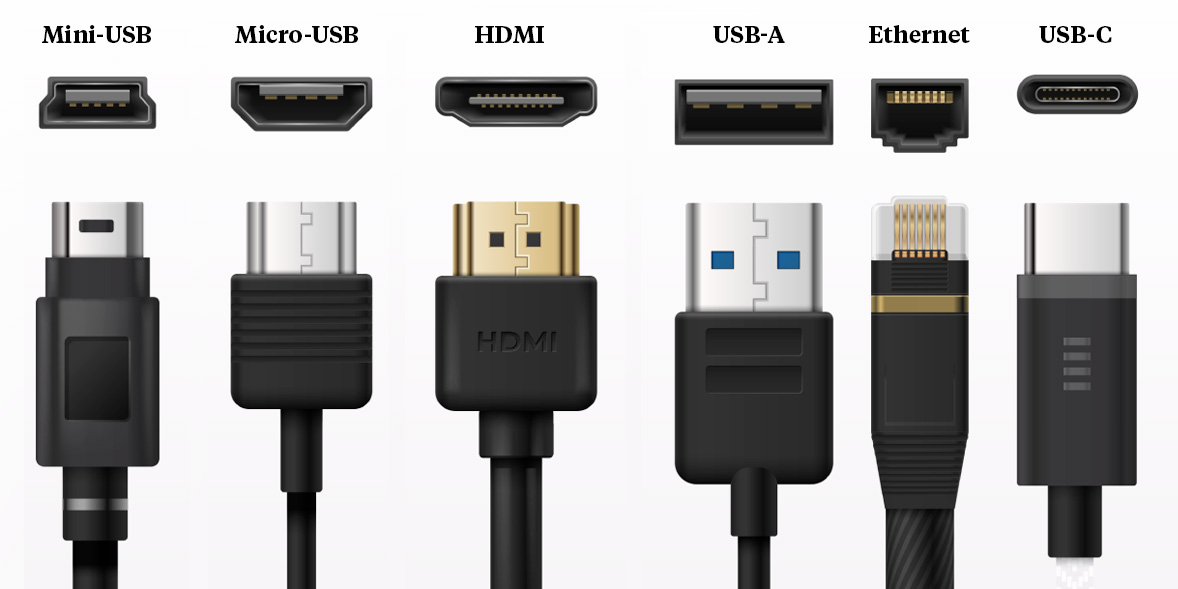
Key Features
Transmits high-definition video up to 4K resolution
Carries audio signals along with video
Compatible with TVs, projectors, and monitors
Why It Matters for Students and Professionals
When attending lectures, giving presentations, or watching tutorials, an HDMI port ensures seamless display on larger screens without additional adapters.
USB-C Port – The All-in-One Connector
Unlike older ports, USB-C is versatile and reversible. It can handle data transfer, charging, and sometimes video output, depending on your laptop’s specifications.
Key Features
Supports fast data transfer (up to 10 Gbps for USB 3.1)
Can charge laptops and devices
Some models allow video output (DisplayPort Alt Mode)

Why It Matters
This port reduces cable clutter by combining multiple functions into one. Students and professionals can connect external drives, monitors, or even charge other devices using the same port.
Thunderbolt Port – The High-Speed Powerhouse
Thunderbolt 3 and 4 use the same USB-C connector but provide much faster data transfer and extra capabilities. It is ideal for power users who require high-speed connections for external GPUs, SSDs, or 4K displays.
Key Features
Ultra-fast transfer speeds up to 40 Gbps
Supports dual 4K displays or a single 8K display
Allows daisy-chaining multiple devices
Why It Matters
Designers, video editors, and gamers benefit most from Thunderbolt. Even students handling large projects or creative software can enjoy smoother performance compared to other ports.
Comparison Table – HDMI vs USB-C vs Thunderbolt
| Feature | HDMI | USB-C | Thunderbolt 3/4 |
|---|---|---|---|
| Video & Audio | Yes | Optional | Yes |
| Data Transfer | No | Up to 10 Gbps | Up to 40 Gbps |
| Charging Capability | No | Yes | Yes |
| Display Support | 4K max | Depends on spec | Dual 4K / 8K single |
| Reversible | No | Yes | Yes |
Tips for Choosing the Right Laptop Ports
Identify Your Needs – HDMI is sufficient if you only connect to monitors or TVs.
Future-Proof Your Laptop – USB-C or Thunderbolt offers flexibility for modern devices.
Verify Compatibility – Not every USB-C port supports video output; always check before purchasing adapters.
Use Adapters When Necessary – They help connect older devices, but native port support is preferable.
Conclusion
Understanding laptop ports ensures your device works efficiently for studying, work, or creative projects. HDMI is perfect for presentations and displays, USB-C consolidates multiple functions, and Thunderbolt delivers high-speed performance for demanding tasks. Choosing the right combination of ports depends on your workflow and accessories.