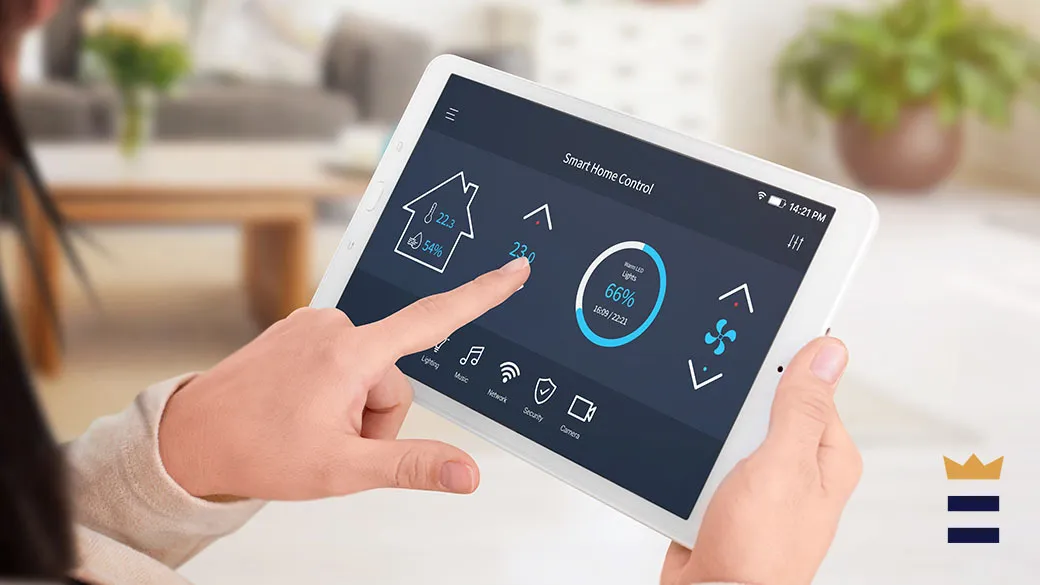
Smart home technology has revolutionized how we interact with our living spaces. With a laptop, you can seamlessly control smart devices such as lights, thermostats, cameras, and appliances from a single interface. This guide will show you how to connect and manage your smart home ecosystem using your laptop.
Why Use Your Laptop for Smart Home Control?
- Larger Screen & Keyboard – Easier to manage multiple devices compared to a smartphone.
- Centralized Management – Control all smart devices from one platform.
- Automation & Customization – Set up advanced routines and automation.
- Remote Access – Monitor and control devices even when you’re away.
Methods to Control Smart Home Devices with Your Laptop
1. Use Smart Home Hubs with a Web Interface
Most smart home ecosystems offer web-based control panels that can be accessed from a laptop. Some popular hubs include:
- Google Home (home.google.com)
- Amazon Alexa (alexa.amazon.com)
- Apple HomeKit (via HomeBridge for non-Apple devices)
- Samsung SmartThings (smartthings.com)
Steps:
- Open your web browser and log into your smart home hub’s website.
- Link your smart devices if they are not already connected.
- Control devices, create automation routines, and monitor activity.
2. Install Smart Home Management Software on Your Laptop
Some smart home brands offer dedicated desktop applications for Windows or macOS. These allow more advanced settings and automation control.
Popular options include:
- Home Assistant – Open-source software for controlling all smart home devices.
- OpenHAB – Another powerful automation platform.
- IoT Link – For controlling devices via Windows.
How to Set Up Home Assistant on Your Laptop:
- Download and install Home Assistant (home-assistant.io).
- Add your smart devices through integrations.
- Customize automation settings and control devices from your laptop.
3. Use Remote Desktop or Browser Extensions
If your smart home devices are controlled via a mobile app only, you can access them on your laptop using:
- Android Emulators – Install an emulator like BlueStacks to run smart home apps on your laptop.
- Remote Desktop Software – Use Microsoft Remote Desktop or Chrome Remote Desktop to access your mobile device’s smart home controls from your laptop.
4. Control Smart Home Devices Using Voice Assistants
Many laptops support voice assistants such as:
- Cortana (Windows)
- Siri (Mac)
- Google Assistant
- Amazon Alexa
Example Commands:
- “Alexa, turn off the living room lights.”
- “Hey Google, set the thermostat to 72 degrees.”
- “Siri, lock the front door.”
If your laptop has a microphone, you can control smart home devices hands-free.
Best Practices for Managing Smart Home Devices on a Laptop
- Ensure devices are connected to the same Wi-Fi network for seamless control.
- Use strong passwords and two-factor authentication to protect smart home accounts.
- Regularly update firmware and software to enhance security and performance.
- Create automation routines for better efficiency (e.g., turn off lights when you leave).
Final Thoughts
Using your laptop to control smart home devices offers convenience, efficiency, and enhanced control over your connected home. Whether through web portals, dedicated software, remote desktop solutions, or voice commands, managing your smart home has never been easier.
For more tech insights, visit Psero.com.