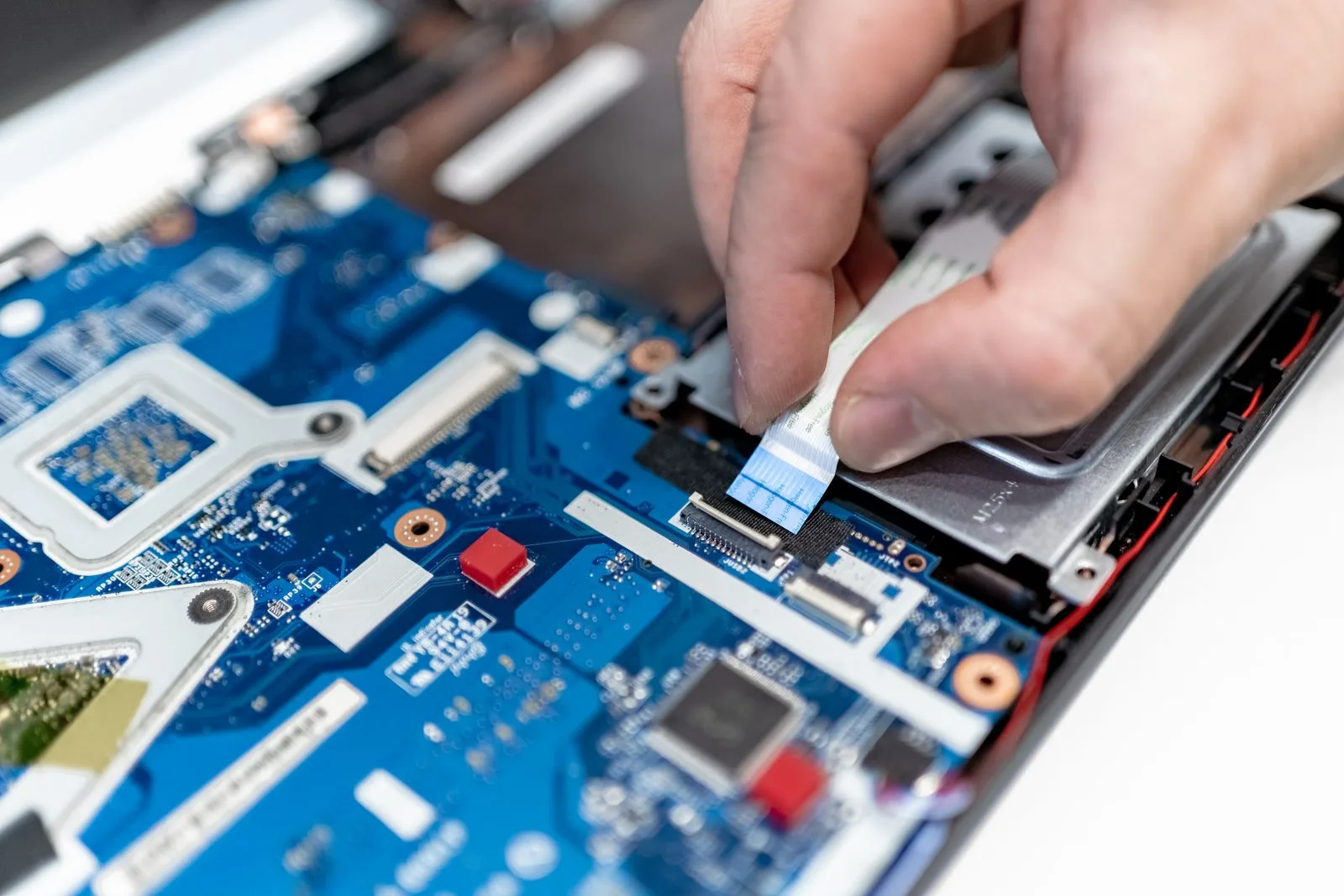
Buying a used laptop in Nigeria can save you a lot of money. However, it can also cost you dearly if you skip the basic checks. A clean body and a fresh Windows screen do not tell you the full story. So before you pay, you need a simple plan that shows you what to test, what to ask and what to walk away from.
This guide gives you that plan. First, we cover why UK-used laptops are so popular in Nigeria. Then we walk through a clear, step-by-step checklist you can use in a shop, at a market or when a laptop arrives at your door. By the end, you will know how to spot a good deal and avoid a costly mistake.
Why a Used Laptop Makes Sense for Many Nigerian Buyers
Brand-new laptops are expensive, and prices keep moving with the exchange rate. As a result, a used laptop is often the most practical way to get good quality on a tight budget. Because of this, many students, workers and business owners choose UK-used or foreign-used machines instead. A good used laptop often gives you a business-class build for the price of a cheap new consumer model.
For example, many UK-used units come from company fleets. These are often ThinkPad, Latitude, EliteBook or MacBook models. Businesses buy them for their strong frames, good keyboards and long support life. When those firms upgrade, the old machines enter the second-hand market, and many end up in Nigeria.
The real risk with a second-hand laptop
The risk is not the word “used”. Instead, the risk is a laptop that hides a fault. A weak battery, a failing drive, a cracked hinge or a locked BIOS can turn a bargain into a burden. Some faults show up on day one, while others appear after a week of heavy use.
That is why a checklist matters. It removes guesswork, and it helps you stay calm when a seller is rushing you. It also gives you clear reasons to ask for a lower price or a different unit.
What you need before you start
Bring a few simple items when you go to inspect a used laptop:
- A USB flash drive with a few files on it
- Your phone, for a quick hotspot test and a torch
- Earphones with a 3.5mm jack or Bluetooth
- A short list of the specs you want
- Enough time, ideally at least 20 to 30 minutes per laptop
With these in hand, you can test almost everything that matters.
1. Decide What You Need Before You Inspect Any Used Laptop
Many buyers start by looking at laptops on a table. Instead, start with your own needs. Otherwise, you may fall for a shiny machine that does not suit your work.
Match the laptop to your daily tasks
Think about what you will do every day. Then pick a target spec that fits:
- Basic office work, browsing and school assignments: an Intel Core i5 or AMD Ryzen 5 from a recent generation, 8GB RAM and a 256GB SSD is usually enough.
- Heavy multitasking, coding or large spreadsheets: aim for 16GB RAM and a 512GB SSD.
- Graphic design, video editing or light gaming: look for a stronger processor, 16GB RAM or more and, ideally, a dedicated graphics card.
- Frequent travel or fieldwork: prioritise weight, battery health and a sturdy frame.
Set a budget range, not a single price
Prices for a used laptop change from week to week in Nigeria. So set a range rather than one fixed figure. This gives you room to choose a better unit if it costs a little more. It also stops you from overspending on features you will never use.
Know which models you like
Before you go out, read up on two or three models. For instance, our guide on Lenovo ThinkPad vs IdeaPad explains how a business line differs from a consumer line. That kind of research helps you judge build quality quickly.
2. Check the Used Laptop’s Body, Hinges and Build
Now pick up the laptop and look at it closely. Do this in good light, and use your phone torch for corners and vents.
Look for cracks, dents and missing screws
Run your eyes along every edge. Check the corners, since drops usually leave marks there. Also flip the laptop over and count the screws on the base. Missing or mismatched screws often mean someone has opened it, so ask why.
Small scratches are normal on a used laptop, and they rarely affect how it works. In contrast, deep dents near the hinge or a bent lid can point to a hard fall. A fall can damage the screen cable, the motherboard or the drive.
Test the used laptop hinges
Open and close the lid of the used laptop slowly several times. The motion should feel smooth and firm. Also stop the lid at different angles and let go. It should stay in place without drooping.
A loose or stiff hinge is more than a comfort issue. Over time, a bad hinge can crack the lid or pull on the display cable. As a result, the screen may flicker or go blank later.
Check for liquid damage signs
Look under the keyboard edges and around the ports. Rust, sticky keys or white residue can be signs of a spill. Similarly, a faint sweet smell from the vents can hint at old liquid damage. A spill can cause faults that appear weeks later, so treat these signs seriously.
3. Test the Second-Hand Laptop Screen Carefully
The screen is one of the most costly parts to replace on a used laptop. Therefore, give it extra attention when you inspect any used laptop.
Check the used laptop for dead pixels
Open a plain white page in the browser. Then switch to a full black page, and then to red, green and blue if you can. Look for tiny dots that stay black, white or coloured. Also watch for bright patches near the edges, which suggest backlight bleed.
Look at brightness and colour
Turn the brightness all the way up and then all the way down. The change should be smooth and even. Next, look for a yellow or pink tint, or for faded areas. These issues often worsen over time, so do not ignore them.
Test viewing angles and the panel type
Tilt the screen and move your head left and right. Some cheaper panels wash out quickly from the side. If you share your screen with others, viewing angles matter more than you might think. Our guide on laptop viewing angle explains this in plain terms.
Watch for flicker when you move the lid
Finally, move the lid slowly while the screen is on. If the image flickers or cuts out, the display cable may be loose or worn. This is a common hidden fault, and it is worth a firm “no”.

4. Test the Keyboard and Touchpad on the Used Laptop
You will touch the keyboard and touchpad more than any other part. So test them properly rather than pressing a few random keys.
Type a full test sentence
Open Notepad or any text box. Then type every letter, every number and every symbol. A useful trick is to type “the quick brown fox jumps over the lazy dog” a few times. Also test the Shift, Ctrl, Alt, Enter, Backspace and arrow keys.
If you prefer, you can open a free online keyboard tester. These sites light up each key as you press it, so dead keys stand out at once.
Check the backlight and function keys
If the laptop has a backlit keyboard, turn it on. Next, test the brightness, volume and Wi-Fi function keys. When these keys fail, it can point to missing drivers or a worn keyboard.
Test the touchpad
Move the cursor around the whole pad. It should move smoothly without jumping. After that, test left click, right click, two-finger scrolling and pinch to zoom. A touchpad that clicks unevenly or feels loose may need repair soon.
5. Check the Battery Health of the Used Laptop
Battery health is one of the biggest concerns with any used laptop. A battery wears down with every charge cycle. Even so, many UK-used laptops still have decent batteries, and you can check this quickly.
Run a battery report on Windows
On a Windows laptop, you can create a free battery report. First, open Command Prompt. Then type powercfg /batteryreport and press Enter. Windows will save a report file and show you where it is.
Open that file in the browser. Then compare the “Design Capacity” with the “Full Charge Capacity”. If the full charge figure is much lower than the design figure, the battery has worn down. As a rough guide, a battery that holds well under half of its design capacity will struggle with long days.
Check battery health on a MacBook
On a MacBook, click the Apple menu and open System Settings or System Information. There you can see the battery condition and, on many models, the cycle count. A status such as “Service Recommended” means the battery needs attention.
Watch the battery in real use
Unplug the charger and use the laptop for a few minutes. Watch how fast the percentage drops. If it falls very quickly, or the laptop shuts down suddenly, the battery is weak.
Why battery health matters in Nigeria
Power cuts are common in many areas. So a healthy battery keeps you working when the grid goes off. If a used laptop has a weak battery, factor the cost of a replacement into your offer. Also note that some laptops can run on mains power without a battery, as we explain in our guide on running a laptop without a battery. Still, that is not ideal for most users.
6. Confirm the Processor, RAM and Storage Specs
A seller may tell you a used laptop is a “Core i7”. However, that label alone means little. A newer Core i5 can easily beat an old Core i7, so check the details yourself.
Check the used laptop specs in Windows
Press the Windows key and type “About”. Then open “About your PC”. This page shows the processor model, the installed RAM and the Windows edition. Write these down or take a photo.
Next, open Task Manager with Ctrl + Shift + Esc. Click the Performance tab. Here you can see the processor speed, the RAM size and the storage drives. This view is harder to fake than a sticker on the palm rest.
Read the processor generation
For Intel chips, the number after “i5” or “i7” shows the generation. For example, an i5-8350U is an 8th generation chip, while an i5-1145G7 is an 11th generation chip. In general, newer generations are faster and more efficient.
Also check whether the laptop can run Windows 11. Microsoft lists its Windows 11 system requirements on its own website. Older processors may not meet them, which can matter for future updates and security.
Check the RAM layout
Ask whether the RAM is soldered or in slots. Slotted RAM lets you upgrade later. In contrast, soldered RAM is fixed for life. If a used laptop has only 8GB of soldered RAM, think about whether that will be enough in two years.
7. Check the Used Laptop’s Storage Drive Health
The storage drive holds your files, your apps and your system. A failing drive can wipe out your work without warning. So this check is essential.
SSD or hard drive?
Most good laptops today use an SSD, and a used laptop with an SSD will feel much faster in daily use. An SSD starts up fast and has no moving parts. On the other hand, an older hard drive is slower and more fragile. If the used laptop has a hard drive, ask about an SSD upgrade before you buy.
Use a free tool to check used laptop storage
Download a free tool such as CrystalDiskInfo on Windows. It reads the drive’s health data and gives a simple status. “Good” is what you want. If you see “Caution” or “Bad”, the drive may fail soon.
Also check the total storage in File Explorer. Make sure it matches what the seller promised. For example, a laptop sold as “512GB” should show close to that amount, minus some space for the system.
Test file copying
Plug in your USB flash drive. Then copy a few files to the laptop and back again. The copy should run smoothly without freezing. While you do this, the test also checks the USB port.
8. Test the Used Laptop’s Ports, Wi-Fi, Camera and Sound
Ports and wireless features often get skipped. Yet a dead USB port or a weak Wi-Fi card can be a daily headache.
Test every port on the second-hand laptop
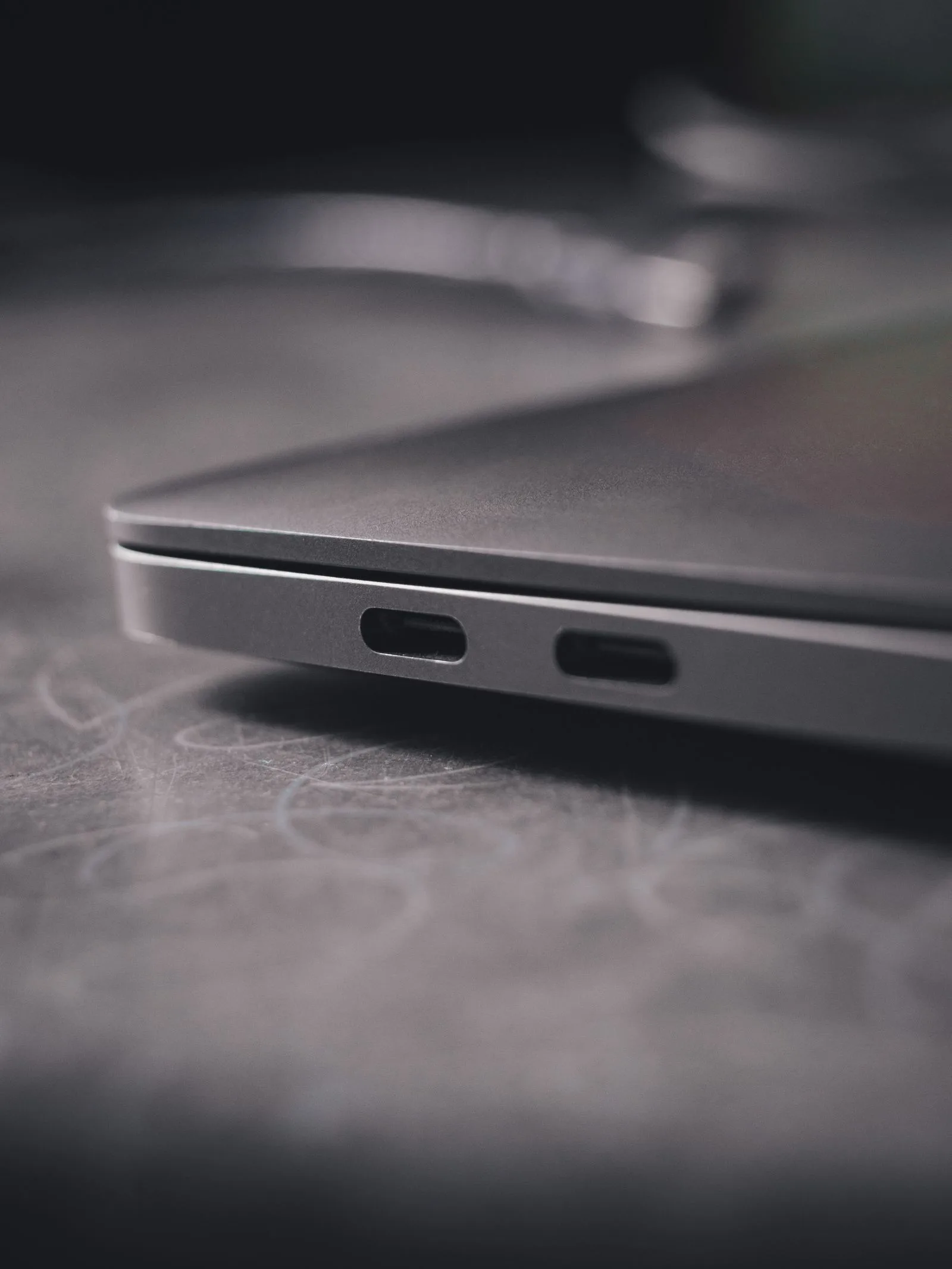
Try each USB port on the used laptop with your flash drive. If there is an HDMI port and a screen nearby, test it too. Similarly, check the USB-C port, the SD card reader and the headphone jack if the laptop has them.
Test Wi-Fi and Bluetooth
Turn on your phone hotspot and connect the laptop. Then open a few web pages or a short video. The connection should stay stable. After that, turn on Bluetooth and pair your earphones or phone.
Check the webcam and microphone
Open the Camera app and look at the picture. It should be clear and steady. Then record a short voice note with the built-in microphone. Play it back to check for crackling or silence. These checks matter if you attend online classes or meetings.
Test the speakers
Play a song or a video at different volumes. Listen for distortion, buzzing or one dead speaker. Weak sound is not always a deal-breaker, but it should affect your price.
9. Check Heat, Fan Noise and Speed on a Pre-Owned Laptop
Heat is a big issue for any used laptop in a warm country like Nigeria. A laptop that overheats will slow down, crash or wear out faster.
Put the laptop under some load
Open several browser tabs on the used laptop and play a video. If possible, run a quick stress test or a demanding app for a few minutes. Then feel the base and the keyboard area. Warm is normal, but very hot is a warning sign.
Listen to the fan
The fan should spin up under load and calm down afterwards. A loud grinding noise or a fan that never stops can mean dust build-up or a worn fan. Meanwhile, a fan that never spins at all is even more serious.
Watch for slowdowns and freezes
During your test, the laptop should stay responsive. If it freezes, restarts or shows a blue screen, walk away. Such faults often point to deeper hardware problems.
10. Check Activation, Accounts and Security Locks
This step protects you from a used laptop you cannot fully use. Some locks are hard or impossible to remove. So check them before money changes hands.
Confirm Windows activation
Go to Settings, then System, then Activation. The status should show that Windows is activated. A genuine licence often comes linked to the laptop itself, especially on business models.
Check for a BIOS or supervisor password
Restart the laptop and press the key that opens the BIOS setup. On many laptops it is F1, F2, F10 or Delete. If a password box appears, the laptop may be locked. A locked BIOS can block upgrades, resets and some repairs.
Watch for company management locks
Some ex-corporate laptops still carry company management settings. During setup, Windows may ask you to sign in to a company account. If this happens, the laptop may still belong to an organisation’s system. Ask the seller to show a clean setup screen before you pay.
Check MacBooks for Activation Lock
On a MacBook, make sure the previous owner has signed out of their Apple ID. If Activation Lock is on, you may not be able to reset the laptop. Therefore, never buy a MacBook that asks for someone else’s password.
11. Inspect the Used Laptop Charger and Power Port
A wrong or fake charger can damage a good used laptop. In addition, power surges are common in many parts of Nigeria. So the charger deserves a careful look.
Use the right charger
Check that the charger’s wattage and voltage match the laptop’s needs. The label on the charger and the base of the laptop usually show this. An original or good-quality replacement is safer than a cheap copy.
Test the charging port
Plug in the charger and wiggle the plug gently. Charging should stay steady without cutting in and out. If the light flickers or charging stops, the port or the cable may be faulty.
Protect your laptop from surges
Once you buy, use a good surge protector or a stabiliser. This simple step can protect both the charger and the motherboard. It is cheap insurance against sudden voltage spikes.
12. Ask About Used Laptop Warranty, Returns and Receipts
Even after careful checks, some used laptop faults only appear with time. That is why the seller’s terms matter as much as the laptop itself.
Ask clear questions
Before you pay, ask the seller a few direct questions:
- Is there a warranty, and how long does it last?
- What exactly does the warranty cover?
- Can you return or swap the laptop if a fault appears?
- Will you give me a written receipt with the model and serial number?
Get everything in writing
A verbal promise is easy to forget. So ask for a receipt that lists the model, the specs, the serial number and the warranty period. Keep it safe, along with any chat messages about the sale.
Prefer sellers with a real address
A seller with a physical shop, a website and a track record is easier to hold to account. In contrast, a stranger on social media may disappear after the sale. That difference alone can protect your money.
13. Check the Serial Number and Model Details
Every laptop carries a serial number and a model number. These details help you confirm what you are buying. They also help with warranty claims, driver downloads and future repairs.
Find the serial number
On most laptops, the serial number sits on a sticker under the base. You can also find it in the BIOS screen or in the system information app. On a MacBook, open “About This Mac” to see it. Make sure the number on the sticker matches the number in the system.
Look up the model online
Next, search for the exact model number on the maker’s support site. Brands such as Lenovo, Dell, HP and Apple list the original specs for each model. As a result, you can see whether the used laptop still has its original parts or has been changed. You may also see whether it still has any factory warranty left, although most UK-used units will not.
Why this check protects you
A matching serial number shows the laptop has not been pieced together from mixed parts. It also lets you check that the specs on the sticker match the specs in Windows. If the numbers do not match, ask the seller to explain before you go further.
Red Flags That Mean You Should Walk Away
Some warning signs are serious enough to end the deal. If you see any of these, it is safer to move on.
- The seller refuses to let you test the laptop properly.
- A battery report shows very low capacity, but the price stays high.
- Your screen test reveals flicker when you move the lid.
- A BIOS password or company login appears.
- The specs in Windows do not match what the seller promised.
- The drive health tool shows “Caution” or “Bad”.
- You notice rust, sticky keys or other signs of liquid damage.
- The seller pressures you to pay quickly or only accepts cash with no receipt.
Walking away can feel awkward. Even so, a few minutes of discomfort is better than months of trouble with a bad used laptop.
How to Negotiate the Price of a Used Laptop
Your used laptop checks give you more than peace of mind. They also give you a fair basis for talking about price.
Use what you found
If the battery is weak, mention the cost of a new one. If a key is dead or a port is loose, point that out calmly. Sellers often adjust the price when you show clear, honest reasons.
Compare a few options
Try not to fall for the first laptop you see. Instead, compare two or three units with similar specs. As a result, you will get a better sense of fair value.
Think about total cost
A cheap laptop that needs a new battery, a new charger and an SSD upgrade may not be cheap at all. So add up those extra costs before you decide. Sometimes, a slightly pricier unit in better shape is the smarter buy.
Where to Buy a Used Laptop Safely in Nigeria
Where you buy a used laptop matters as much as what you buy. Each option has strengths and risks.
Physical markets
Markets such as Computer Village in Ikeja offer a huge choice. You can see and test many laptops in one place. However, quality varies widely, and you need to be careful with every unit.
Online marketplaces and social media
Online listings can show good prices. Still, you often cannot test the laptop before you pay. If you use these platforms, meet in a safe public place and test the laptop on the spot.
Trusted online and walk-in stores
A trusted store gives you clear specs, tested stock and after-sales support. For example, at PSERO LAPTOP we stock UK-used and brand-new laptops with clear descriptions. That way, you can buy with more confidence and less stress.
What to Do in the First Week After Buying a Used Laptop
Your checks do not end at the counter. The first week with a new-to-you laptop is the best time to catch any hidden faults. It is also the right time to set it up safely.
Reset or clean up the system
Some sellers install a fresh copy of Windows before sale. Even so, it is wise to check for unknown apps and old user accounts. If you are not sure, do a full reset from Settings. This gives you a clean, private start on your used laptop.
Install updates and drivers
Next, run Windows Update until no more updates appear. Then visit the maker’s support site and download the latest drivers for your model. Up-to-date drivers can fix sound, Wi-Fi and battery problems. They also close security gaps.
Use the laptop hard for a few days
During the warranty or return period, use the laptop as much as you can. Charge it, drain it and charge it again. Also run long video calls, copy large files and keep many tabs open. If a fault exists, heavy use is likely to bring it out while you can still return it.
Protect it from day one
Finally, buy a good bag, a surge protector and, if needed, a cooling pad. Keep the vents clear of dust and avoid using the laptop on a bed or pillow. These small habits help a used laptop last much longer in Nigerian heat and power conditions.
Set up a simple backup
Lastly, set up a backup before you store important files. A cloud folder or an external drive both work well. Our guide on cloud computing for small businesses explains easy ways to keep files safe and reachable from anywhere. That way, a future fault will not cost you your work.
Frequently Asked Questions About Buying a Used Laptop
Is a UK-used laptop better than a Nigerian-used laptop?
Not always, but UK-used units often come from company fleets with regular care. In contrast, a locally used laptop may have faced more heat, dust and power surges. Either way, test the laptop yourself rather than trusting the label.
How much battery health is acceptable on a used laptop?
There is no single rule. As a guide, many buyers look for at least 70 to 80 percent of the original capacity. Lower figures can still work if the price reflects the cost of a new battery.
Can I upgrade a used laptop later?
Often, yes. Many business laptops let you add RAM or swap the drive for a bigger SSD. However, some thin models have soldered RAM, so check before you buy.
How long should a good used laptop last?
With good care, a quality business laptop can last several years after you buy it. The exact time depends on its age, how you use it and how well you protect it from heat and surges.
Is a used laptop safe for online banking and work accounts?
Yes, as long as you reset it and keep it updated. A full reset removes the old owner’s data and apps. After that, install updates, use a strong password and turn on the built-in security tools.
Should I buy a used laptop online without testing it?
It is risky unless the seller offers a clear return policy and warranty. If you must buy online, choose a store with a real address, good reviews and written terms.
What is the most important check on a used laptop?
There is no single check that covers everything. Still, the battery, the storage drive and the screen tend to be the most costly to fix. So give those three parts extra care.
Conclusion: Buy Your Next Used Laptop with Confidence
A used laptop can be one of the smartest buys you make. It can give you strong build quality and solid performance for far less than a new model. The key is to check it properly before you pay.
Start with your needs and budget. Then inspect the body, screen, keyboard, battery, storage, ports and locks. Also ask about warranty and get a written receipt. Finally, walk away from any deal that shows clear red flags.
If you want a simpler path, buy from a store that tests its stock and stands behind it. Browse our range of tested UK-used and brand-new laptops at psero.com today. Our team is happy to help you find the right laptop for your work, your studies and your budget.