Is your laptop making a loud whirring noise, almost like a jet preparing for takeoff? A noisy laptop fan can be frustrating and distracting, but it usually signals that your device is struggling with heat management. Fortunately, there are several solutions to help quiet things down and keep your laptop running smoothly.
Common Causes of a Noisy Laptop Fan
Before diving into the fixes, it’s essential to understand why your laptop fan might be running at full speed:
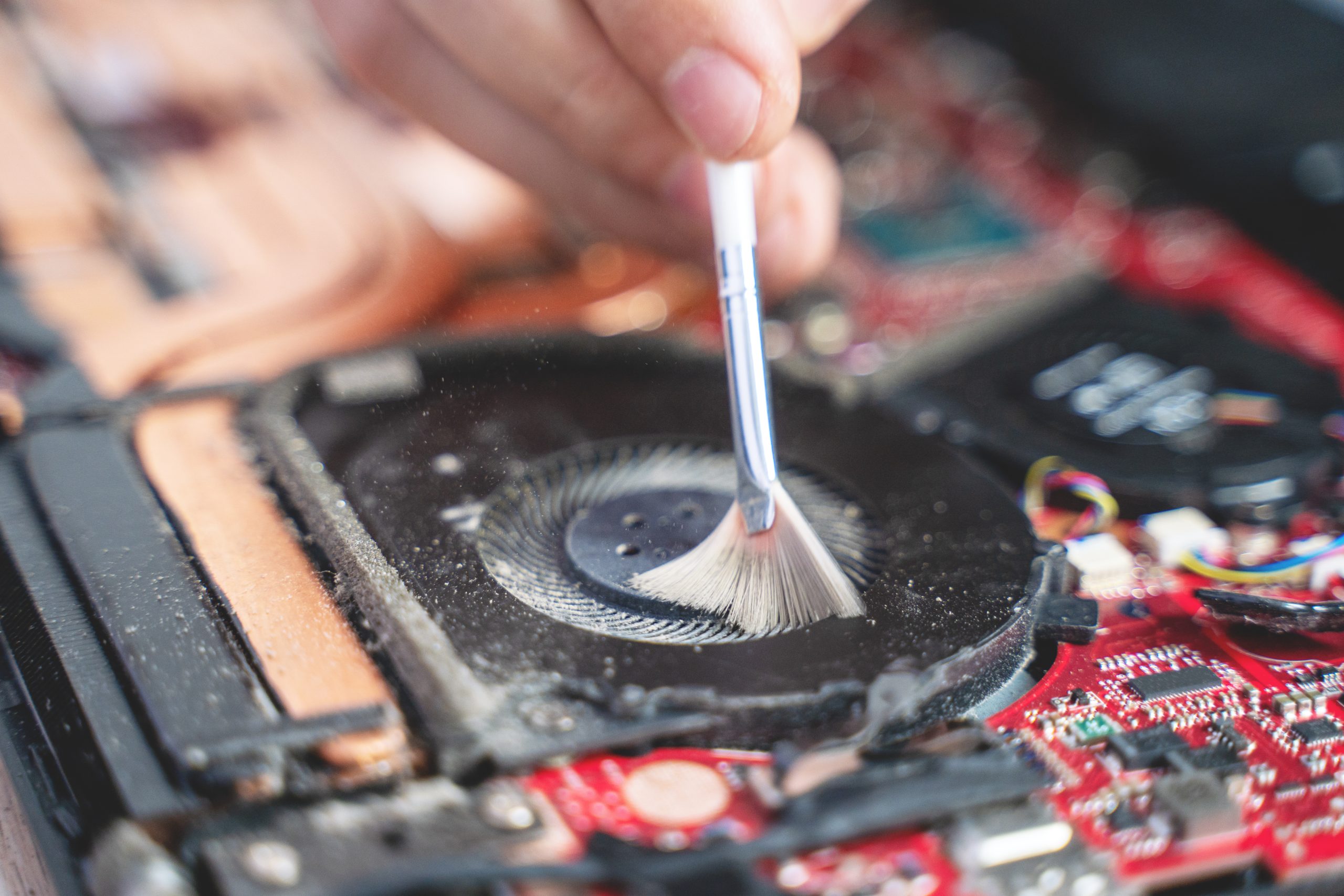
- Dust and Debris Build-up – Over time, dust accumulates inside the laptop, blocking airflow and forcing the fan to work harder.
- Overheating – Running demanding programs or poor ventilation can cause your laptop to overheat.
- High CPU Usage – Too many background apps or malware can overload the processor, making the fan run constantly.
- Aging or Faulty Fan – A worn-out fan may produce loud noises and need replacement.
How to Fix a Noisy Laptop Fan
1. Clean the Cooling System
Dust is one of the primary culprits behind a noisy fan. To clean it:
- Use compressed air to blow out dust from the vents.
- If you’re comfortable opening your laptop, carefully clean the internal fans with a soft brush.
- Make it a habit to clean your laptop every few months to prevent buildup.
2. Optimize Laptop Placement
Your laptop’s position can significantly impact airflow and cooling. Avoid using it on soft surfaces like beds or couches, as they block ventilation. Instead, use a hard, flat surface or invest in a cooling pad.
3. Close Resource-Intensive Programs
Background applications consume CPU resources and generate heat, leading to increased fan noise. To manage this:
- Open Task Manager (Ctrl + Shift + Esc) and end unnecessary processes.
- Uninstall any bloatware or programs you no longer use.
- Consider upgrading your RAM if your laptop struggles with multitasking.
4. Adjust Fan Speed Settings
Some laptops allow you to control fan speed through BIOS or dedicated software. Lowering fan speed can reduce noise levels, but be cautious not to compromise cooling efficiency.
5. Update Drivers and BIOS
Outdated drivers and BIOS settings can cause inefficient fan operation. Visit your manufacturer’s website to download the latest updates for your laptop model.
6. Use a Cooling Pad
An external cooling pad helps improve airflow and reduces the workload on your internal fans. This is an easy and effective solution to keep your laptop cool and quiet.
7. Replace the Fan
If your laptop fan continues to make excessive noise despite cleaning and adjustments, it might be time for a replacement. Consult a professional technician for assistance.
Need Professional Help?
If you’ve tried these fixes and your laptop still sounds like a jet engine, it may be time to seek professional support. Visit Psero.com to find expert laptop repair services and keep your device running efficiently.
By taking the right steps to address a noisy laptop fan, you can improve your device’s lifespan, performance, and overall user experience. Don’t let the noise distract you—take action today!