You sit down to finish an important document. Then an email notification appears. A messaging app sends another alert. Windows announces an update, a website asks for permission, and your phone keeps buzzing beside the laptop.
None of those interruptions seems serious on its own. Together, they can make focused work surprisingly difficult.
Windows gives you several tools for controlling notifications and reducing interruptions. Understanding them can make a laptop feel calmer without uninstalling the applications you actually need.
What Are Windows Notifications?
Notifications are messages that Windows or installed applications display to alert you about something.
Depending on your settings, you might receive notifications for:
- New emails
- Messages
- Calendar reminders
- Software updates
- Security alerts
- Downloaded files
- Application activity
- System events
Some notifications are useful. Others can wait until you finish what you are doing.
Where Do Windows Notifications Appear?
Windows can display notifications as pop-up banners and keep recent alerts in the notification area.
You can open the notification centre from the taskbar to review alerts you may have missed.
The exact appearance can vary depending on your Windows version and configuration, but the basic purpose remains the same: collect alerts in one place instead of forcing you to respond immediately.
How to Change Notification Settings
Open:
Settings > System > Notifications
From there, Windows lets you control notification behaviour and manage which applications can send alerts.
You can decide whether individual applications should display notifications, show banners or make sounds.
Microsoft provides current guidance through its official Windows Support resources.
Should You Turn Off All Notifications?
Not necessarily.
Turning everything off may stop useful warnings along with the distractions.
Security alerts, important calendar reminders and other system messages can still provide useful information. A better approach is to decide which applications deserve your immediate attention.
| Notification type | Possible approach |
|---|---|
| Security alerts | Keep enabled |
| Important calendar reminders | Keep enabled |
| Work email | Depends on your job |
| Social media | Consider reducing or disabling |
| Promotional apps | Usually unnecessary |
What Is Focus in Windows?
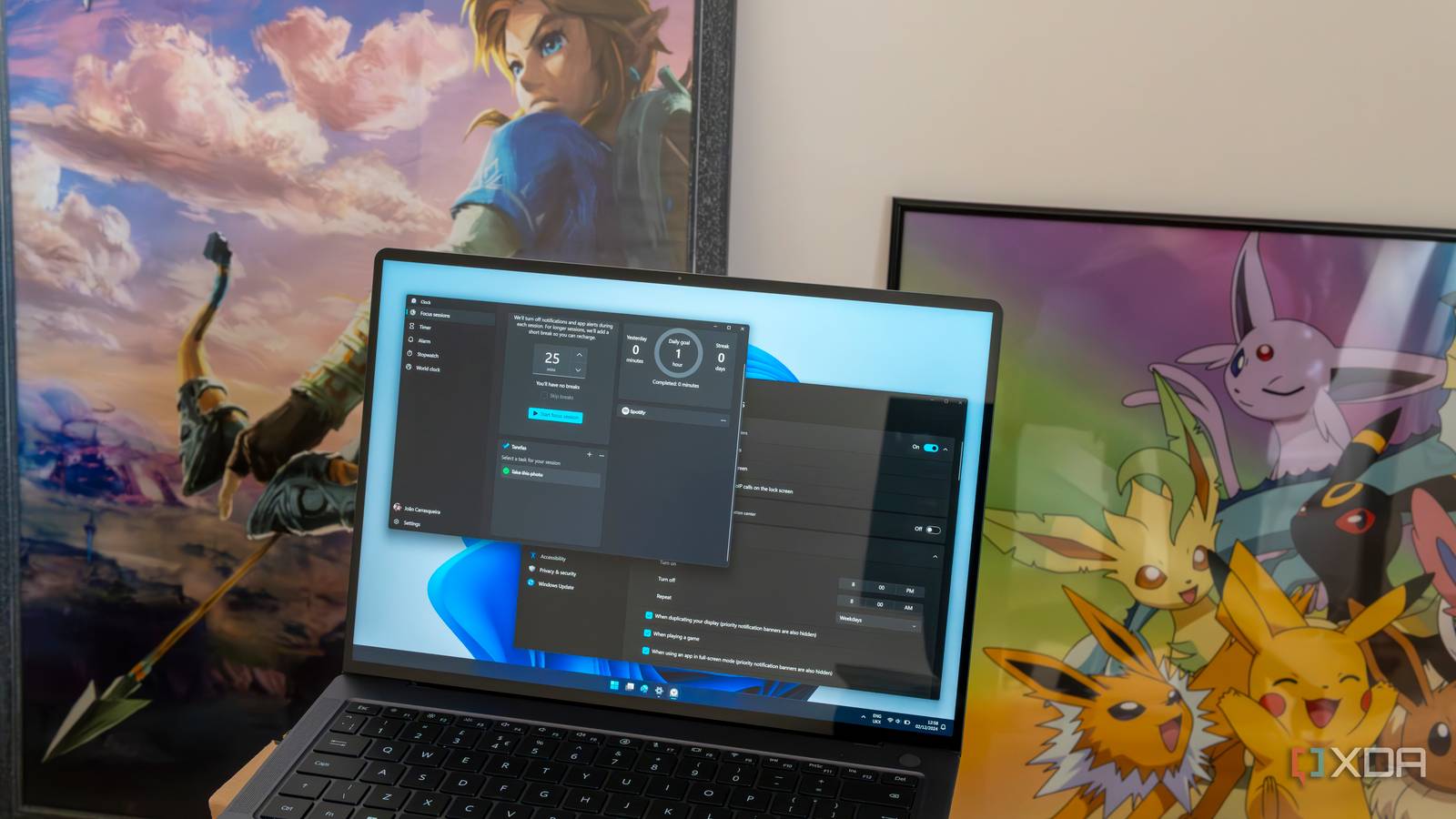
Focus is designed to help you concentrate by reducing distractions while you work.
You can start a focus session when you need uninterrupted time for studying, writing, coding or other tasks.
Instead of manually dismissing every notification, Focus can reduce interruptions for a defined period.
How to Start a Focus Session
Windows provides Focus controls through its settings and clock-related interface.
You can configure a period of time during which distractions are reduced while you concentrate on a task.
The exact controls can vary between Windows releases, so check your current Windows settings if a particular option appears in a different location.
Focus vs Do Not Disturb
These features are related but serve slightly different purposes.
| Feature | Main purpose |
|---|---|
| Focus | Helps you work for a defined period with fewer interruptions |
| Do Not Disturb | Reduces notification interruptions more generally |
Someone writing an important proposal might use Focus for an hour. A person attending a meeting could use Do Not Disturb to avoid unnecessary pop-ups.
Why Notifications Can Affect Productivity
The biggest problem is not always the time required to read an alert.
The interruption can break your concentration. Returning to the original task may take longer than the few seconds needed to dismiss the notification.
For someone working on SEO, coding, spreadsheets or long-form writing, repeated interruptions can make simple tasks take much longer.
Notifications and Laptop Performance
Notifications themselves usually do not represent a major performance burden on a modern laptop.
The applications generating those notifications can consume resources, though.
A messaging application, browser with many active tabs and several background programs may collectively use significant RAM and processor resources.
If the laptop feels slow, check actual resource usage instead of assuming notifications are the cause. Our Windows Task Manager guide explains how to identify applications using system resources.
How to Stop a Specific App From Sending Notifications
You do not need to silence the entire laptop.
Go to Settings > System > Notifications and review the applications listed under notification controls.
Turn off notifications for applications that regularly interrupt you without providing useful information.
This approach gives you more control than simply disabling everything.
Browser Notifications Can Be a Major Source of Noise
Web browsers can also display notifications from websites.
A website may request permission to send alerts even when you are no longer actively using the page.
If your browser constantly displays unwanted messages, review the notification permissions in the browser settings.
Be selective when granting notification permission. A website does not need permanent access simply because it asks for it.
Be Careful With Fake Notifications
Not every message that looks like a Windows warning actually comes from Windows.
Websites can create pop-ups designed to resemble security alerts. Some attempt to convince users that their laptop has a virus or that they must immediately install software.
Do not click alarming pop-ups blindly. Close suspicious browser pages and use trusted security tools to investigate genuine problems.
The Cybersecurity and Infrastructure Security Agency provides general security guidance that can help users recognise common online threats.
Notifications for Students
Students can use Focus to create dedicated study periods without completely disconnecting from their laptops.
During a study session, unnecessary social media and promotional alerts can remain hidden while important reminders stay available according to the chosen settings.
A laptop that is easy to control can be particularly useful when it handles research, assignments, online classes and communication in the same workspace.
Our student laptop guide covers other features to consider when one machine needs to handle both school and work.
Notifications for Freelancers
Freelancers often receive messages from several clients and platforms.
Turning everything off may cause you to miss something important. A better strategy is to prioritise alerts based on urgency.
For instance, client communication could remain enabled while social media notifications stay silent during focused work periods.
Should You Disable Notifications During Meetings?
Usually, yes for non-essential alerts.
A notification banner appearing while you are sharing your screen can expose private messages or simply distract everyone in the meeting.
Before presenting, consider enabling Do Not Disturb or another suitable notification-control mode.
Common Notification Mistakes
Allowing Every Application to Send Alerts
New software often asks for notification permission during setup. Approving every request can quickly create unnecessary noise.
Ignoring Browser Notifications
Websites can continue sending notifications after you leave their pages. Review browser permissions if unwanted alerts keep appearing.
Turning Off Security Alerts
Reducing distractions does not mean ignoring genuine security warnings. Keep essential Windows and security notifications available.
Confusing Website Pop-Ups With Windows Alerts
A browser notification can look convincing even though it has nothing to do with Windows security.
A Simple Notification Setup for Everyday Laptop Use
There is no perfect configuration for everyone, but a practical starting point is:
- Keep Windows security notifications enabled.
- Keep important calendar reminders enabled.
- Allow work-related alerts when necessary.
- Reduce social media notifications.
- Disable unnecessary promotional notifications.
- Review browser notification permissions.
- Use Focus during concentrated work.
- Use Do Not Disturb during meetings when appropriate.
Final Advice
Your laptop should help you concentrate rather than constantly compete for your attention.
Windows gives you enough control to decide which alerts deserve immediate attention and which ones can wait. Spend a few minutes reviewing notification permissions, then use Focus or Do Not Disturb when you need uninterrupted time.
The goal is not to silence everything. The better approach is to make your laptop work around your priorities instead of allowing every application to interrupt you whenever it wants.