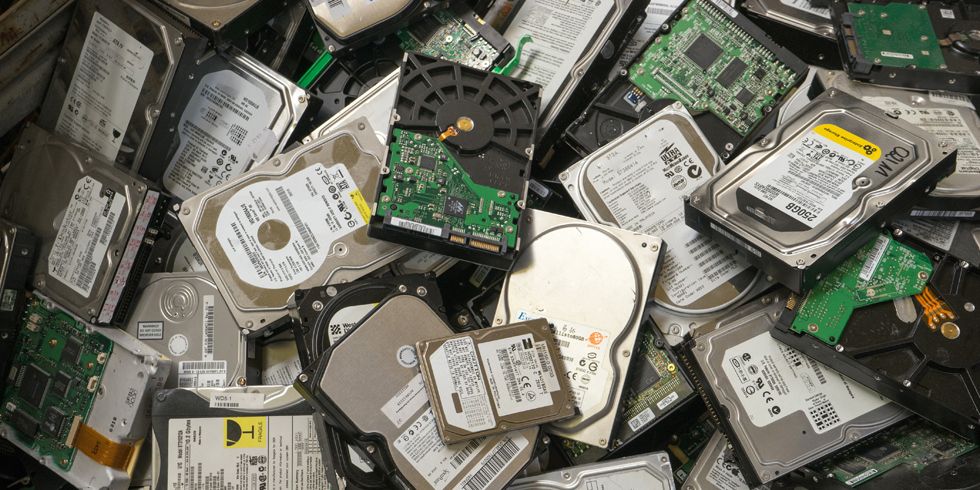
As a result, valuable data can be permanently lost.
However, the good news is that hard drives usually show warning signs before complete failure occurs. Therefore, understanding these signs early can help you back up your files and avoid serious problems.
In this guide, you will learn the common symptoms of a failing hard drive, what causes drive failure, how to test your storage health, and the best ways to protect your data in Nigeria.
What Is a Hard Drive?
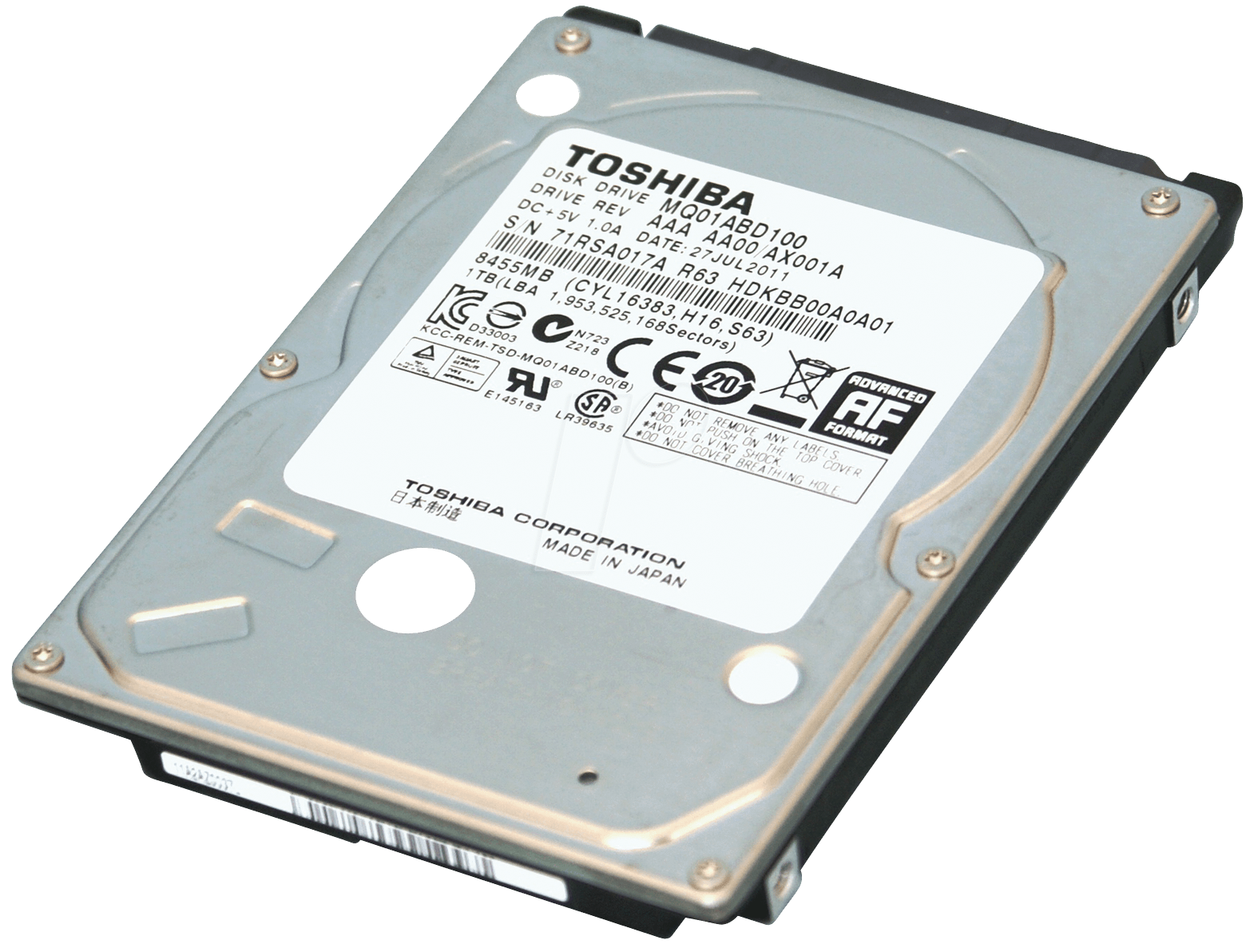
A hard drive is the storage device that keeps your files, applications, operating system, and personal data.
There are two major types of laptop storage:
- Traditional Hard Disk Drives (HDD)
- Solid State Drives (SSD)
Traditional HDDs use moving mechanical parts, while SSDs use flash memory technology.
As a result, SSDs are usually faster and more reliable than older HDD systems.
You can also learn more about storage technologies from Intel:
https://www.intel.com/content/www/us/en/gaming/resources/ssd-vs-hdd.html
Why Hard Drive Failure Is Common in Nigeria
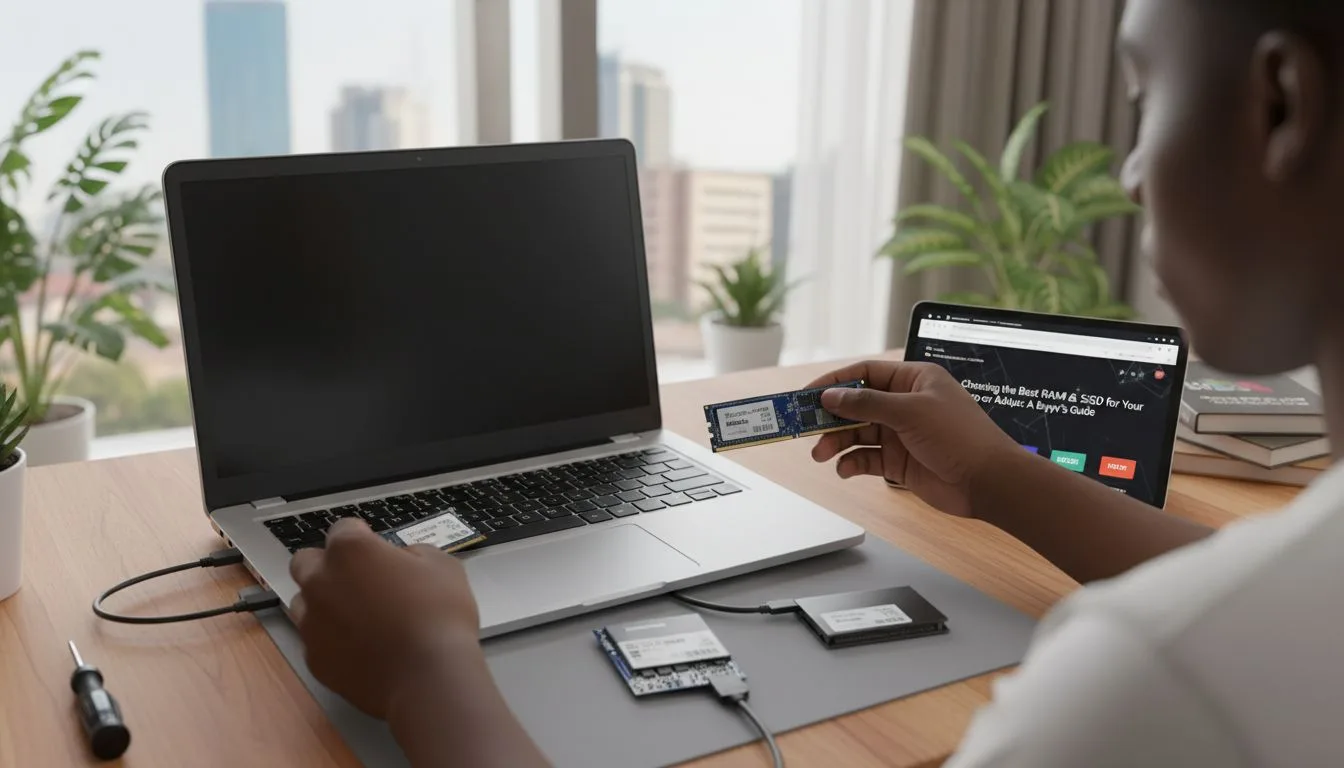
Several environmental and usage factors contribute to storage failure in Nigeria.
For example:
- Frequent power fluctuations
- Sudden blackouts
- Excessive heat exposure
- Dust accumulation during Harmattan
- Poor laptop handling during transportation
As a result, hard drives may wear out faster if not properly maintained.
Early Warning Signs of a Failing Hard Drive
In many cases, laptops show warning signs before complete storage failure occurs.
Therefore, recognizing these symptoms early is extremely important.
1. Slow File Access
If your laptop suddenly becomes unusually slow while opening files or applications, your hard drive may be struggling.
For example:
- Folders take too long to open
- Videos freeze during playback
- Applications become unresponsive
As a result, overall system performance drops significantly.
2. Strange Clicking or Grinding Sounds
Traditional HDDs contain moving mechanical parts.
Therefore, unusual noises often indicate physical damage.
Common warning sounds include:
- Clicking noises
- Grinding sounds
- Repeated spinning attempts
If you hear these sounds regularly, immediate backup is strongly recommended.
3. Frequent System Crashes
Failing storage devices can also cause Windows crashes and freezing.
For example:
- Blue screen errors
- Random system restarts
- Applications crashing unexpectedly
As a result, productivity becomes difficult and files may become corrupted.
4. Corrupted or Missing Files
Another major warning sign is sudden file corruption.
You may notice:
- Files refusing to open
- Documents disappearing unexpectedly
- Error messages while saving files
Therefore, regular file corruption should never be ignored.
5. Extremely Slow Startup Time
If your laptop suddenly takes several minutes to boot, storage failure may be developing.
This is especially common with aging HDD systems.
You can also read our guide on:
how SSD laptops improve performance in Nigeria.
How to Check Hard Drive Health on Windows
Fortunately, Windows provides several tools for checking storage health.
Method 1: Use CHKDSK
CHKDSK scans your storage device for errors.
To run it:
- Open Command Prompt as Administrator
- Type: chkdsk /f
- Press Enter
As a result, Windows will scan and attempt to repair storage errors.
Method 2: Use Windows Drive Health Tools
Windows 11 includes built-in storage health monitoring.
To access it:
- Go to Settings
- Select System
- Choose Storage
- Check drive health information
You can also learn more from Microsoft’s official support page:
https://support.microsoft.com/windows
Why SSDs Are More Reliable Than HDDs
Many Nigerian users are now upgrading from HDD storage to SSD storage because SSDs offer major advantages.
Benefits include:
- Faster startup speed
- Better shock resistance
- Lower heat generation
- Improved reliability
Since SSDs have no moving mechanical parts, they are less vulnerable to physical damage.
Therefore, SSD upgrades are highly recommended for long-term reliability.
How to Protect Your Data Before Drive Failure Happens
Data protection is extremely important, especially for students, remote workers, and business owners.
Best practices include:
- Back up files regularly
- Use cloud storage services
- Store copies on external drives
- Avoid sudden shutdowns during use
In addition, using surge protectors helps reduce electrical damage risks.
You can also explore Google Drive backup options here:
https://www.google.com/drive/
Common Mistakes That Damage Hard Drives
Unfortunately, many users unknowingly shorten storage lifespan through poor habits.
Common mistakes include:
- Moving laptops while HDDs are spinning
- Blocking cooling vents
- Ignoring overheating issues
- Using unstable power sources
As a result, storage failure becomes more likely over time.
Best Laptop Options With SSD Storage in Nigeria
If you are considering upgrading to a more reliable system, these models provide excellent SSD performance:
You can also browse additional SSD laptop options on:
Should You Replace the Hard Drive or Buy a New Laptop?
This depends on the age and condition of your system.
If your laptop still has decent specifications, upgrading from HDD to SSD may significantly improve performance.
However, if the laptop is very old and multiple components are failing, replacing the entire system may be more cost-effective.
Therefore, proper diagnosis is important before making a decision.
Final Thoughts
A failing hard drive can lead to serious data loss if ignored for too long. Fortunately, most storage devices show warning signs before complete failure occurs.
Therefore, monitoring your laptop’s performance, backing up files regularly, and upgrading to SSD storage can help protect your data and improve system reliability.
In Nigeria’s challenging power and environmental conditions, proper laptop maintenance becomes even more important for long-term performance.
Looking for Reliable SSD Laptops in Nigeria?
Explore trusted laptop options here:
Pay on delivery available in Lagos.
Call or WhatsApp: 08032592918