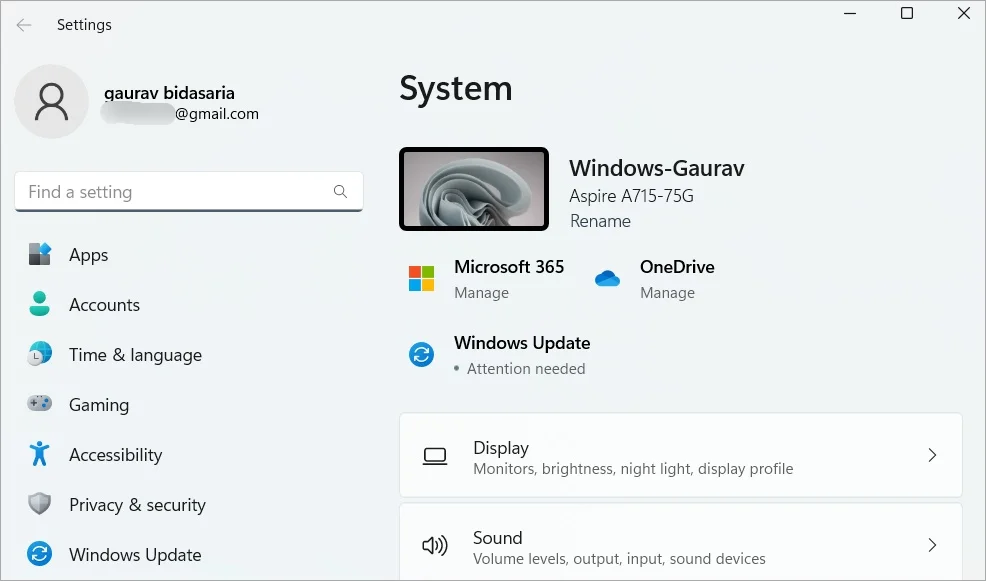
You want to change your laptop’s display resolution, remove an application, adjust a mouse setting or troubleshoot a network connection. You open Windows Settings, but the option you need seems to be missing. Someone then tells you to use Control Panel instead.
Windows has two major places for managing system options: the modern Settings application and the traditional Control Panel. Both remain useful, although they organise certain features differently. Knowing where to look can save time and help you avoid changing the wrong option.
Why Windows Has Two Settings Interfaces
Microsoft has gradually moved many Windows configuration options into the Settings application. Control Panel still provides access to several traditional tools and configuration screens.
As a result, some tasks are easier to complete in Settings, while others still direct you to Control Panel or another Windows utility.
You do not need to memorise every menu. Learning a few reliable ways to find settings will make everyday laptop maintenance much easier.
Windows Settings vs Control Panel
| Feature | Windows Settings | Control Panel |
|---|---|---|
| Interface | Modern layout organised into categories | Traditional Windows interface |
| Display and personalisation | Usually the first place to check | Some related options may still appear here |
| Network configuration | Convenient for common Wi-Fi and network tasks | Provides access to some traditional network tools |
| Installed applications | Useful for managing and removing apps | Still offers the traditional Programs and Features interface on supported installations |
| Advanced configuration | Includes many system and device options | Retains several older configuration screens |
How to Open Windows Settings Quickly
The quickest method is often a keyboard shortcut.
Press Windows + I to open Settings. From there, select the relevant category or use the search box to find a particular option.
You can also open the Start menu and search for Settings. This method works well when you prefer using the mouse.
How to Open Control Panel
Control Panel can be harder to locate if you rarely use it, but Windows still provides straightforward access.
- Open the Start menu.
- Type Control Panel into the search box.
- Select Control Panel from the results.
You can also open the Run dialog with Windows + R, type control and press Enter.
Once Control Panel opens, you can change the view to display items by category or as individual icons.
Where to Change Your Display Settings
If your screen looks blurry, the text appears too large or the resolution seems incorrect, start with Windows Settings.
- Open Settings.
- Select System.
- Choose Display.
- Review the resolution, scaling and display arrangement options.
For laptops connected to external monitors, check that Windows uses the appropriate resolution and scaling for each display. PSERO’s guide to external monitor setup explains these options in more detail.
Where to Remove an Application
Windows Settings usually provides the easiest route for uninstalling applications on modern Windows installations.
Open Settings > Apps > Installed apps, locate the application and select its uninstall option when available.
Some older desktop applications may still appear in Control Panel under Programs and Features. If the application does not appear in one interface, check the other before assuming that Windows has lost it.
Only remove applications you recognise or have confirmed you no longer need. Deleting unfamiliar system components can cause unexpected problems.
Where to Manage Wi-Fi and Network Connections
For everyday tasks such as connecting to Wi-Fi or checking basic network properties, Settings is usually the easiest place to start.
Open Settings > Network & internet and select the relevant connection type.
Some advanced network tasks may still require traditional Windows tools. If your laptop connects to Wi-Fi but cannot access websites, the problem may involve DNS, IP configuration or another network issue rather than the Settings interface itself.
PSERO’s guide to diagnosing laptop network problems explains how to investigate those faults.
Where to Change Mouse and Touchpad Options
Settings is the best starting point for common pointing-device adjustments.
Open Settings > Bluetooth & devices and select Mouse or Touchpad, depending on the feature you want to change.
You can adjust options such as pointer speed and supported touchpad gestures. Available features depend on the hardware and installed drivers.
If a touchpad stops responding entirely, changing a setting may not solve the problem. Check the keyboard’s touchpad toggle, Device Manager and the manufacturer’s driver support before assuming that the touchpad has failed.
Where to Manage User Accounts
Windows account settings help you manage sign-in options, account information and certain access preferences.
Open Settings and select Accounts to review the available options.
Some traditional account-management tasks may still use older Windows tools. Remember that a standard account and an administrator account have different permissions.
Before changing account access on a shared laptop, make sure you understand which account owns the important files. PSERO’s guide to Windows user accounts and administrator access explains the differences.
Where to Check Windows Updates
Use Windows Settings to manage normal operating-system updates.
Open Settings > Windows Update and review the update status. From there, you can check for available updates and see whether Windows needs a restart.
If an update repeatedly fails, note the error code instead of repeatedly clicking the same button. PSERO’s Windows Update troubleshooting guide covers common causes and safe first steps.
Why Some Options Still Open Control Panel
Windows does not present every configuration feature through one consistent interface.
Some Settings pages link to traditional Control Panel screens, while other options open separate management utilities. This behaviour reflects the gradual transition from older Windows configuration tools to newer interfaces.
If a guide tells you to open a specific tool, follow its instructions rather than assuming that every feature must live inside Settings.
Use Windows Search Instead of Browsing Every Menu
When you know what you want to change, searching is often faster than opening categories one by one.
Press the Windows key and type a term such as display resolution, sound settings or uninstall. Windows can show relevant settings and tools in the search results.
If Search does not return the option you expect, try the tool’s actual name. You can also open Control Panel directly when a traditional configuration screen is required.
What to Do When a Setting Is Missing
A missing option does not necessarily mean that Windows is damaged.
- The feature may be available only on certain hardware.
- Your Windows edition may not support the option.
- A device driver may be missing or outdated.
- An administrator may have restricted the setting.
- The option may exist in Control Panel or another management utility.
- A Windows update may have changed the interface.
Check the device’s capabilities and the relevant support documentation before attempting advanced system changes.
Common Mistakes When Changing Windows Settings
- Assuming every Windows option appears in Settings.
- Changing several unrelated options while troubleshooting one problem.
- Uninstalling unfamiliar system components.
- Using administrator privileges when ordinary access is sufficient.
- Following instructions written for a different Windows version without checking the differences.
- Downloading third-party utilities to change an option Windows already provides.
Do These Settings Matter When Buying a Used Laptop?
Yes. A used laptop should let you manage everyday Windows features without unnecessary restrictions.
During inspection, check the display settings, Wi-Fi connectivity, available updates, installed applications and user-account access. If important settings are controlled by an unknown organisation or the previous owner, ask the seller to explain the situation before paying.
PSERO’s UK-used laptop buying checklist provides additional checks for buyers in Nigeria.
Bottom Line
Windows Settings and Control Panel both remain useful for managing a laptop. Settings handles many everyday tasks, while Control Panel retains access to several traditional configuration screens.
Use Windows Search when you cannot remember a menu, and do not assume that a missing option signals a serious fault. If a setting remains unavailable, check your Windows edition, hardware support, user permissions and installed drivers.
Once you know where to look, everyday laptop maintenance becomes easier, whether you are adjusting a display, removing software, managing accounts or troubleshooting a network connection.