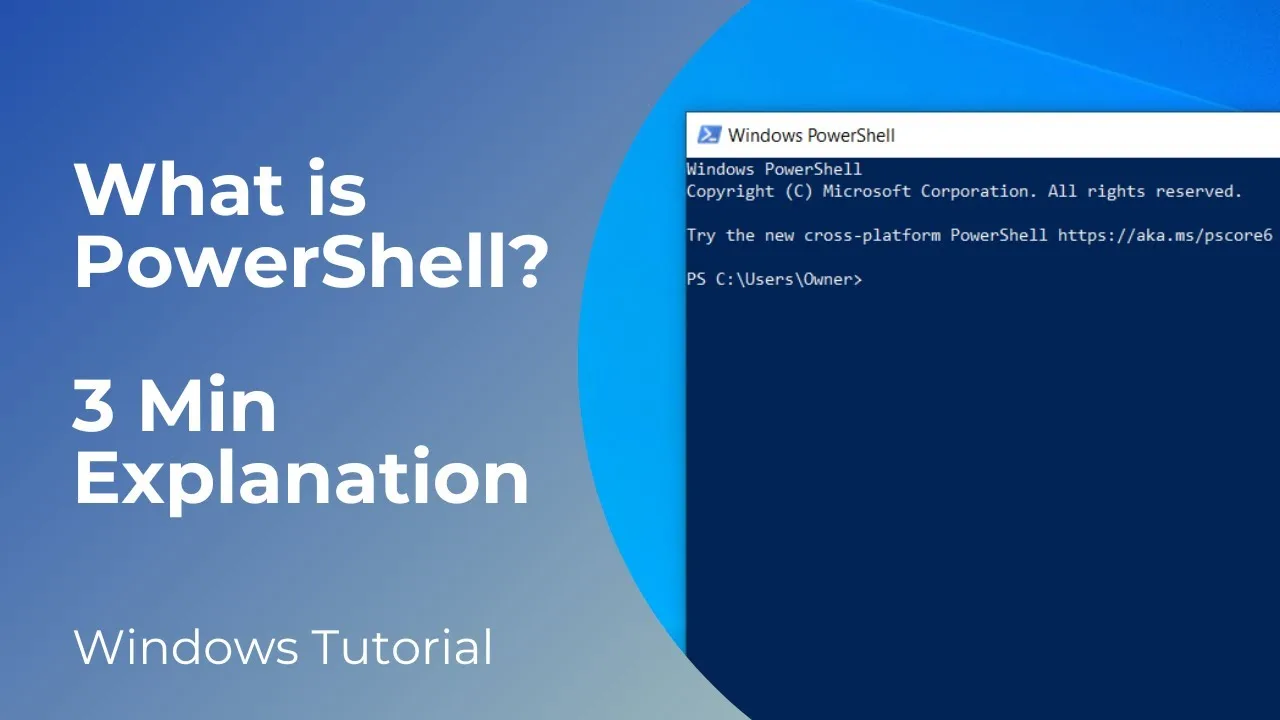
Sometimes, fixing a laptop problem takes more than clicking through Windows settings. You may need to check your network connection, find out how much storage remains, identify your Windows version, or troubleshoot a feature that refuses to work. Windows provides built-in command-line tools that can help you investigate these issues without installing extra software.
Two tools you may encounter are Windows Terminal and PowerShell. Their names can sound intimidating, especially if you mainly use your laptop for browsing, schoolwork, business, or content creation. However, you do not need to be a programmer to understand their basic uses.
This guide explains the differences between the tools, shows useful commands, and highlights the precautions to take before running anything on your laptop.
What Is Windows Terminal?
Windows Terminal is an application that provides a window for working with command-line tools. Instead of opening separate windows for every command-line environment, you can use Terminal to access PowerShell, Command Prompt, and other supported shells through tabs.
Think of Windows Terminal as the container that displays a command-line environment. It does not replace the tools running inside it.
For example, you can open one tab for PowerShell and another for Command Prompt. This arrangement makes it easier to switch between different tasks without cluttering your desktop.
What Is PowerShell?
PowerShell is a command-line shell and scripting environment designed to manage Windows and automate tasks. It can retrieve system information, examine services, inspect network settings, and perform administrative operations.
Unlike traditional Command Prompt commands, PowerShell can work with structured objects rather than relying only on plain text. This capability makes it useful for both everyday troubleshooting and advanced system administration.
Microsoft provides documentation and examples in its official PowerShell documentation for users who want to learn more.
Windows Terminal vs PowerShell vs Command Prompt
| Tool | Main purpose | Best suited for |
|---|---|---|
| Windows Terminal | Hosts command-line environments in a modern interface | Users who want tabs and a convenient command-line workspace |
| PowerShell | Runs commands, manages system information, and automates tasks | Windows troubleshooting, administration, and scripting |
| Command Prompt | Runs traditional Windows commands and batch files | Basic diagnostics and compatibility with older instructions |
These tools overlap, but they are not interchangeable in every situation. A command written for Command Prompt may not work directly in PowerShell, and some PowerShell commands have no equivalent in older command-line environments.
How to Open PowerShell or Windows Terminal
You can access these tools through the Windows search feature.
- Open the Start menu.
- Type PowerShell or Windows Terminal into the search box.
- Select the application you want to use.
- Wait for the command prompt to appear.
- Enter a command and press Enter to execute it.
Some commands work with an ordinary user account, while others require administrator permissions. Only select “Run as administrator” when the task genuinely requires elevated access and you understand what the command will do.
7 Useful PowerShell Commands for Laptop Users
1. Check Your Windows Version
If you need to confirm which Windows version is installed, press Windows + R, type winver, and press Enter. A window will display your Windows edition, version, and operating-system build information.
This method is particularly helpful when checking software compatibility or preparing to troubleshoot an update problem. For a broader guide to failed updates and restart errors, read our Windows Update troubleshooting guide.
2. Display Your Computer’s Network Configuration
PowerShell supports the ipconfig command, which is also available in Command Prompt. It shows useful network details, including your computer’s IP address and gateway information.
ipconfigIf your laptop connects to Wi-Fi but cannot reach websites, this command can help you establish whether Windows has received network settings. It will not automatically identify every possible internet problem, but it provides a useful starting point.
3. Test Whether a Website Is Reachable
You can use Test-NetConnection to check connectivity to a remote computer or service.
Test-NetConnection example.com -Port 443This example tests whether your laptop can establish a connection to port 443, commonly used for HTTPS traffic. Replace example.com with the actual hostname you want to test.
A failed test does not always mean your laptop is faulty. The remote service, firewall, router, DNS configuration, or internet provider could be responsible.
4. View Available Storage Space
PowerShell can display information about the storage volumes available on your computer. Run this command to view their drive letters and available space:
Get-VolumeThe results can help you identify a drive that is nearly full before installing large applications or downloading files.
If you are deciding whether your laptop needs additional storage, first understand the difference between an SSD and an HDD. Our guide to laptop storage options explains the practical differences.
5. See Which Power Plan Is Active
Windows includes the powercfg utility for examining and managing power settings. To see the currently active power scheme, run:
powercfg /getactiveschemeThis command is useful when investigating power-management behaviour or checking whether a particular power scheme is active. It does not measure battery health, so do not treat its output as a battery-condition report.
6. Display Running Processes
PowerShell can list running processes with a simple command:
Get-ProcessThe output includes process names and resource information. This can be helpful when investigating a particular application, although Task Manager is generally easier for most users who want a visual overview.
For a more beginner-friendly walkthrough, see our Windows Task Manager guide.
7. Find Basic System Information
To retrieve information about your Windows installation and computer, use:
Get-ComputerInfoThis command returns a large amount of information, including operating-system and system details. Because the output can be lengthy, you may prefer to save it for later inspection or use a more specific command when you know exactly what you need.
Remember that system information may include details you should not publish publicly. Review the output before sharing screenshots or copying it into a public support forum.
What Does Running PowerShell as Administrator Mean?
Windows separates ordinary user permissions from elevated administrative permissions. Running PowerShell as administrator gives commands access to system operations that a standard session may not be allowed to perform.
Administrative access can be necessary when managing certain services, changing protected settings, or repairing Windows components. It also increases the potential consequences of a mistake.
Before running an unfamiliar command, check what it does and whether it changes anything. A command that displays information is generally less risky than one that deletes files, changes security settings, modifies partitions, or alters system configuration.
PowerShell Safety Rules You Should Follow
- Understand the command first. Search for trustworthy documentation if you cannot explain what a command will do.
- Avoid copying unknown scripts. A command shared in a comment, video, or message may perform actions unrelated to the promised fix.
- Be cautious with administrator access. Do not elevate a session unless the task requires it.
- Do not disable security protections to run a script. Investigate the reason for a warning rather than bypassing it automatically.
- Protect private information. Commands can reveal usernames, computer names, network details, and other identifying information.
- Back up important files before major repairs. Some administrative commands can change the system or cause data loss if used incorrectly.
Microsoft explains how PowerShell handles scripts and execution policies in its official execution-policy documentation. An execution policy is not a complete security boundary, so changing it should never be treated as a general solution to script warnings.
When Should You Use PowerShell Instead of Windows Settings?
PowerShell is useful when you need specific information, repeatable checks, or a command that a support technician has asked you to run. It can also save time when you perform the same task regularly.
However, Windows Settings is often the better option for ordinary tasks such as changing your display brightness, connecting a Bluetooth device, adjusting notifications, or selecting a Wi-Fi network. A graphical interface makes the available choices easier to understand.
If you are unsure where a particular option lives, our comparison of Windows Settings and Control Panel can help you find it without unnecessary command-line work.
Do You Need a Powerful Laptop to Use PowerShell?
No. Basic PowerShell commands are available on many Windows laptops, including affordable UK-used business laptops. You do not need a dedicated graphics card or a high-end processor simply to check system information, test network connectivity, or view available storage.
What matters more is having a supported Windows installation, enough memory for your normal workload, reliable storage, and working network hardware. If you are choosing a laptop for coding, IT training, or technical work, review our guide to laptops for learning tech skills in Nigeria before making a purchase.
Final Thoughts
Windows Terminal, PowerShell, and Command Prompt provide different ways to interact with your laptop beyond the usual graphical interface. Learning a handful of safe commands can make troubleshooting easier and help you understand what is happening behind the scenes.
Start with commands that only display information, such as Get-Volume and Get-Process. As your confidence grows, learn how to test network connections and retrieve system details. Leave unfamiliar repair scripts and commands that modify important settings alone until you understand their effects.
If you need a laptop for school, office work, coding, or IT training, PSERO LAPTOP can help you explore suitable options. Choose a machine based on your actual workload, memory, storage, operating-system compatibility, and budget rather than assuming that command-line tools require an expensive computer.