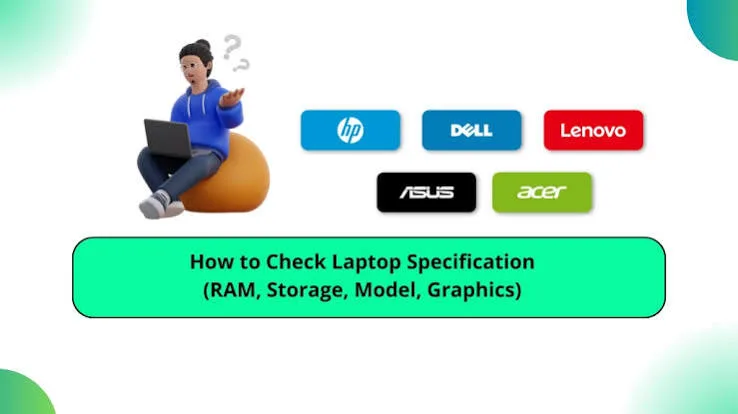
One of the biggest mistakes laptop buyers make is paying for a device without confirming its actual specifications. Some sellers may advertise higher specifications than the laptop truly has, while others may unknowingly provide incorrect information.
Fortunately, Windows includes built-in tools that allow you to verify almost every important component before making payment.
Why You Should Always Verify Specifications
Checking a laptop yourself helps ensure you receive exactly what you are paying for. It also protects you from dishonest sellers and prevents expensive buying mistakes.
Even if you trust the seller, spending a few minutes confirming the specifications gives you extra confidence.
1. Check the Processor
Press Windows + R, type msinfo32, and press Enter.
The System Information window displays the processor model, speed, installed memory, and other important details.
2. Check Installed RAM
Open Settings → System → About.
The Installed RAM section shows the total memory available in the laptop.
3. Verify SSD or Hard Drive
Open Task Manager, then select the Performance tab.
Choose the storage drive to see whether the laptop uses an SSD or a traditional HDD.
4. Check Graphics Card
Press Windows + X and open Device Manager.
Expand Display Adapters to view the installed graphics hardware.
5. Confirm Battery Health
Open Command Prompt and run:
powercfg /batteryreport
Windows generates a battery report showing design capacity, current capacity, and battery health.
6. Check Windows Activation
Go to Settings → System → Activation.
Make sure Windows is properly activated before completing your purchase.
Quick Inspection Checklist
| Component | Verify Before Buying |
|---|---|
| Processor | ✔ |
| RAM | ✔ |
| SSD/HDD | ✔ |
| Graphics Card | ✔ |
| Battery Health | ✔ |
| Windows Activation | ✔ |
| Screen Condition | ✔ |
| Keyboard & Ports | ✔ |
Physical Checks You Should Never Skip
- Inspect the screen for dead pixels.
- Test every USB port.
- Check Wi-Fi and Bluetooth.
- Test the webcam and speakers.
- Connect the charger.
- Check all keyboard keys.
- Inspect the hinges for damage.
Related PSERO Guides
- How to Check Laptop Battery Health
- How to Compare Two Laptops Before Buying
- What Laptop Specifications Matter Most?
- How to Choose the Right Laptop for Your Budget
- Laptop Buying Mistakes to Avoid
Shop Verified Laptops at PSERO
- Browse All Laptops
- Shop Core i5 Laptops
- Shop Core i7 Laptops
- HP EliteBook x360 1040 G6
- HP ProBook 650 G3
Useful Official Resources
Learn more about Windows system information and hardware management by visiting Microsoft Support. You can also download official drivers from HP Support, Dell Support, and Lenovo Support.
Final Verdict
Never rely solely on a seller’s description. Always verify the processor, RAM, storage, graphics card, battery health, and Windows activation before handing over your money.
Taking just a few minutes to inspect a laptop can protect you from costly surprises and ensure you receive exactly the specifications you paid for.