Storage is one of the most important parts of a modern laptop. It affects how quickly Windows starts, how fast applications open, how quickly files are transferred and how responsive the computer feels during everyday use.
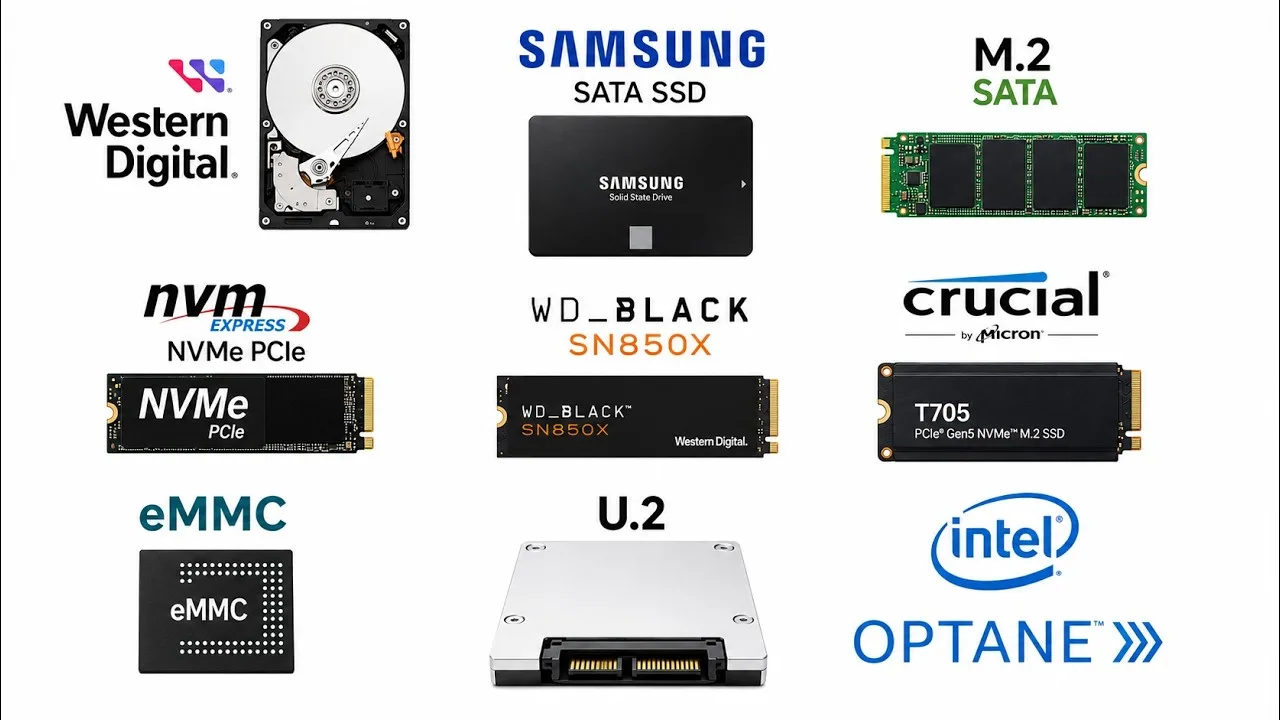
But laptop storage can be confusing because you may see terms such as SATA SSD, M.2, NVMe, PCIe Gen 3, PCIe Gen 4 and PCIe Gen 5.
These terms do not all mean the same thing. Some describe the physical shape of a drive, while others describe the communication technology it uses.
In this guide, PSERO LAPTOP explains the differences in simple terms and shows what Nigerian buyers should actually look for when choosing a laptop.
What Is an SSD?
SSD stands for Solid State Drive.
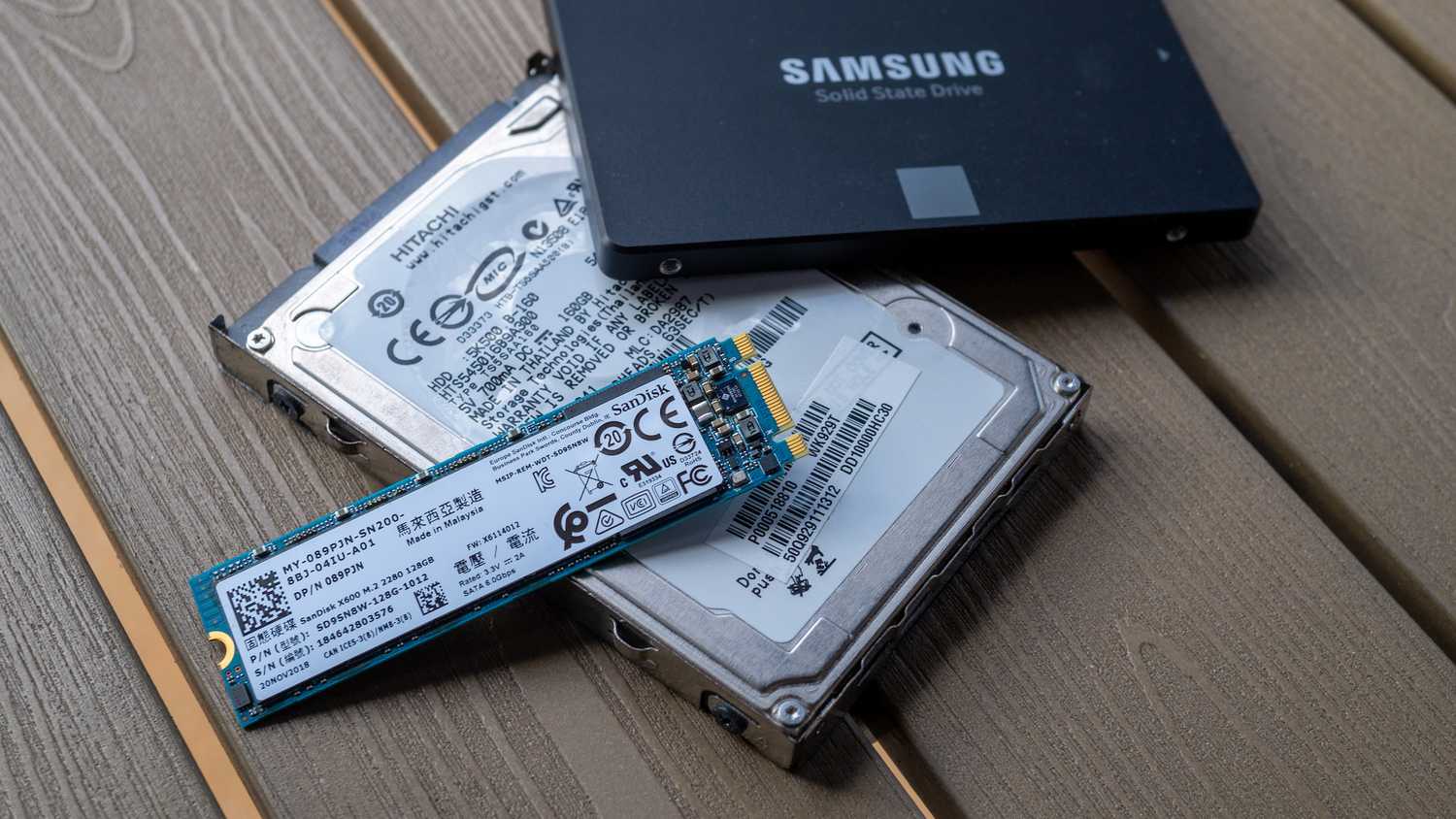
Unlike a traditional hard disk drive, an SSD has no spinning magnetic platters. It stores data using flash memory.
This is one major reason SSD-based laptops generally feel much faster and more responsive than laptops using older mechanical hard drives.
For a buyer who is upgrading an older laptop, moving from an HDD to an SSD can make a noticeable difference in everyday responsiveness.
What Is a SATA SSD?
A SATA SSD uses the SATA interface, the same general storage interface that was widely used by traditional laptop hard drives.
SATA SSDs are significantly faster and more responsive than mechanical HDDs, but their performance is limited by the SATA interface.
They are still useful in many older laptops, especially when compatibility and affordability matter more than achieving the highest possible storage speeds.
What Is an M.2 SSD?
This is where many buyers become confused.
M.2 describes the physical form factor of the storage device. It does not automatically mean NVMe.
An M.2 drive is a small, flat storage device that connects directly to a compatible slot on the laptop’s motherboard.
Some M.2 drives use SATA, while others use PCIe and NVMe.
Therefore, simply seeing an M.2 slot does not tell you exactly what type of SSD the laptop supports.
What Is NVMe?
NVMe stands for Non-Volatile Memory Express.
It is a storage protocol designed to work efficiently with modern non-volatile memory through PCI Express.
NVMe SSDs are commonly associated with modern high-speed PCIe storage.
You can learn more about the technology from the NVM Express organisation, which develops and maintains the NVMe specification.
M.2 vs NVMe: Are They the Same?
No.
This is one of the most important things to understand.
M.2 is primarily a physical form factor, while NVMe is a storage protocol.
A laptop can therefore have an M.2 SATA SSD or an M.2 NVMe SSD, depending on its hardware.
Before buying an SSD for an older laptop, check the exact specifications of the motherboard or laptop model instead of assuming that every M.2 SSD will work.
What Is PCIe?
PCIe stands for Peripheral Component Interconnect Express.
It is a high-speed interface used by many computer components, including graphics cards and modern SSDs.
When you see terms such as PCIe Gen 3 or PCIe Gen 4 attached to an SSD, they refer to the generation of the PCI Express interface being used.
What Is PCIe Gen 3 SSD Storage?
PCIe Gen 3 is an older generation of PCIe storage technology that is still perfectly capable for many everyday laptop tasks.
A good Gen 3 NVMe SSD can make Windows feel extremely responsive compared with an old HDD.
For office work, browsing, schoolwork, document editing and many business applications, you may not notice a dramatic everyday difference between a good Gen 3 SSD and a faster newer SSD.
What Is PCIe Gen 4 SSD Storage?
PCIe Gen 4 provides greater interface bandwidth than PCIe Gen 3.
This allows compatible SSDs to achieve substantially higher sequential transfer speeds.
However, maximum advertised speed is not the only thing that matters.
The actual experience also depends on the SSD controller, NAND flash, laptop motherboard, cooling, workload and software.
What Is PCIe Gen 5 SSD Storage?
PCIe Gen 5 is a newer generation that provides even greater bandwidth for compatible storage devices.
Gen 5 SSDs can deliver extremely high sequential performance, but they can also generate more heat and may offer less practical benefit for ordinary laptop users than the numbers suggest.
For many students, office workers and casual users, buying a laptop simply because it has the newest SSD generation may not provide the best value for money.
Does a Faster SSD Always Make a Laptop Faster?
No.
SSD speed is only one part of overall laptop performance.
If your laptop already has a good NVMe SSD, upgrading to an even faster SSD may produce only a small improvement in everyday activities such as browsing, opening Word documents or watching videos.
Large file transfers, professional content creation and other storage-heavy workloads are more likely to benefit from higher sequential storage performance.
Sequential Speed vs Everyday Performance
SSD manufacturers often advertise very high sequential read and write speeds.
These numbers are useful, but they do not represent every type of computer activity.
Opening many small files, launching applications and handling background processes can involve different types of storage operations.
This is why you should not judge an SSD solely by the largest speed number printed on its packaging.
How Much SSD Storage Do You Need?
For many laptop users, 256GB can be enough for basic Windows use, documents, browsing and a moderate number of applications.
512GB is often a more comfortable choice because it gives you more room for applications, photos, videos and other files.
Users who store large video collections, games, professional projects or other large files may prefer 1TB or more.
However, storage requirements depend heavily on how the laptop will be used.
Why a 256GB SSD May Not Give You 256GB of Free Space
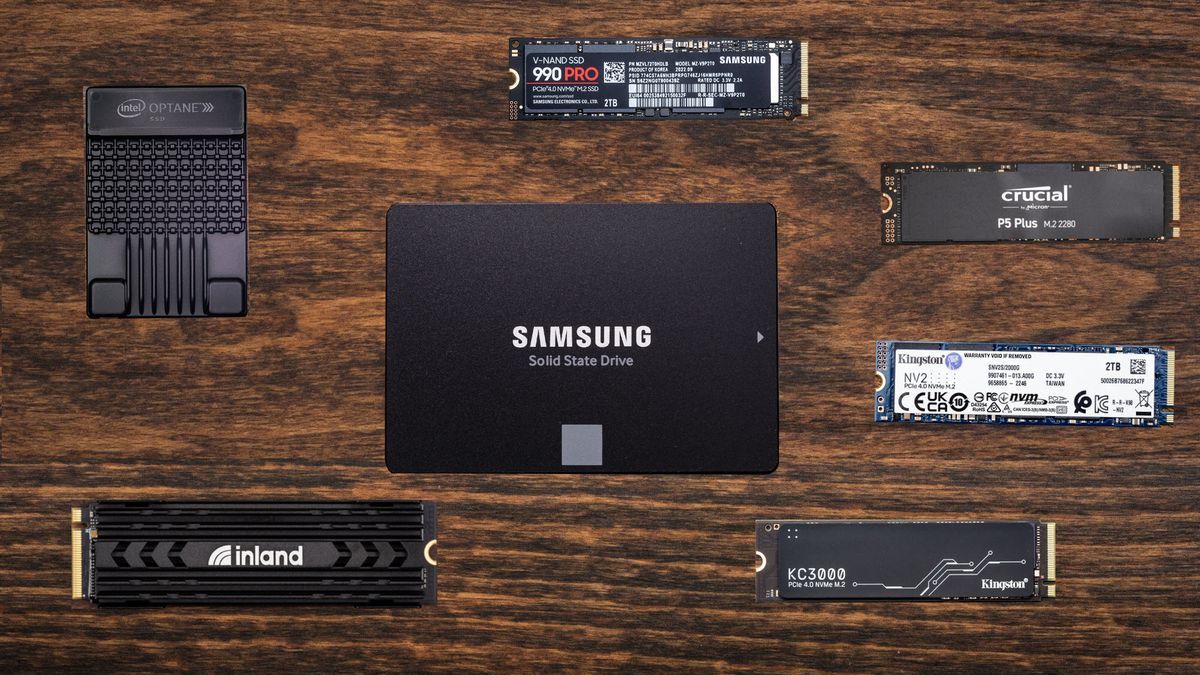
A laptop advertised with a 256GB SSD will not normally show 256GB of completely available storage inside Windows.
Part of the drive is used for formatting, system files, recovery partitions and other purposes.
This is normal and does not automatically indicate that the seller gave you the wrong capacity.
What Happens When an SSD Gets Almost Full?
It is generally a good idea not to keep your system drive permanently packed to the limit.
A nearly full SSD can make storage management more difficult and may affect performance depending on the drive and workload.
Keeping reasonable free space also gives Windows and applications room to work with temporary files and updates.
Microsoft provides storage-management guidance through its Windows storage and disk-space support resources.
Can You Upgrade the SSD in Every Laptop?
No.
Some laptops have replaceable SSDs, while others may use storage that is soldered directly to the motherboard.
Some thin laptops also have unusual storage designs or limited upgrade options.
This is why buyers should check the exact model before purchasing a laptop with the intention of upgrading its storage later.
Why SSD Upgradeability Matters When Buying a Used Laptop
Suppose you find two used laptops at similar prices.
One has 256GB of storage but allows an easy SSD upgrade. The other has 256GB of soldered storage with no practical upgrade path.
The first laptop may offer greater long-term flexibility even if both machines have the same advertised storage capacity.
This is an important point to consider when comparing refurbished and UK-used laptops.
How to Check What SSD Your Laptop Has
In Windows, you can start by checking Task Manager.
Press Ctrl + Shift + Esc, select Performance and choose the disk listed on the left.
Depending on the system, Windows may identify the drive as an SSD and provide additional information.
You can also check the exact laptop model and storage specifications from the manufacturer’s documentation.
How to Check the Health of a Used SSD
When buying a used laptop, capacity alone is not enough.
An SSD can still work while having experienced significant use.
Specialised drive-monitoring software can read SMART information and other health indicators supported by the SSD.
Pay attention to unusual warnings, errors and signs of drive instability.
If the laptop contains important data, do not wait for an SSD to fail before creating a backup.
What Is TBW?
TBW means Terabytes Written.
It is commonly used by SSD manufacturers as an endurance rating indicating how much data can be written to a drive under the manufacturer’s specified conditions.
TBW should not be interpreted as a precise date when an SSD will fail. Real-world SSD lifespan depends on many factors.
Does SSD Temperature Matter?
Yes.
High-performance NVMe SSDs can generate heat, particularly during sustained heavy workloads.
A laptop’s internal design, airflow and thermal management can therefore influence SSD behaviour.
This is another reason why the fastest SSD available on paper is not automatically the best choice for every laptop.
Should You Upgrade From SATA SSD to NVMe?
If your laptop supports NVMe and you need higher storage performance, an NVMe upgrade can be worthwhile.
But first confirm compatibility.
An M.2-shaped drive is not automatically compatible with every M.2 slot, and a laptop designed for SATA storage may not support NVMe simply because the connector appears similar.
What SSD Should a Nigerian Laptop Buyer Choose?
For most buyers, the best SSD is not necessarily the one with the biggest advertised speed.
Instead, look for:
- The correct compatibility for your laptop
- A suitable storage capacity
- Reliable SSD hardware
- Good health if buying used
- Reasonable temperature behaviour
- A trustworthy manufacturer or seller
- A price that makes sense for your needs
If you are shopping for a laptop for work, freelancing or business, you can also compare your options using our guide to laptops for business and freelancing in Nigeria.
Final Verdict
Understanding laptop SSD terminology can save you from paying extra for features you may never use.
Remember the basic difference: M.2 describes a physical form factor, NVMe describes a storage protocol, and PCIe Gen 3, Gen 4 and Gen 5 describe generations of the PCI Express interface.
A modern NVMe SSD can provide excellent performance, but the newest generation is not automatically the best choice for every buyer.
For most everyday laptop users, reliability, capacity, compatibility and overall system balance are often more important than chasing the highest benchmark number.
When buying a used laptop, check not only the advertised storage capacity but also the SSD’s health, upgradeability and compatibility with your future needs.