You open your laptop and discover that the clock is several hours behind, the date is incorrect or Windows keeps changing the time after every restart. At first, the problem may seem minor. However, an incorrect system clock can interfere with websites, software updates, email applications and secure connections.
For laptop users in Nigeria, the correct local time zone is particularly important when scheduling online meetings, submitting assignments or working with clients in other countries. Fortunately, most Windows date and time problems can be investigated through a few straightforward checks.
Why the Correct Date and Time Matter
Windows uses the system clock for more than displaying the time in the taskbar. Applications and online services may rely on accurate timestamps to validate secure connections, record events and organise files.
An incorrect clock can contribute to problems such as:
- Websites displaying certificate or secure-connection warnings.
- Applications reporting that a session has expired or cannot connect.
- Incorrect timestamps on downloaded files and documents.
- Calendar appointments appearing at unexpected times.
- Confusion when joining international meetings.
- Scheduled tasks running at an unexpected local time.
These symptoms can have other causes, so correcting the clock will not solve every connection or application problem. Nevertheless, checking the date and time is a sensible first step when several unrelated services suddenly behave strangely.
Set the Correct Time Zone for Nigeria
Nigeria uses West Africa Time, which is UTC+1 throughout the year. The country does not observe seasonal daylight-saving clock changes.
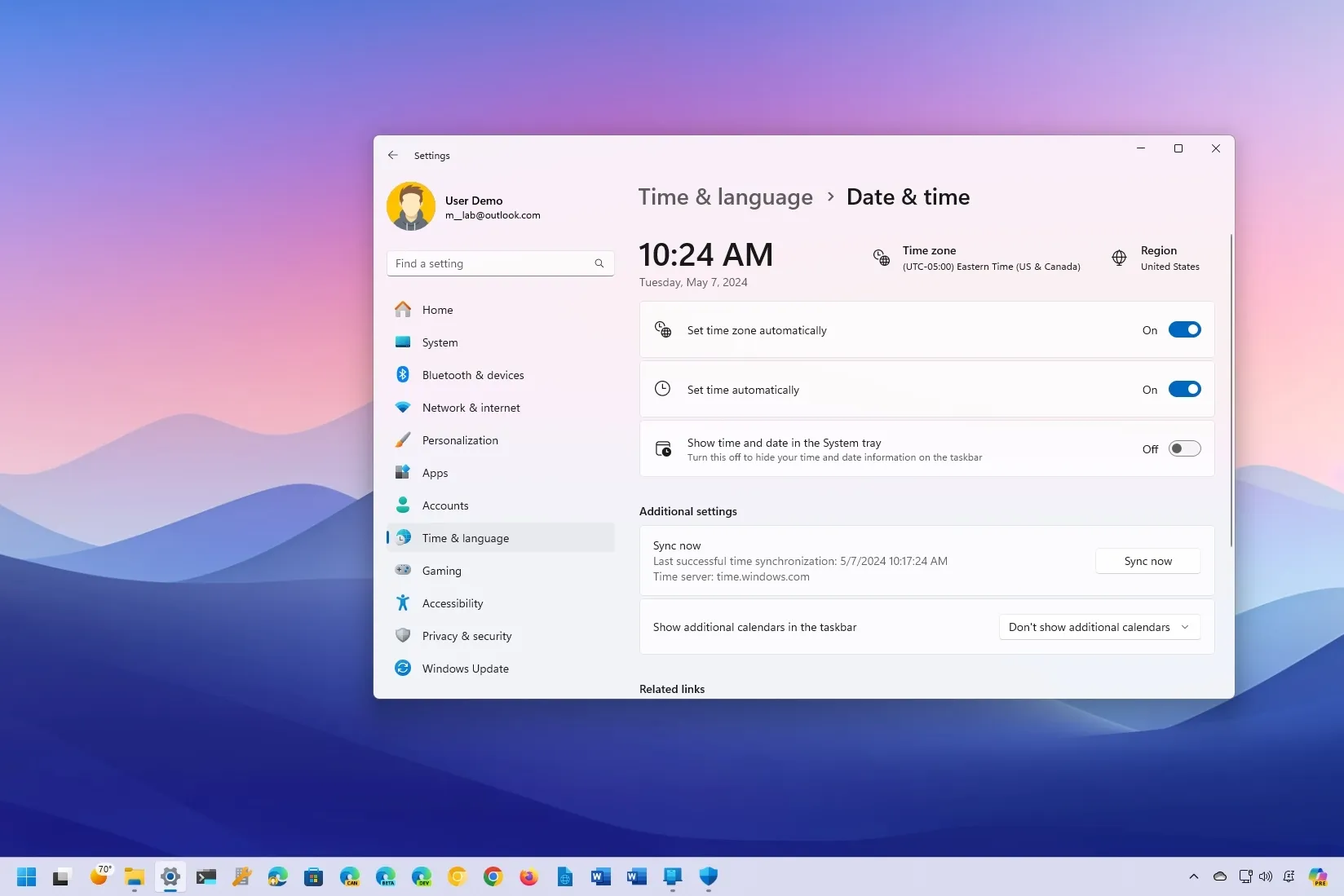
To check the time zone in Windows 11:
- Open Settings from the Start menu.
- Select Time & language.
- Open Date & time.
- Check the time-zone setting.
- Select the appropriate West Africa time-zone option if the current setting is incorrect.
Windows 10 offers similar options under Settings, Time & Language, and Date & time.
If you travel or regularly work with overseas clients, distinguish between your laptop’s local time zone and the time zone used by a meeting invitation. An appointment scheduled in London or New York may appear at a different local time because those locations can observe daylight-saving changes.
Enable Automatic Time and Time-Zone Settings
Windows can synchronise its clock with an internet time service. Depending on the device and configuration, it can also set the time zone automatically.
To review these settings, open the Date & time page and examine the available automatic options.
- Set time automatically: Allows Windows to synchronise the clock when the required service and connection are available.
- Set time zone automatically: Allows Windows to determine the time zone when supported. Availability and accuracy can depend on the device and location services.
- Sync now: On supported Windows versions, this option requests a time synchronisation attempt.
If automatic time-zone detection selects the wrong location, choose the correct zone manually. A reliable internet connection may be necessary for synchronisation, and work-managed laptops may restrict certain settings.
For Windows-specific instructions, consult Microsoft Support.
What to Do When Windows Shows the Wrong Time
If the clock remains incorrect, work through the following checks in order.
1. Confirm the time zone
A laptop can display the wrong local time even when its underlying clock is accurate. For example, selecting a time zone that is several hours behind Nigeria can shift the displayed clock without requiring a hardware repair.
Correct the time zone first, then check the displayed time again.
2. Synchronise the clock
Connect to the internet and use the available synchronisation option on the Date & time settings page. Wait for Windows to complete the attempt, then confirm that the clock displays the expected time.
3. Restart Windows
If the clock remains incorrect after changing the settings, restart the laptop. This can help when a temporary service or configuration issue prevents the updated time from displaying properly.
4. Check the internet connection
If synchronisation fails, verify that the laptop can access the internet. Try opening a few trusted websites and check whether other online services work normally.
If your laptop has broader connectivity problems, our guide to diagnosing Windows network and internet problems explains how to investigate common connection faults.
Why Does the Clock Reset After Every Shutdown?
If the date and time repeatedly reset after the laptop shuts down, the problem may extend beyond Windows settings.
Possible causes include:
- An incorrect time-zone configuration.
- A clock that has not synchronised successfully.
- A firmware clock that loses its settings when the laptop is completely powered off.
- A failing or depleted real-time-clock battery on hardware that uses a replaceable battery for this purpose.
- A firmware or hardware issue that requires further diagnosis.
Start by correcting the time zone and confirming that Windows can synchronise the clock. If the clock is accurate while the laptop is running but resets after being completely powered off, record when the problem occurs and whether it also happens after a restart.
Some laptops use different hardware designs to maintain time, so not every model has a separately replaceable CMOS battery. Check the manufacturer’s service documentation before assuming that a battery replacement is necessary.
Can an Incorrect Clock Cause Website Security Warnings?
Yes, an incorrect system clock can contribute to secure-connection errors. Websites use digital certificates with validity periods, and the computer checks relevant dates when establishing secure connections.
If the laptop’s date is far in the past or future, Windows or a browser may reject a certificate that would otherwise be valid.
Before changing browser security settings or ignoring a warning, correct the system date, time and time zone. Then reload the website and check whether the warning disappears.
If the warning persists, do not assume that the clock was the only cause. The website’s certificate, the network connection, security software or other configuration issues may require investigation. Never bypass a certificate warning on a sensitive login or payment page without understanding the risk.
What If the Time Synchronisation Option Fails?
A failed synchronisation attempt can result from connectivity problems, a restricted network, incorrect configuration or a Windows service issue.
Try these checks:
- Confirm that the laptop has a working internet connection.
- Verify the date and time-zone settings.
- Retry synchronisation from Windows Settings.
- Restart the computer and try again.
- Check whether a work or school administrator manages the device’s time settings.
- Consult official Microsoft guidance if the error continues.
A corporate network may use its own time source or policy. On a managed computer, ask the administrator before changing advanced settings or attempting to modify system services.
Should You Change BIOS or UEFI Clock Settings?
BIOS or UEFI firmware provides low-level settings for the laptop before Windows loads. Some systems allow you to inspect the firmware clock through their setup interface.
However, opening firmware settings should not be your first response to an ordinary clock problem. Correct Windows settings and test synchronisation first. If the clock repeatedly resets when the laptop loses power, a qualified technician can determine whether the firmware clock or related hardware needs attention.
Avoid changing unrelated firmware options while troubleshooting. Incorrect boot, security or storage settings can create additional problems that have nothing to do with the clock.
How to Avoid Time-Zone Confusion During Online Meetings
Remote workers, students and freelancers often coordinate with people in several countries. The safest approach is to confirm the meeting’s stated time zone rather than relying on a verbal reference such as “10 a.m.”
- Check that Windows uses the correct local time zone.
- Review the time zone shown in the calendar invitation.
- Confirm whether the meeting organiser specified local time or another country’s time.
- Check the invitation again when daylight-saving changes affect the other location.
- Join a few minutes early if the meeting is important.
These habits are particularly useful when working with international clients or attending remote classes. A correctly configured laptop clock reduces confusion, but checking the meeting invitation remains important.
Final Verdict
When a Windows laptop displays the wrong date or time, begin by checking the time zone, enabling automatic time synchronisation and restarting the computer if necessary. For Nigerian users, West Africa Time (UTC+1) is the appropriate local time zone.
If the clock repeatedly resets after shutdown, investigate the firmware clock and possible hardware causes rather than repeatedly changing Windows settings. Persistent synchronisation errors may also require help from an administrator or qualified technician.
At PSERO LAPTOP, we help Nigerian laptop users understand Windows settings, diagnose everyday computer problems and make informed maintenance decisions. A correctly configured clock is a small detail that can make online work, secure browsing and daily scheduling much more reliable.