
One minute your laptop is working normally. Then the screen suddenly turns blue, Windows stops responding, and the computer restarts without asking you.
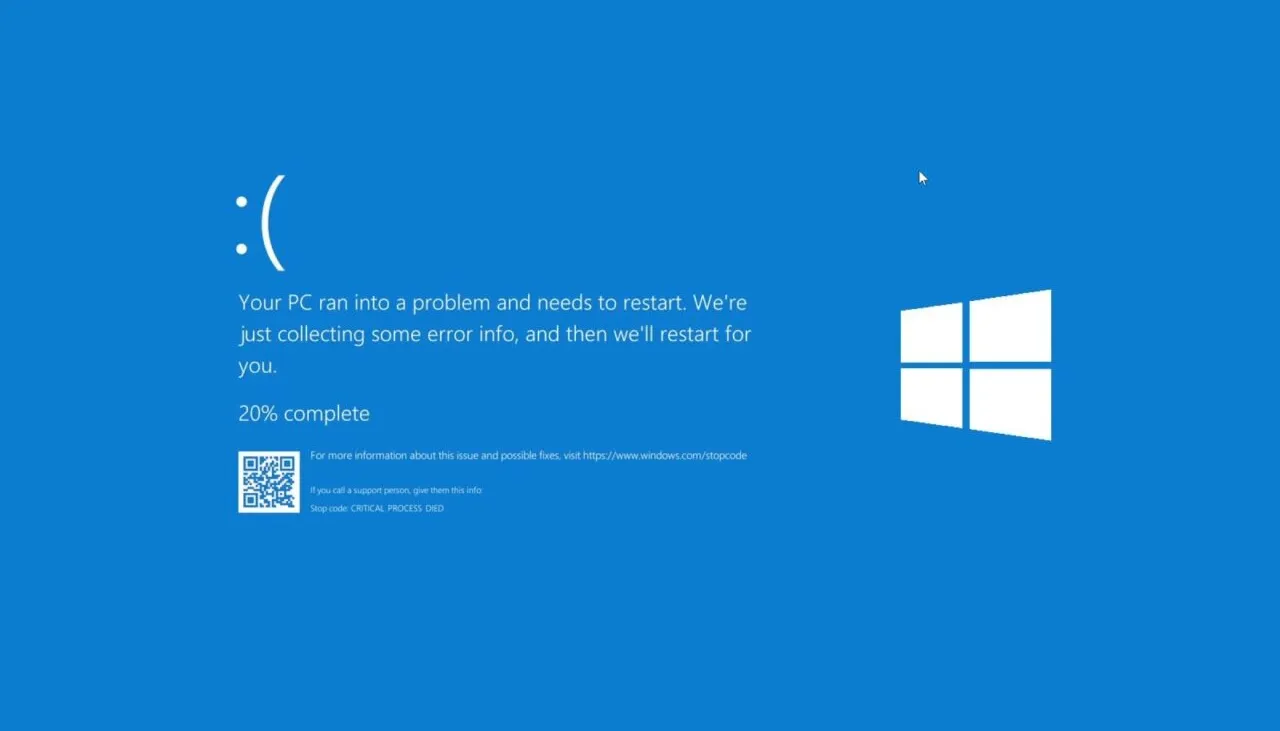
That situation is commonly known as the Blue Screen of Death, or BSOD. Although the name sounds serious, a single blue screen does not automatically mean your laptop is finished.
Windows uses a blue screen when it encounters a serious system error that it cannot safely continue from. The useful part is that the error often leaves clues that can help identify the problem.
What Causes a Laptop Blue Screen?
A BSOD can come from several different areas of the computer. Hardware, drivers, Windows system files, overheating, memory problems and incompatible software can all contribute.
Common causes include:
- Faulty or unstable RAM
- Corrupted Windows system files
- Bad or incompatible device drivers
- Storage problems
- Overheating
- Recently installed hardware
- Problematic software
- Windows update problems
- Overclocking or unstable system settings
- Malware or other system-level problems
For buyers of UK-used laptops, a BSOD should be taken seriously if it happens repeatedly during testing. A machine that crashes once after a normal Windows update is very different from one that crashes every time you open an application.
PSERO’s UK-used laptop buying checklist can also help you test a second-hand machine before paying for it.
Does One Blue Screen Mean the Laptop Is Bad?
Not necessarily.
Windows can encounter a temporary driver failure or software conflict. After restarting, the laptop may continue working normally.
Repeated crashes are more concerning. If the same problem keeps returning, especially during demanding tasks, you should investigate before assuming that reinstalling Windows will solve everything.
| What happens | What it may indicate | What to do |
|---|---|---|
| One isolated BSOD | Temporary software or driver problem | Restart and monitor the laptop |
| BSOD after installing a driver | Driver conflict | Roll back or reinstall the driver |
| BSOD during heavy use | RAM, overheating or hardware instability | Run hardware tests |
| BSOD during Windows startup | System, driver or boot problem | Use Windows recovery options |
| Frequent random BSODs | Possible hardware or deeper software problem | Investigate the error code and hardware |
Pay Attention to the Stop Code
When Windows displays a blue screen, it normally provides a stop code. That code can be one of the most useful clues when troubleshooting the problem.
Examples include errors such as MEMORY_MANAGEMENT, CRITICAL_PROCESS_DIED, IRQL_NOT_LESS_OR_EQUAL and SYSTEM_SERVICE_EXCEPTION.
Do not assume that the name always identifies the exact failed component. A memory-related error, for instance, can sometimes be caused by a driver rather than a physically damaged RAM module.
Write down the stop code before restarting if possible. Searching for the exact error later is much more useful than simply searching for “my laptop has a blue screen.”
Start With Recent Changes
Think about what changed immediately before the crashes began.
- Did you install a new driver?
- Did Windows recently update?
- Did you install new software?
- Did you connect new hardware?
- Did you upgrade the RAM or SSD?
- Did you change BIOS settings?
- Did the laptop recently suffer a fall or liquid exposure?
A recent change can provide a much faster route to the cause than randomly uninstalling applications.
Check Windows Update and Drivers
Drivers allow Windows to communicate with hardware such as graphics adapters, storage controllers, Wi-Fi devices and other components.
A defective, incompatible or corrupted driver can cause serious system instability. Microsoft provides Windows troubleshooting and support resources through Microsoft Support, which is a safer starting point than downloading random driver packages from unknown websites.
Be particularly careful with websites promising “one-click driver updates.” Some third-party driver tools can install unnecessary software or drivers that are not appropriate for your specific laptop.
Test the RAM
Memory problems can produce crashes, application errors, corrupted files and seemingly unrelated Windows problems.
Windows includes a built-in Windows Memory Diagnostic tool that can test the system memory. You can search Windows for Windows Memory Diagnostic and follow the restart instructions.
If the laptop has upgradeable RAM, a technician can also test the modules individually. That can be useful when a machine has multiple memory sticks and the problem appears only intermittently.
Check the SSD or Hard Drive
Storage problems can also cause Windows instability. A failing SSD or hard drive may produce corrupted files, boot problems, application crashes and blue screens.
Do not ignore unusual storage symptoms such as extremely slow file access, disappearing files, repeated repair messages or Windows becoming unstable during disk-heavy tasks.
PSERO’s guide to laptop SSD types explains the major storage technologies and what buyers should understand before choosing a laptop.
Could Overheating Cause a BSOD?
Heat can contribute to system instability, although not every blue screen is caused by temperature.
A laptop with blocked vents, a failing fan, accumulated dust or poor thermal contact may become unstable when the processor or graphics system is under sustained load.
Pay attention to the circumstances surrounding the crash. If the machine works for an hour during light browsing but crashes repeatedly during gaming, rendering or other demanding workloads, heat and hardware stability deserve investigation.
For everyday maintenance, remember that ventilation matters. PSERO’s guide on why you should not use a laptop on a bed or rug explains how soft surfaces can restrict airflow.
Try Safe Mode When Windows Keeps Crashing
Safe Mode starts Windows with a limited set of drivers and services. That makes it useful when a recently installed driver or application is preventing normal startup.
If Windows behaves normally in Safe Mode but repeatedly crashes during a standard startup, software or driver problems become more plausible.
Safe Mode should not be treated as a permanent solution. Instead, use it as a diagnostic tool that helps narrow down the source of the problem.
What If the Laptop Cannot Boot Normally?
A serious BSOD problem can sometimes create a cycle where Windows crashes every time it starts.
In that situation, Windows Recovery Environment can provide options for repairing the installation. Depending on the problem, available recovery tools may include Startup Repair, System Restore, Safe Mode and other recovery options.
Do not immediately choose a complete Windows reset if important files have not been backed up. Recovery procedures can have different consequences depending on the option selected.
When Should You Suspect Hardware?
Hardware becomes more suspicious when crashes continue after software troubleshooting has been completed.
Look more closely at the physical components if you notice:
- Repeated BSODs with different stop codes
- Crashes during heavy workloads
- Memory test failures
- Storage errors
- Unexpected shutdowns
- Severe overheating
- Problems that began after physical damage
- Crashes that continue after a clean Windows installation
A clean Windows installation can help separate software problems from hardware problems. If the laptop continues crashing with a fresh operating system and properly installed drivers, hardware deserves much more attention.
BSOD Red Flags When Buying a Used Laptop
Buying a UK-used laptop requires more than checking the processor, RAM and SSD capacity.
Run the machine long enough to expose problems. Open several applications, browse with multiple tabs, play a video, copy files and test the features you actually plan to use.
Watch for random restarts, freezing, blue screens or strange error messages. A seller who says “just restart it” without allowing proper testing should also make you cautious.
Never judge a used laptop solely from a short boot-up demonstration. A computer can appear perfect for five minutes and still have a serious intermittent fault.
Should You Reinstall Windows After a BSOD?
Reinstalling Windows can solve certain corrupted-system problems, but it should not be the first response to every blue screen.
Suppose a faulty RAM module is causing the crashes. Reinstalling Windows will not repair the RAM.
Likewise, a defective SSD, overheating problem or incompatible hardware component will not necessarily disappear after a fresh installation.
Find the pattern first. Then choose the repair method that matches the evidence.
Common Mistakes People Make
- Ignoring repeated blue screens
- Installing random drivers from unofficial websites
- Blaming Windows without testing hardware
- Immediately resetting the entire laptop
- Failing to back up important files
- Ignoring overheating symptoms
- Assuming every MEMORY error means bad RAM
- Buying a used laptop without stress-testing it
Who Should Worry Most About BSODs?
Anyone who depends on a laptop for work, school or business should take repeated crashes seriously.
A student writing assignments may lose unsaved work. A freelancer working on a client project could face corrupted files or missed deadlines. For a business owner, repeated system crashes can become a productivity problem rather than merely an inconvenience.
Users performing development, video editing, virtual machines or other demanding tasks should be especially careful because unstable hardware may only reveal itself under sustained workloads.
Final Buying and Troubleshooting Advice
A blue screen is a symptom, not a diagnosis. The stop code, timing, recent changes and behaviour of the laptop provide the clues needed to find the actual problem.
One isolated crash may not justify panic. Repeated crashes, especially during demanding workloads or after a fresh Windows installation, deserve proper investigation.
When buying a used laptop in Nigeria, test the machine before paying. Check the storage, memory, temperatures, keyboard, screen, ports, Wi-Fi and other features rather than relying on specifications alone.
At PSERO LAPTOP, the goal should always be to choose a laptop based on how it actually performs for your work, school or business needs. A good specification sheet is useful, but a properly tested machine tells you much more.