A laptop screen can look perfectly normal on the outside while hiding a surprisingly complex electronic system underneath. When you open a laptop, the display does not receive pictures directly from the processor in the same way a television receives a broadcast signal. Instead, several hardware components work together to generate, process, transmit and display visual information.
The graphics processor creates the images, the display engine prepares the frames, a high-speed interface carries the signals through the motherboard and display cable, and the panel controller converts those signals into instructions for individual pixels.
This architecture explains why a laptop can power on but show a black screen, why moving the display sometimes causes flickering and why replacing a screen with an incompatible panel can produce unexpected results.
For laptop buyers, technicians and anyone interested in computer hardware, understanding display signal architecture provides a deeper way to evaluate screen problems and replacement compatibility.
1. How a Laptop Produces an Image
A laptop display system begins with graphics processing. The CPU, integrated GPU or dedicated graphics processor handles the instructions required to create visual information.
After processing, the graphics hardware produces a frame containing the information that should appear on the screen. The display engine then prepares this information for transmission through a supported display interface.
The process involves several components:
- Graphics processor: Generates or processes visual information.
- Display engine: Organises frames, display timing and output signals.
- Display interface: Carries visual data from the motherboard to the screen.
- Display cable: Connects the motherboard to the display assembly.
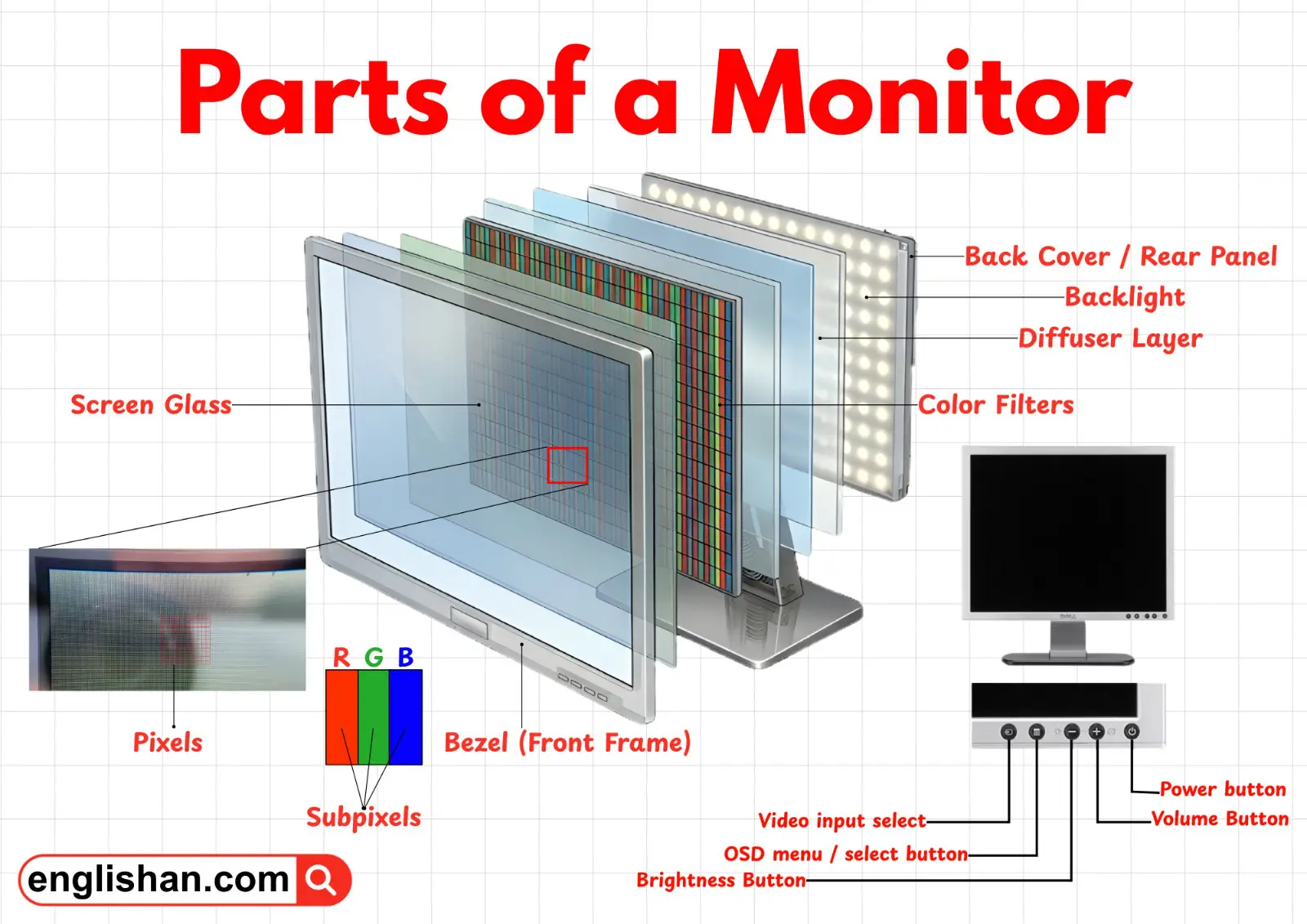
- Panel controller: Receives and processes incoming display signals.
- Pixel circuitry: Controls the individual pixels that form the image.
- Backlight system: Illuminates LCD panels that require a backlight.
These components must communicate correctly. A problem in any part of the signal path can cause display distortion, flickering, missing images or a completely blank screen.
2. What Is a Display Signal?
A display signal is the information transmitted from a graphics source to a screen. It contains the visual data and timing information needed to reproduce an image.
Modern digital displays receive pixel information in an organised stream. The receiving electronics use this information to determine the colour and brightness of each pixel and when to update the screen.
Display communication must also account for resolution, refresh rate, colour depth and the bandwidth available through the connection.
For example, a 1920 × 1080 display contains more than two million pixels. Each pixel needs colour information, and the screen must receive updated frame data repeatedly according to its refresh rate.
A higher resolution or refresh rate generally requires more data to travel through the display connection. Colour depth and transmission overhead also influence the required bandwidth.
3. Understanding Embedded DisplayPort (eDP)
Embedded DisplayPort, commonly called eDP, is a display interface widely used inside modern laptops. It is based on DisplayPort technology but is designed for integrated display connections in devices such as notebooks, tablets and all-in-one computers.
Unlike an external DisplayPort connection, eDP typically carries display information through a dedicated internal cable between the motherboard and the laptop screen.
Its architecture supports several useful capabilities:
- High-resolution digital display communication.
- Support for different refresh rates.
- Efficient transmission over internal display connections.
- Power-management features.
- Adaptive refresh technologies on supported systems.
eDP has become important because laptop manufacturers need display connections that can support increasingly demanding screens without consuming excessive power.

How eDP carries display information
The graphics hardware prepares the image data and sends it through the eDP transmitter. The signal travels through the display cable to the receiving circuitry in the panel.
The panel then processes the incoming information and controls the display pixels.
The exact implementation depends on the laptop and panel. Some systems use different lane configurations, signal rates and power-management features.
4. What Is LVDS and Why Older Laptops Used It
LVDS stands for Low-Voltage Differential Signaling. It is an older digital signalling technology that was widely used in laptop displays before eDP became common.
LVDS transmits information using differential electrical signals. Instead of relying on one signal wire alone, a differential pair carries complementary signals. The receiver detects the voltage difference between them.
This approach helps reduce the effect of certain types of electrical noise and allows data to travel reliably through internal display cables.
Older laptop screens commonly used LVDS connections. These panels may have different connector arrangements, pin counts and electrical requirements from newer eDP screens.
This distinction is important when replacing an older laptop display. Two screens with the same physical dimensions and resolution may still use incompatible signalling technologies.
5. eDP vs LVDS: Important Differences
| Feature | LVDS | eDP |
|---|---|---|
| Technology | Low-voltage differential signalling | Embedded DisplayPort |
| Common usage | Older laptop display systems | Modern laptop display systems |
| Communication | Differential data channels | DisplayPort-based packet transmission |
| Power management | More limited in traditional implementations | Supports advanced display power features |
| Modern adoption | Less common in new laptop designs | Widely used in current laptop designs |
Neither connection should be judged by its name alone. The supported resolution, refresh rate, lane configuration and panel electronics determine what a particular implementation can deliver.
6. DisplayPort Architecture: Lanes, Bandwidth and Data Transmission
DisplayPort uses high-speed data lanes to transmit visual information. The available bandwidth depends on the supported link rate and the number of lanes used.
Different DisplayPort generations support different maximum data rates. Newer versions can carry more information, allowing compatible systems to support higher resolutions, refresh rates and colour depths.
However, the complete display system must support the required bandwidth. A powerful GPU cannot overcome a limitation in an incompatible cable, panel controller or display interface.
Internal eDP connections also use lane configurations and link rates to determine how much visual information can move between the motherboard and panel.
When evaluating a laptop display, check the full hardware specification rather than assuming that the GPU’s capabilities represent the screen’s capabilities.
7. Display Timing: How the Screen Knows When to Update Pixels
Digital displays require timing information to organise the incoming image data. The display system must know how frames are arranged and when each new frame should be displayed.
Traditional display systems use timing parameters associated with horizontal and vertical scanning. Modern digital interfaces transport image information through more advanced link structures, but timing remains essential.
Several terms appear in display specifications:
- Horizontal active pixels: The number of visible pixels across a display line.
- Vertical active pixels: The number of visible pixel rows.
- Refresh rate: How frequently the screen updates its displayed image.
- Pixel clock: A timing reference associated with pixel transmission in relevant display systems.
- Blanking intervals: Timing periods used by certain display modes between active image regions.
For example, a Full HD screen has an active resolution of 1920 × 1080. A 60Hz panel refreshes its displayed image 60 times per second under its normal operating mode.
Higher refresh rates require the display system to deliver new frame information more frequently. This is one reason a 144Hz screen can require more display bandwidth than a 60Hz screen at the same resolution.
8. What Is a Display Panel Controller or TCON?
The timing controller, commonly called TCON, is an important part of many LCD and other display architectures. It receives incoming display information and coordinates how the panel’s internal electronics update the pixels.
The TCON helps distribute data to the appropriate sections of the display and manages timing signals required by the panel.
Its operation depends on the panel technology and manufacturer. Some modern display designs integrate functions that older architectures handled through separate controller components.
A faulty panel controller can produce symptoms such as:
- Horizontal or vertical lines.
- Incorrect colours.
- Distorted images.
- Partial display failure.
- Intermittent visual corruption.
However, these symptoms do not prove that the TCON itself is defective. A damaged display cable, panel electronics, graphics hardware or power supply can create similar problems.
9. How the Display Cable Connects the Motherboard to the Screen
The display cable carries signals between the laptop’s motherboard and the display assembly. It usually passes through the hinge area because the screen must open and close repeatedly.
Its design depends on the laptop model and supported panel. Some cables carry high-speed display data alongside power and control signals. Others also support camera, microphone, touch or other display-assembly functions through additional conductors.
The cable must maintain signal integrity while remaining flexible enough to move with the screen.
Common display cable problems
- Flickering that changes when the display angle changes.
- A screen that becomes blank when the lid moves.
- Intermittent horizontal lines.
- Random changes in brightness.
- Complete loss of the internal display.
Repeated movement can gradually damage cable conductors or their insulation. A poorly routed replacement cable may also become trapped or stressed around the hinge.
For technicians, inspecting the display cable and its connectors is an important part of diagnosing screen faults.
10. Hybrid Graphics and Display Routing
Many laptops contain integrated graphics and dedicated graphics hardware. This arrangement is often called hybrid graphics.
The integrated GPU may handle ordinary desktop activity to reduce power consumption. A dedicated GPU can take over demanding applications such as video editing, 3D rendering and supported games.
However, the dedicated GPU does not necessarily connect directly to the internal screen in every laptop.
Some designs route the dedicated GPU’s output through the integrated GPU. Other designs provide a direct connection between the dedicated GPU and the display.
This distinction affects graphics switching, power consumption and display performance.
Traditional hybrid graphics routing
In some hybrid designs, the dedicated GPU renders an application while the integrated GPU handles the final display output. The rendered frames are transferred through the system’s graphics architecture before reaching the screen.
This approach can reduce power consumption because the dedicated GPU does not need to remain fully active for every display operation.
Direct GPU display routing
Some laptops provide a direct display path from the dedicated GPU. This can be useful for demanding graphics workloads, depending on the system design.
The available routing options may be controlled through firmware, manufacturer utilities or a hardware MUX switch.
For more information about this relationship, read our article on laptop GPU architecture, VRAM, TGP and MUX switches.
11. What Is a Display MUX Switch?
A MUX switch is a hardware component that can change the path used to connect display output to different graphics processors.
In supported laptops, it may allow the internal screen to switch between integrated and dedicated graphics output.
When the integrated GPU controls the display, the laptop may consume less power during ordinary activities. When the dedicated GPU connects directly to the screen, certain graphics workloads may benefit from a more direct display path.
Not every laptop has a physical MUX switch. Some systems rely on software-controlled graphics routing, while others use different hardware arrangements.
Before purchasing a laptop for demanding graphics work, check whether its internal display supports the required graphics configuration. Do not assume that a dedicated GPU automatically drives the built-in screen directly.
12. How Display Compression Makes Higher Resolutions Possible
High-resolution displays require large amounts of data. As resolution, refresh rate and colour depth increase, the amount of information that must travel through the display connection also increases.
Display Stream Compression, commonly known as DSC, is a visually lossless compression technology developed for compatible display systems.
It reduces the amount of data that must be transmitted while maintaining image quality that is designed to appear visually unchanged under normal viewing conditions.
DSC can help compatible systems support demanding combinations of resolution, refresh rate and colour depth without requiring an impractically large amount of link bandwidth.
However, both the transmitting hardware and receiving display must support the relevant implementation. A laptop with a high-performance GPU cannot use DSC with a panel that does not support it.
13. How Adaptive-Sync and Variable Refresh Rate Work
Traditional displays refresh at a fixed rate. When the graphics processor produces frames at a different rate from the screen’s refresh cycle, visual tearing or uneven frame presentation can occur.
Variable Refresh Rate, or VRR, allows a compatible display to adjust its refresh behaviour according to the incoming frame rate within a supported range.
Adaptive-Sync is a technology associated with DisplayPort that enables compatible systems to coordinate refresh timing dynamically.
For example, a compatible display might operate at different refresh rates as the graphics processor produces frames at varying speeds.
This can improve visual smoothness during gaming and other interactive workloads. However, the GPU, display panel, connection and software must all support the necessary features.
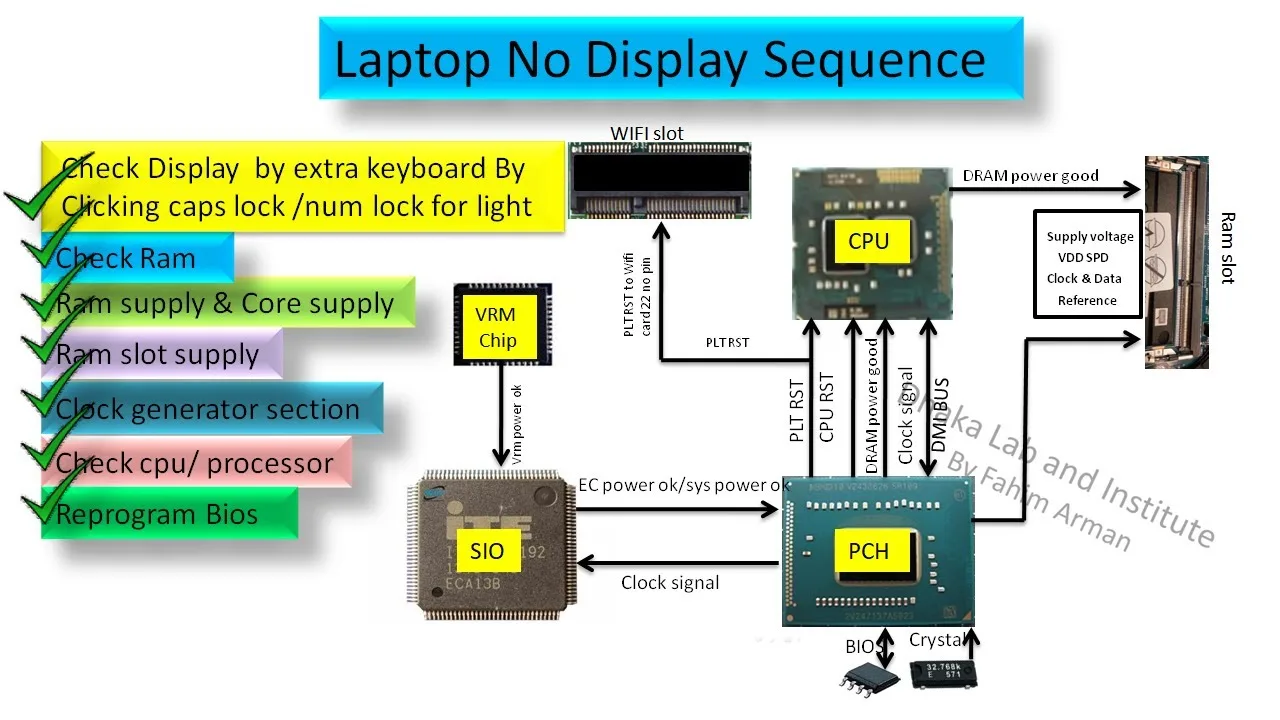
14. Why a Laptop Screen Can Be Black Even When the Laptop Is Running
A laptop may power on, activate its fans and start Windows while the internal display remains blank. This does not automatically mean that the screen itself has failed.
The display signal path contains several possible failure points.
Damaged display cable
A damaged or disconnected eDP or LVDS cable can prevent visual information from reaching the panel.
Faulty panel electronics
The display may receive power but fail to process the incoming image correctly because of a problem with its internal electronics.
Graphics hardware problems
A graphics processor or motherboard fault can prevent the system from generating or transmitting a usable display signal.
Backlight failure
An LCD panel may produce an image while its backlight fails. In some cases, shining a flashlight at the screen from an appropriate angle can reveal a faint picture.
Firmware or configuration problems
Incorrect display settings, firmware problems or graphics driver failures can also affect screen output.
Testing an external monitor can help narrow down the cause. If an external display works while the internal screen remains blank, the fault may lie in the internal display path. However, this test does not identify the exact defective component.
Our article on laptop screen flickering and how to test it explains additional symptoms and inspection methods.
15. Why Display Replacement Compatibility Is More Complicated Than Screen Size
One common mistake when replacing a laptop screen is choosing a panel based only on its diagonal size and resolution.
A 14-inch Full HD panel is not automatically compatible with every 14-inch laptop. The replacement must match several electrical and physical requirements.
Important compatibility factors include:
- Display interface, such as eDP or LVDS.
- Connector type and pin arrangement.
- Supported signal configuration.
- Panel resolution and refresh rate.
- Physical dimensions and mounting points.
- Backlight requirements.
- Touchscreen compatibility.
- Power and control requirements.
Even two eDP panels may use different connector arrangements or electrical specifications. A panel with the wrong pin configuration can cause problems if installed without proper verification.
Technicians should use the original panel’s model number and the laptop manufacturer’s compatibility information to identify suitable replacements.
For general panel technology differences, see our guide to IPS, OLED, TN, Mini-LED and touchscreen laptop displays.
16. How to Diagnose Display Signal Problems
Accurate diagnosis requires checking the entire display path rather than immediately replacing the screen.
Step 1: Check whether the laptop is actually starting
Look for power indicators, keyboard activity, fan operation and other signs that the system is running. A laptop that fails to complete startup may have a different problem from one that boots normally without displaying an image.
Step 2: Connect an external monitor
Use a supported HDMI, DisplayPort or USB-C display connection. If the external monitor displays an image, the graphics system is producing output through that connection.
Step 3: Inspect the internal display cable
A technician can inspect the cable connectors at the motherboard and panel. The cable should be checked for damage, loose connections and incorrect routing.
Step 4: Identify the original panel
Record the panel model number and verify its interface, connector arrangement and electrical specifications before considering a replacement.
Step 5: Check graphics drivers and firmware
Where the display works intermittently or behaves incorrectly inside Windows, check the graphics drivers and relevant manufacturer firmware documentation.
Step 6: Test with known-compatible components
A technician may use a verified compatible panel or cable to isolate a suspected fault. Component substitution should follow proper service procedures and compatibility checks.
17. What Laptop Buyers in Nigeria Should Inspect Before Paying
Screen quality is not only about brightness and resolution. The underlying display connection and its condition also matter, particularly when buying a UK-used laptop.
Before paying, open and close the screen slowly while observing whether the image flickers, disappears or changes colour. This can help reveal cable-related problems around the hinge.
Check the display at different brightness levels. Look for horizontal lines, vertical lines, dead pixels, unusual colour patterns and uneven illumination.
Where possible, connect an external monitor and confirm that the laptop can produce a stable image through another display output.
Also verify that the replacement screen, if one has been installed previously, matches the laptop’s supported specifications.
Buyers comparing used laptops should consult our complete UK-used laptop inspection checklist before making payment.
For students who need a reliable system for online learning, our guide to laptops for online classes in Lagos provides additional buying considerations.
18. Official Technical Resources for Laptop Display Research
Display technologies involve several standards and manufacturer-specific implementations. These resources can help technicians and buyers understand the specifications:
- VESA DisplayPort provides information about DisplayPort technology and related display standards.
- Video Electronics Standards Association develops and maintains standards for display interfaces and related technologies.
- Intel Support provides documentation for supported graphics hardware and display configurations.
- AMD Support provides graphics drivers and technical information for supported AMD hardware.
- NVIDIA Driver Downloads provides drivers for supported NVIDIA graphics hardware.
Conclusion
A laptop display is a complete communication system involving the graphics processor, display engine, interface, cable, panel controller and pixel circuitry. Technologies such as eDP, LVDS, DisplayPort and DSC determine how visual information moves from the motherboard to the screen.
Understanding this architecture helps explain why display faults can originate from several different components. It also shows why screen replacement requires more than matching the display size and resolution.
For buyers, checking screen stability, panel compatibility and display behaviour before payment can prevent expensive surprises. For technicians, understanding the signal path makes troubleshooting more systematic.
If you are looking for a laptop for business, education, remote work or everyday computing, visit PSERO LAPTOP to explore available systems.