You click a PDF document, but Windows opens it in a browser you rarely use. Perhaps clicking an email link launches the wrong application, or your laptop keeps opening photos in a program you do not like. These small inconveniences can interrupt your work, especially when you regularly handle school assignments, business documents, or customer files.
Windows 11 lets you choose which applications open different file types and web links. Once you understand these settings, you can make your laptop work more naturally without repeatedly choosing an application every time you open a file.
This guide explains how default apps work, how to change them safely, and what to do when Windows continues opening files in the wrong program.

What Are Default Apps in Windows 11?
A default app is the program Windows automatically uses for a particular task. For example, your laptop may use Microsoft Edge to open web links, Photos to display pictures, or a PDF reader to view documents.
Windows associates file extensions and link types with applications. When you open a file, Windows checks the relevant association and launches the assigned program if it is available.
These associations can vary by file type. You might use one application for PDF documents, another for photographs, and a different program for video files. You can also choose separate defaults for certain web protocols or file extensions.
Default apps are different from file extensions themselves. If you want to understand how formats such as PDF, ZIP, EXE, and MSI work, read our guide to common laptop file extensions and their meanings.
How to Change a Default App in Windows 11
The Settings app provides the main controls for changing default applications. Follow these steps to assign a preferred program.
- Open the Start menu and select Settings.
- Select Apps from the left-hand menu.
- Choose Default apps.
- Search for the application you want to use, or search for the file type you want to change.
- Select the relevant application or file extension.
- Choose the application you prefer from the available options.
- Confirm the change when Windows asks you to do so.
Depending on your Windows version, the available controls may look slightly different. If you cannot find a setting, use the search box in Settings or consult the official Windows support website.
After changing the default, open a sample file to confirm that Windows launches the intended application. This quick check helps you identify problems before relying on the new setting for important work.
How to Change Your Default Web Browser
Your default browser determines which application opens many web links from other programs. For example, clicking a link in a document, messaging app, or email client may launch your default browser.
To change it, open Settings, select Apps, and choose Default apps. Search for the browser you want to use, then select the option to set it as your default if Windows provides that control.
Some Windows versions or configurations may display individual file and link associations, including HTTP and HTTPS. If you see these entries, review them carefully and change the relevant associations as needed.
Afterward, test the setting by clicking a web link from another application. Opening a website directly from inside a browser does not always confirm which browser Windows uses for external links.
Remember that your default browser and your browser’s own search engine are separate settings. Changing the browser does not necessarily change the search provider used in its address bar.
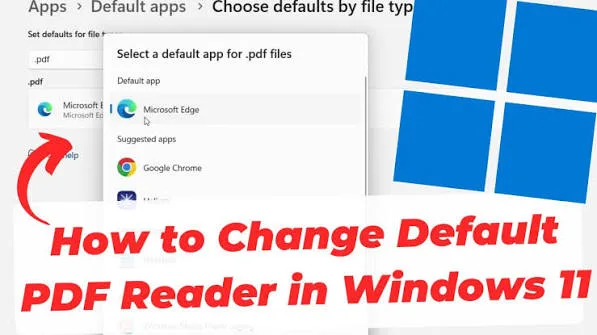
How to Choose a Default PDF Reader
PDF documents are common in Nigerian schools, offices, online applications, invoices, and business transactions. Windows may open them in a web browser, but you can select another compatible application if you prefer dedicated PDF tools.
- Open Settings and select Apps.
- Choose Default apps.
- Search for the .pdf file type or the PDF application you want to use.
- Select the current association.
- Choose your preferred compatible PDF reader and confirm the change.
- Open a PDF document to test the result.
Some browsers can display PDF files without requiring another application. However, you may prefer a dedicated reader when you regularly annotate, sign, or organise documents.
For more guidance, read our article on opening, editing, signing, compressing, and converting PDF files on a laptop.
How to Change the Default App for Photos and Videos
Windows can assign different applications to image formats such as JPG, PNG, and GIF, as well as video formats such as MP4. You may prefer one program for photographs and another for editing or playback.
Open Default apps in Settings and search for the relevant file extension. Select it, then choose a compatible application from the list.
Keep in mind that setting a default viewer does not automatically make it an editor. An application may open a photograph but lack the tools you need to crop, resize, or modify it.
For video files, confirm that the chosen application supports the format and codec. If a video refuses to play, the problem may involve format support rather than the default-app setting itself.
What Does “Choose an App to Open This File” Mean?
Windows may display an application-selection prompt when you open a file that has no default association or when the existing association is unavailable.
You can select a compatible application from the list. Depending on the prompt, Windows may offer an option to use the program just once or always use it for that file type.
Choose the permanent option only when you are confident that the application is appropriate. Selecting an unsuitable program as the default can make future file opening more inconvenient, although you can usually change the association again through Settings.
If you cannot identify the file type, inspect its extension before choosing a program. Avoid opening unfamiliar executable files simply to discover what they do.
Why Does Windows Keep Opening Files in the Wrong App?
If a file continues opening in an unexpected application, several causes may explain the behaviour.
1. The Association Was Not Changed
You may have opened a file using a one-time application choice instead of changing its permanent association. Return to Default apps and check the relevant extension.
2. The File Type Is Different
Two files can look similar but use different extensions. For example, changing the default for JPG images does not necessarily change the default for PNG or WEBP files.
Check the exact extension and update the appropriate association.
3. The Application Is Missing or Outdated
If Windows cannot find the assigned program or the application no longer supports the file, opening the document may fail. Update or reinstall the application from its official source, then review the default setting again.
Our guide to installing laptop software safely explains how to choose reliable installation sources.
4. Another Installation Changed the Association
Some applications offer to become the default for several file types during installation or after an update. Review the application’s settings and Windows Default apps if your preferred associations suddenly change.
5. Windows Needs a Restart
Most default-app changes take effect immediately. However, if an application continues behaving unexpectedly, close and reopen it. Restart Windows if necessary, then test the association again.
Is It Safe to Reset All Default Apps?
Windows provides options for restoring default application associations, but resetting everything is usually unnecessary when only one file type is affected.
Before using a reset option, consider which applications you have deliberately chosen for your everyday work. A broad reset may change your browser, media player, PDF reader, or other preferred applications.
For a single problem, change the specific file association first. If many associations are broken and individual corrections do not help, review the available Windows reset controls and make changes carefully.
Avoid following instructions that ask you to delete unfamiliar registry entries just to change a default app. Incorrect registry edits can create additional Windows problems.
How Default Apps Affect Everyday Laptop Work
Choosing suitable defaults can save time when handling repeated tasks. A student who reads course materials daily may prefer a dedicated PDF reader. A business owner who receives product photographs may want images to open in a familiar viewer. A remote worker may prefer a particular browser for customer portals and online tools.
On a shared laptop, however, different users may prefer different applications. Windows account settings and app availability can affect the experience, so check the active user profile before troubleshooting an unexpected association.
If several people use the same computer, separate Windows accounts can help keep preferences and files organised. Our guide to Windows user accounts, local accounts, and administrator access explains the main differences.
Should You Install Another App Just to Change a Default?
Not always. Windows already includes applications for many basic tasks, and your existing browser may handle PDFs, images, or media files adequately.
Install additional software only when it provides a feature you actually need. Before downloading a new application, check its compatibility, licensing, security reputation, and system requirements.
On older or lower-specification laptops, unnecessary applications can consume storage and background resources. Choosing the right default does not require installing several programs that perform the same function.
Final Thoughts
Changing default apps in Windows 11 is a simple way to make your laptop more convenient. You can choose which programs open PDFs, images, videos, web links, and other supported file types through the Default apps section in Settings.
When Windows opens a file in the wrong program, check the exact file extension and update that specific association before attempting a broader reset. If the problem continues, verify that the chosen application is installed, compatible, and working correctly.
At P-Sero Laptop, we help Nigerian laptop users understand Windows settings, choose suitable software, and maintain computers for school, business, and remote work. Small adjustments like these can make everyday tasks smoother without requiring expensive upgrades.
“`