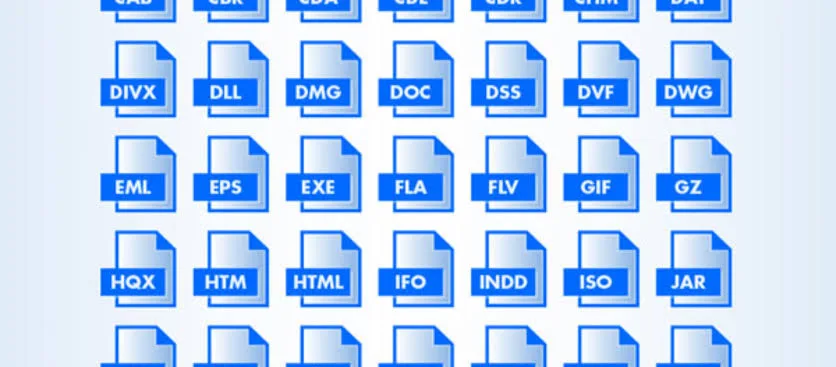
You download a program and see a file ending in .exe. Another download ends in .zip. Then you encounter .dll, .iso, .msi or .pdf and wonder what those letters actually mean.
These endings are called file extensions. Windows uses them to identify file types and determine which applications can normally open them.
Knowing the most common extensions makes everyday laptop use easier. It can also help you recognise suspicious downloads before you open them.
What Is a File Extension?
A file extension normally appears after the final dot in a filename.
For example, invoice.pdf uses the .pdf extension. A compressed archive might appear as photos.zip, while a Windows program could use a name such as setup.exe.
The extension gives Windows and the user a quick clue about the file’s format and intended use.
| Extension | Common purpose | Typical use |
|---|---|---|
| .exe | Windows executable | Running applications |
| .msi | Windows Installer package | Installing software |
| .zip | Compressed archive | Storing or transferring files |
| .iso | Disc image | Installation media and archived discs |
| .dll | Dynamic-link library | Shared software components |
| Portable Document Format | Documents and forms | |
| .docx | Word document | Text documents |
| .xlsx | Excel workbook | Spreadsheets |
| .jpg/.jpeg | Image | Photographs and graphics |
| .mp4 | Video file | Video playback and editing |
Why Does Windows Hide File Extensions?
Windows can hide extensions for file types that it already recognises. That setting creates a cleaner-looking File Explorer, but it can also hide useful information.
Consider a filename such as invoice.pdf.exe. If Windows hides known extensions, the filename may look less suspicious than it really is.
Showing extensions lets you see the complete filename and makes unusual files easier to identify.
How to Show File Extensions in Windows
Open File Explorer and select the View options. Current Windows versions provide a menu for showing filename extensions.
Turn on the option that displays file name extensions. Windows will then show endings such as .exe, .zip, .pdf and .jpg directly in File Explorer.
This small change proves particularly useful when you download software, email attachments or files from unfamiliar websites.
.EXE Files: Windows Programs
The .exe extension identifies a Windows executable file.
Double-clicking an EXE file can launch a program or start a software installation, depending on the file.
That capability makes EXE files useful, but it also means you should treat them carefully. A program can make changes to your computer, so downloading one from an unknown source creates unnecessary risk.
Whenever possible, download software from the developer’s official website or a trusted distribution platform.
.MSI Files: Windows Installation Packages
MSI stands for Microsoft Installer package. Windows software developers commonly use this format to package applications for installation.
An MSI file contains installation information and the components required by the Windows Installer system.
Some applications offer both EXE and MSI installers. The developer decides which format to provide based on the software and its intended installation method.
.ZIP Files: Compressed Archives
A ZIP file stores one or more files inside a compressed archive.
Instead of sending twenty separate documents, you can place them into one ZIP file and send the archive as a single attachment.
Compression can also reduce the amount of storage required, although the savings depend on the type of files inside the archive.
Windows supports basic ZIP operations, so you can usually open and extract ZIP files without installing additional software.
Should You Trust Everything Inside a ZIP File?
No.
A ZIP archive can contain executable programs, scripts and other files that may create security risks.
Check the source before extracting an archive. After extraction, inspect the contents before opening unfamiliar files.
A familiar archive extension does not automatically make every file inside it safe.
.RAR and .7Z Files
ZIP is only one of several archive formats you may encounter on a Windows laptop.
The .rar and .7z formats also package and compress files. You may need compatible archive software to open them, depending on your Windows version and installed applications.
The same safety rule applies here: verify the source before extracting or opening unfamiliar contents.
.ISO Files: Disk Images
An ISO file commonly contains an image of a disc or installation medium.
Windows can mount many ISO files as virtual drives. That process lets you access the contents without physically burning the image onto a disc.
Operating system installers, software distributions and archived discs commonly use ISO files.
When you download an operating system image, use the official publisher or another trusted source.
.DLL Files: Shared Software Components
DLL stands for Dynamic Link Library.
Windows and many applications use DLL files to provide shared functions and resources. Several programs can rely on the same library instead of storing separate copies of identical code.
That system explains why a missing or damaged DLL can trigger an application error.
Do not solve every DLL error by downloading a replacement file from the first website that appears in search results.
Instead, repair or reinstall the affected application when appropriate. Microsoft’s official support resources can also help with Windows-related problems.
.PDF Files: Portable Documents
PDF stands for Portable Document Format.
Businesses, schools and organisations commonly use PDFs for invoices, manuals, forms, certificates and other documents.
The format helps preserve the document’s layout across different devices and operating systems.
Most modern Windows laptops can open PDF files through a web browser or a dedicated PDF application.
.DOCX and .XLSX Files
Microsoft Word commonly saves documents using the .docx extension, while Microsoft Excel uses .xlsx for spreadsheets.
These files can contain more than simple text or numbers. Images, formulas, links and other embedded information may appear inside them.
Documents from unknown sources therefore deserve caution, particularly when they ask you to enable macros or other additional features.
Common Image File Extensions
Windows users encounter several image formats during normal laptop use.
- .jpg/.jpeg — commonly used for photographs and compressed images
- .png — useful when transparency or lossless compression matters
- .gif — supports simple animation and limited colour palettes
- .webp — a modern image format commonly used on websites
- .svg — scalable vector graphics used for illustrations, icons and logos
The extension gives you a useful clue about the image format, but it does not prove that the file itself is genuine or safe.
Common Video and Audio Extensions
Media files also use different extensions depending on their format and purpose.
| Extension | Common use |
|---|---|
| .mp4 | Video |
| .mkv | Video container |
| .mov | Video, often associated with Apple software |
| .mp3 | Compressed audio |
| .wav | Audio with little or no compression |
| .flac | Lossless compressed audio |
Compatibility can vary between applications. A video editor, music application and ordinary media player may support different combinations of formats.
Can You Convert a File by Renaming Its Extension?
No.
Suppose you rename photo.jpg to photo.pdf. The underlying file remains an image.
Changing the filename does not change the data inside the file.
Actual conversion requires software that reads the original format and creates a new file in the destination format.
Why Won’t a File Open?
A file may refuse to open for several different reasons.
- The required application is missing
- The file has become corrupted
- The format is unsupported
- The extension does not match the actual file type
- The associated application has a problem
- The file requires a newer version of the software
- The download ended prematurely
Start by checking the extension and identifying the application that normally opens that type of file.
Watch Out for Double Extensions
Attackers sometimes use filenames that look harmless at first glance, such as invoice.pdf.exe.
The final extension matters because Windows uses it to identify the file type. An EXE remains an executable even when someone adds “.pdf” earlier in the filename.
Showing complete extensions in File Explorer makes this trick easier to spot.
The Cybersecurity and Infrastructure Security Agency also provides security guidance for handling suspicious files and unexpected attachments.
File Extensions and Laptop Storage
Knowing file types can also help you understand why a laptop’s storage fills up quickly.
Large video collections can consume hundreds of gigabytes. ISO images can also take up several gigabytes, while ordinary text documents usually require far less space.
Before deleting anything, identify which files occupy the most storage. Removing large unnecessary downloads can free space without touching important documents.
Why File Types Matter When Choosing a Laptop
Your normal workload should influence the laptop you buy.
A student may mostly handle PDFs, Word documents and spreadsheets. Meanwhile, a video editor may work with large MP4 or MOV files every day.
Developers can encounter source-code files, archives, installers, ISO images and other technical formats.
The file extensions themselves should not determine your laptop purchase. Instead, consider the applications you need, the storage capacity required by your files and the operating system that supports your workflow.
PSERO’s guide to choosing a laptop for learning technology skills can help if programming, web development or other technical work forms part of your plans.
Common File Extension Mistakes
- Opening executable files from unknown websites
- Assuming that renaming an extension converts a file
- Downloading missing DLL files from random websites
- Keeping file extensions hidden without understanding the risk
- Assuming every ZIP archive is harmless
- Deleting unfamiliar technical files without checking their purpose
- Installing random applications just to open an unfamiliar format
File Extensions Every Laptop User Should Recognise
You do not need to memorise hundreds of extensions.
Start with the formats you encounter most often. EXE and MSI usually relate to Windows software. ZIP, RAR and 7Z represent archives, while ISO commonly represents a disk image.
PDF, DOCX and XLSX cover many everyday document tasks. JPG, PNG, MP4 and MP3 handle common image, video and audio needs.
Once these formats become familiar, many Windows files will immediately make more sense.
Final Advice
File extensions look like small details, but they provide useful information about the files stored on your laptop.
Understanding them can help you choose the right application, troubleshoot files that refuse to open and spot potentially suspicious downloads.
Most importantly, never judge a file only by its name. Check the complete extension, consider where the file came from and use trusted software sources whenever possible.
For laptop users in Nigeria, these basic Windows skills can make everyday work safer and easier. Whether you use your computer for school, business, freelancing or software development, knowing what your files actually are gives you better control over your machine.