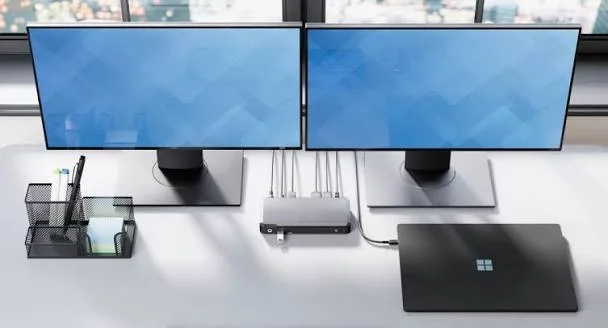
Working on a laptop does not mean you must limit yourself to one screen. Connecting two external monitors can give you a larger workspace, make multitasking easier, and help you work more comfortably. You can keep a spreadsheet open on one display, write a report on another, and use your laptop screen for email or communication. For professionals who work with several applications, this arrangement can save time and reduce the constant switching between windows.
However, connecting two monitors to a laptop is not always as simple as plugging in two HDMI cables. Some laptops have only one video output. Others support USB-C connections that can carry video, while certain USB-C ports support charging and data but cannot send a display signal. Your laptop’s graphics hardware, available ports, operating system, monitor specifications, and the type of adapter or docking station you choose all affect the result.
This guide explains how to connect two monitors to a laptop using HDMI, USB-C, DisplayPort, docking stations, and other available options. It also covers how to configure Windows to extend your desktop, how to identify compatible ports, what to consider before buying accessories, and how to troubleshoot common display problems.
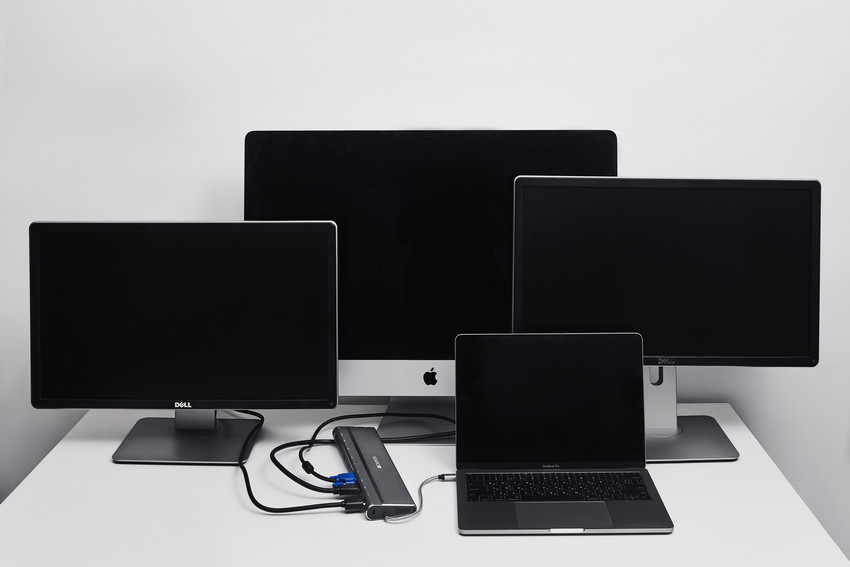
1. Why Connect Two Monitors to a Laptop?
A second external monitor gives you more room to organise your work. A third display, including your laptop’s built-in screen, can provide an even larger workspace. The benefit is not limited to people who work in technology or design. Students, business owners, accountants, researchers, teachers, content creators, and remote workers can all benefit from a multi-monitor arrangement.
Improve productivity
Switching repeatedly between applications can interrupt concentration. With two monitors, you can keep related applications visible at the same time. For example, you could write a document on one screen while reading research materials on the other.
An accountant may keep an Excel workbook open on one monitor and accounting software on another. A web developer can view a website in a browser while editing code on a separate display. A business owner can monitor orders, customer messages, and inventory without constantly minimising windows.
Make online learning easier
Students taking online classes can display a video lesson on one monitor while taking notes on another. They can also keep reference materials visible while completing assignments. This arrangement is particularly useful when a course requires several applications or browser tabs.
Support professional work
Graphic designers, video editors, programmers, financial professionals, and researchers often use multiple windows throughout the day. Two external monitors can make it easier to compare information, inspect projects, and organise different stages of a task.
Reduce unnecessary window switching
Although a multi-monitor setup does not automatically make someone more productive, it can reduce the time spent moving between windows. The improvement is most noticeable when your work regularly involves comparing documents, monitoring information, or using two applications simultaneously.
2. Check Whether Your Laptop Supports Two External Monitors
Before buying a second monitor or docking station, confirm that your laptop can support the display arrangement you want. Having two physical video connectors does not always mean the computer can operate two independent external displays. Similarly, a USB-C port does not automatically support video output.

Check the laptop’s specifications
Find your laptop’s exact model number and look up its official specifications on the manufacturer’s website. Search for information about external display support, maximum supported displays, graphics capabilities, and available video outputs.
Pay attention to the following details:
- Maximum external displays: The number of independent monitors the laptop can support.
- HDMI version: The capabilities of the laptop’s HDMI output.
- USB-C DisplayPort Alt Mode: Whether a USB-C port can transmit video.
- Thunderbolt support: Whether the laptop has Thunderbolt connectivity and which display configurations it supports.
- Graphics hardware: The integrated or dedicated graphics processor and its display limitations.
- Resolution and refresh rate: The resolutions and refresh rates supported when multiple displays are connected.
Do not assume that a laptop supports two monitors simply because its processor is powerful. Display support depends on the complete system, including the graphics processor, display connections, firmware, and manufacturer configuration.
Identify your laptop model in Windows
You can find basic system information without opening your laptop.
- Press the Windows key and R together.
- Type msinfo32.
- Press Enter.
- Look for System Manufacturer and System Model.
- Use the model information to find the manufacturer’s specifications.
You can also open Settings, select System, and choose About. This page displays basic information about your Windows installation and device.
Check your graphics hardware
Windows can show the graphics hardware installed in your laptop.
- Right-click the Start button.
- Select Device Manager.
- Expand Display adapters.
- Check the graphics device listed.
Some laptops use integrated graphics, while others combine integrated graphics with a dedicated graphics processor. The presence of dedicated graphics does not guarantee unlimited external display support. Check the manufacturer’s documentation for the exact configuration.
3. Understand the Display Ports on Your Laptop
The ports available on your laptop determine which connection methods you can use. Before purchasing cables or adapters, identify the connectors on both your laptop and your monitors.
HDMI
HDMI is one of the most common video connections. Many laptops and external monitors include an HDMI port. It carries digital video and audio through a single cable, making it convenient for connecting a computer to a monitor or television.
If your laptop has an HDMI port and your monitor also has HDMI, you can normally connect them directly with a suitable HDMI cable.
However, one HDMI port does not automatically support two independent monitors through a simple splitter. A basic HDMI splitter generally duplicates the same image across multiple displays rather than creating separate extended desktops.
HDMI versions and hardware capabilities also affect the available resolution and refresh rate. A cable labelled HDMI does not guarantee that every combination of laptop and monitor will support 4K at a high refresh rate.
USB-C
USB-C is a connector shape used by many modern laptops. It can support data transfer, charging, video output, or several of these functions depending on the device.
The important distinction is that not every USB-C port supports video. Some USB-C ports only handle data and charging. Others support DisplayPort Alt Mode, which allows compatible adapters and monitors to receive video through the port.
Look for a DisplayPort symbol, Thunderbolt symbol, or relevant video-support information in the laptop’s specifications. The symbols and capabilities vary between manufacturers, so the official documentation is the most reliable reference.
Thunderbolt
Thunderbolt is a connectivity technology available on selected laptops. It uses a USB-C-shaped connector on many modern devices and can support high-speed data, video, and docking solutions.
A compatible Thunderbolt docking station can provide connections for multiple monitors, USB accessories, wired networking, and other peripherals. However, the number of supported displays and their maximum resolutions depend on the laptop, Thunderbolt implementation, dock, and monitor arrangement.
DisplayPort
DisplayPort is another digital video connection commonly found on monitors, desktop computers, docking stations, and some laptops. It supports high-resolution displays and can be useful for multi-monitor configurations.
Some DisplayPort devices support Multi-Stream Transport, commonly called MST. MST allows compatible equipment to distribute multiple independent display streams through a supported DisplayPort connection. The laptop, graphics hardware, operating system, and connected equipment must all support the intended arrangement.
VGA and older connections
Some older laptops and monitors use VGA. It carries analogue video and is less suitable for modern high-resolution displays than HDMI or DisplayPort. You may need an active converter when connecting an older VGA monitor to a modern digital output.
Before purchasing a converter, confirm that it supports the direction of conversion you need. A passive cable with two different connector shapes does not necessarily convert one video signal into another.
4. Method One: Connect Two Monitors Using Separate Video Ports
The simplest arrangement is to use two independent video outputs on your laptop. For example, a laptop with HDMI and a USB-C port that supports DisplayPort Alt Mode may be able to connect one monitor through HDMI and another through USB-C.
This method can avoid the need for a docking station, although you may still need an adapter for one of the connections.
What you need
- A laptop that supports two external displays.
- Two compatible external monitors.
- An HDMI cable or another suitable display cable.
- A USB-C-to-HDMI or USB-C-to-DisplayPort adapter, if required.
- Power cables for both monitors.
How to connect the monitors
- Turn on your laptop and both external monitors.
- Connect the first monitor to the laptop’s HDMI port.
- Connect the second monitor to a compatible USB-C video port using the correct adapter or cable.
- Select the correct input source on each monitor. For example, choose HDMI or DisplayPort.
- Wait for Windows to detect the displays.
- Press Windows + P and choose Extend.
- Open Display settings to arrange the monitors.
If the laptop supports this combination, Windows should show the built-in display and both external monitors. You can then move applications between the screens.
If the second monitor does not appear, do not immediately assume the cable is faulty. Check whether the USB-C port supports video output and whether the laptop supports two external displays simultaneously.
5. Method Two: Connect Two Monitors Through a USB-C Docking Station
A USB-C docking station can simplify a multi-monitor workspace. Instead of connecting several accessories individually, you connect the dock to the laptop through one compatible USB-C cable. The dock then provides additional ports for monitors, keyboards, mice, external storage, wired networking, and other devices.
This can be useful for people who regularly work from a desk but still need to carry their laptop around.
What a USB-C docking station provides
Depending on the model, a docking station may include:
- Two or more HDMI or DisplayPort outputs.
- USB-A ports for keyboards, mice, and storage devices.
- USB-C data connections.
- Ethernet for wired internet access.
- Audio connections.
- Power delivery to charge a compatible laptop.
- Memory card readers.
Not every dock includes all these features. Some inexpensive USB-C hubs have only one video output, while others provide two connectors that may share the same display signal. Read the specifications carefully.
How to connect two monitors using a USB-C dock
- Confirm that your laptop’s USB-C port supports the dock’s required video technology.
- Check the dock’s compatibility with your laptop and operating system.
- Connect the dock to its power adapter if the manufacturer requires one.
- Connect the first monitor to one of the dock’s video outputs.
- Connect the second monitor to another supported video output.
- Connect the dock to your laptop using its supplied cable.
- Turn on both monitors and select their correct input sources.
- Open Windows Display settings and select Extend these displays.
Some docks can charge the laptop through the same USB-C cable. Check the dock’s power-delivery rating and your laptop’s charging requirements before relying on this feature.
Understand the difference between a USB-C hub and a docking station
The terms USB-C hub and docking station are sometimes used interchangeably, but products can differ significantly.
A basic hub may offer a few USB ports, an HDMI connection, and a memory card reader. A more advanced docking station may provide several display outputs, higher power delivery, wired networking, and additional connectivity.
Do not purchase a product simply because its packaging advertises dual HDMI. Confirm whether both HDMI outputs support independent extended displays on your laptop. Some products duplicate one display signal across both connectors.
6. Method Three: Use a Thunderbolt Dock
If your laptop supports Thunderbolt, a compatible Thunderbolt dock may provide a convenient way to connect multiple monitors and other accessories.
Thunderbolt docks can offer high-bandwidth connections, but compatibility still matters. A Thunderbolt dock is not automatically suitable for every laptop with a USB-C port. A USB-C connector alone does not prove that the laptop supports Thunderbolt.
When a Thunderbolt dock makes sense
Consider a Thunderbolt dock if you:
- Regularly use two or more external monitors.
- Need several high-speed USB connections.
- Use external storage devices frequently.
- Want wired Ethernet at your workstation.
- Prefer connecting most desk accessories through one cable.
- Have a laptop with confirmed Thunderbolt support.
Check display limitations before buying
Two Thunderbolt video outputs do not guarantee that every dock can run two monitors at the maximum resolution and refresh rate you want. Some configurations depend on the Thunderbolt generation, graphics hardware, display technology, and whether the monitors use DisplayPort or HDMI.
Read the manufacturer’s supported display combinations. For example, a dock may support two monitors at a particular resolution but use a lower refresh rate when both displays are active.
7. Method Four: Use DisplayPort MST
DisplayPort Multi-Stream Transport allows a compatible source to send multiple independent display streams through a supported DisplayPort connection. This can make it possible to connect two monitors through one DisplayPort output using a compatible MST hub or a supported daisy-chain arrangement.
What is DisplayPort daisy chaining?
Daisy chaining connects one monitor to the computer and then connects a second compatible monitor to the first monitor. The first monitor passes the additional display signal to the next one.
This arrangement requires compatible DisplayPort MST support. The first monitor generally needs a DisplayPort output that supports the required pass-through function. A monitor with only an ordinary DisplayPort input may not support daisy chaining.
How to set up DisplayPort MST
- Confirm that your laptop’s DisplayPort output supports MST.
- Check that the first monitor supports DisplayPort MST and has the required output connection.
- Connect the laptop to the first monitor using a suitable DisplayPort cable.
- Connect the first monitor to the second monitor using another DisplayPort cable.
- Open the first monitor’s menu and enable MST if the feature is available.
- Open Windows Display settings.
- Choose Extend these displays and arrange the monitors.
Available resolutions and refresh rates may be shared across the connected displays. The total bandwidth of the connection limits what the system can deliver.
8. Method Five: Use a DisplayLink Dock or Adapter
DisplayLink is a technology used by certain docking stations and adapters to provide additional display connections through USB. It can be useful when a laptop’s native video outputs are limited, provided the computer and accessory support the intended configuration.
Unlike a basic HDMI splitter, a DisplayLink product can provide independent extended displays. However, it works differently from a direct HDMI or DisplayPort connection and usually requires a compatible software driver.
How DisplayLink works
DisplayLink uses software and USB data transmission to deliver display information to compatible hardware. The system processes the display content and sends it through the USB connection to the adapter or dock.
This approach can help users add screens to certain laptops, but it may introduce additional processing overhead. Performance can vary depending on the laptop, USB connection, driver, display resolution, and type of work.
How to set up a DisplayLink adapter
- Confirm that the adapter or docking station supports your laptop and Windows version.
- Download the appropriate DisplayLink software from the official DisplayLink website or follow the manufacturer’s installation instructions.
- Install the software and restart the laptop if requested.
- Connect the DisplayLink adapter or dock to the laptop.
- Connect both monitors to the dock’s supported video outputs.
- Allow Windows to detect the displays.
- Open Display settings and select Extend these displays.
DisplayLink is not the same as native USB-C DisplayPort Alt Mode. Before buying a DisplayLink dock, confirm that the software supports your operating system and that the product meets your requirements.
9. Why an HDMI Splitter Usually Does Not Give You Two Extended Monitors
One common mistake is purchasing an HDMI splitter when the goal is to use two independent external monitors. A standard HDMI splitter takes one video signal and sends the same image to multiple displays.
For example, if you connect a laptop to a two-output HDMI splitter, both monitors may display the same desktop. Moving a window on one monitor will not create a separate workspace on the other.
This is called mirroring or duplication.
When an HDMI splitter is useful
An HDMI splitter can be useful when you want the same image on two screens. For example, a business may use one computer to display the same presentation on two televisions.
What to buy for independent displays
If you want different applications on each monitor, look for a compatible dual-monitor docking station, USB-C video adapter, Thunderbolt dock, DisplayPort MST solution, or DisplayLink product.
Always check the manufacturer’s description to confirm that the device supports extended desktop mode rather than only mirrored output.
10. Configure Two External Monitors in Windows 11
After connecting the monitors, you need to configure Windows so that each display works the way you want.
Open Display settings
- Right-click an empty area of the Windows desktop.
- Select Display settings.
- Look for the display arrangement diagram near the top of the page.
- Select Identify to show a number on each detected screen.
- Check which number corresponds to your laptop display and external monitors.
Windows may identify the laptop screen as Display 1 and the external monitors as Display 2 and Display 3. Your numbering may be different.
Select Extend these displays
Windows offers several display modes. Press Windows + P to open the projection menu.
- PC screen only: Uses the laptop’s built-in display only.
- Duplicate: Shows the same image on the selected displays.
- Extend: Creates one larger desktop across multiple screens.
- Second screen only: Uses the external display or displays while turning off the laptop’s built-in screen where supported.
For a two-monitor workstation where you want separate applications on each screen, choose Extend.
Arrange the monitors correctly
The display arrangement in Windows should match the physical position of your monitors. If the second monitor is physically on your right, drag its display rectangle to the right of the main screen in Display settings.
When the arrangement matches your desk, your mouse pointer can move naturally between displays. If the rectangles are arranged incorrectly, the pointer may appear to move in an unexpected direction.
Choose your main display
You can select which screen Windows treats as the primary display. The primary screen is generally where the main taskbar and certain new windows appear, depending on your Windows configuration.
- Open Settings.
- Select System.
- Choose Display.
- Select the monitor you want to use as your main display.
- Find the option labelled Make this my main display.
- Enable it if available.
Adjust resolution
Each monitor may have a different native resolution. Select a monitor in Display settings and find Display resolution. Choose the recommended setting where possible.
Using a lower resolution than the monitor’s native resolution may make text and images look less sharp. Using an unsupported resolution may result in a blank screen or display problems.
Adjust refresh rate
Refresh rate determines how many times per second a display updates its image. A 60Hz monitor refreshes 60 times per second, while a 120Hz monitor refreshes 120 times per second.
To check the available refresh rates:
- Open Settings.
- Select System, then Display.
- Choose Advanced display.
- Select the monitor you want to configure.
- Check the available refresh rate options.
The available options depend on the monitor, cable, adapter, dock, and laptop graphics hardware. Connecting two monitors may reduce the maximum refresh rate available in certain configurations.
11. How to Arrange Your Laptop and Two Monitors for Comfortable Work
A three-screen workspace can be useful, but poor placement can create discomfort. Think about how frequently you use each display and arrange the screens accordingly.
Place your main monitor directly in front of you
If you spend most of your time working on one external monitor, position it directly in front of your chair. Keep the second monitor beside it at a comfortable viewing angle.
Keep the top of the screen near eye level
Use a monitor stand or adjustable arm where necessary. Avoid placing a monitor so low that you must constantly bend your neck to read it.
Choose a sensible display arrangement
You could use the first monitor for your main work, the second for research or communication, and the laptop screen for less frequently used applications. Alternatively, you can close the laptop lid and use only the two external monitors if your laptop supports that arrangement.
Check laptop ventilation
When using external monitors, keep the laptop on a stable surface that allows proper airflow. Avoid covering ventilation openings or placing the device on a bed, cushion, or thick fabric.
For more information about protecting a laptop from overheating, see why you should never put your laptop on a bed or rug.
12. Choosing the Right Monitors for Your Laptop
You do not need two identical monitors to create a multi-screen workspace. However, choosing displays with suitable sizes, resolutions, and connections can make the setup easier to use.
Screen size
Common monitor sizes include 22-inch, 24-inch, 27-inch, and larger displays. A 24-inch monitor can provide a comfortable workspace for everyday office tasks, while a 27-inch monitor may offer more room for detailed work.
Consider the space available on your desk before purchasing two large displays. Also think about the distance between your chair and the screens.
Resolution
Full HD, also known as 1920 × 1080, is common on affordable monitors. Quad HD offers 2560 × 1440 pixels, while 4K provides 3840 × 2160 pixels.
Higher resolution can provide more workspace and sharper details, but it also requires compatible hardware and connections. Check whether your laptop can operate both monitors at the resolutions and refresh rates you want.
Refresh rate
For everyday office work, browsing, documents, and spreadsheets, a 60Hz display may be sufficient. Higher refresh rates can make movement appear smoother and may benefit gaming or other specialised work.
Do not pay extra for high refresh rates without checking whether your laptop and docking equipment can support them across both monitors.
Panel type
IPS panels generally offer wide viewing angles and consistent colours. VA panels often provide strong contrast, while OLED monitors can deliver deep blacks and vivid images in supported products.
Your choice should depend on the type of work you perform, your budget, and the display characteristics that matter most.
Read our guide to IPS, OLED, TN, Mini-LED, touchscreen, and matte display technologies for a broader explanation of screen types.
13. Common Problems When Connecting Two Monitors
Even a correctly connected setup may experience problems. A monitor may remain blank, Windows may detect only one external screen, the resolution may look incorrect, or the displays may keep disconnecting. The following checks can help you identify the cause.
Problem 1: Windows detects only one external monitor
If you connect two monitors but Windows recognises only one, check the laptop’s display limitations first.
Try these steps:
- Open Settings and select System, then Display.
- Click Detect if the option is available.
- Disconnect and reconnect the second monitor.
- Try another compatible cable.
- Test the monitor with another computer if possible.
- Check whether the dock supports two independent displays.
- Confirm that your laptop supports two external monitors simultaneously.
If the second screen connects through USB-C, confirm that the port supports video. A USB-C port that only supports charging and data cannot send a native display signal through a basic USB-C-to-HDMI adapter.
Problem 2: Both monitors show the same image
This usually means that Windows is duplicating the display or the hardware is distributing one signal to both monitors.
Press Windows + P and select Extend. If both screens still show the same image, inspect the adapter or splitter. A basic HDMI splitter cannot create two independent desktops.
You may need a different docking station, a compatible MST hub, or a DisplayLink device.
Problem 3: One monitor displays No Signal
The monitor may not be receiving a video signal from the laptop.
Check the following:
- Confirm that the monitor is switched on.
- Select the correct HDMI or DisplayPort input.
- Reconnect both ends of the cable.
- Try another cable or supported video port.
- Restart the laptop with the monitors connected.
- Check whether the adapter requires additional power.
If the monitor works with another computer, the problem may be related to the laptop’s output, its adapter, or its display configuration.
Problem 4: The second monitor keeps disconnecting
Intermittent disconnections may result from a loose cable, damaged connector, insufficient dock power, driver issues, or a compatibility problem.
Try a shorter or higher-quality cable that meets the required specification. If you use a docking station, check whether its power adapter is connected correctly. Also confirm that the dock’s firmware and required drivers are up to date.
Problem 5: The display looks blurry
Blurry text can result from using a non-native resolution, incorrect scaling, or a poor-quality connection.
Select the affected monitor in Windows Display settings and choose its recommended resolution. You can also adjust the scaling percentage to make text and applications easier to read.
When using two monitors with different resolutions and screen sizes, Windows may recommend different scaling settings for each one.
Problem 6: The monitor works at a lower refresh rate
A monitor advertised as 144Hz or 165Hz may operate at 60Hz when connected through a particular adapter or docking station. This can happen when the cable, port, graphics hardware, or dock does not support the required bandwidth.
Check the specifications of every part of the connection. The monitor’s maximum refresh rate is not necessarily the refresh rate your laptop can deliver through every available port.
Problem 7: The laptop becomes slower when two monitors are connected
Multiple displays can increase graphics workload, especially when running demanding applications, playing games, editing high-resolution video, or using several animated applications simultaneously.
Check Task Manager to see whether CPU, memory, or GPU usage is unusually high. Close unnecessary applications and confirm that your laptop meets the requirements of your workload.
For a better understanding of your computer’s performance, read our guide to using Windows Task Manager to check CPU, RAM, startup applications, and laptop problems.
14. Can You Use Two Monitors With an Older Laptop?
Yes, some older laptops can support two external monitors, but the available options depend on their hardware and ports. An older business laptop may have HDMI, DisplayPort, VGA, or a proprietary docking connector.
Some models support two external displays through a compatible docking station, while others have stricter limitations.
Before buying a dock for an older laptop, check its exact model specifications. Do not assume that an adapter advertised for a newer laptop will work with an older system.
Consider a compatible USB display adapter
Some older laptops can use a USB graphics adapter or DisplayLink docking station to add an additional display. This can be a practical option when the native graphics outputs are limited.
However, USB display solutions may not perform as well as direct video connections for gaming, fast-moving graphics, or demanding professional applications. They are often more appropriate for documents, spreadsheets, dashboards, and general office work.
Check the laptop’s overall condition
If your laptop is several years old, consider its processor, RAM, storage, cooling system, and battery condition before investing in multiple monitors. A multi-monitor setup cannot compensate for a computer that struggles with basic applications.
If you are considering a replacement, our complete checklist for buying a UK-used laptop in Nigeria explains what to inspect before making a purchase.
15. What to Consider Before Buying a Docking Station in Nigeria
Docking stations and adapters are available in different price categories. The cheapest option is not always the most suitable, particularly when you need two independent monitors.
Confirm compatibility
Start with the exact model of your laptop. Check whether the dock supports your laptop’s USB-C, Thunderbolt, or DisplayPort technology.
Confirm independent dual-display support
Read the technical specifications carefully. Look for wording that confirms support for two extended displays on your operating system and laptop platform. Do not rely only on product photographs showing two HDMI ports.
Check resolution and refresh rate
If you intend to use two Full HD monitors, confirm that the dock supports both at your preferred refresh rate. If you want two 4K monitors, check the exact supported combinations rather than relying on a general 4K label.
Consider power delivery
A dock with power delivery may charge your laptop while connected. Check its output rating against your laptop’s requirements. A dock that provides insufficient power may not charge the laptop effectively under heavy use.
Buy from a reliable seller
Purchase accessories from a seller who can provide clear specifications, warranty information, and support if the device does not work with your laptop. Avoid buying an expensive dock based only on a vague product description.
Think about future use
If you plan to add a wired network connection, external storage, keyboard, mouse, or other devices later, choose a dock with enough suitable ports. A well-selected docking station can remain useful even when you replace your laptop.
16. Recommended Two-Monitor Setups for Different Users
The best arrangement depends on your daily tasks. You do not need an expensive workstation to benefit from two external monitors.
For students
A student can use one monitor for online lectures, research, or learning platforms and the other for notes, assignments, and reference materials. A pair of Full HD monitors may be sufficient for general academic work.
Students who are buying a laptop for education should also consider memory, battery life, storage, and portability. Our guide to the best laptops for online classes in Lagos discusses important buying considerations.
For accountants and office workers
An accountant may use one display for spreadsheets and another for accounting software, invoices, bank statements, or customer records. A reliable USB-C or Thunderbolt dock can help keep the desk organised.
For programmers and web developers
A developer may place the code editor on one monitor, the browser preview on another, and use the laptop screen for documentation or communication. This arrangement can make testing and debugging more convenient.
For graphic designers
A designer may use one monitor for the main design application and another for reference images, project folders, or communication. Colour accuracy and resolution may matter more than simply having the largest possible screens.
For business owners
A business owner can monitor sales, customer messages, inventory, orders, and financial records across multiple displays. The arrangement can be particularly helpful when managing an online store or coordinating several business activities.
17. Useful Windows Shortcuts for a Multi-Monitor Setup
Once your displays are connected, a few Windows keyboard shortcuts can make daily use easier.
- Windows + P: Open the display projection menu.
- Windows + Shift + Left Arrow: Move the active window to the monitor on the left.
- Windows + Shift + Right Arrow: Move the active window to the monitor on the right.
- Windows + Left Arrow: Snap the active window to the left side.
- Windows + Right Arrow: Snap the active window to the right side.
- Windows + Tab: Open Task View.
- Alt + Tab: Switch between open applications.
These shortcuts can reduce the time spent dragging windows between screens and organising your workspace.
18. Frequently Asked Questions
Can I connect two monitors to a laptop with only one HDMI port?
Yes, in some cases. You may be able to use a compatible USB-C video output, Thunderbolt dock, DisplayPort MST solution, or DisplayLink docking station. The correct method depends on your laptop’s hardware and display support. A basic HDMI splitter generally duplicates the image instead of creating two independent displays.
Can I use my laptop screen and two external monitors at the same time?
Yes, if your laptop supports the required number of displays. Some laptops can operate their built-in screen and two external monitors simultaneously, while others have lower limits. Check the manufacturer’s specifications.
Do both external monitors need to be the same size?
No. You can use monitors with different sizes, resolutions, and refresh rates. Windows allows you to configure each display separately, although matching monitors may provide a more consistent viewing experience.
Can I connect two monitors using one USB-C port?
Yes, if the laptop and the selected dock or adapter support the required display technology. Possible solutions include a compatible Thunderbolt dock, USB-C DisplayPort MST hub, or DisplayLink docking station. Not every USB-C port supports video, so check the laptop specifications first.
Will two external monitors drain my laptop battery faster?
They can increase power consumption, particularly when the laptop is driving several high-resolution displays. External monitors also use their own power supplies. If you regularly use a desk-based multi-monitor setup, keeping the laptop connected to an appropriate power adapter may be more convenient.
Can I connect two monitors without a docking station?
Yes. If your laptop has two suitable independent video outputs, you can connect each monitor directly. You may also use compatible adapters, depending on the ports available.
Why does my laptop show the same image on both monitors?
Windows may be set to Duplicate mode, or the adapter may be an HDMI splitter that distributes one signal to both screens. Choose Extend in Windows + P. If the displays remain duplicated, check whether your hardware supports independent extended displays.
Can I use a television as one of my external monitors?
Yes. A television with a compatible HDMI input can usually work as an external display. Connect it using an appropriate cable, select the correct HDMI input, and configure it through Windows Display settings. The television’s resolution, refresh rate, and input settings may affect the experience.
Does connecting two monitors make a laptop faster?
No. Additional monitors do not increase the processor speed, RAM, or storage performance of a laptop. They provide more screen space and can improve workflow, but demanding applications still depend on the laptop’s hardware.
Can I close my laptop lid while using two monitors?
Yes, if your laptop supports the arrangement and Windows power settings are configured appropriately. Check what happens when you close the lid under Power Options. Ensure the laptop has adequate ventilation when operating with the lid closed.
Do I need two HDMI ports to connect two monitors?
No. You can use different supported connections, such as HDMI and DisplayPort, or connect both displays through a compatible docking station. The laptop must support the intended number of independent displays.
Can an ordinary USB-to-HDMI adapter connect a second monitor?
Some USB display adapters can add another monitor, but they may use DisplayLink or another specific technology and require drivers. Check the product’s specifications and compatibility before purchasing.
Conclusion: Build a Two-Monitor Workspace That Works With Your Laptop
Connecting two monitors to a laptop can make everyday work more organised and comfortable. You can use separate displays for documents, spreadsheets, research, programming, design, online learning, and business management. The right setup can reduce unnecessary window switching and give you more room to work.
The most important step is checking your laptop’s display capabilities before purchasing cables or accessories. Identify the available ports, confirm the maximum number of supported external displays, and determine whether USB-C or Thunderbolt connections support video output.
If your laptop has two suitable video outputs, direct connections may be all you need. If it has limited ports, a compatible USB-C dock, Thunderbolt dock, DisplayPort MST hub, or DisplayLink adapter may provide another option. Remember that an ordinary HDMI splitter generally mirrors one image rather than creating two independent desktops.
At PSERO LAPTOP, we believe that choosing the right computer involves understanding how you intend to use it. Whether you need a laptop for office work, school, programming, design, or business operations, make sure its ports, graphics capabilities, memory, and overall specifications match your requirements.
If you are planning to buy a laptop in Nigeria, explore the available options at PSERO LAPTOP. We offer laptop options for different needs and budgets, with delivery available nationwide. You can also contact our team for assistance in choosing a laptop that fits your work requirements.
Useful External Resources
- Microsoft Windows Support – Official Windows help and troubleshooting information.
- VESA DisplayPort – Information about DisplayPort technology and standards.
- Thunderbolt Technology – Information about Thunderbolt connectivity.
- Synaptics DisplayLink – Official information about DisplayLink technology.
About PSERO LAPTOP: PSERO LAPTOP provides laptop sales and technology guidance for individuals, students, professionals, and businesses in Nigeria. Visit psero.com to explore available laptops and learn more about choosing the right computer for your needs.