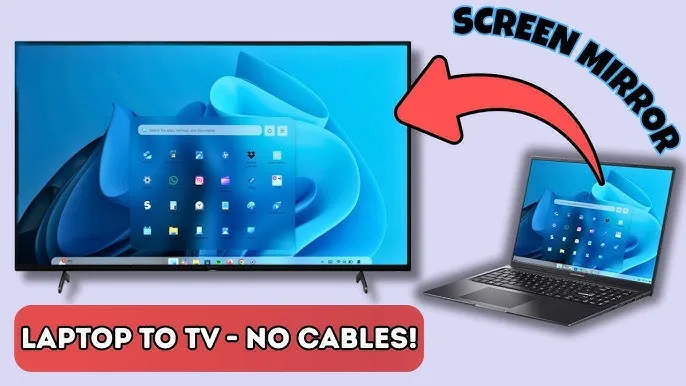
Fortunately, connecting a laptop to a Smart TV is easier than many people think.
Whether you are:
- A student giving a class presentation
- A business owner hosting a meeting
- A church media operator
- A teacher running lessons
- A remote worker attending Zoom meetings
Knowing how to connect your laptop to a Smart TV can improve productivity significantly.
Therefore, this guide explains the different connection methods, common problems Nigerians face, and the best laptops for smooth display performance.
Why Many Nigerians Prefer Smart TVs for Presentations
Traditional projectors are still useful, but Smart TVs now offer several advantages.
Benefits include:
- Sharper image quality
- Better brightness in daylight
- Lower maintenance costs
- Simpler setup process
As a result, Smart TVs have become popular in offices, schools, churches, and homes.
Different Ways to Connect a Laptop to a Smart TV
There are several methods available depending on your laptop and TV specifications.
The most common options include:
- HDMI cable connection
- Wireless screen casting
- USB-C display output
- Streaming devices
Therefore, choosing the best method depends on your setup and hardware compatibility.
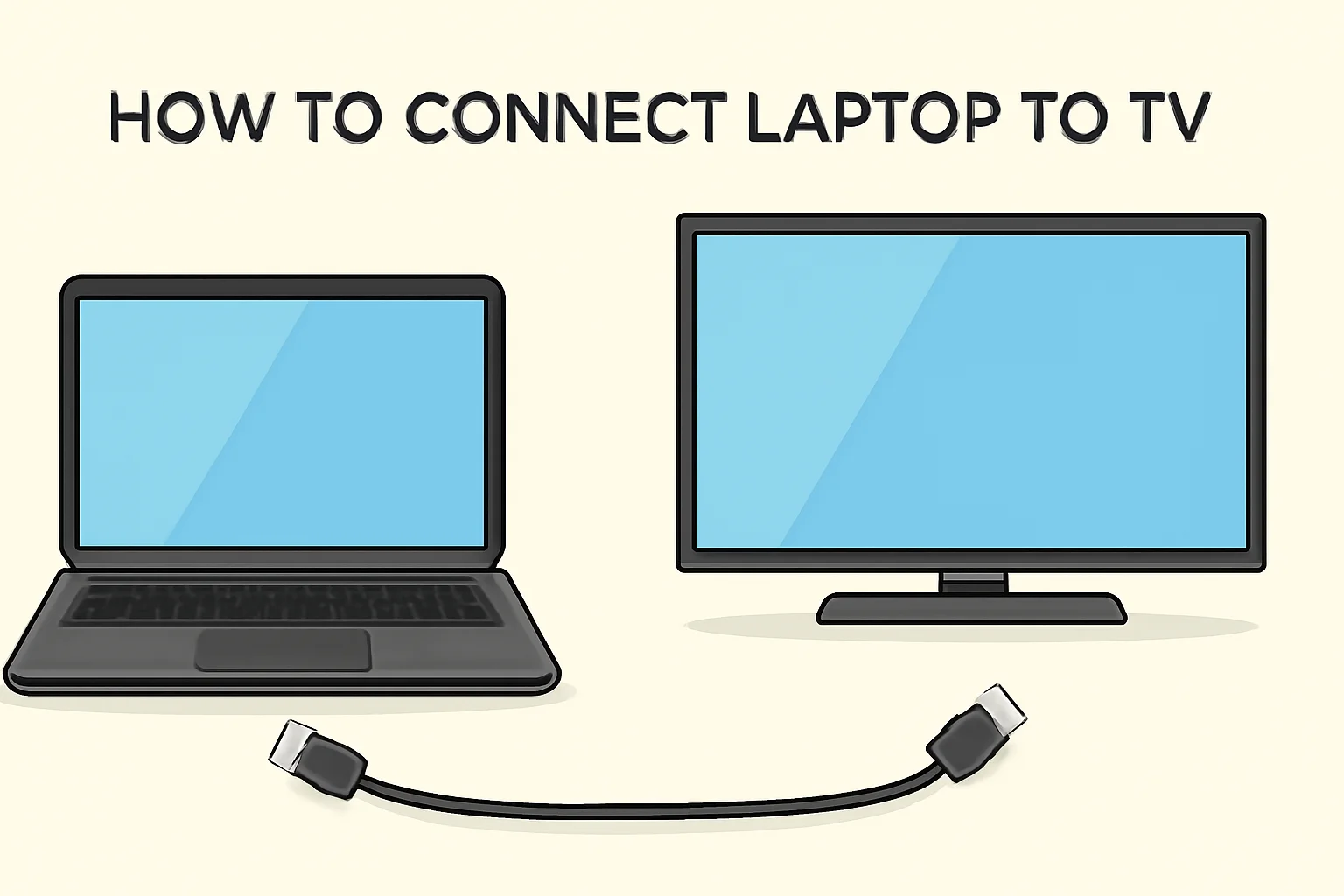
Method 1: Connecting With an HDMI Cable
This is the easiest and most reliable method for most Nigerians.
An HDMI cable transfers both:
- Video
- Audio
As a result, you only need one cable for the entire setup.
How to Connect Using HDMI
- Turn on the Smart TV
- Connect the HDMI cable to your laptop
- Connect the other end to the TV
- Select the correct HDMI input on the TV
After a few seconds, your laptop screen should appear on the TV automatically.
Method 2: Wireless Screen Casting
Many modern Smart TVs support wireless display technology.
This allows you to connect without cables.
Popular wireless options include:
- Miracast
- Chromecast
- Wireless display support
As a result, presentations become cleaner and more flexible.
You can also learn more about wireless display support from Microsoft:
https://support.microsoft.com/windows
How to Connect Wirelessly on Windows
- Press Windows + K
- Select your Smart TV
- Allow connection on the TV
Once connected, your laptop display appears wirelessly on the television.
Method 3: USB-C to HDMI Connection
Many modern slim laptops now use USB-C ports instead of traditional HDMI ports.
Therefore, users may need a USB-C to HDMI adapter.
This method is common on:
- Ultrabooks
- Modern business laptops
- Thin premium laptops
As a result, USB-C hubs and adapters are becoming increasingly popular in Nigeria.
Best Laptop Specifications for Presentations
Although most laptops can connect to Smart TVs, some systems perform much better for professional presentations.
1. SSD Storage
SSD laptops launch applications faster and reduce lag during presentations.
Benefits include:
- Faster boot speed
- Smoother multitasking
- Better overall responsiveness
Therefore, SSD-equipped systems are highly recommended.
2. Good Battery Life
Power outages are common in Nigeria.
As a result, laptops with strong battery backup provide more reliable presentations.
Recommended battery backup:
- 6 to 10 hours minimum
3. HDMI or USB-C Display Support
Display connectivity is extremely important.
Useful ports include:
- HDMI
- USB-C
- DisplayPort
As a result, connecting external displays becomes easier.
Best Business Laptops for Presentations in Nigeria
Dell Latitude 3320
The Dell Latitude 3320 is excellent for presentations because of its portability and reliable performance.
Lenovo ThinkPad L13 Gen 3
The Lenovo ThinkPad L13 Gen 3 combines strong battery life with business reliability.
HP ProBook 440 G8
The HP ProBook 440 G8 is another reliable option for meetings, presentations, and remote work.
Common Problems Nigerians Face During TV Connection
Sometimes laptops fail to connect properly.
Common problems include:
- No display signal
- No audio output
- Unsupported resolution
- Weak wireless connection
As a result, presentations may become interrupted.
How to Fix “No Signal” Problems
If your Smart TV says “No Signal,” try the following:
- Check HDMI cable connections
- Select the correct HDMI input
- Restart both devices
- Update display drivers
In many cases, these simple fixes solve the issue quickly.
Why Wireless Connections Sometimes Lag
Wireless display quality depends heavily on Wi-Fi stability.
In Nigeria, unstable internet or weak routers may cause:
- Screen delay
- Freezing
- Poor video quality
Therefore, HDMI cables usually provide more stable performance for important presentations.
Useful Accessories for Presentation Setups
Several accessories improve presentation quality significantly.
Helpful items include:
- Wireless presenters
- USB-C hubs
- Portable HDMI adapters
- Laptop stands
As a result, presentations become more professional and organized.
Should You Use a Projector or Smart TV?
Both options have advantages.
Smart TV Advantages
- Brighter image quality
- Simpler setup
- Lower maintenance
Projector Advantages
- Larger display size
- Better for large halls
- Portable for events
Therefore, the best choice depends on your environment and audience size.
How to Improve Presentation Quality
To create smoother presentations:
- Close unnecessary applications
- Use SSD-powered laptops
- Charge your laptop fully beforehand
- Test connections before meetings begin
As a result, presentations become more reliable and professional.
Final Thoughts
Connecting your laptop to a Smart TV is one of the easiest ways to improve presentations, meetings, and entertainment setups in Nigeria.
Whether you choose HDMI, wireless display, or USB-C adapters, understanding the correct setup process helps reduce connection problems and improve productivity.
In addition, choosing reliable SSD business laptops ensures smoother performance during presentations and multitasking sessions.
Looking for Reliable Business Laptops in Nigeria?
Explore trusted laptop options here:
Pay on delivery available in Lagos.
Call or WhatsApp: 08032592918