Using your laptop as a digital notepad can enhance productivity, organization, and accessibility. Whether you’re a student, professional, or creative thinker, a laptop can replace traditional paper notebooks, making it easier to take notes, organize thoughts, and collaborate.
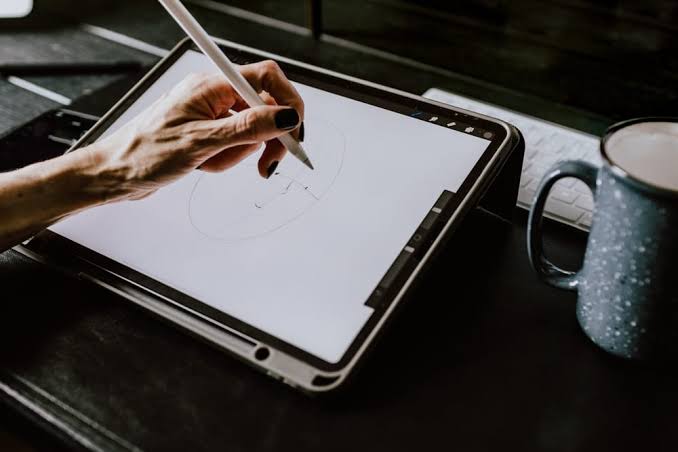
This guide will show you how to transform your laptop into a powerful digital notetaking tool using software, styluses, and organization techniques.
1. Choose the Right Notetaking Software
There are many digital notetaking apps available, each catering to different needs.
Best Notetaking Apps for Laptops
- Microsoft OneNote (Windows & Mac) – Free, powerful, and integrates with Office 365.
- Evernote (Windows & Mac) – Great for organization and syncing across devices.
- Notion (Windows & Mac) – Ideal for structured notes, databases, and collaboration.
- Google Keep (Web-based) – Simple, fast, and syncs with Google accounts.
- Apple Notes (Mac) – Best for Mac users with iCloud integration.
- Obsidian (Windows & Mac) – Perfect for connected notes and knowledge management.
Once you’ve chosen an app, install it on your laptop and sign in to sync notes across devices.
2. Use a Stylus for Handwritten Notes (Optional)
If your laptop has a touchscreen and supports a stylus, you can handwrite notes just like a physical notepad.
Best Laptops for Stylus Notetaking
- Microsoft Surface series (Surface Pen)
- Lenovo Yoga & ThinkPad X1 (Lenovo Active Pen)
- HP Spectre & Envy x360 (HP Pen)
- Dell XPS & Inspiron 2-in-1 (Dell Active Pen)
Stylus-Friendly Notetaking Apps
- Microsoft OneNote – Supports handwriting and text-to-digital conversion.
- Samsung Notes – Best for Samsung touchscreen laptops.
- MyScript Nebo – Converts handwritten notes into text.
- Concepts – Great for sketching and freehand writing.
3. Organize Your Notes Effectively
Using a digital notepad means you can organize your notes better than on paper.
Tips for Better Organization
Create Folders & Categories – Keep notes structured by subjects or projects.
Use Tags & Keywords – Makes searching for notes faster.
Add Checklists & Bullet Points – Ideal for task management.
Sync Notes Across Devices – Access your notes anytime on your phone or tablet.
Backup Your Notes – Use cloud storage like Google Drive, OneDrive, or Dropbox.
4. Enhance Your Notetaking with Advanced Features
Most digital notetaking apps offer features beyond simple text input.
Features to Boost Productivity
- Voice Notes – Record meetings or lectures while taking notes.
- Optical Character Recognition (OCR) – Scan handwritten or printed notes into digital text.
- PDF Annotation – Mark up PDFs directly in your notetaking app.
- Handwriting-to-Text Conversion – Convert handwritten notes into searchable text.
5. Sync & Access Notes from Any Device
One major advantage of using a laptop as a digital notepad is that you can access your notes anywhere.
How to Sync Notes Across Devices
- OneNote – Syncs with OneDrive and Microsoft 365.
- Evernote – Allows multi-device access with cloud storage.
- Google Keep & Docs – Available on any device with a Google account.
- Apple Notes – Syncs seamlessly across macOS and iOS via iCloud.
Conclusion
Turning your laptop into a digital notepad helps improve efficiency, keeps notes organized, and allows easy access across devices. By choosing the right notetaking app, using a stylus, and organizing your notes, you can eliminate paper clutter and enhance productivity.
For more tech guides and laptop tips, visit Psero.com.