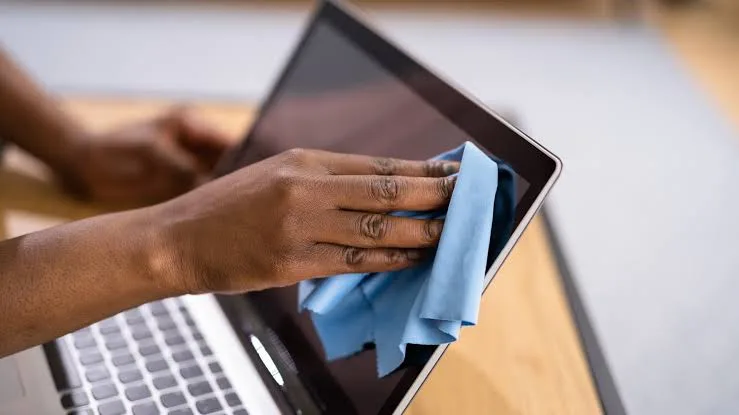
A laptop can collect dust, fingerprints, food particles and other dirt surprisingly quickly. If you use your computer every day, keeping it clean is not only about appearance. Dust around the ventilation openings can also interfere with airflow, while dirt on the keyboard and touchpad can make everyday use unpleasant.
Fortunately, you do not need to be a technician to perform basic laptop cleaning. With the right materials and a careful approach, you can clean the outside of your laptop without damaging its delicate components.
Why Should You Clean Your Laptop?
Regular cleaning helps keep the laptop looking presentable and can prevent dirt from building up in places where it may interfere with normal use.
- Removes fingerprints and dust
- Keeps the keyboard cleaner
- Helps keep ventilation openings clear
- Reduces dirt around ports
- Makes the laptop more pleasant to use
- Helps you notice physical damage earlier
What Do You Need to Clean a Laptop?
You do not need a large collection of cleaning products. A few suitable materials are normally enough.
- Microfibre cloth
- Soft brush
- Compressed air designed for electronics
- Small amount of suitable screen-cleaning solution when required
- Clean, dry cloth
Always use products intended for electronics and follow the laptop manufacturer’s cleaning recommendations.
Turn the Laptop Off Before Cleaning
Before cleaning, shut down the laptop completely and disconnect the charger and other accessories.
If the laptop has a removable battery and the manufacturer recommends removing it before cleaning, do so where appropriate.
Allow the machine to cool down before beginning, particularly if it has recently been performing demanding tasks.
How to Clean the Laptop Screen
The display deserves extra care because aggressive cleaning products or excessive pressure can damage the screen surface.
- Turn off the laptop.
- Use a clean microfibre cloth.
- Gently wipe dust from the screen.
- If necessary, use a suitable screen-cleaning solution according to its instructions.
- Never press hard against the panel.
Do not spray liquid directly onto the screen. Instead, if the cleaning product’s instructions permit it, apply a small amount to the cloth.
How to Clean the Keyboard
Turn the laptop upside down carefully and gently shake or tilt it to help loose particles fall away.
A soft brush or suitable compressed air can then help remove dust and debris from between the keys.
Avoid forcing liquid between the keys because moisture can reach the internal electronics.
How to Clean the Touchpad
Use a clean, dry microfibre cloth to wipe the touchpad. If additional cleaning is necessary, use a small amount of an appropriate cleaning solution on the cloth rather than pouring or spraying liquid onto the laptop.
How to Clean Laptop Vents
Ventilation openings allow air to move through the laptop. Dust accumulation around these areas can restrict airflow.
Use a soft brush or suitable compressed air to remove loose dust from the exterior vents.
When using compressed air, follow the product instructions and avoid forcing excessive air into sensitive openings.
Should You Open the Laptop to Remove Dust?
Opening a laptop can provide access to internal fans and heatsinks, but it is more advanced than ordinary exterior cleaning.
If you are not comfortable removing the bottom cover, it is safer to have a qualified technician perform an internal cleaning rather than accidentally damaging a cable, connector or component.
Can You Use a Vacuum Cleaner?
It is better to follow the laptop manufacturer’s recommended cleaning method rather than using a household vacuum directly on sensitive components.
Static electricity and excessive suction can present risks to electronics. If you need to remove dust internally, use equipment specifically intended for electronics and follow appropriate precautions.
Can You Use Alcohol to Clean a Laptop?
Some electronics-cleaning procedures use isopropyl alcohol, but the concentration, application method and surface being cleaned matter.
Never assume that any alcohol-based product is safe for every laptop surface. Check the manufacturer’s guidance first, particularly for the display, keyboard coatings and exterior finishes.
Things You Should Never Do
- Do not pour liquid directly onto the laptop.
- Do not clean the screen with excessive pressure.
- Do not use abrasive materials.
- Do not use household chemicals without checking compatibility.
- Do not clean the laptop while it is powered on.
- Do not force objects into ports or ventilation openings.
- Do not remove components unless you know how to reinstall them correctly.
How Often Should You Clean Your Laptop?
There is no single cleaning schedule that applies to everyone. The ideal frequency depends on where and how the laptop is used.
A laptop used every day in a dusty environment may need exterior cleaning more frequently than one used occasionally in a clean office.
For many users, checking the keyboard, screen and vents regularly is more useful than following a rigid calendar.
Laptop Cleaning in Nigeria’s Dusty Environment
Dust can become a particular concern in environments where the laptop is frequently exposed to dusty rooms, open windows or outdoor conditions.
Keeping the workspace clean can reduce the amount of dust that reaches the computer. In addition, avoid placing the laptop directly on dusty floors or soft surfaces that can block its ventilation openings.
Why You Should Not Use Your Laptop on a Bed
Soft surfaces such as beds, blankets and pillows can obstruct ventilation openings on some laptops.
Using the computer on a hard, flat surface generally provides a better environment for airflow. It also reduces the amount of fabric fibres and dust that can accumulate around the machine.
How to Clean Laptop Ports
USB, HDMI, charging and other ports can collect dust. Clean around the outside carefully with a soft brush.
Do not insert sharp objects into the ports. A damaged connector can be expensive and inconvenient to replace.
Cleaning a UK Used Laptop
If you buy a UK used laptop, cleaning it is only one part of preparing it for use.
Inspect the keyboard, screen, touchpad, ports and ventilation openings. While cleaning, look for signs of cracks, corrosion, liquid damage or unusual wear.
These checks can reveal problems that may not be obvious during a quick inspection.
When Should You Take the Laptop to a Technician?
Consider professional servicing if the laptop is overheating, making unusual fan noises, shutting down unexpectedly or showing signs of internal contamination.
Professional cleaning may also be appropriate when the internal fans and heatsinks require access and you are not comfortable opening the machine yourself.
Related PSERO Guides
- How to Fix Laptop Overheating
- Signs Your Laptop Motherboard Is Failing
- How to Test a Used Laptop Before Buying
- How to Check Laptop Ports Before Buying
- SSD vs HDD: What Laptop Buyers Should Know
Shop Laptops at PSERO
Useful Official Resources
For model-specific cleaning instructions, check the manufacturer’s support documentation. You can find product support information from HP, Dell and Lenovo.
Final Verdict
Cleaning your laptop does not have to be complicated. Regularly removing dust and fingerprints from the exterior, keeping the vents clear and treating the screen carefully can help keep your computer in better condition.
Most importantly, avoid excessive moisture, harsh chemicals and unnecessary disassembly. If the laptop requires internal cleaning or is already experiencing overheating problems, professional servicing is safer than taking unnecessary risks.