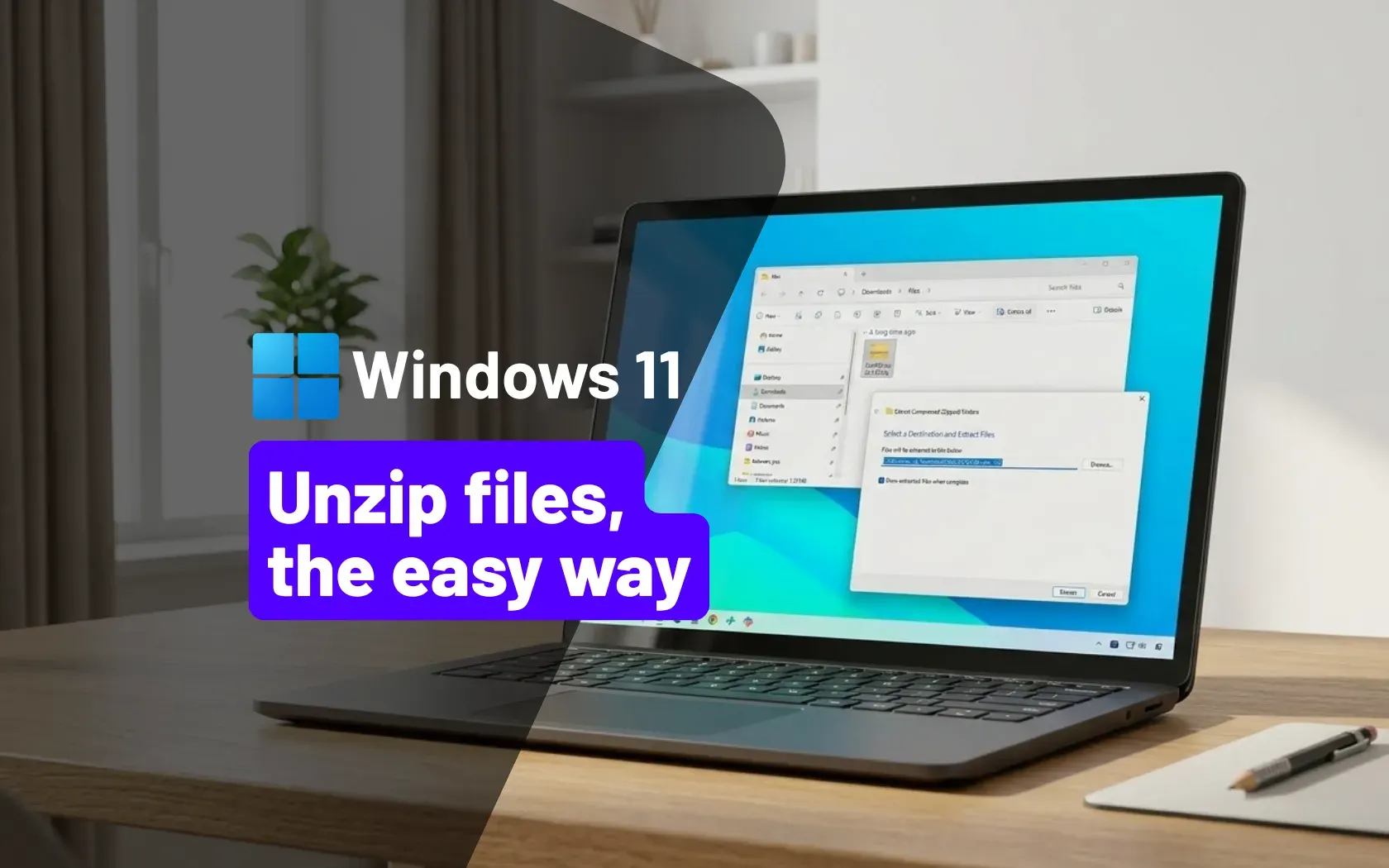
Imagine receiving a folder of school assignments, business documents, or product images compressed into a single ZIP file. You download it successfully, but Windows does not display the documents inside until you extract the archive. Alternatively, you may need to send dozens of files to a client without attaching each one separately.
Learning how to compress and extract files makes these everyday tasks easier. Windows includes built-in tools for handling ZIP archives, so you can often complete the process without installing additional software. This guide explains how to create ZIP files, extract their contents, handle password-protected archives, and troubleshoot common errors.
![[2026] How to Extract a Zip File on Windows 10 (Without WinRAR or 7-Zip)](https://i.ytimg.com/vi/j-fpAyH7I88/maxresdefault.jpg)
What Is a ZIP File?
A ZIP file packages one or more files into a single archive. It can also compress their contents to reduce the amount of storage space they occupy. Instead of sending twenty documents individually, you can combine them into one ZIP file and share it more conveniently.
However, compression does not always produce a smaller file. Documents, spreadsheets, and text files may compress well, while JPEG photographs, MP4 videos, and many existing compressed files may shrink very little.
ZIP archives also differ from ordinary folders. A normal folder contains files in their usual locations, while a ZIP archive stores packaged copies that you can extract when needed. For more information about file formats, read our guide to common laptop file extensions and what they mean.
How to Create a ZIP File in Windows 11
You do not need a separate application to create a basic ZIP archive on most Windows 11 laptops. File Explorer provides a built-in option.
- Open File Explorer by pressing Windows + E.
- Locate the files or folders you want to compress.
- Hold Ctrl while selecting multiple items, if necessary.
- Right-click your selection.
- Choose Compress to ZIP file. Depending on your Windows version and menu layout, you may need to select Show more options first.
- Enter a suitable filename and press Enter.
Windows creates the ZIP file in the selected location. You can rename it, move it to another folder, or attach it to a message when the destination service accepts ZIP files.
For example, a student can combine several assignment documents into one archive, while a small business can package invoices or product photographs for convenient transfer. Before sharing the archive, open it and confirm that it contains the correct files.
How to Extract a ZIP File
Downloading a ZIP file does not automatically place every item inside it into a normal folder. You must extract the archive to access the files in their usual form.
- Open File Explorer and locate the ZIP file.
- Right-click the archive.
- Select Extract All.
- Choose the destination folder, or keep the suggested location.
- Select Extract to begin the process.
- Open the destination folder and check the extracted contents.
You can also double-click a ZIP file to inspect its contents before extracting it. This approach helps you confirm what the archive contains without immediately unpacking everything.
When extracting files from an unfamiliar source, inspect the contents before opening any executable files or installers. A ZIP archive can contain harmful software just as an ordinary download can.
Can You Open a ZIP File Without Extracting It?
Yes. File Explorer lets you browse many ZIP archives directly. You can inspect filenames, open certain supported files, and decide which items you need to extract.
Nevertheless, some applications expect files to exist in an ordinary folder. Software installers, projects with several linked files, and certain document workflows may not function properly when you access their contents inside an archive.
If a program asks you to choose a folder during installation, extract the archive first and select the appropriate destination. Do not run unfamiliar programs merely because they appear inside a ZIP file.
How to Compress Files Before Sending Them
ZIP archives can make file sharing more organised, but they do not guarantee faster uploads. The result depends on the original files, their sizes, and the internet connection.
Before sending an archive, follow these steps:
- Remove unnecessary duplicates and temporary files.
- Give the archive a clear name that identifies its contents.
- Open the ZIP file to verify that the correct items are included.
- Check the attachment size limit of your email or file-sharing service.
- Use a trusted cloud-storage service if the archive exceeds the permitted upload size.
- Share the archive only with people who should have access to its contents.
For large transfers, a ZIP file may still be too big for email. In that situation, upload it to a trusted storage service and share the appropriate access link. Our guide to local storage, external drives, cloud storage, and backups explains the options available for keeping and transferring files.
What If a ZIP File Requires a Password?
Some archives use encryption to restrict access. When you open a password-protected ZIP file, Windows may request a password or report that it cannot extract the contents. Support for encrypted archives varies with the encryption method and the software used to create them.
If the archive came from a colleague, school, or business, ask the sender for the password and the recommended extraction method. If you created it yourself, check your password manager or the original instructions.
Windows’ built-in ZIP tools do not support every encrypted archive format. A reputable archive utility from its official website may be necessary for certain files. Never upload confidential documents to an unknown online extraction website simply to bypass a password prompt.
Also, remember that a password-protected archive does not make an unsafe download harmless. Scan suspicious files and verify their source before opening them.
Common ZIP File Errors and How to Fix Them
1. Windows Says the Archive Is Invalid
An invalid or unreadable archive may be incomplete, damaged, or stored in an unsupported format. If you downloaded the file, download it again from the original trusted source. Compare the file size with the sender’s information when possible.
If the archive came from another person, ask them to create a fresh copy and resend it. Do not assume that changing the filename will repair damaged data.
2. The ZIP File Is Empty
An archive may appear empty because the original folder contained no files, the sender selected the wrong items, or the archive was created incorrectly. Open it and inspect the contents before requesting a replacement.
If you created the archive, return to the original folder, select the intended files, and create a new ZIP file. Verify the result before sending it.
3. Windows Cannot Extract the Entire Archive
This error can occur when the destination drive lacks free space, the archive is damaged, or the extraction process encounters a filename or path limitation. Check the available storage first and try extracting the archive to a simple folder such as Documents or a newly created folder near the drive’s root.
If the error continues, download a fresh copy or use a reputable archive utility that supports the file format. Avoid deleting unrelated system files to create space.
4. The Extracted File Will Not Open
Extraction only unpacks the contents; it does not guarantee that your laptop has the software needed to open them. For instance, a PDF requires a compatible PDF reader, while a spreadsheet may need a suitable office application.
Check the file extension and identify the appropriate program before opening it. Our article on opening, editing, signing, and converting PDF files explains common PDF tasks.
5. Windows Reports That You Do Not Have Permission
A permissions error may indicate that you cannot write to the chosen destination folder. Try extracting the archive into a folder within your user profile, such as Documents or Downloads.
If the files belong to another Windows account or sit on a restricted drive, check the folder’s access permissions before changing them. Our guide to Windows file permissions and access-denied errors covers this issue in more detail.
Is It Safe to Extract ZIP Files From the Internet?
ZIP files are widely used for legitimate purposes, but their contents deserve the same caution as other downloads. An archive can contain executable programs, scripts, documents with active content, or files designed to exploit software vulnerabilities.
Use these precautions when handling unfamiliar archives:
- Download files from the original publisher or another trusted source.
- Check the filenames before opening anything inside the archive.
- Keep Windows and your security software updated.
- Scan suspicious downloads with Windows Security.
- Do not run an executable just because its filename looks familiar.
- Be wary of unexpected archives delivered through email or messaging apps.
Microsoft provides guidance through its official Windows support website. For additional security advice, the Cybersecurity and Infrastructure Security Agency’s Secure Our World resources offer practical guidance on safer digital habits.
Should You Install a Third-Party ZIP Utility?
For everyday ZIP files, Windows’ built-in tools are often sufficient. You may benefit from a reputable third-party utility when you regularly work with formats such as RAR or 7z, encrypted archives, or advanced compression options that File Explorer does not provide.
Before installing anything, confirm that the utility supports your Windows version and download it from the developer’s official website. Avoid unnecessary bundled applications and browser extensions during installation.
If you need help choosing and installing other programs, read our guide to safe laptop software installation.
Does Compressing Files Make Your Laptop Faster?
Not necessarily. Compression can reduce the storage space used by certain files and make a large collection easier to transfer. However, it does not directly improve your processor speed or increase installed RAM.
Some compressed files also require extra processing time when you extract or open them. If your laptop is consistently slow, investigate resource usage, available storage, and the applications running in the background instead of expecting ZIP compression to solve the problem.
For a practical starting point, see our guide to why laptops become slow over time and how to improve performance.
Final Thoughts
Creating and extracting ZIP files is a straightforward Windows skill that helps students, remote workers, business owners, and everyday laptop users manage documents more efficiently. File Explorer handles most basic ZIP tasks without requiring additional software.
When an archive fails to open, check its integrity, confirm that you have enough storage, and verify whether the format or encryption method requires another utility. Always inspect unfamiliar downloads before running their contents, and protect confidential files when sharing them.
At P-Sero Laptop, we help Nigerian users make better decisions about laptop software, file management, maintenance, and computer purchases. Understanding everyday tools like ZIP archives can make your laptop more useful for learning, work, and business.
“`