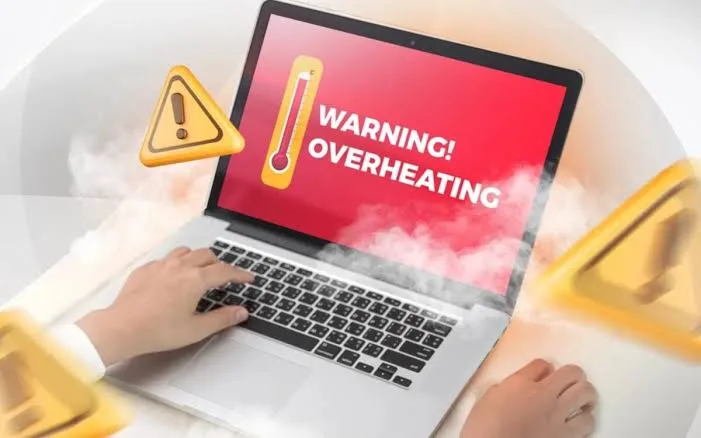
A laptop should produce some heat during normal use. The processor, graphics chip, storage drive and other internal components generate heat whenever the computer performs tasks. However, excessive heat can affect performance, reduce comfort and eventually damage internal components.
If your laptop becomes unusually hot, makes loud fan noises, slows down during everyday tasks or shuts down without warning, overheating could be the problem. These symptoms are especially important to investigate when buying a UK-used laptop because a device may look clean externally while having blocked cooling vents or an inefficient cooling system.
Understanding why laptops overheat helps users identify problems early. It also makes it easier to decide whether a simple cleaning routine will solve the issue or whether the device needs professional attention.
What Causes a Laptop to Overheat?
Most laptops use a cooling system made up of fans, heat pipes, heatsinks and ventilation openings. These components move heat away from important internal parts and release it outside the computer.
When the cooling system cannot remove heat quickly enough, internal temperatures rise. Several factors can cause this problem.

1. Dust Accumulation Inside the Laptop
Dust is one of the most common reasons laptops develop cooling problems. Over time, dust and small particles collect around the fan, heatsink and ventilation openings.
This buildup restricts airflow. Even when the fan runs continuously, it may struggle to move enough cool air through the system. As a result, the processor and other components become hotter than normal.
People who use laptops in dusty environments may experience this problem sooner. A laptop that sits on the floor, near an open window or in a poorly maintained workspace may collect dust more quickly.
Regular external cleaning helps, but internal dust removal may require a technician who understands the laptop’s design.
2. Blocked Air Vents
Laptops need enough space around their ventilation openings to release heat. Placing a laptop on a bed, pillow, blanket or soft surface can block the air intake and exhaust vents.
This problem is common among people who use their computers while lying down. The soft surface may cover openings underneath the laptop, reducing airflow.
Use a firm, flat surface such as a desk whenever possible. If your laptop has bottom ventilation openings, make sure they remain clear during use.
3. Heavy Applications and Excessive Workloads
Some applications demand more processing power than others. Video editing software, modern games, 3D applications, virtual machines and large data-processing tasks can push a laptop’s processor and graphics hardware to work harder.
When these components perform demanding tasks, they generate more heat. This is normal to a certain extent, but a weak or poorly maintained cooling system may struggle to manage the additional temperature.
Closing unnecessary applications can reduce the workload. You can also use Windows Task Manager to identify programmes consuming unusually high CPU or memory resources.
Our guide to using Windows Task Manager to check CPU and RAM usage explains how to investigate resource-heavy applications.
4. A Faulty or Worn-Out Cooling Fan
The cooling fan moves hot air away from internal components. If the fan becomes damaged, obstructed or worn out, the laptop may struggle to maintain safe operating temperatures.
Warning signs include unusual grinding noises, rattling, inconsistent fan operation or excessive heat around the keyboard and underside of the computer.
Some laptops use multiple fans, while others use a single fan. The cooling design depends on the model, processor and intended workload.
A technician should inspect a fan that makes unusual noises or fails to operate correctly. Continuing to use a laptop with a failing cooling system can create additional problems.
5. Dried or Poorly Applied Thermal Paste
Thermal paste is a heat-conductive material placed between a processor and its heatsink. It helps transfer heat from the processor to the cooling assembly.
Over time, thermal paste can deteriorate. Poor application or an unsuitable replacement product can also affect heat transfer.
When this happens, the processor may run hotter even when the fan appears to work normally. Replacing thermal paste can improve cooling when deterioration is the actual cause.
However, opening a laptop and applying thermal paste requires care. Different models have different cooling arrangements, and incorrect handling can damage connectors or other components.
Warning Signs That Your Laptop Is Overheating
Overheating does not always produce an immediate shutdown. In many cases, the computer displays smaller warning signs before the problem becomes severe.
- Unusually hot surfaces: The underside, keyboard area or exhaust vents become much hotter than they normally do.
- Loud fan noise: The cooling fan runs at high speed even when you are performing simple tasks.
- Unexpected slowdowns: Applications become less responsive as the system reduces performance to control temperature.
- Sudden shutdowns: The laptop switches off unexpectedly to protect internal components.
- Frequent freezing: The computer becomes unstable during demanding activities.
- Reduced gaming performance: Games begin to lag or lose performance after the laptop has been running for some time.
- Unexpected restarts: The system restarts during heavy workloads or other demanding activities.
One symptom alone does not prove that overheating is responsible. For example, slow performance can also result from insufficient memory, storage problems, background applications or outdated drivers.
Our guide to understanding laptop drivers and the article on Windows Device Manager can help investigate other possible causes.
How to Check Whether Your Laptop Is Overheating
Before replacing parts or paying for repairs, try to establish whether excessive temperature is actually responsible for the problem.
1. Observe the Laptop During Normal Use
Start by using the computer for ordinary activities such as browsing, typing documents or watching videos. Pay attention to fan noise, heat around the casing and changes in performance.
Next, observe what happens when you open a demanding application. A temporary increase in fan speed is normal. However, persistent excessive heat during light activities deserves further investigation.
2. Monitor CPU and GPU Temperatures
Temperature-monitoring applications can help you understand how hot your laptop becomes during different workloads. Some tools display processor temperatures, graphics temperatures, fan speeds and other useful information.
Examples include:
- HWiNFO: Provides detailed hardware monitoring information.
- Core Temp: Focuses on processor temperature monitoring.
- HWMonitor: Displays temperatures, voltages and fan readings where supported.
Download software from its official website or a trusted source. Avoid unfamiliar download sites that bundle unnecessary applications.
Remember that temperature readings depend on the processor, laptop design and workload. There is no single temperature that applies to every laptop. Consult the processor manufacturer’s specifications and the laptop manufacturer’s guidance before deciding that a particular reading is unsafe.
3. Check CPU Usage in Task Manager
Press Ctrl + Shift + Esc to open Task Manager. Select the Processes tab and examine the CPU column.
If an application consistently uses a large amount of processing power while you are doing very little, investigate it. Some applications perform background updates, scans or other tasks that temporarily increase system activity.
Close applications you do not need, but avoid ending unfamiliar Windows processes simply because they consume resources.
4. Check the Laptop’s Cooling Vents
Inspect the air intake and exhaust openings. Look for visible dust, objects covering the vents or signs of physical damage.
Do not insert sharp objects into the ventilation openings. You could damage the fan blades or internal components.
Practical Ways to Reduce Laptop Overheating
Once you identify the likely cause, you can take several steps to improve cooling. Start with simple changes before considering expensive repairs.
1. Use Your Laptop on a Hard Surface
A desk or another firm surface provides better airflow than a mattress, pillow or blanket. Keep the ventilation openings unobstructed and avoid placing the computer inside a tight space while it is running.
2. Clean the Exterior Ventilation Openings
Remove visible dust from the outside of the laptop using a suitable soft cleaning cloth. For ventilation openings, follow the manufacturer’s cleaning instructions.
Compressed air may help remove dust from vents when used correctly. However, improper cleaning can push debris further inside or cause fan damage. If you are unsure, allow a qualified technician to clean the internal cooling system.
3. Reduce Unnecessary Background Activity
Too many active applications can increase processor workload. Close programmes you are not using, review startup applications and investigate software that repeatedly consumes high CPU resources.
Do not disable essential security tools or system services just to reduce CPU usage. Identify the application responsible before making changes.
4. Keep Windows and Applications Updated
Software updates sometimes address performance problems, compatibility issues and system bugs. Install legitimate Windows updates and obtain hardware drivers from the laptop manufacturer or the relevant component manufacturer.
Updates do not automatically fix physical cooling problems, but they can help prevent software-related performance issues.
5. Use a Suitable Cooling Pad
A laptop cooling pad provides an additional airflow source beneath the computer. Some models include fans that direct air towards the laptop’s underside.
A cooling pad may help certain laptops, particularly models with bottom air intakes. However, it cannot repair a broken fan, remove internal dust or replace deteriorated thermal paste.
Choose a cooling pad that fits the laptop’s size and does not obstruct its ventilation design.
6. Avoid Excessive Performance Settings When They Are Not Needed
Some laptops allow users to choose between power-saving, balanced and high-performance modes. High-performance settings may increase power consumption and heat during demanding tasks.
For everyday browsing, office work and document editing, a balanced power mode may provide sufficient performance without unnecessary power consumption.
Keep in mind that changing power settings cannot correct a damaged cooling system.
Can Overheating Damage a Laptop?
Yes. Repeated exposure to excessive temperatures can contribute to hardware deterioration and reduce the reliability of a laptop.
Modern processors include thermal protection mechanisms. When temperatures approach their operating limits, the system may reduce processing speed to control heat. This behaviour is known as thermal throttling.
Thermal throttling helps protect the hardware, but it can make demanding applications slower. If the cooling system cannot control temperatures, the laptop may shut down unexpectedly.
Excessive heat can also affect other internal components. Battery performance and long-term battery health may suffer when a battery experiences unfavourable temperature conditions.
For battery care, follow the manufacturer’s recommendations. Our article on checking laptop battery health in Windows 11 explains how to review battery condition.
When Should You Take Your Laptop to a Technician?
Some overheating problems require internal inspection. Consider professional servicing when:
- The fan makes grinding or rattling sounds.
- The laptop shuts down repeatedly because of excessive heat.
- The computer becomes extremely hot during simple activities.
- The cooling fan does not operate correctly.
- Cleaning the exterior vents does not improve the situation.
- The laptop has suffered liquid damage or physical impact.
- The cooling system needs internal cleaning or thermal paste replacement.
Choose a technician who understands the laptop’s model and cooling design. Before authorising repairs, ask for an explanation of the fault, the proposed replacement parts and the total cost.
Do not continue running a laptop that repeatedly shuts down from overheating. Save your important files when it is safe to do so and arrange an inspection.
Why Overheating Matters When Buying a UK-Used Laptop
Buying a second-hand laptop requires more than checking its processor, RAM and storage capacity. A device may have impressive specifications but still perform poorly because of neglected maintenance or a faulty cooling system.
This is why buyers should test a laptop before making payment whenever possible.
Inspect the Cooling System
Listen to the fan during startup and normal use. Unusual noises may indicate a worn fan or another mechanical problem.
Also inspect the ventilation openings for visible damage, heavy dust accumulation or signs of poor maintenance.
Test the Laptop Under a Reasonable Workload
Open several applications and perform ordinary tasks. If the laptop becomes excessively hot or slows down unexpectedly, investigate further.
Do not rely entirely on how the laptop feels after a few minutes of use. Some thermal problems appear only after the processor has been under load for a longer period.
Check the Specifications Before Paying
Processor generation, memory capacity and storage type all influence how a laptop handles everyday tasks. However, good specifications cannot compensate for damaged hardware.
Read our UK-used laptop buying checklist and learn how to verify laptop specifications before paying.
Buy From a Seller Who Allows Proper Inspection
A reliable seller should be willing to explain the laptop’s condition and answer reasonable questions about its performance. Ask about the warranty, return conditions and available after-sales support before completing your purchase.
At PSERO LAPTOP, buyers can explore available laptops and computer products and make enquiries before choosing a suitable device.
Does Every Hot Laptop Have a Fault?
No. Laptop temperature depends on its processor, graphics hardware, cooling design, workload and surrounding environment.
A powerful laptop running video editing software may become warmer than a basic office laptop performing simple tasks. Similarly, gaming laptops often use more aggressive cooling systems because their hardware produces more heat under heavy workloads.
Fan noise is also not automatically a sign of damage. The fan may increase its speed when the processor becomes busy.
The important difference is between normal operating heat and excessive heat that causes instability, unusual performance loss or repeated shutdowns.
Final Thoughts
Laptop overheating is a problem worth taking seriously, but it does not always mean that the computer needs expensive repairs. Blocked vents, dust accumulation, demanding applications and poor airflow can all contribute to higher temperatures.
Start by checking the laptop’s ventilation, reviewing background applications and monitoring its temperature. If the problem continues, arrange a proper inspection of the fan, heatsink and thermal paste.
For buyers, cooling performance should be part of every laptop inspection. A computer with a good processor and sufficient memory still needs a healthy cooling system to deliver reliable performance.
Whether you need a laptop for school, office work, business or professional applications, choose a device that combines suitable specifications with good physical condition and dependable cooling.
Frequently Asked Questions
Why does my laptop get hot even when I am not using it?
Background applications, system updates, malware scans and other processes may increase processor activity. Check Task Manager to identify applications using excessive CPU resources. A cooling-system problem may also cause high temperatures during light use.
Can a cooling pad fix laptop overheating?
A cooling pad may improve airflow for some laptop designs. However, it cannot repair a damaged fan, remove internal dust or correct poor contact between the processor and heatsink.
Is it normal for a laptop fan to run constantly?
Some laptops run their fans frequently, particularly models with powerful processors or compact cooling systems. However, constant loud fan noise during light tasks may indicate dust buildup, background activity or a cooling fault.
Can I use my laptop while it is overheating?
It is better to stop demanding tasks and investigate the problem. Repeated overheating, unexpected shutdowns or extreme heat should not be ignored. Save important work and seek professional assistance if necessary.
Does adding more RAM reduce laptop overheating?
Not necessarily. More RAM can improve performance when memory capacity is insufficient, but it does not directly repair cooling problems. Overheating usually requires attention to airflow, workload, fans or the thermal interface.
How often should I clean my laptop’s cooling system?
There is no universal cleaning schedule. Dust accumulation depends on the environment and usage. Inspect the ventilation openings periodically and arrange internal cleaning when dust buildup affects airflow or cooling performance.
Can an old laptop overheat more easily?
It can. Older laptops may have accumulated dust, worn fans or deteriorated thermal paste. However, age alone does not prove that a laptop has a cooling problem. Proper inspection is necessary.