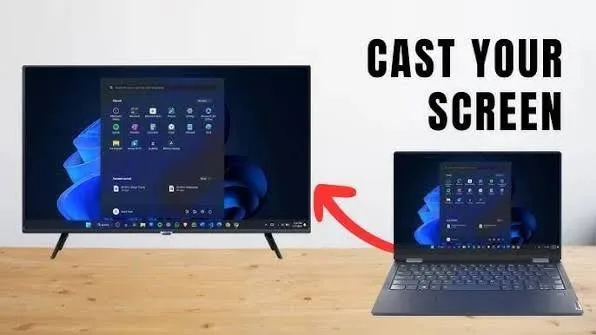
A laptop does not have to limit you to its built-in screen. You can connect it to a TV or external monitor when you need a larger display for work, entertainment, presentations, or multitasking.
The connection method depends on the ports available on your laptop and the display. Fortunately, most modern laptops support at least one convenient way to connect to another screen.

Why Connect a Laptop to a Larger Screen?
A larger display can make many tasks more comfortable. Students can use a TV for presentations, while professionals can create a larger workspace with an external monitor.
It can also help when you want to watch videos, view photographs, or share your laptop screen with other people.
Method 1: Use an HDMI Cable
HDMI remains one of the easiest ways to connect a laptop to a TV or monitor.
Connect one end of the HDMI cable to the laptop and the other end to an available HDMI input on the display. Next, select the correct HDMI input on the TV or monitor.
Windows should normally detect the external display automatically.
Method 2: Use USB-C
Some newer laptops can send video through a USB-C port. However, not every USB-C port supports video output.
Check the laptop’s specifications before purchasing a USB-C display cable or adapter. The port may need to support DisplayPort Alt Mode or another compatible display technology.
Method 3: Connect Wirelessly
Some Windows laptops and compatible TVs support wireless display connections. This option removes the need for a physical video cable.
Wireless display can be convenient, although performance may depend on the devices and network environment.
How to Choose the Right Connection
| Connection | Best Use |
|---|---|
| HDMI | TVs, monitors and presentations |
| USB-C | Modern monitors and docking stations |
| DisplayPort | High-resolution computer monitors |
| Wireless Display | Convenient screen sharing |
How to Change Display Mode in Windows
After connecting the second screen, press Windows + P.
Windows provides several display options, including extending the desktop, duplicating the screen, showing the display on one screen, or using the second screen only.
Duplicate vs Extend: What Is the Difference?
Duplicate shows the same content on both screens. This option works well for presentations or when several people need to see the same screen.
Extend turns the second display into additional workspace. You can move windows between the laptop and external monitor.
What If the TV Shows No Signal?
First, check that the cable is connected properly. Then confirm that the TV is using the correct HDMI input.
If the problem continues, press Windows + P and select a suitable display mode. You can also restart the laptop while keeping the display connected.
Can You Close the Laptop Lid?
Yes, Windows can allow an external monitor to remain active when you close the laptop lid. You can configure this through the laptop’s power settings.
However, make sure the laptop has adequate ventilation. Do not place it somewhere that blocks its cooling system.
Tips for Nigerian Laptop Users
- Use a good-quality HDMI cable.
- Check your laptop ports before buying an adapter.
- Confirm the monitor’s supported resolution.
- Use a surge protector when connecting equipment to unstable mains power.
- Keep important files backed up before major hardware changes.
Related PSERO Guides
- What Screen Size Is Best for You?
- How to Verify Laptop Specifications Before Paying
- How to Test a Used Laptop Before Buying
- Best Laptop Accessories Under ₦10,000
- How to Choose the Right Laptop for Your Budget
Shop Laptops at PSERO
Useful Official Resources
For more information about connecting displays in Windows, visit Microsoft Support. You can also check the available ports and display capabilities on the official websites of HP, Dell, and Lenovo.
Final Verdict
Connecting your laptop to a TV or external monitor is usually straightforward. HDMI offers one of the simplest solutions, while USB-C and wireless display provide additional options on compatible devices.
Before buying a cable or adapter, check the ports on both devices. That small step can help you avoid buying an incompatible accessory and make your setup much easier.